Die vorliegende Übersetzung wurde maschinell erstellt. Im Falle eines Konflikts oder eines Widerspruchs zwischen dieser übersetzten Fassung und der englischen Fassung (einschließlich infolge von Verzögerungen bei der Übersetzung) ist die englische Fassung maßgeblich.
Amazon Nova Sonic konfigurieren Speech-to-Speech
Sie können Amazon Nova Sonic als Speech-to-Speech (S2S) -Modell für ein Conversational AI-Bot-Gebietsschema in Amazon Connect konfigurieren. Damit Speech-to-Speech wandelt der Bot mithilfe von Nova Sonic Kundensprache direkt in natürliche, ausdrucksstarke Sprachantworten um. Amazon Connect verwaltet weiterhin Orchestrierung, Absichten und Abläufe.
Teil 1: Konfiguration Speech-to-Speech für ein Bot-Gebietsschema
Voraussetzungen
-
Amazon Connect Customer ist für Ihre Instance aktiviert.
-
In Amazon Connect gibt es einen Conversational AI-Bot.
-
Das Gebietsschema, das Sie mit Nova Sonic verwenden möchten, ist bereits erstellt.
-
Sie sind berechtigt, die Bot-Konfiguration zu bearbeiten und die Sprache zu erstellen.
Schritt 1: Öffnen Sie die Konfiguration des Sprachmodells
-
Melden Sie sich auf der Amazon Connect Connect-Admin-Website an.
-
Wählen Sie im Navigationsbereich Conversational AI und dann Bots aus.
-
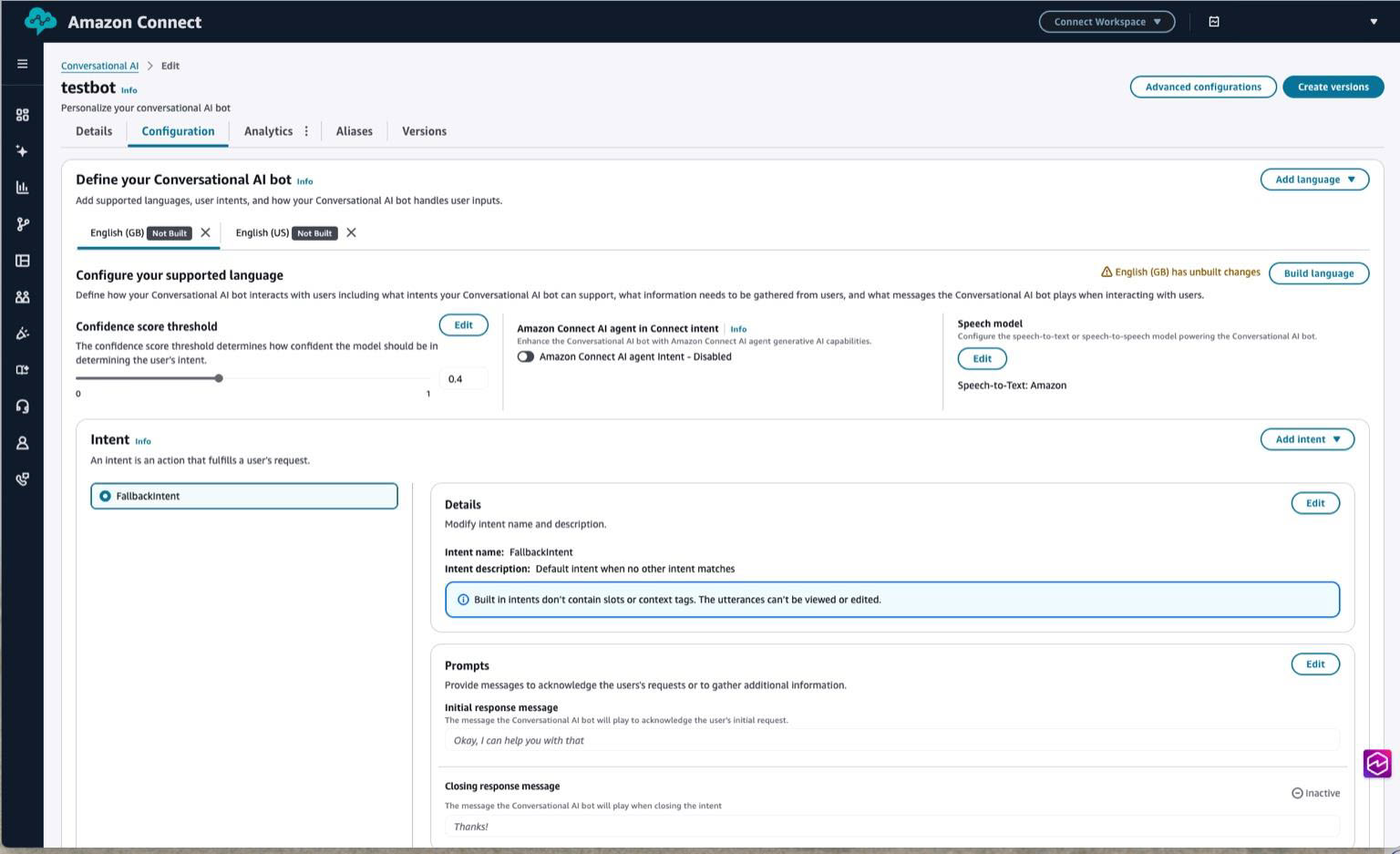
Wählen Sie den Bot aus, den Sie konfigurieren möchten, und wählen Sie dann die Registerkarte Konfiguration.
-
Wählen Sie das Gebietsschema aus, das Sie konfigurieren möchten.
-
Wählen Sie im Abschnitt Sprachmodell die Option Bearbeiten aus.
Schritt 2: Wählen Speech-to-Speech
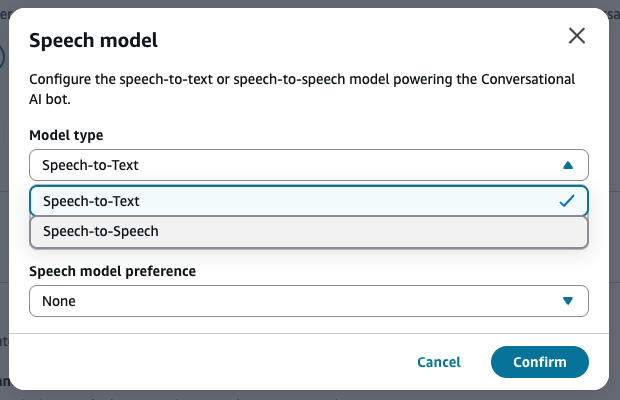
Öffnen Sie im Speech-Modell-Modal das Drop-down-Menü Modelltyp und wählen Sie Speech-to-Speech.
Schritt 3: Wählen Sie Amazon Nova Sonic
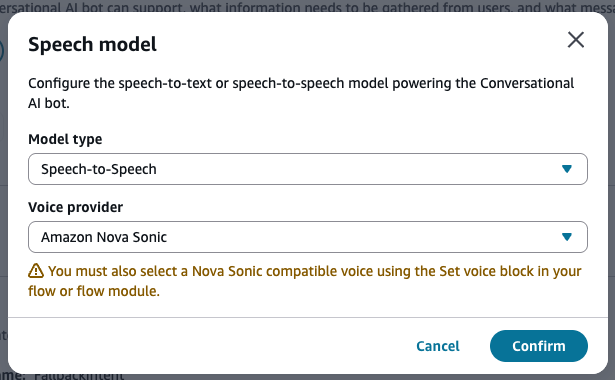
Öffnen Sie nach der Auswahl Speech-to-Speech den Sprachanbieter und wählen Sie Amazon Nova Sonic aus. Wählen Sie dann Confirm (Bestätigen) aus.
Schritt 4: Überprüfen Sie den Status des Sprachmodells
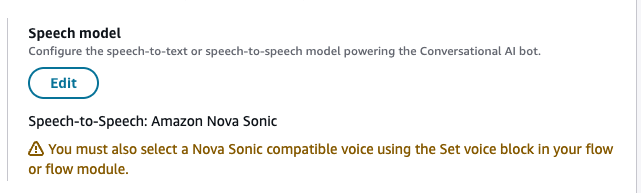
Auf der Karte mit dem Sprachmodell wird jetzt Speech-to-Speech Folgendes angezeigt: Amazon Nova Sonic und es wird eine Warnung angezeigt, dass Sie in Ihrem Sprachblock Set eine Nova Sonic-kompatible Stimme auswählen müssen.
Schritt 5: Erstellen und aktivieren Sie das Gebietsschema
Wenn das Gebietsschema Unbuilt changes anzeigt, wählen Sie Build language aus. Die neuen STT-Einstellungen werden nach einem erfolgreichen Build aktiv.
Teil 2: Konfigurieren Sie eine Nova Sonic-kompatible Stimme in einem Flow
Nachdem du Nova Sonic auf Bot-Ebene aktiviert hast, musst du mit dem Block „Stimme festlegen“ eine passende, mit Nova Sonic kompatible ausdrucksstarke Stimme in deinem Flow konfigurieren.
Unterstützte Nova Sonic Voices (Launch Set)
-
Matthew (en-US, männlich)
-
Amy (en-GB, weiblich)
-
Olivia (de-AU, weiblich)
-
Lupe (es-US, weiblich)
Schritt 1: Fügen Sie einen Set-Sprachblock hinzu oder öffnen Sie ihn
-
Öffnen Sie den Zielflow im Flow-Designer.
-
Suchen Sie in der Blockbibliothek nach Set voice.
-
Ziehen Sie einen Block Set Voice auf die Leinwand oder öffnen Sie einen vorhandenen Block.
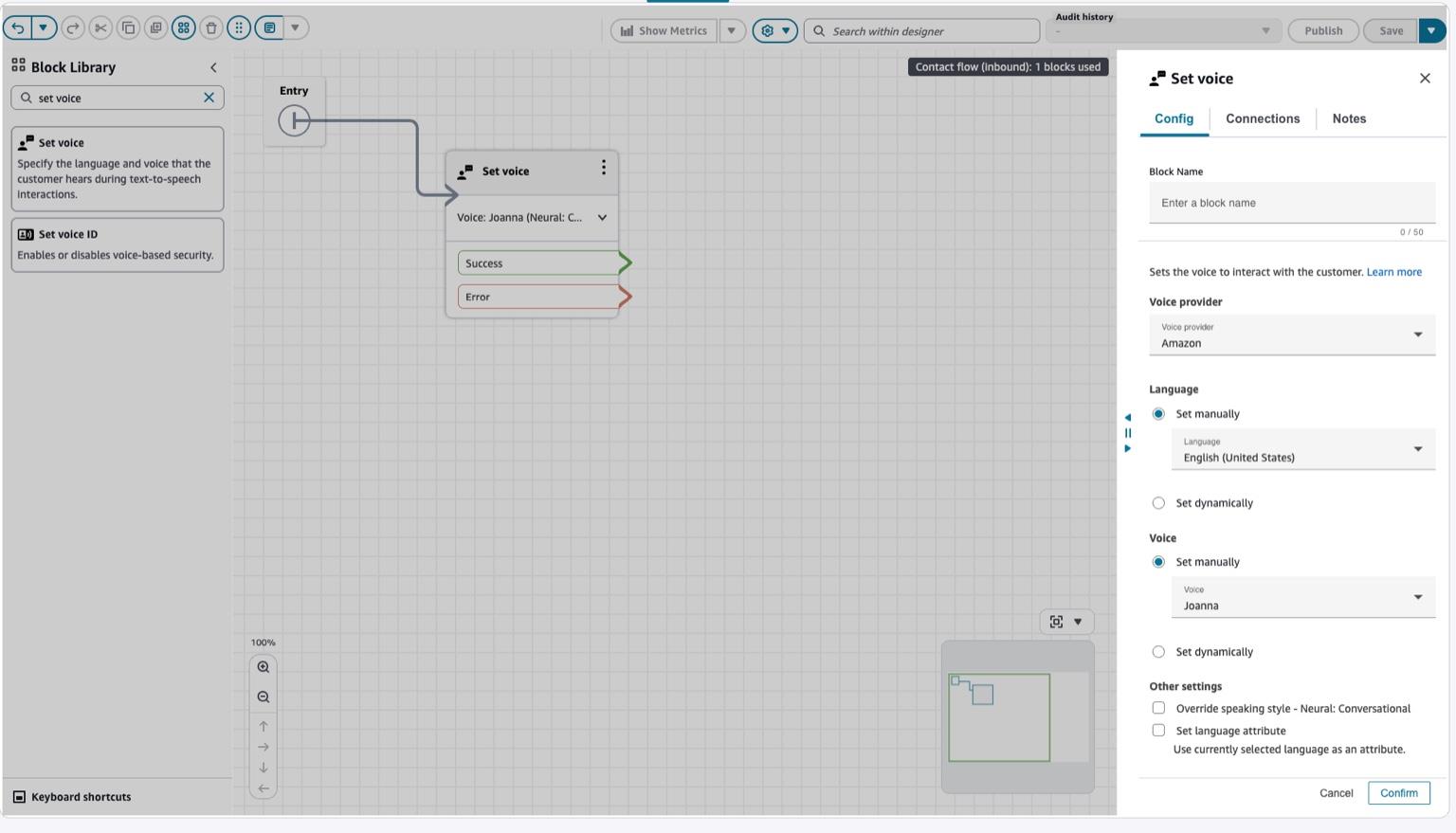
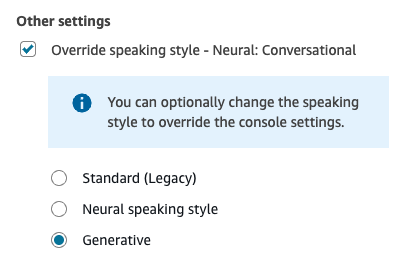
Schritt 2: Wählen Sie Override und Generative Speaking Style
Wählen Sie unter „Andere Einstellungen“ die Option „Sprachstil überschreiben“ und anschließend „Generativ“, um die ausdrucksstarke Nova Sonic-Ausgabe zu aktivieren.
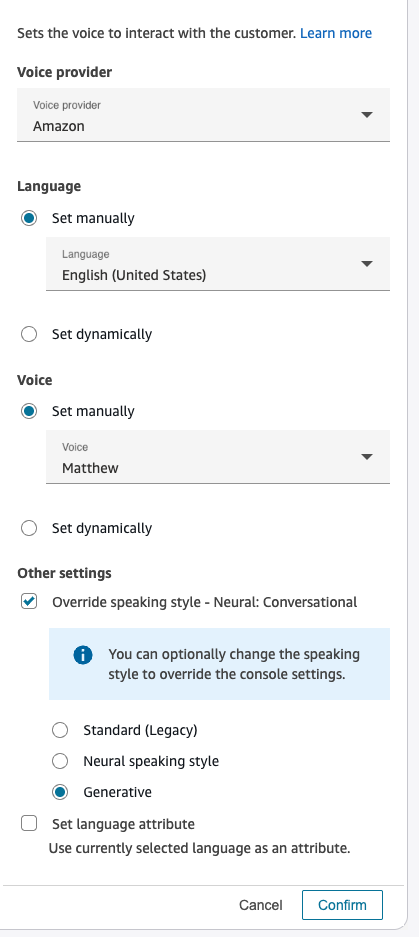
Schritt 3: Wählen Sie eine Nova Sonic-kompatible Stimme
-
Stellen Sie den Sprachanbieter auf Amazon ein.
-
Wählen Sie unter Sprache das Gebietsschema aus, das der gewünschten Stimme entspricht.
-
Wählen Sie unter Voice eine der Nova Sonic-kompatiblen Stimmen aus.
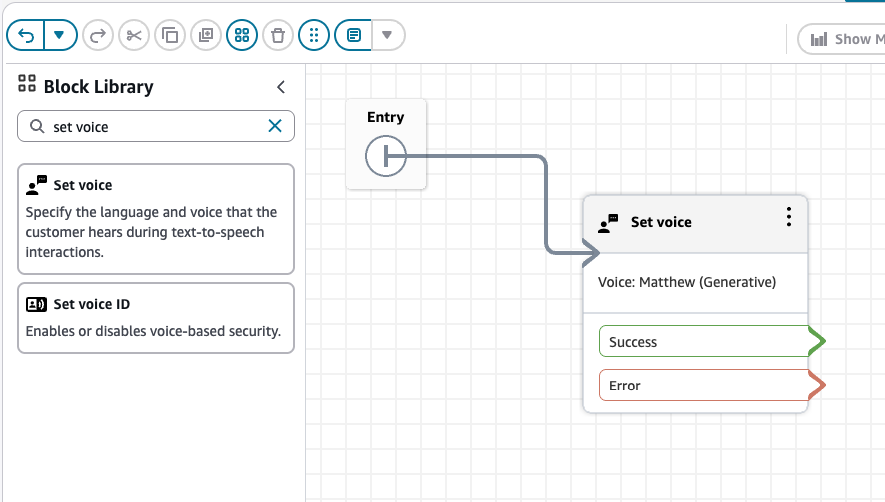
Schritt 4: Überprüfe die gewählte Stimme
Im Block „Stimme festlegen“ werden jetzt die gewählte Stimme und der gewählte Stil angezeigt, z. B. Stimme: Matthew (Generativ).
Schritt 5: Speichern und veröffentlichen Sie den Flow
Wählen Sie Speichern und dann Veröffentlichen, um die Konfiguration zu aktivieren.
