As traduções são geradas por tradução automática. Em caso de conflito entre o conteúdo da tradução e da versão original em inglês, a versão em inglês prevalecerá.
Resposta autônoma a incidentes
Iniciando investigações
As investigações de resposta a incidentes podem ser iniciadas de três maneiras.
Built-in integrações - Você pode conectar um DevOps Agent Space a sistemas de emissão de tíquetes, ServiceNow usando integrações integradas. Depois de conectadas, as investigações de resposta a incidentes do DevOps agente serão acionadas automaticamente a partir dos tíquetes de suporte, e seu DevOps agente fornecerá atualizações das principais descobertas, análises da causa raiz e planos de mitigação no ticket de origem.
Webhooks - Você pode usar webhooks para enviar eventos ao Agente. AWS DevOps Por exemplo, você pode usar webhooks para acionar investigações de resposta a incidentes a partir de PagerDuty tickets ou alarmes da Grafana.
Manualmente - Você pode iniciar manualmente as investigações de resposta a incidentes na guia Resposta a incidentes de qualquer aplicativo web do DevOps Agent Space. Você pode inserir um texto de formato livre que descreva o incidente que você deseja que seu DevOps agente investigue, e ele criará um plano de investigação, coletará descobertas, determinará a causa raiz e oferecerá a geração de um plano de mitigação. Você também pode escolher entre vários pontos de partida pré-configurados para iniciar rapidamente sua investigação: alarme mais recente para investigar o alarme acionado mais recente e analisar as métricas e registros subjacentes para determinar a causa raiz, Alto uso da CPU para investigar métricas de alta utilização da CPU em seus recursos computacionais e identificar quais processos ou serviços estão consumindo recursos excessivos ou pico na taxa de erro para investigar o aumento recente nas taxas de erro do aplicativo analisando métricas, registros de aplicativos e identificando a origem das falhas.
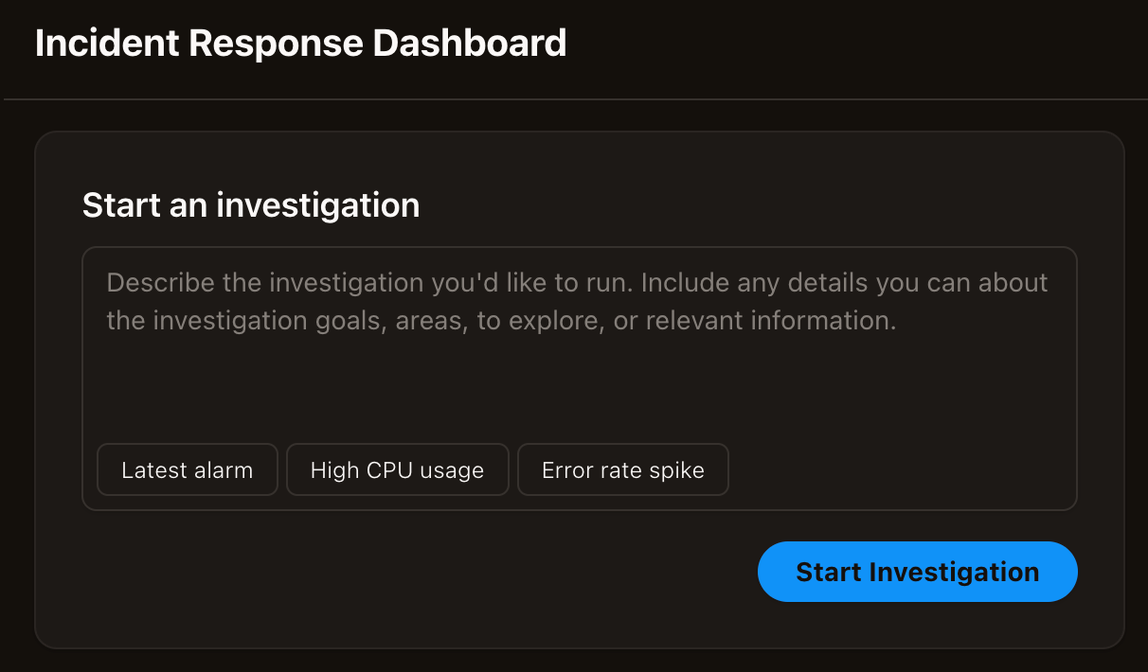
Depois de clicar em “Iniciar investigação”, você deverá fornecer alguns detalhes adicionais para ajudar o agente a concentrar seu trabalho. A caixa de diálogo de investigação inclui os seguintes campos:
Detalhes da investigação — Pre-filled com sua descrição. Você pode editar isso para refinar o escopo da investigação.
Ponto de partida da investigação — opcionalmente, descreva um alarme, métrica, trecho de registro ou outro ponto de partida específico para o agente.
Data e hora do incidente — Auto-filled com a hora atual no formato UTC. Ajuste se o incidente ocorreu mais cedo.
Dê um nome à sua investigação — Auto-generated com um registro de data e hora. Você pode personalizar isso (máximo de 400 caracteres).
Prioridade — Selecione a prioridade da investigação na lista suspensa (Média é o padrão).
Revise e ajuste esses campos conforme necessário e clique em “Começar a investigar...” para começar. Em seguida, você será direcionado para a página de detalhes da investigação, onde poderá ver seu DevOps agente em ação!
Triagem de incidentes
A fase de triagem é a primeira etapa do sistema de resposta a incidentes do AWS DevOps agente. Quando um evento externo é acionado, como um alarme do Datadog, um ticket de incidente ou um problema do Dynatrace ServiceNow, o AWS DevOps Agent o processa automaticamente em segundos para determinar se ele deve ser investigado de forma independente ou vinculado a uma investigação existente.
A função principal do estágio de triagem é a correlação de incidentes — identificar incidentes relacionados e consolidá-los em uma única investigação para evitar trabalho duplicado e desperdício de recursos. Quando chega um novo incidente, o AWS DevOps agente o analisa junto com as investigações ativas em uma janela retrospectiva (normalmente 20 minutos). Usando a AI-powered análise, ele examina fatores como semelhanças de componentes, região geográfica e padrões de tempo para determinar as relações entre incidentes.
AWS DevOps O agente toma uma das três decisões:
Vinculado — Correlaciona o incidente a uma investigação existente e envia uma mensagem orientadora para essa investigação com o contexto do novo incidente.
Ignorado — O incidente corresponde aos critérios de ignorar definidos em uma habilidade e é automaticamente descartado sem investigação. Para obter mais informações, consulte DevOps Habilidades do agente.
Prosseguir — Agenda uma nova investigação independente para o incidente.
Visualizando decisões de triagem
Quando os incidentes são vinculados, a investigação primária recebe uma mensagem de orientação contendo os detalhes do incidente vinculado e o raciocínio da correlação. Em seu aplicativo web do AWS DevOps Agent Space, você verá o status de VINCULADO junto com o raciocínio de correlação explicando por que os incidentes foram vinculados. A investigação primária exibe uma lista de todos os incidentes vinculados, permitindo que você veja o escopo completo dos problemas relacionados que estão sendo investigados em conjunto. Seu sistema externo de tickets (ServiceNow, PagerDuty, etc.) e seu canal de comunicação (Slack) receberão uma notificação de que o incidente foi vinculado ao raciocínio da correlação.
Quando os incidentes são ignorados, o aplicativo web AWS DevOps Agent Space exibe o status IGNORADO junto com o motivo que explica por que o incidente foi filtrado. Seu sistema de tickets externo e seu canal de comunicação também recebem uma notificação de que o incidente foi ignorado junto com o motivo do cancelamento.
Corrigindo decisões de triagem
Se o AWS DevOps Agent vincular incorretamente um incidente, você poderá desvinculá-lo manualmente por meio do aplicativo web AWS DevOps Agent Space. Isso reprograma o incidente não vinculado como uma investigação independente. Você também pode fornecer regras de correlação personalizadas criando uma habilidade de AWS DevOps agente contendo sua lógica de correlação e associando-a ao estágio de triagem.
Se o AWS DevOps Agent ignorar incorretamente um incidente, você poderá cancelá-lo manualmente por meio do aplicativo web AWS DevOps Agent Space. Isso reprograma o incidente para investigação. Para ajustar quais incidentes são ignorados, modifique ou desative a habilidade que define os critérios de ignorar.
Peça apoio humano
AWS DevOps O agente pode se conectar diretamente ao AWS Support para agilizar seu processo de resposta a incidentes. Quando precisar de ajuda adicional do AWS Support, a partir do seu aplicativo web DevOps Agent Space, você pode criar casos de suporte que compartilham automaticamente o contexto da investigação com os engenheiros do AWS Support, reduzindo o tempo necessário para explicar seu problema.
Como funciona
Ao investigar um incidente, o AWS DevOps Agent cria um registro abrangente de sua análise, incluindo:
Descobertas da investigação da causa raiz
Métricas, registros e traços analisados
Alterações de código e histórico de implantação revisados
Ações de remediação recomendadas
Cronograma de eventos e comportamento do sistema
Você pode encaminhar sua investigação para o AWS Support diretamente do aplicativo web AWS DevOps Agent Space. Ao fazer isso, o AWS DevOps Agent passa automaticamente seu registro de investigação para o AWS Support, fornecendo ao engenheiro de suporte um contexto completo sobre sua investigação, sem exigir que você reúna e explique manualmente os detalhes.
Conversando com AWS Suporte
Depois de criar um caso de suporte, você pode se comunicar com o AWS Support em uma janela de bate-papo separada no seu aplicativo web AWS DevOps Agent Space. Isso permite a você:
Discuta seu problema com os engenheiros do AWS Support junto com o cronograma de investigação do seu AWS DevOps agente
Veja a análise automatizada do AWS DevOps agente e a orientação especializada do AWS suporte na mesma interface
Compartilhe facilmente informações ou esclarecimentos adicionais conforme necessário
A experiência de bate-papo mantém a investigação do AWS DevOps agente e a conversa com o AWS Support prontamente acessíveis, permitindo colaboração e resolução mais rápidas.
Idioma do caso de suporte
Quando você cria um caso de suporte por meio do AWS DevOps Agent, o caso é criado automaticamente no idioma configurado na configuração de idioma de resposta do agente do Agent Space. Isso garante que seu caso de suporte seja encaminhado para um engenheiro de suporte que fale seu idioma preferido.
Por exemplo, se o idioma do seu Agent Space estiver definido como japonês, seu caso de suporte será encaminhado para um engenheiro de Japanese-speaking suporte. Se nenhum idioma estiver configurado ou se o idioma configurado não for suportado pelo AWS Support para a categoria de caso selecionada, o padrão do caso será inglês.
AWS Atualmente, o Support suporta os seguintes idiomas para roteamento de casos: chinês, inglês, francês, japonês, coreano, português e espanhol. Para alterar o idioma usado nos casos de suporte, atualize a configuração do idioma de resposta do agente na sua configuração do Espaço do agente. Para obter mais informações, consulte Criação de um espaço de agente.
Requisitos do plano de suporte
Sua capacidade de criar e interagir com casos de suporte por meio do AWS DevOps Agent depende do seu plano de AWS Support. Consulte o guia do usuário do Support Plans para saber mais sobre seus direitos.
Observação Os clientes do Suporte Básico não podem criar casos de suporte técnico e, portanto, não podem encaminhar as investigações do AWS DevOps Agente para AWS o Support. Os clientes do Suporte ao Desenvolvedor podem criar casos por meio do AWS DevOps Agent, mas devem visitar a AWS Central
Com quais informações são compartilhadas AWS Suporte
Quando você cria um caso de suporte a partir do aplicativo web AWS DevOps Agent Space, as seguintes informações são compartilhadas automaticamente com o AWS Support:
Cronograma da investigação: Registro cronológico da análise do agente AWS DevOps
Informações sobre o recurso: AWS Recursos afetados
Dados de observabilidade: métricas, registros e traços relevantes de suas ferramentas de monitoramento integradas
Mudanças recentes: implantações de código, mudanças na infraestrutura e atualizações de configuração
Tentativas de remediação: Ações recomendadas pelo AWS DevOps Agente
Avaliação de impacto: escopo e gravidade do incidente
Todos os dados compartilhados com o AWS Support seguem suas configurações existentes de residência e segurança de AWS dados. AWS DevOps O agente compartilha somente informações relacionadas à sua investigação específica e respeita as políticas de governança de dados da sua organização.
Introdução
Para usar a integração do AWS DevOps Agent's AWS Support:
Certifique-se de ter um plano de AWS Support ativo.
Verifique se as permissões do IAM do seu AWS DevOps agente incluem a criação de casos de suporte (support:CreateCase, support:DescribeCases).
Quando o AWS DevOps Agente estiver investigando um problema e você precisar de assistência do AWS Support, escolha Solicitar suporte humano no seu aplicativo web do DevOps Agent Space.
Analise o resumo da investigação que será compartilhado com o AWS Support.
Selecione a gravidade apropriada do caso com base nos direitos do seu plano de suporte.
Envie o caso - O AWS DevOps agente inclui automaticamente seu registro de investigação.
A janela de bate-papo é aberta automaticamente, permitindo que você comece a colaborar com o AWS Support imediatamente.
