기계 번역으로 제공되는 번역입니다. 제공된 번역과 원본 영어의 내용이 상충하는 경우에는 영어 버전이 우선합니다.
고객 연결의 흐름 블록: 레코딩, 분석 및 처리 동작 설정
이 주제에서는 에이전트 및 고객에 대한 레코딩 동작을 구성하고, 자동 상호 작용을 활성화하고, 화면 레코딩을 활성화하고, 고객 응대에 대한 분석 동작을 설정하고, 사용자 지정 처리 동작을 설정하는 옵션을 설정하는 흐름 블록을 정의합니다.
설명
이 블록의 일부로 지원되는 두 가지 작업이 있습니다.
-
메시지 프로세서 설정* - 이를 통해 고객은 자체 lambda 프로세서를 구성할 수 있으며, 이는 진행 중인 메시지에 적용됩니다.
-
녹음 및 분석 동작 설정 - 이를 통해 고객은 화면 녹화 동작과 함께 음성, 채팅 및 이메일 연락처에 대한 녹음 및 분석 동작을 구성할 수 있습니다.
*PDT에서 사용할 수 없음
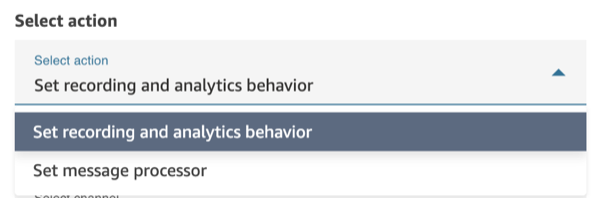
위 스크린샷은 블록의 "작업 선택" 드롭다운에 있는 두 작업을 보여줍니다.
작업을 선택한 후 해당 설정을 구성할 채널을 선택할 수 있습니다. 다음은 각 작업에 지원되는 채널입니다.
채팅이 지원되나요? |
이메일이 지원되나요? |
작업이 지원되나요? |
음성 지원 여부 |
|
|---|---|---|---|---|
메시지 처리 설정 |
예 |
아니요 |
아니요 |
아니요 |
레코딩 및 분석 동작 설정 |
예 |
예 |
예(스크린 레코딩 동작에만 해당) |
예 |
참고
레코딩 및 분석 동작 설정 작업에 대한 이메일 채널 옵션은 인스턴스에 이메일에 대한 대화형 분석이 활성화된 경우에만 나타납니다. 인스턴스에이 기능이 없는 경우 채널 드롭다운에 이메일이 포함되지 않습니다. 가용성은 인스턴스 및 리전에 따라 다를 수 있습니다.
흐름 유형
이 블록은 여정 흐름을 제외한 모든 흐름 유형에 대해 지원됩니다.
작은 정보
가장 정확한 동작을 위해 인바운드 또는 아웃바운드 귓속말 흐름에서이 블록의 기록 설정 부분을 사용하는 것이 좋습니다.
다른 흐름 유형에서이 블록을 사용한다고 해서 항상 호출이 기록되는 것은 아닙니다. 이는 고객 응대가 에이전트에 조인된 후 블록이 실행될 수 있기 때문입니다.
이 블록을 구성하는 방법
Connect Customer 관리자 웹 사이트를 사용하여 기록, 분석 및 처리 동작 설정 블록을 구성할 수 있습니다. 이 가이드에서는이 블록의 각 작업을 구성하는 방법을 안내합니다.
메시지 처리 설정
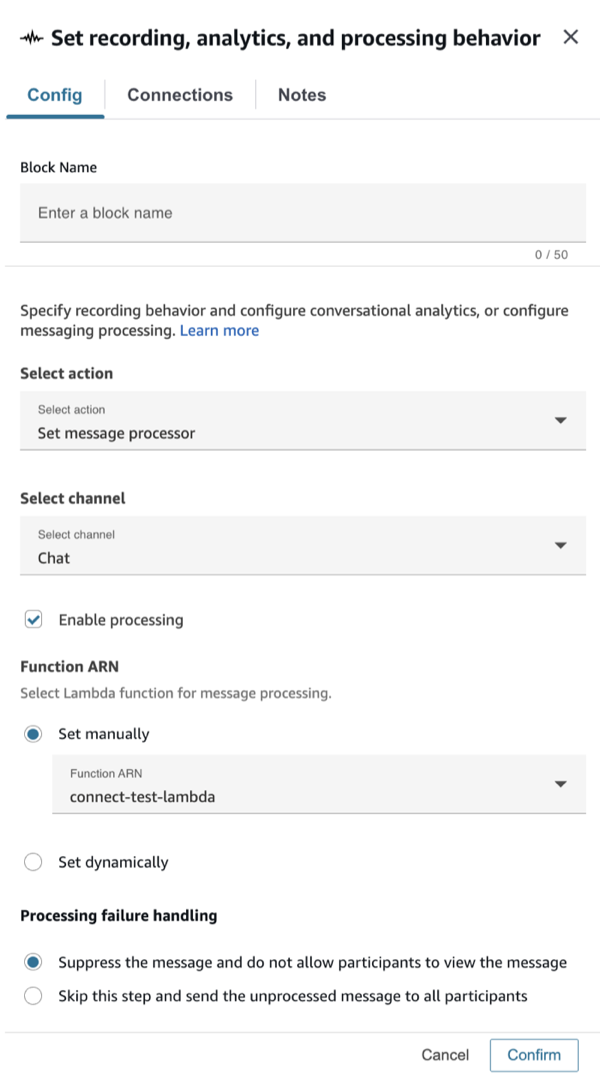
다음 이미지는 블록의 메시지 프로세서 설정 작업 세트를 보여줍니다. 이 작업은 현재 다음 드롭다운에서 선택된 채팅 채널 유형만 지원합니다. 드롭다운 뒤에는 사용자 지정 Lambda 프로세서를 구성하기 위한 여러 설정이 옵니다.
-
처리 활성화 - 채팅 메시지 처리를 시작할지 또는 중지할지를 제어합니다.
-
함수 ARN - 메시지 처리를 수행할 Lambda 함수를 정의합니다. 이 함수는 사용자 지정 메시지 처리와 통합되어야 합니다. MESSAGE_PROCESSOR IntegrationType을 사용하여 CreateIntegrationAssociation 퍼블릭 API를 통해이 작업을 수행할 수 있습니다. 자세한 내용은 고객 연결 API 참조의 CreateIntegrationAssociation을 참조하세요.
-
처리 실패 처리 - 처리가 실패할 경우 처리되지 않은 원본 메시지를 전송할지 여부를 선택합니다.
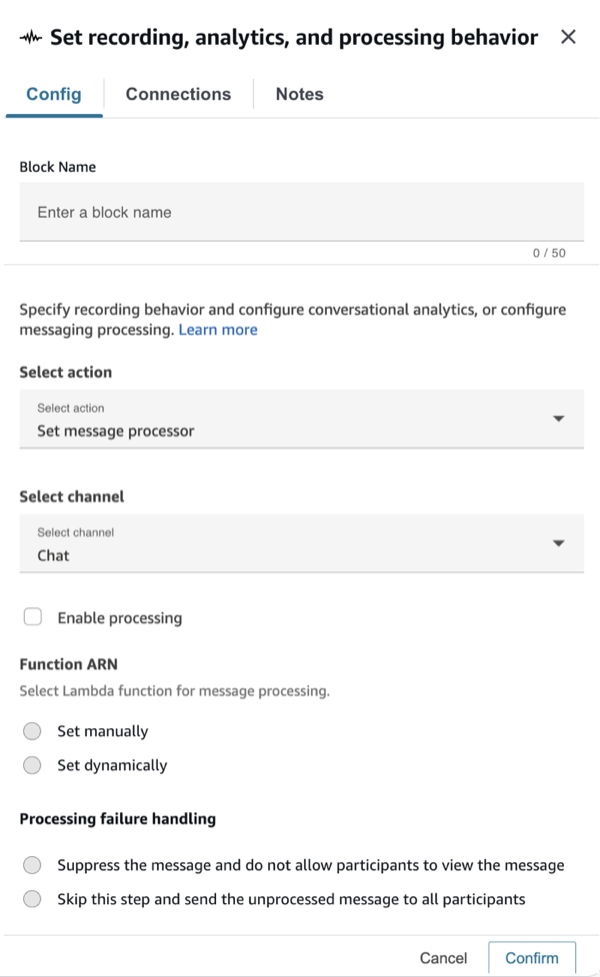
아래 스크린샷은 처리가 비활성화된 경우의 블록 설정을 보여줍니다.
레코딩 및 분석 동작 설정
다음 가이드에서는 블록의 기록 및 분석 설정 작업에 대해 설명합니다. 블록의이 부분에는 여러 구성이 있습니다.
-
통화 내용 중 에이전트, 고객 또는 둘 다의 어느 부분을 녹음할지 구성합니다. 추가 요금은 없습니다.
-
자동 상호 작용 통화 녹음을 활성화하여 고객이 IVR 또는 대화형 AI 봇과 상호 작용하는 방식을 들을 수 있습니다. 추가 요금은 없습니다.
-
에이전트 화면 녹화 활성화에 설명된 대로 에이전트 화면 녹화가 설정된 경우 에이전트의 화면 녹화를 활성화할 수 있습니다. 요금에 대한 자세한 내용은 Amazon Connect 요금
을 참조하세요. -
음성, 채팅 및 이메일 연락처에 대한 대화 분석 설정을 구성할 수 있습니다. 요금에 대한 자세한 내용은 Amazon Connect 요금
을 참조하세요. 여기에는 다음이 포함됩니다. -
고객과 에이전트가 상호 작용할 언어입니다(음성-텍스트 트랜스크립트 생성을 개선하기 위해).
-
민감한 데이터 수정.
-
추가 생성형 AI 기능.
-
이 작업을 통해 고객 응대에 대한 대화 분석이 가능합니다. 자세한 내용은 대화형 분석을 사용하여 대화 분석 단원을 참조하십시오. 이 작업은 현재 채팅, 이메일, 음성 및 작업 미디어 채널 유형을 지원합니다. 그러나 작업의 경우 화면 레코딩 동작만 구성할 수 있습니다. 따라서이 작업의 채널 드롭다운에 다음 옵션이 표시됩니다.

참고
화면 레코딩과 채널 레코딩 또는 분석을 모두 구성하려면 두 개의 개별 레코딩, 분석 및 처리 동작 블록을 순서대로 설정합니다. 하나는 화면 레코딩용이고 다른 하나는 오디오 레코딩용입니다. 예상치 못한 동작을 방지하려면 각 블록을 하나의 레코딩 유형에 대해서만 구성해야 합니다.
각 채널의 구성이 어떻게 보이는지 살펴보겠습니다.
Chat
다음 이미지와 같이 채팅 설정은 대화 분석 활성화 및 구성의 두 섹션으로 나뉩니다.
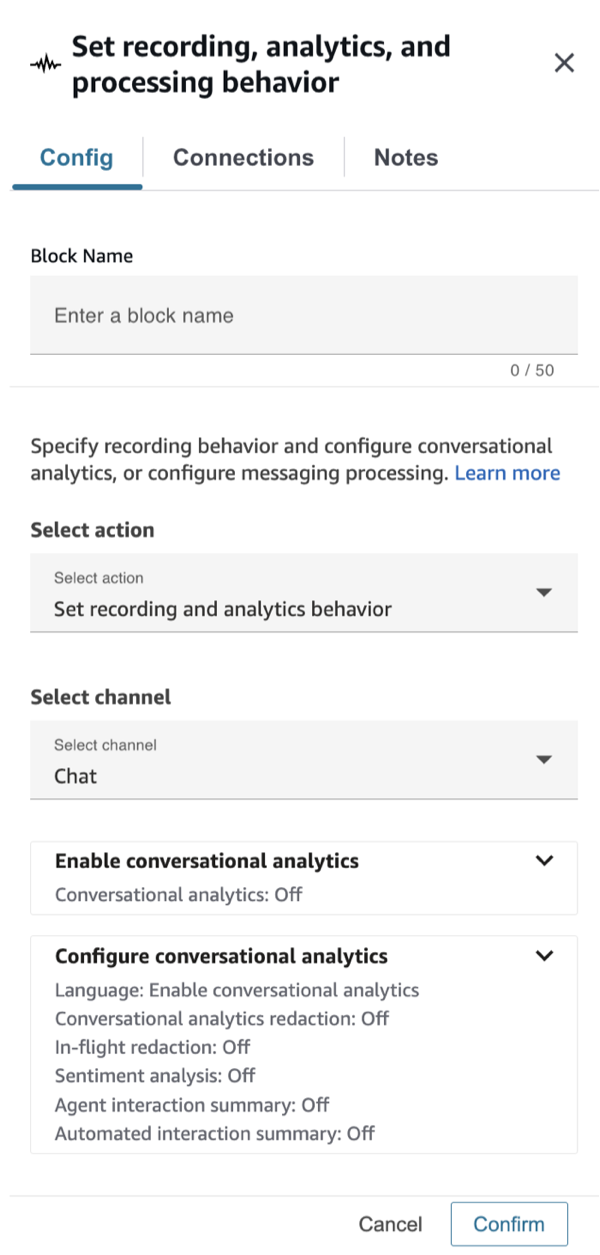
대화형 분석이 활성화되면 언어, 수정 및 AI 기능(감정 분석, 상호 작용 요약)과 같은 설정을 구성할 수 있습니다.
-
언어: 고객의 언어에 따라 출력 파일 편집을 동적으로 활성화할 수 있습니다. 지침은 고객의 언어에 따라 동적으로 수정 활성화를 참조하세요.
-
대화 분석 수정: 민감한 데이터를 수정할지 여부를 선택합니다. 자세한 내용은 민감한 데이터 수정 활성화를 참조하세요.
-
진행 중인 수정: 진행 중인 메시지에서 민감한 데이터를 수정할지 여부를 선택합니다. 자세한 내용은 진행 중인 민감한 데이터 편집 및 메시지 처리 활성화를 참조하세요.
-
감정: 감정 분석을 활성화할지 여부를 선택합니다.
-
생성형 AI 기능: 자세한 내용은 생성형 AI 기반 고객 응대 후 요약 보기를 참조하세요.
이메일
다음 이미지와 같이 이메일 채널을 선택하면 이메일 연락처에 대한 대화 분석을 활성화하고 구성할 수 있습니다. 이메일 고객 응대는 비동기식이므로 음성 및 채팅에 사용되는 실시간 및 고객 응대 후 모델을 따르는 대신 이메일 고객 응대가 수신될 때 분석이 시작됩니다.
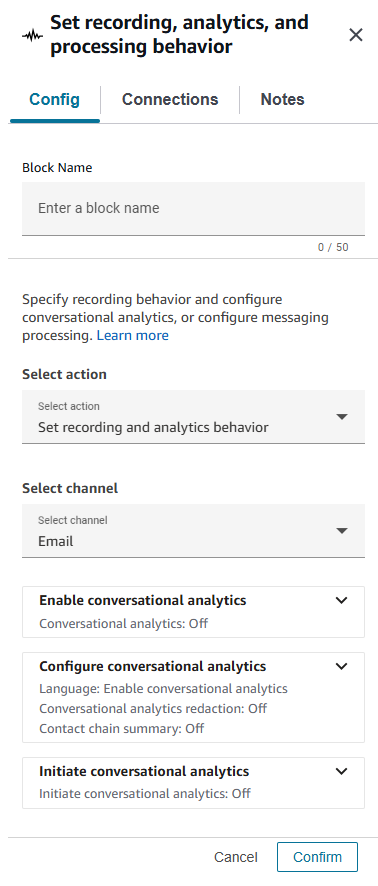
이메일 분석 설정에는 다음이 포함됩니다.
-
언어: 이메일 콘텐츠의 언어를 선택합니다. 고객 응대 속성을 사용하여 언어를 동적으로 설정할 수 있습니다. 지침은 고객의 언어에 따라 동적으로 수정 활성화를 참조하세요.
-
대화 분석 수정: 이메일 트랜스크립트에서 이름, 주소, 신용 카드 정보와 같은 민감한 데이터를 수정할지 여부를 선택합니다. 자세한 내용은 민감한 데이터 수정 활성화를 참조하세요.
-
생성형 AI 기능: 이메일 연락처에 대한 연락처 요약을 활성화합니다. 자세한 내용은 View generative AI-powered post-contact summaries를 참조하세요.
참고
현재 이메일 연락처에는 감정 분석을 사용할 수 없습니다.
Voice
다음 이미지와 같이 음성 설정은 녹음 활성화, 대화 분석 활성화 및 구성의 세 섹션으로 나뉩니다.

레코딩 설정:
-
에이전트 및 고객 음성 녹음: 녹음할 사용자를 선택합니다.
-
음성 분석: 에이전트 및 고객 녹음에 음성 분석을 사용할지 여부를 선택합니다.
-
자동 상호 작용 통화 녹음: 고객이 봇 및 기타 자동화와 상호 작용할 때 음성 녹음을 활성화할지 여부를 선택합니다.
구성:
-
언어: 고객의 언어에 따라 출력 파일 편집을 동적으로 활성화할 수 있습니다. 지침은 고객의 언어에 따라 동적으로 수정 활성화를 참조하세요.
-
대화 분석 수정: 민감한 데이터를 수정할지 여부를 선택합니다. 자세한 내용은 민감한 데이터 수정 활성화를 참조하세요.
-
감정: 감정 분석을 활성화할지 여부를 선택합니다.
-
생성형 AI 기능: 자세한 내용은 생성형 AI 기반 고객 응대 후 요약 보기를 참조하세요.
참고
연락처 세부 정보 페이지 및 고객 분석 대시보드 연결의 일부로 Lex 봇 트랜스크립트 및 분석을 포함하려면:
-
고객 연결 콘솔에서 인스턴스의 이름을 선택합니다. 지침은 Amazon Connect 인스턴스 이름 찾기를 참조하세요.
-
탐색 창에서 흐름을 선택한 다음 Amazon Connect에서 봇 분석 및 트랜스크립트 활성화를 선택합니다.
화면 녹화
미디어 채널은 아니지만 블록의 미디어 채널 드롭다운에서 찾을 수 있습니다. 에이전트 화면 기록을 활성화하거나 비활성화하도록 구성할 수 있습니다. 자세한 내용은 Amazon Connect Contact Lens에서 에이전트 화면 레코딩 설정 및 검토를 참조하세요.
구성 팁
참고
분석 섹션의 설정은 흐름의 각 후속 녹음 및 분석 동작 설정 블록에 의해 덮어쓰여집니다.
-
통화의 경우: 에이전트 및 고객 음성 녹음에서 음성 분석 활성화를 선택 취소하면 대화 분석이 비활성화됩니다.
예를 들어 흐름에 녹음, 분석 및 처리 동작 설정 블록이 두 개 있다고 가정해 보겠습니다.
-
첫 번째 블록은 선택한 에이전트 및 고객 음성 녹음에 대한 실시간 음성 분석을 활성화했습니다.
-
흐름 후반부에 있는 두 번째 블록에서는 해당 블록이 선택되지 않았습니다.
이 경우, 분석은 분석이 활성화된 동안에만 나타납니다.
또 다른 예: 흐름에 레코딩, 분석 및 처리 동작 설정 블록이 두 개 있다고 가정해 보겠습니다.
-
첫 번째 블록에서 에이전트 및 고객 음성 녹음에 대한 통화 후 음성 분석 활성화가 선택되었습니다.
-
흐름 후반부에 있는 두 번째 블록에서는 해당 블록이 선택되지 않았습니다.
이 경우 통화 종료 시 통화 후가 발생하고 최신 구성에 분석이 활성화되어 있지 않으므로 통화 후 분석을 사용할 수 없습니다.
-
-
자동 상호 작용 통화 레코딩의 경우: 켜짐으로 설정되는 즉시 레코딩이 시작됩니다. 흐름의 뒷부분에서 두 번째 블록에서 꺼짐으로 설정된 경우 레코딩이 일시 중지되고 나중에 켜서 레코딩을 재개할 수 있습니다.
참고
전화번호로 전송 블록을 사용하여 통화가 전송되면 녹음이 계속됩니다.
-
채팅: 실시간 채팅은 흐름의 블록에서 활성화 분석을 활성화하는 즉시 분석을 시작합니다. 흐름 후반부에 블록이 없으면 실시간 채팅 설정이 비활성화됩니다.
-
에이전트가 고객을 대기시킨 경우, 에이전트는 계속 레코딩이 되지만 고객은 레코딩이 되지 않습니다.
-
연락처를 다른 에이전트 또는 대기열로 전송하고 대화 분석을 계속 사용하여 데이터를 수집하려면 분석 활성화가 켜져 있는 다른 기록, 분석 및 처리 동작 설정 블록을 흐름에 추가해야 합니다. 이는 전송이 두 번째 고객 응대 ID와 고객 응대 레코드를 생성하기 때문입니다. 대화 분석은 해당 고객 응대 레코드에서도 실행해야 합니다.
-
대화 분석을 활성화할 때 블록이 있는 흐름 유형과 흐름에 배치되는 위치를 파악하여 에이전트가 주요 하이라이트 기록을 수신할지 여부와 수신 시기를 결정합니다.
블록이 주요 하이라이트에 대한 에이전트의 경험에 미치는 영향을 설명하는 자세한 내용과 예제 사용 사례는 주요 하이라이트에 대한 흐름 설계를 참조하세요.
구성된 블록
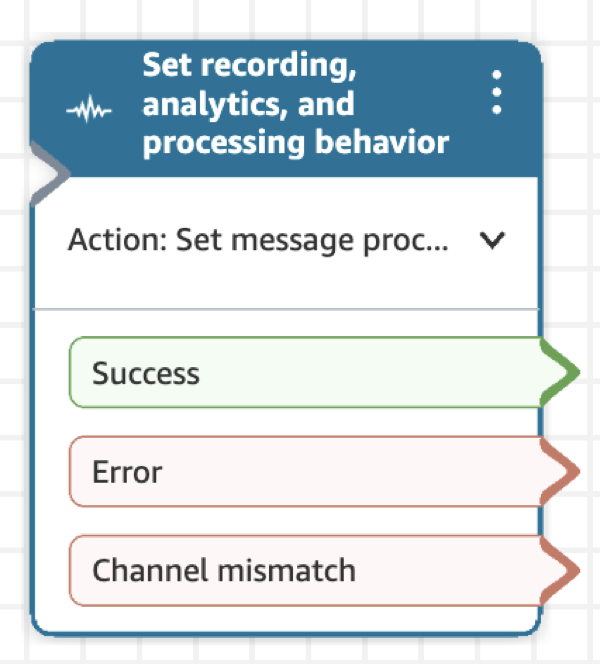
이 블록에는 성공, 오류 및 채널 불일치라는 세 가지 브랜치가 있습니다.
고객 응대를 시작하는 미디어 채널이 블록에서 선택한 미디어 채널과 동일하지 않은 경우 채널 불일치 브랜치가 생성됩니다. 화면 녹화의 경우 연락처가 음성 연락처가 아닐 때이 브랜치가 생성됩니다.

레코딩 및 분석 동작 설정이 작업으로 선택되고 채팅이 미디어 채널로 선택된 경우 진행 중 수정 구성 실패라는 추가 브랜치가 발생합니다. 이 브랜치는 진행 중인 수정이 중지되거나 시작되지 않지만 다른 모든 구성이 올바르게 업데이트되는 경우에 사용됩니다.
메시지 프로세서 설정 작업을 선택하면 블록에 성공, 오류 및 채널 불일치라는 세 가지 브랜치가 표시됩니다.