기계 번역으로 제공되는 번역입니다. 제공된 번역과 원본 영어의 내용이 상충하는 경우에는 영어 버전이 우선합니다.
Python에 대한 직접 코드 배포
직접 코드 배포를 사용하면 에이전트 코드와 해당 종속성을 .zip 파일 아카이브에 패키징하여 Python 기반 에이전트를 Amazon Bedrock AgentCore 런타임으로 가져올 수 있습니다. 에이전트는 여전히 AgentCore 런타임 요구 사항을 따라야 합니다. 에는 Amazon Bedrock AgentCore Python SDK의 @app.entrypoint 주석을 사용하거나 /invocations POST 및 /ping GET 서버 엔드포인트를 구현하는 진입점 .py 파일이 있습니다.
사전 조건
시작하기 전에 다음을 갖추었는지 확인하세요.
1단계: AgentCore CLI 설치
AgentCore CLI를 설치합니다.
npm install -g @aws/agentcore
2단계: 에이전트 프로젝트 생성
자습서를 위한 AgentCore 프로젝트 하나를 생성합니다.
agentcore create \
  --project-name DirectDeployProject \
  --name DirectDeployAgent \
  --language Python \
  --framework Strands \
  --model-provider Bedrock \
  --memory none \
  --build CodeZip
cd DirectDeployProject
이 명령은 다음을 생성합니다.
생성된 에는 AgentCore 및 Strands 종속성이 pyproject.toml 포함됩니다. Uv는 프로젝트 생성 중에 가상 환경 및 잠금 파일을 생성합니다.
선택적으로를 실행cd app/DirectDeployAgent && uv add aws-opentelemetry-distro && cd ../..하여 Amazon Bedrock AgentCore 관찰성 추적을 활성화합니다.
3단계: 로컬에서 테스트
시작하기 전에 포트 8080이 사용 가능한지 확인합니다. 포트가 이미 사용 중인 경우 문제 해결을 참조하세요.
터미널 창을 열고 다음 명령을 사용하여 에이전트를 시작합니다.
agentcore dev --no-browser
다른 터미널 창을 열어 에이전트를 테스트하고 다음 명령을 입력합니다.
curl -X POST http://localhost:8080/invocations \
  -H "Content-Type: application/json" \
  -d '{"prompt": "Hello!"}'
성공: {"result": "Hello! I’m here to help…"}와 같은 응답이 표시됩니다. 에이전트를 실행 중인 터미널 창에서를 입력하여 에이전트를 Ctrl+C 중지합니다.
4단계: 에이전트에 대한 관찰성 활성화
Amazon Bedrock AgentCore 관찰성을 사용하면 AgentCore 런타임에서 호스팅하는 에이전트를 추적, 디버깅 및 모니터링할 수 있습니다. 먼저 Amazon Bedrock AgentCore 런타임 관찰성 활성화의 지침에 따라 CloudWatch 트랜잭션 검색을 활성화합니다. 에이전트를 관찰하려면 Amazon Bedrock AgentCore 에이전트의 관찰성 데이터 보기를 참조하세요.
5단계: AgentCore 런타임에 배포 및 호출
다음 방법 중 하나를 사용하여 에이전트를 배포합니다.
예
- AgentCore CLI
-
-
다음 단계에서는 2단계에서 생성된 CodeZip 프로젝트를 배포합니다. 자세한 내용은 AgentCore CLI 시작하기를 참조하세요. Python 프로젝트를 생성하고 패키징하려면 Uv가 필요합니다.
를 사용하여 에이전트를 설정한 후에는 deploy 명령을 agentcore create 사용하여 zip 배포 패키지를 생성하고 지정된 버킷에 업로드한 다음 에이전트를 배포합니다.
agentcore deploy
에이전트에게 장난을 말하라는 메시지를 표시해 보겠습니다!
agentcore invoke "Tell me a joke"
첫 번째 배포는 종속성을 설치하는 데 시간이 걸리지만 에이전트에 대한 후속 업데이트는 압축된 종속성을 재사용하여 이를 최적화합니다.
구성 관리
agentcore add 명령을 사용하거나 구성 파일을 직접 편집하여 언제든지 에이전트 agentcore/agentcore.json 구성을 수정할 수 있습니다.
구성 파일을 사용하면 VPC 구성, 실행 역할, 세션 제한 시간 및 OAuth 권한 부여자 설정과 같은 배포 파라미터를 업데이트할 수 있습니다.
- Interactive
-
-
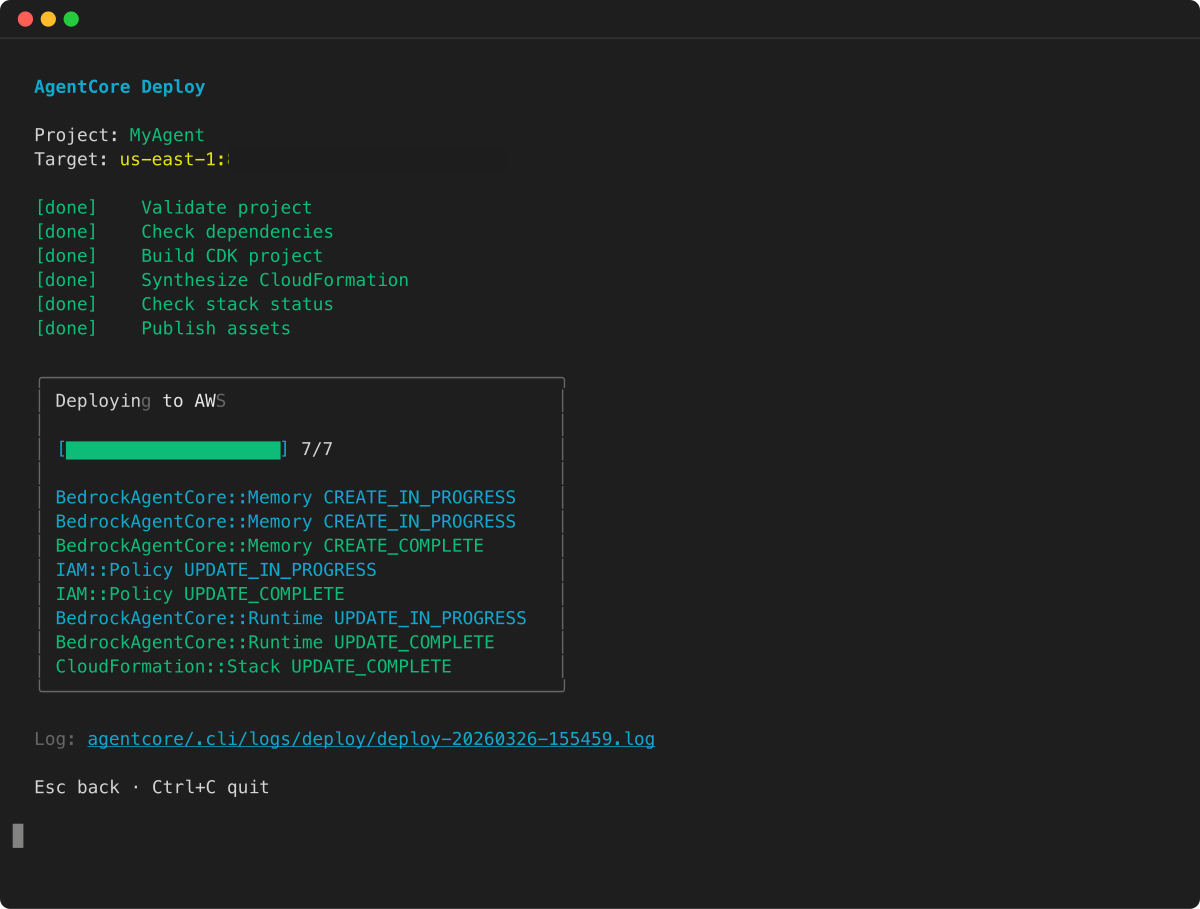
를 실행agentcore하여 TUI를 연 다음 배포를 선택합니다. 배포 화면에는 프로젝트를 검증하고, CloudFormation을 합성하고, AWS 리소스를 프로비저닝할 때의 실시간 진행 상황이 표시됩니다.
배포가 완료되면 agentcore invoke를 사용하여 에이전트를 테스트합니다.
- Custom zip + boto3
-
-
AgentCore 런타임과 호환되는 휠을 다운로드하려면 uv pip --python-platform 옵션을 사용합니다. AgentCore 런타임은 arm64 명령 세트 아키텍처만 지원하며 다음 명령을 실행합니다. --python 3.x를 사용 중인 Python 런타임 버전으로 바꿉니다.
uv pip install \
--python-platform aarch64-manylinux2014 \
--python-version 3.13 \
--target=deployment_package \
--only-binary=:all: \
-r pyproject.toml
프로젝트 루트에 설치된 라이브러리가 있는 .zip 파일을 생성합니다.
cd deployment_package
zip -r ../deployment_package.zip .
패키지의 main.py 파일 및 기타 파일을 .zip 파일의 루트에 추가합니다.
cd ..
zip deployment_package.zip main.py
.zip 배포 패키지를 생성한 후 이를 사용하여 새 AgentCore 런타임을 생성하거나 기존 런타임을 업데이트할 수 있습니다. AgentCore 런타임 API, AgentCore 런타임 콘솔 및 AWS 명령줄 인터페이스를 사용하여 .zip 패키지를 배포할 수 있습니다. AgentCore CLI는 위의 단계를 수행하여 .zip을 생성합니다.
. AgentCore 런타임에 대한 .zip 배포 패키지의 최대 크기는 250MB(압축) 및 750MB(압축 해제)입니다. 이 제한은 업로드하는 모든 파일의 결합된 크기에 적용됩니다. AgentCore 런타임에는 배포 패키지의 파일을 읽을 수 있는 권한이 필요합니다. Linux 권한 8진수 표기법에서 AgentCore 런타임에는 실행 불가능한 파일에 대한 644개의 권한(rw-r—r--)과 디렉터리 및 실행 파일에 대한 755개의 권한(rwxr-xr-x)이 필요합니다. Linux 및 MacOS에서는 chmod 명령을 사용하여 배포 패키지의 파일 및 디렉터리에 대한 파일 권한을 변경합니다. 예를 들어 실행 불가능한 파일에 올바른 권한을 부여하려면 명령을 실행합니다chmod 644 <filepath>. Windows에서 파일 권한을 변경하려면 Microsoft Windows 설명서의 Set, View, Change, or Remove Permissions on an Object를 참조하세요. + .. 배포 패키지의 디렉터리에 액세스하는 데 필요한 권한을 AgentCore 런타임에 부여하지 않으면 AgentCore 런타임은 해당 디렉터리에 대한 권한을 755(rwxr-xr-x)로 설정합니다.
에이전트 런타임 생성을 위한 사전 조건으로 Linux arm64 종속성이 포함된 ZIP 아카이브를 S3에 업로드해야 합니다. 아래 코드를 사용하려면 지정된 S3 버킷이 이미 있어야 합니다. boto3를 사용하여 버킷을 생성하려면 여기의 AWS 설명서에 따르십시오. 다음 boto3 코드는 .zip 파일 아카이브를 s3에 업로드하고 Amazon Bedrock AgentCore 런타임을 생성합니다.
import boto3

account_id = "your aws account id"
agent_name = "strands_10_23"

s3_client = boto3.client('s3', region_name='us-west-2')
print("Uploading deployment.zip to S3...")
s3_client.upload_file(
    'deployment_package.zip', # archive on file system
    f"bedrock-agentcore-code-{account_id}-us-west-2", # bucket name
    f"{agent_name}/deployment_package.zip", # prefix
    ExtraArgs={'ExpectedBucketOwner': account_id} # ownership check
)
print("Upload completed successfully!")
print(f"S3 Location: s3://bedrock-agentcore-code-{account_id}-us-west-2/{agent_name}/deployment_package.zip")

agentcore_client = boto3.client('bedrock-agentcore-control', region_name='us-west-2')
response = agentcore_client.create_agent_runtime(
    agentRuntimeName=agent_name,
    agentRuntimeArtifact={
        'codeConfiguration': {
            'code': {
                's3': {
                    'bucket': f"bedrock-agentcore-code-{account_id}-us-west-2",
                    'prefix': f"{agent_name}/deployment_package.zip"
                }
            },
            'runtime': 'PYTHON_3_13',
            'entryPoint': ['opentelemetry-instrument', 'main.py']
        } # if not adding otel dependency, remove opentelemetry-instrument from entrypoint array
    },
    networkConfiguration={"networkMode": "PUBLIC"},
    roleArn=f"arn:aws:iam::{account_id}:role/AmazonBedrockAgentCoreSDKRuntime-us-west-2",
    lifecycleConfiguration={
        'idleRuntimeSessionTimeout': 300,  # 5 min, configurable
        'maxLifetime': 1800                # 30 minutes, configurable
    },
)
print(f"Agent Runtime created successfully!")
print(f"Agent Runtime ARN: {response['agentRuntimeArn']}")
print(f"Status: {response['status']}")
프로그래밍 방식으로 에이전트를 호출하는 방법에 대한 자세한 내용은 프로그래밍 방식으로 에이전트 호출을 참조하세요.
- console
-
-
관리형 런타임 지원이 포함된 Amazon Bedrock AgentCore 콘솔을 사용하여 에이전트를 배포할 수 있습니다. 콘솔은 ZIP 파일을 업로드하고 에이전트 설정을 구성하기 위한 직관적인 인터페이스를 제공합니다.
콘솔을 사용하여 배포하려면 먼저 위의 사용자 지정 zip + boto3 탭의 단계에 따라 배포 패키지를 생성합니다.
콘솔을 통해 에이전트 생성
에이전트를 생성하려면:
-
에이전트 홈 페이지에서 호스트 에이전트를 선택합니다.
-
소스 선택을 선택합니다.
-
에이전트 설정을 구성합니다.
-
배포할 에이전트 생성을 선택합니다.
엔드포인트 생성
엔드포인트 생성을 선택하여 에이전트에 대한 새 엔드포인트를 생성합니다. 엔드포인트 이름과 관련 버전이 미리 채워집니다.
엔드포인트 테스트
엔드포인트를 선택하고 엔드포인트 테스트를 선택하여 테스트할 플레이그라운드/샌드박스로 이동합니다.
실행 역할 요구 사항
에이전트에는 적절한 권한이 있는 실행 역할이 필요합니다. 실행 역할 및 권한에 대한 자세한 내용은 AgentCore 런타임 권한 섹션을 참조하세요. 실행 역할에는 기본 Amazon Bedrock AgentCore 런타임 권한, 배포 패키지에 대한 S3 액세스 권한 및 관찰성을 위한 CloudWatch Logs 권한이 포함되어야 합니다.
6단계: 세션 중지, 업데이트 또는 정리
다음 방법 중 하나를 사용하여 런타임 세션을 중지하거나, 에이전트를 업데이트 또는 정리합니다.
예
- AgentCore CLI
-
-
이전에 배포된 AgentCore 런타임을 업데이트하려면 다음을 실행합니다.
agentcore deploy
구성 가능한 IdleRuntimeSessionTimeout (기본값은 15분) 이전에 실행 중인 세션을 중지하고 잠재적인 런어웨이 비용을 절감하려면 StopRuntimeSession API 작업을 사용합니다. AgentCore CLI는 현재 세션 중지를 직접 지원하지 않습니다.
AgentCore 런타임과 관련된 모든 리소스를 삭제하려면 먼저 모든 리소스를 제거한 다음 배포하여 AWS 리소스를 삭제합니다.
agentcore remove all
agentcore deploy
- boto3
-
-
다음 boto3 코드는 AgentCore 런타임을 업데이트합니다.
import boto3

account_id = "your aws account id"
agent_name = "strands_10_23"

s3_client = boto3.client('s3', region_name='us-west-2')
print("Uploading deployment.zip to S3...")
s3_client.upload_file(
    'deployment_package.zip', # archive on file system
    f"bedrock-agentcore-code-{account_id}-us-west-2", # bucket name
    f"{agent_name}/deployment_package.zip", # prefix
    ExtraArgs={'ExpectedBucketOwner': account_id} # ownership check
)
print("Upload completed successfully!")
print(f"S3 Location: s3://bedrock-agentcore-code-{account_id}-us-west-2/{agent_name}/deployment_package.zip")

bedrock_agentcore_client = boto3.client('bedrock-agentcore-control', region_name='us-west-2')
response = bedrock_agentcore_client.update_agent_runtime(
    agentRuntimeId='<your-agent-id>',
    agentRuntimeArtifact={
        'codeConfiguration': {
            'code': {
                's3': {
                    'bucket': f"bedrock-agentcore-code-{account_id}-us-west-2",
                    'prefix': f"{agent_name}/deployment_package.zip"
                }
            },
            'runtime': 'PYTHON_3_13',
            'entryPoint': ['opentelemetry-instrument', 'main.py']
        } # if not adding otel dependency, remove opentelemetry-instrument from entrypoint array
    },
    networkConfiguration={"networkMode": "PUBLIC"},
    roleArn=f"arn:aws:iam::{account_id}:role/AmazonBedrockAgentCoreSDKRuntime-us-west-2"
)

print(f"Agent Runtime updated successfully!")
print(f"Agent Runtime ARN: {response['agentRuntimeArn']}")
print(f"Status: {response['status']}")
구성 가능한 IdleRuntimeSessionTimeout (기본값은 15분) 이전에 실행 중인 세션을 중지하고 잠재적 런어웨이 비용을 절감하려면 다음 boto3 코드를 사용합니다.
import boto3

agent_core_client = boto3.client('bedrock-agentcore', region_name='us-west-2')
response = agent_core_client.stop_runtime_session(
    agentRuntimeArn='arn:aws:bedrock-agentcore:us-west-2:account-id:runtime/agent-name-suffix',
    runtimeSessionId='your-session-id',
    qualifier="DEFAULT"
)
다음 boto3 코드는 s3에서 Amazon Bedrock AgentCore 런타임 및 .zip 아카이브 파일을 삭제합니다.
import boto3

account_id = "your aws account id"
agent_name = "strands_10_23"

bedrock_agentcore_client = boto3.client('bedrock-agentcore-control', region_name='us-west-2')
print("Deleting Agent from Amazon Bedrock AgentCore Runtime!")
response = bedrock_agentcore_client.delete_agent_runtime(
    agentRuntimeId='<agent-id>'
)
print(f"Agent Runtime delete successfully!")
print(f"Status: {response['status']}")

s3_client = boto3.client('s3', region_name='us-west-2')
print("Deleting deployment archive from S3...")
s3_client.delete_object(
    Bucket=f"bedrock-agentcore-code-{account_id}-us-west-2",
    Key=f"{agent_name}/deployment_package.zip",
    ExpectedBucketOwner=account_id
)
print("Archive deleted successfully from S3!")
- console
-
-
====== 에이전트 업데이트
에이전트 세부 정보 페이지에서 호스팅 업데이트를 선택하여 업데이트된 코드 또는 구성으로 새 버전을 생성합니다.
엔드포인트 업데이트
엔드포인트 테이블에서 엔드포인트를 선택하고 편집을 선택하여 설명 또는 관련 버전을 업데이트합니다.
엔드포인트 삭제
엔드포인트를 선택하고 삭제를 선택합니다. 삭제를 확인하려면 "delete"을 입력해야 합니다.
에이전트 삭제
에이전트 목록 또는 세부 정보 페이지에서 에이전트를 선택하고 삭제를 선택하여 에이전트와 연결된 모든 리소스를 제거합니다.
직접 코드 배포를 위한 Python별 개념
Amazon Bedrock AgentCore 런타임에서 직접 코드 배포를 사용할 때 Python별 개념에 대해 알아봅니다.
코드에서 import 문을 사용하면 Python 런타임은 모듈 또는 패키지를 찾을 때까지 검색 경로의 디렉터리를 검색합니다. 기본적으로 런타임이 검색하는 첫 번째 위치는 .zip 배포 패키지의 압축을 풀고 마운트하는 디렉터리입니다( /var/task ).
다음 코드 조각을 추가하여 AgentCore 런타임 에이전트의 전체 검색 경로를 볼 수 있습니다.
import sys
search_path = sys.path
print(search_path)
.zip 패키지 내의 별도 폴더에 종속 항목을 추가할 수도 있습니다. 예를 들어 Boto3 SDK 버전을 .zip 패키지의 폴더에 추가할 수 있습니다common. .zip 패키지를 압축 해제하고 탑재하면 /var/task 디렉터리 내에 이 폴더가 배치됩니다. 코드에서 .zip 배포 패키지의 폴더에 있는 종속 항목을 사용하려면 import from 문을 사용합니다. 예를 들어, .zip 패키지의 common 폴더에 있는 Boto3 버전을 사용하려면 다음 문을 사용합니다.
from common import boto3
에이전트의 배포 패키지에 pycache 폴더를 포함하지 않는 것이 좋습니다. 다른 아키텍처 또는 운영 체제를 사용하는 빌드 머신에서 컴파일된 Python 바이트코드는 AgentCore 런타임 실행 환경과 호환되지 않을 수 있습니다.
함수가 순수 Python 패키지 및 모듈만 사용하는 경우 uv pip install 명령을 사용하여 로컬 빌드 시스템에 종속 항목을 설치하고 .zip 파일을 생성할 수 있습니다. NumPy 및 Pandas를 포함하여 널리 사용되는 많은 Python 라이브러리는 순수 Python이 아니며 C 또는 C로 작성된 코드를 포함합니다. 배포 패키지에 C/C 코드가 포함된 라이브러리를 추가할 때 AgentCore 런타임 실행 환경과 호환되도록 패키지를 올바르게 빌드해야 합니다.
Python 패키지 인덱스( PyPI )에서 사용할 수 있는 대부분의 패키지는 "wheels"(.whl 파일)로 사용할 수 있습니다. .whl 파일은 특정 운영 체제와 명령 세트 아키텍처용으로 미리 컴파일된 바이너리가 포함된 빌드된 배포판을 포함하는 일종의 ZIP 파일입니다. 배포 패키지가 Amazon Bedrock AgentCore 런타임과 호환되도록 하려면 Linux 운영 체제용 휠과 arm64 명령 세트 아키텍처를 설치합니다.
일부 패키지는 소스 배포판으로만 사용할 수 있습니다. 이러한 패키지의 경우 C/C++ 구성 요소를 직접 컴파일하고 빌드해야 합니다.
필요한 패키지에 사용할 수 있는 배포판을 확인하려면 다음을 수행하세요.
패키지를 소스 배포판으로만 사용할 수 있는 경우 C/C++ 라이브러리를 직접 빌드해야 합니다. 패키지가 Amazon Bedrock AgentCore 런타임 실행 환경과 호환되도록 하려면 arm64 명령 세트가 있는 동일한 Amazon Linux 운영 체제를 사용하는 환경에서 패키지를 빌드해야 합니다. Amazon Elastic Compute Cloud(Amazon EC2) Linux 인스턴스에서 패키지를 빌드하여 이 작업을 수행할 수 있습니다.
Amazon EC2 Linux 인스턴스를 시작하고 연결하는 방법을 알아보려면 Amazon EC2 사용 설명서의 Amazon EC2 시작하기를 참조하세요.