Le traduzioni sono generate tramite traduzione automatica. In caso di conflitto tra il contenuto di una traduzione e la versione originale in Inglese, quest'ultima prevarrà.
Creazione di funzioni durevoli Lambda
Per iniziare a usare le funzioni Lambda durable, usa la console Lambda per creare una funzione durevole. In pochi minuti, puoi creare e implementare una funzione durevole che utilizza passaggi e attese per dimostrare l'esecuzione basata su checkpoint.
Puoi anche creare funzioni durevoli utilizzando AWS CLI or infrastructure as code (IaC).
Man mano che svolgerai il tutorial, imparerai i concetti fondamentali delle funzioni durevoli, come usare l'DurableContextoggetto, creare checkpoint con passaggi e sospendere l'esecuzione con attese. Scoprirai anche come funziona la riproduzione quando la funzione riprende dopo un'attesa.
Per semplificare le cose, questo tutorial ti mostra come creare la tua funzione usando Python o il runtime. Node.js Con questi linguaggi interpretati, puoi modificare il codice della funzione direttamente nell'editor del codice integrato della console.
Nota
Le funzioni Durable attualmente supportano i runtime Python, Node.js (JavaScript/TypeScript) e Java, nonché le immagini dei contenitori (OCI). Per un elenco completo delle versioni di runtime supportate e delle opzioni di immagine del contenitore, vedi Runtime supportati per funzioni durevoli. Per ulteriori informazioni sull'utilizzo delle immagini dei container con Lambda, vedi Creazione di immagini di container Lambda nella Lambda Developer Guide.
Suggerimento
Per scoprire come creare soluzioni serverless, consulta la Guida allo sviluppo serverless.
Crea una funzione durevole Lambda con la console
In questo esempio, la tua funzione durevole elabora un ordine in più passaggi con checkpoint automatico. La funzione accetta un oggetto JSON contenente un ID dell'ordine, convalida l'ordine, elabora il pagamento e conferma l'ordine. Ogni passaggio viene controllato automaticamente, quindi se la funzione viene interrotta, riprende dall'ultimo passaggio completato.
La funzione dimostra anche un'operazione di attesa, sospendendo l'esecuzione per un breve periodo per simulare l'attesa di una conferma esterna.
Per creare una funzione duratura con la console
Aprire la pagina Funzioni
della console Lambda. -
Scegli Crea funzione.
-
Scegli Crea da zero.
-
Nel riquadro Informazioni base, per Nome funzione inserisci
myDurableFunction -
Per Runtime, scegli Node.js 24 o Python 3.14.
-
Seleziona Abilita esecuzione duratura.
Lambda crea la tua funzione durevole con un ruolo di esecuzione che include le autorizzazioni per le operazioni sui checkpoint (lambda:CheckpointDurableExecutione). lambda:GetDurableExecutionState
Nota
I runtime Lambda includono il Durable Execution SDK, in modo da poter testare le funzioni durevoli senza dipendenze tra i pacchetti. Tuttavia, consigliamo di includere l'SDK nel pacchetto di distribuzione per la produzione. Ciò garantisce la coerenza delle versioni ed evita potenziali aggiornamenti di runtime che potrebbero influire sulla tua funzione.
Usa l'editor di codice integrato nella console per aggiungere il tuo codice funzionale durevole.
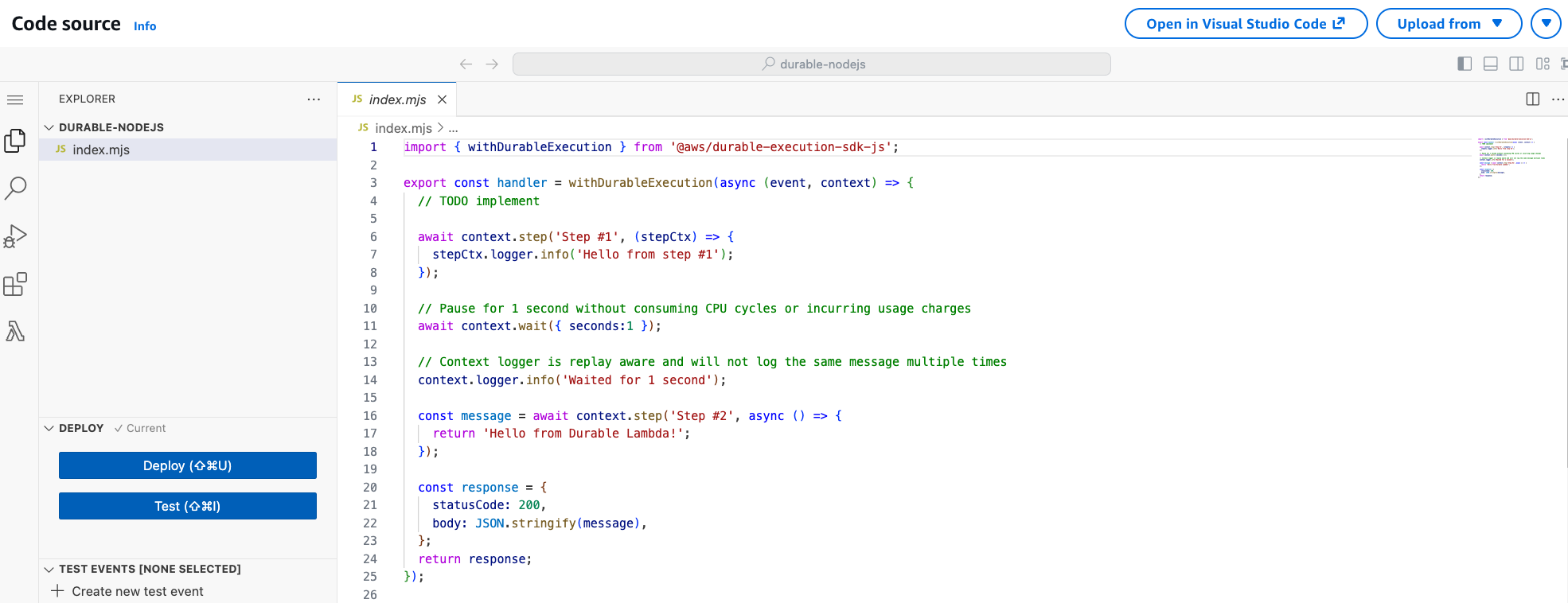
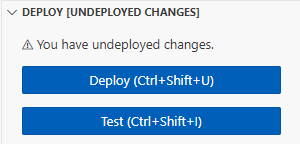
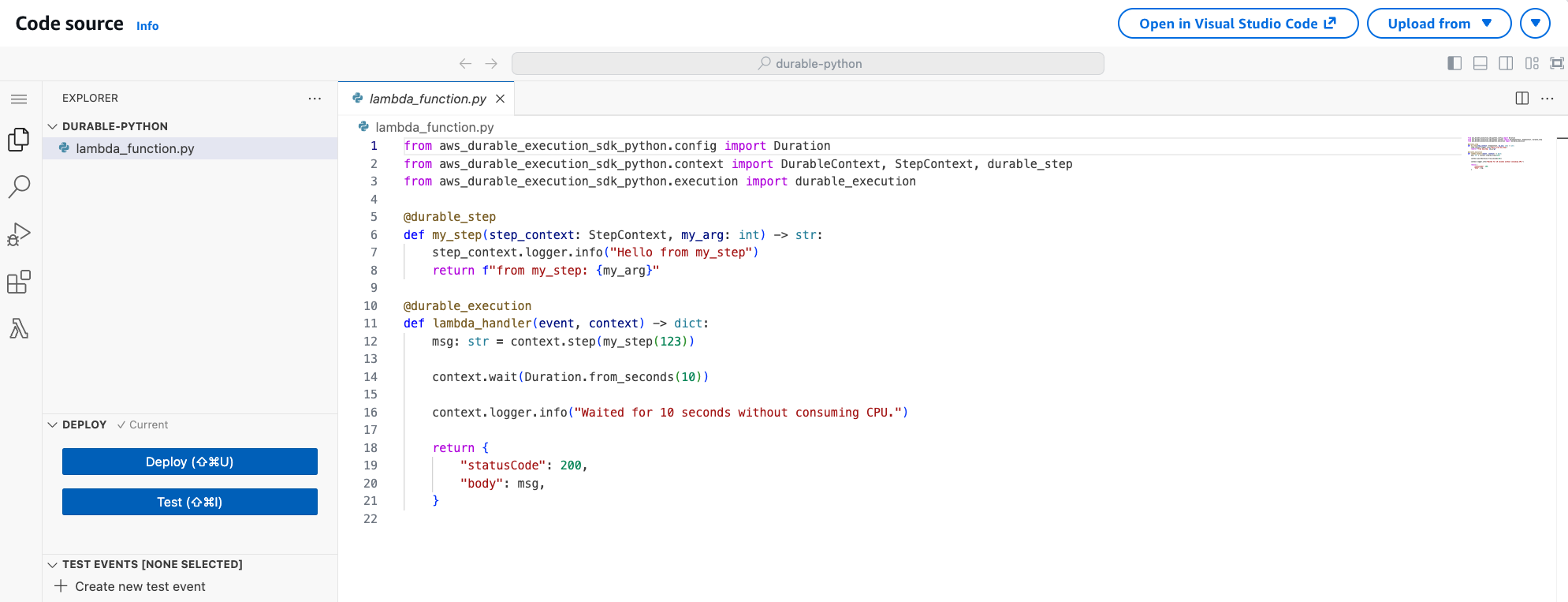
Richiama la funzione durable utilizzando l'editor di codice della console
Quando non viene specificata (o pubblicata) alcuna versione esplicita, la console richiama la funzione durable utilizzando il $LATEST qualificatore di versione. Tuttavia, per l'esecuzione deterministica del codice, è necessario utilizzare sempre un ARN qualificato che punti a una versione stabile.
Per pubblicare una versione della tua funzione
-
Scegli la scheda Versioni.
-
Selezionare Publish new version (Pubblica nuova versione).
-
Per la descrizione della versione, inserisci
Initial version(opzionale). -
Seleziona Pubblica.
-
Lambda crea la versione 1 della funzione. Nota che la funzione ARN ora include alla fine,
:1a indicare che si tratta della versione 1.
Ora create un evento di test da inviare alla vostra funzione. L'evento è un documento in formato JSON contenente un ID dell'ordine.
Per creare un evento di test
-
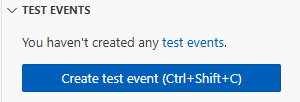
Nella sezione TEST EVENTS dell'editor di codice della console, scegli Crea evento di test.
-
Per Event name (Nome evento), immettere
myTestEvent. -
Nella sezione JSON dell'evento, sostituisci il codice JSON predefinito con il seguente:
{ "orderId": "order-12345" } -
Scegli Save (Salva).
Per testare la tua funzione durevole e visualizzarne l'esecuzione
Nella sezione TEST EVENTS dell'editor di codice della console, scegli l'icona di esecuzione accanto all'evento di test:
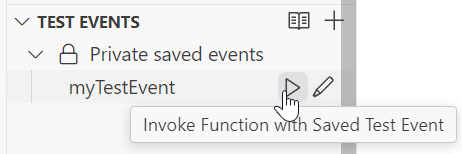
La tua funzione durevole inizia l'esecuzione. Poiché include un'attesa di 10 secondi, la chiamata iniziale viene completata rapidamente e la funzione riprende dopo il periodo di attesa. È possibile visualizzare l'avanzamento dell'esecuzione nella scheda Esecuzioni durature.
Per visualizzare l'esecuzione della funzione durevole
-
Scegli la scheda Esecuzioni durevoli.
-
Trova la tua esecuzione nell'elenco. L'esecuzione mostra lo stato corrente (In esecuzione, Riuscito o Non riuscito).
-
Scegli l'ID di esecuzione per visualizzare i dettagli, tra cui:
Cronologia di esecuzione che mostra quando ogni passaggio è stato completato
Cronologia dei checkpoint
Periodi di attesa
Risultati delle fasi
Puoi anche visualizzare i log della tua funzione in CloudWatch Logs per vedere l'output della console di ogni passaggio.
Per visualizzare i record di chiamata della funzione in Logs CloudWatch
-
Apri la pagina dei gruppi di
log della CloudWatch console. -
Scegli il nome del gruppo di log per la funzione (
/aws/lambda/myDurableFunction). -
Scorri verso il basso e scegli il flusso di log per le invocazioni delle funzioni che desideri esaminare.
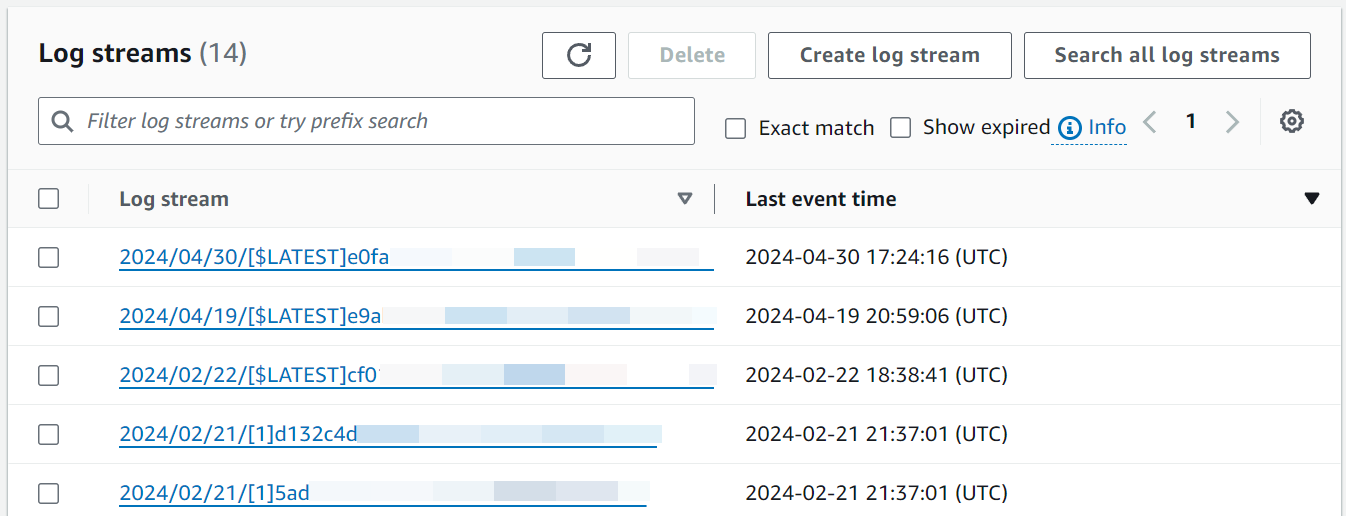
Dovresti visualizzare le voci di registro per ogni chiamata della tua funzione, inclusa l'esecuzione iniziale e il replay dopo l'attesa.
Nota
Quando si utilizza il logger da DurableContext (ad esempio context.logger orstepContext.logger), i log vengono visualizzati anche nelle visualizzazioni Durable Execution e Step della console Lambda. Il caricamento di questi log può richiedere alcuni istanti.
Eliminazione
Quando hai finito di usare la funzione durable di esempio, cancellala. Puoi anche eliminare il gruppo di log che memorizza i log della funzione e il ruolo di esecuzione creato dalla console.
Per eliminare la funzione Lambda
-
Aprire la pagina Functions (Funzioni)
della console Lambda. -
Selezionare la funzione creata.
-
Scegliere Operazioni, Elimina.
-
Inserisci
confirmnel campo di immissione del testo, quindi scegli Elimina.
Come eliminare il gruppo di log
-
Apri la pagina Log groups page (Pagina dei gruppi di log)
della console CloudWatch. -
Scegli il gruppo di log della funzione (
/aws/lambda/myDurableFunction). -
Scegli Actions (Azioni), Delete log group(s) (Elimina gruppo/i di log).
-
Nella finestra di dialogo Delete log group(s) (Elimina gruppo/i di log) scegli Delete (Elimina).
Come eliminare il ruolo di esecuzione
-
Apri la pagina Ruoli
della console AWS Identity and Access Management (IAM). -
Seleziona il ruolo di esecuzione della funzione (ad esempio,
myDurableFunction-role-).31exxmpl -
Scegli Elimina.
-
Nella finestra di dialogo Elimina ruolo, immetti il nome del ruolo, quindi scegli Elimina.
Risorse aggiuntive e fasi successive
Ora che hai creato e testato una funzione semplice e duratura utilizzando la console, procedi nel seguente modo:
-
Scopri i casi d'uso più comuni delle funzioni durevoli, tra cui transazioni distribuite, elaborazione degli ordini e flussi di lavoro di revisione umana. Vedi esempi.
-
Scopri come monitorare le esecuzioni durature delle funzioni con CloudWatch metriche e cronologia delle esecuzioni. Vedi Monitoraggio e debug.
-
Scopri come richiamare funzioni durevoli in modo sincrono e asincrono e come gestire le esecuzioni di lunga durata. Vedi Richiamo di funzioni durevoli.
-
Segui le best practice per scrivere codice deterministico, gestire le dimensioni dei checkpoint e ottimizzare i costi. Consulta le best practice.
-
Scopri come testare funzioni durevoli localmente e nel cloud. Vedi Test delle funzioni durevoli.
-
Confronta le funzioni durevoli con Step Functions per capire quando ogni approccio è più efficace. Vedi Funzioni durevoli o Funzioni Step.
