Le traduzioni sono generate tramite traduzione automatica. In caso di conflitto tra il contenuto di una traduzione e la versione originale in Inglese, quest'ultima prevarrà.
Personalizza il tema di uno spazio di lavoro
Puoi utilizzare i temi per personalizzare l'aspetto visivo di un'area di lavoro, in modo che sia in linea con l'identità del marchio della tua organizzazione. I temi personalizzati possono servire a diversi scopi:
Supporta più identità di marca: se la tua organizzazione gestisce più prodotti o servizi con un marchio unico, puoi creare un'area di lavoro unica per ciascuno, in modo che gli utenti assegnati a più di uno vedano il logo, il carattere e lo schema di colori allineati al marchio che gestiscono attualmente.
Distingui tra reparti o unità aziendali: progetta temi diversi per reparti o unità aziendali diverse, per aiutare gli utenti a identificare rapidamente il contesto attuale.
Crea interfacce utente specifiche per il cliente: per le aziende che servono più clienti, crea spazi di lavoro personalizzati che corrispondano all'identità del marchio di ciascun cliente.
I temi sono costituiti da un logo, una favicon, una famiglia di caratteri e un set di colori. Per impostazione predefinita, l'area di lavoro utilizzerà il tema Connect Customer. In questo esempio, le impostazioni predefinite sono state sostituite per «Qualsiasi azienda», inclusi il logo e lo schema di colori.
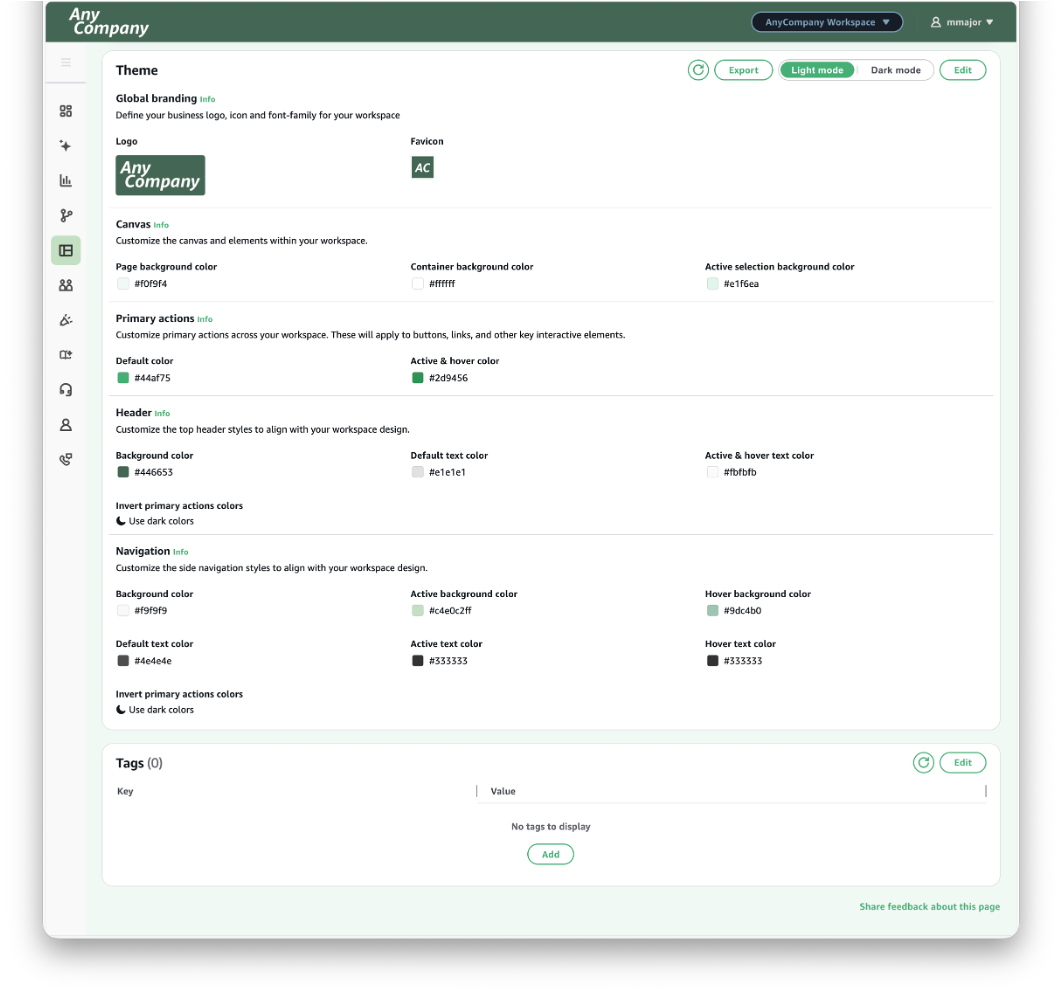
Logo: puoi sostituire il logo Connect Customer predefinito che appare in alto a sinistra di un'area di lavoro. Per impostare un nuovo logo, prepara e carica un file di immagine nelle dimensioni e nel formato specificati.
Favicon: puoi anche sostituire la favicon predefinita di Connect Customer che di solito appare nelle schede e nelle barre dei preferiti del browser, nella cronologia e nei risultati di ricerca. Per impostare una nuova favicon, prepara e carica un file di immagine nelle dimensioni e nel formato specificati.
Famiglia di caratteri: modifica la tipografia utilizzata nell'area di lavoro. Per utilizzare una famiglia di caratteri diversa, seleziona una delle opzioni dal menu a discesa.
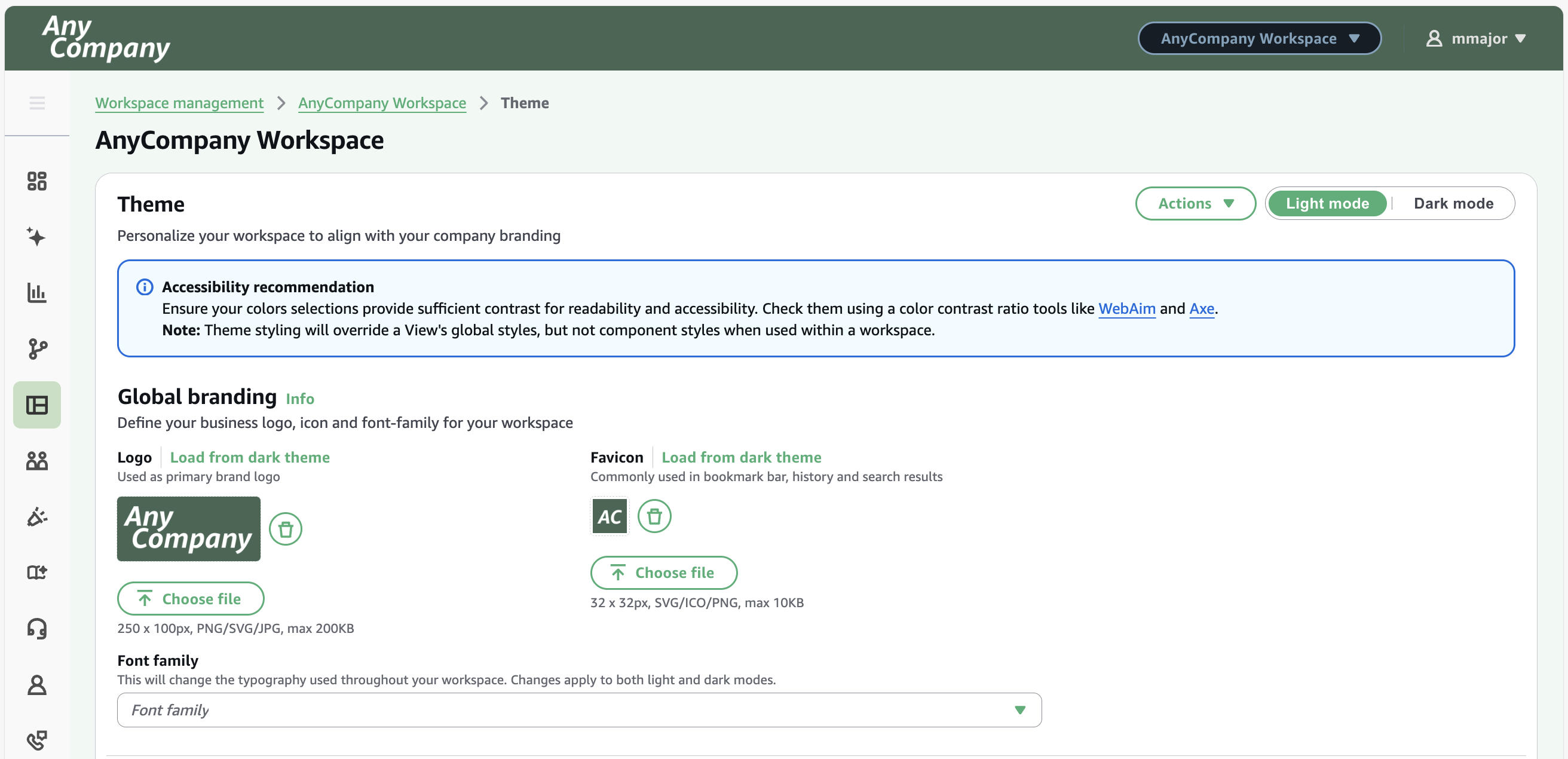
Azioni
Il menu a discesa delle azioni offre le seguenti opzioni:
Esporta: esporta le configurazioni del tema in un file JSON (nello stesso formato richiesto per l'importazione) in modo che possa essere facilmente caricato in un altro spazio di lavoro.
Importa: importa le configurazioni dei temi direttamente da altri spazi di lavoro o carica un file JSON con queste configurazioni. Il formato del file JSON segue la stessa struttura del file di esportazione e dell'oggetto tematico sulla risorsa dell'area di lavoro.
Reimposta: simile a Annulla, ripristina le modifiche all'ultimo salvataggio.
Ripristina impostazioni predefinite: riporta il tema al tema standard offerto da Connect Customer.
Personalizza i colori
È possibile personalizzare la tavolozza di colori applicata in un'area di lavoro. È possibile impostare un colore con il relativo codice esadecimale, i valori di rosso, verde e blu (RGB), i valori di tonalità, saturazione e luminosità (HSL) o il nome.
Nota
I colori predefiniti forniscono un contrasto sufficiente per garantire che il contenuto sia leggibile e utilizzabile da tutti gli individui, compresi quelli con disabilità visive. Se i colori vengono modificati, è necessario verificarne l'accessibilità.
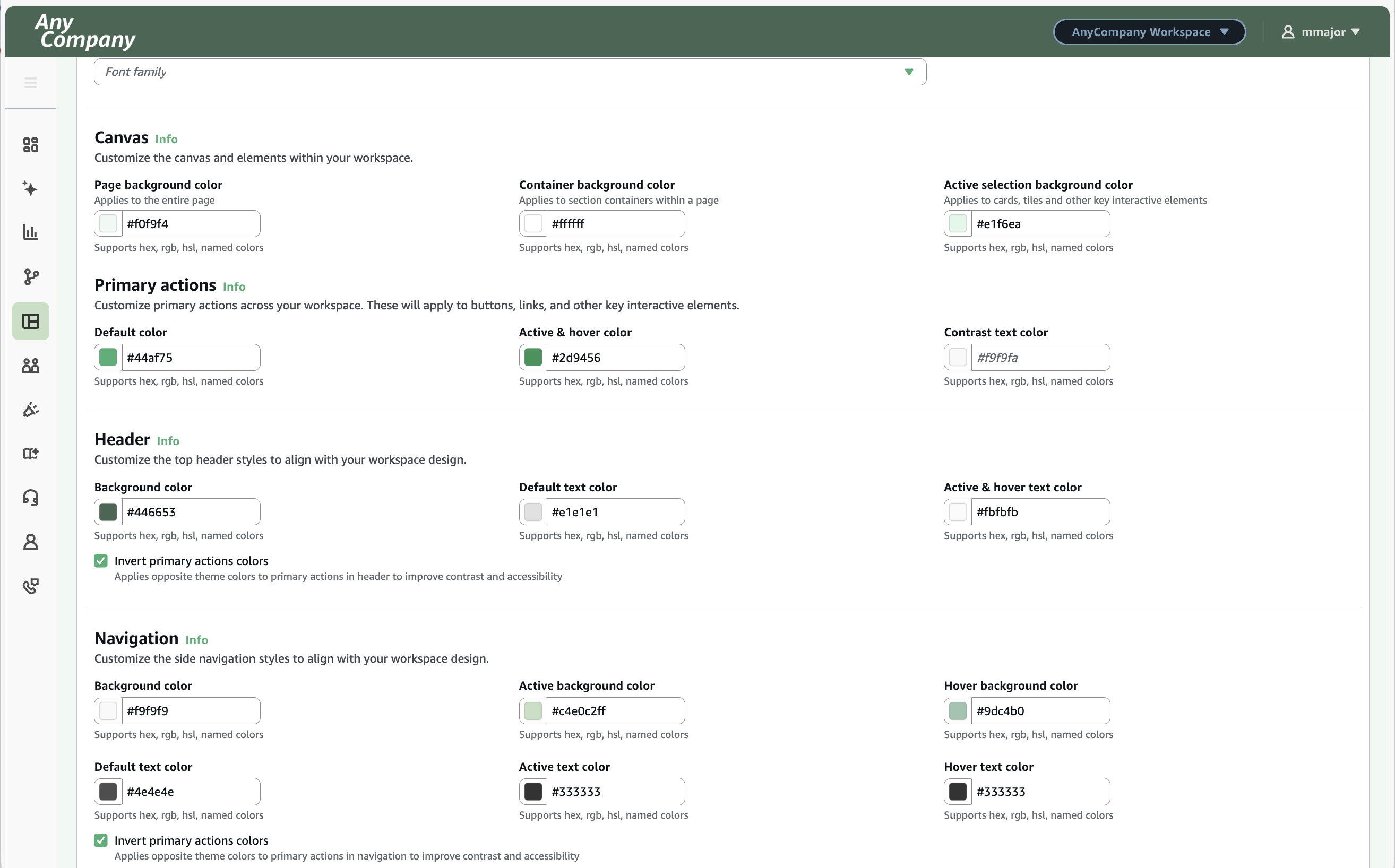
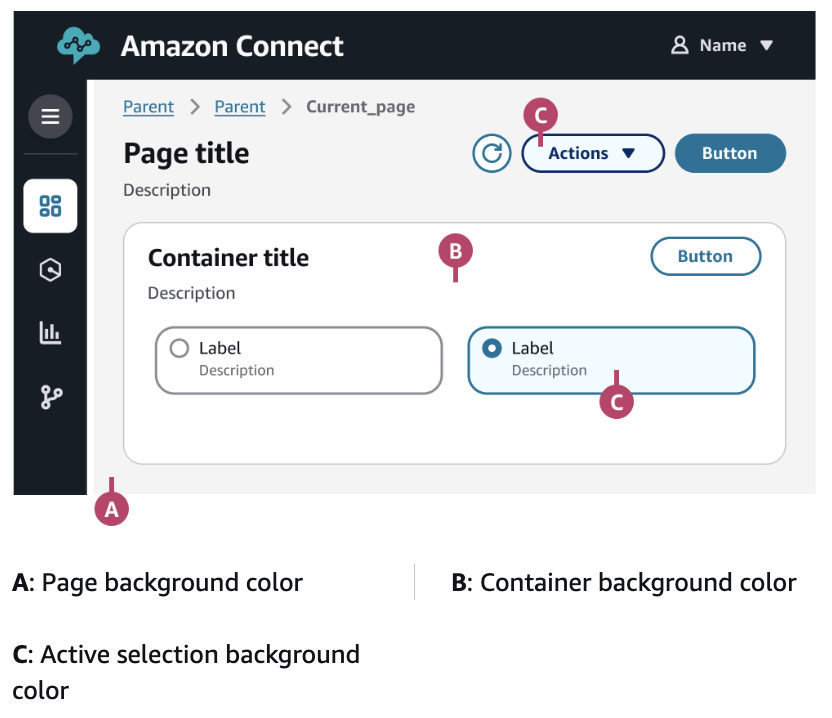
I colori per la tela verranno applicati agli elementi di sfondo dell'area di lavoro.
I colori per le azioni primarie verranno applicati a pulsanti, link e altri elementi interattivi chiave.
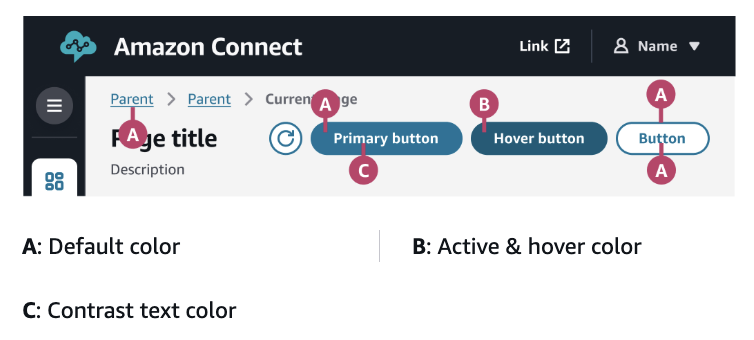
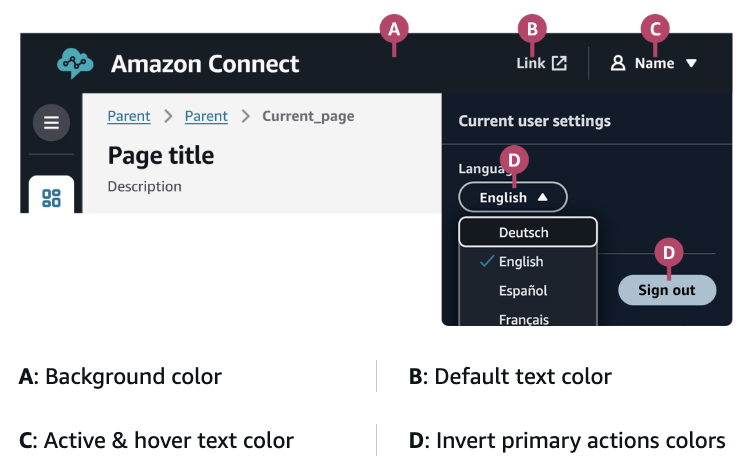
I colori dell'intestazione verranno applicati agli elementi della barra dell'intestazione e del menu delle impostazioni nella parte superiore di un'area di lavoro.
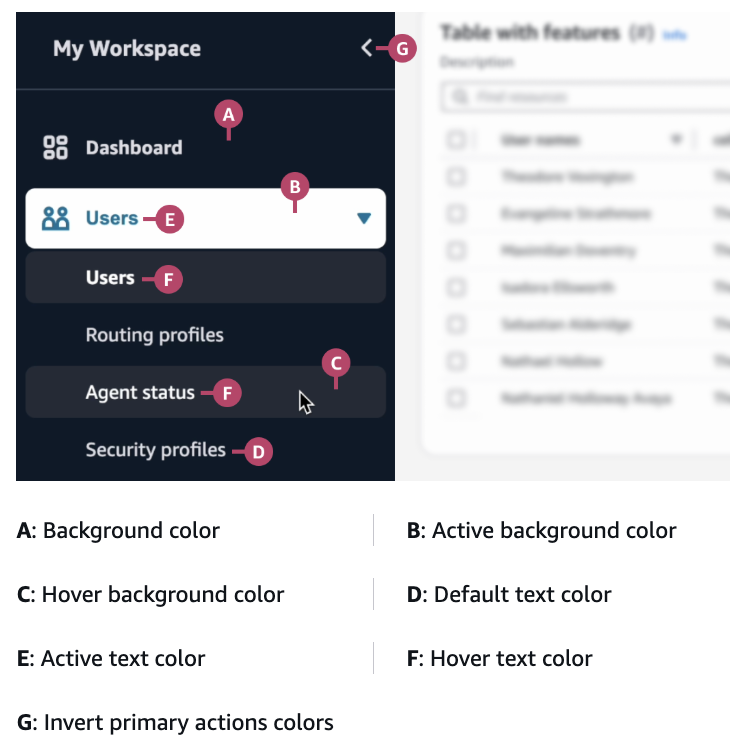
I colori per la navigazione verranno applicati alla barra di navigazione sul lato sinistro di un'area di lavoro.
Considerazioni importanti
Esegui un test accurato per garantire l'aspetto e l'accessibilità desiderati (ad esempio un contrasto sufficiente).
Se un elemento di stile non è coerente con la configurazione dell'area di lavoro, controlla le configurazioni a livello di componente nella relativa finestra di visualizzazione. Lo stile dei componenti ha la precedenza sullo stile dell'area di lavoro. (Lo stile delle viste viene preso in considerazione solo in assenza dello stile dei componenti dell'area di lavoro). and/or
Gli utenti possono specificare la modalità chiara e scura, quindi prova le modifiche al tema in entrambe le modalità. Se alcuni elementi non sono chiari, specifica un logo, una favicon e un set di colori diversi per le modalità chiare e scure.
