Crea un AgentCore gateway utilizzando la CLI
È possibile utilizzare la AgentCore CLI per creare gateway con comandi semplificati. La CLI gestisce automaticamente le configurazioni comuni, inclusa la creazione di ruoli IAM e la configurazione delle autorizzazioni.
Esempio
- AgentCore CLI
-
-
Crea un gateway senza autorizzazione:
agentcore add gateway \
  --name MyGateway \
  --authorizer-type NONE \
  --runtimes MyAgent
agentcore deploy
Crea un gateway con autorizzazione JWT:
agentcore add gateway \
  --name MyGateway \
  --authorizer-type CUSTOM_JWT \
  --discovery-url https://your-idp.example.com/.well-known/openid-configuration \
  --allowed-audience your-audience
agentcore deploy
La ricerca semantica è abilitata per impostazione predefinita. Per disabilitarla, passa la --no-semantic-search bandiera:
agentcore add gateway \
  --name MyGateway \
  --authorizer-type NONE \
  --runtimes MyAgent \
  --no-semantic-search
agentcore deploy
- Interactive
-
-
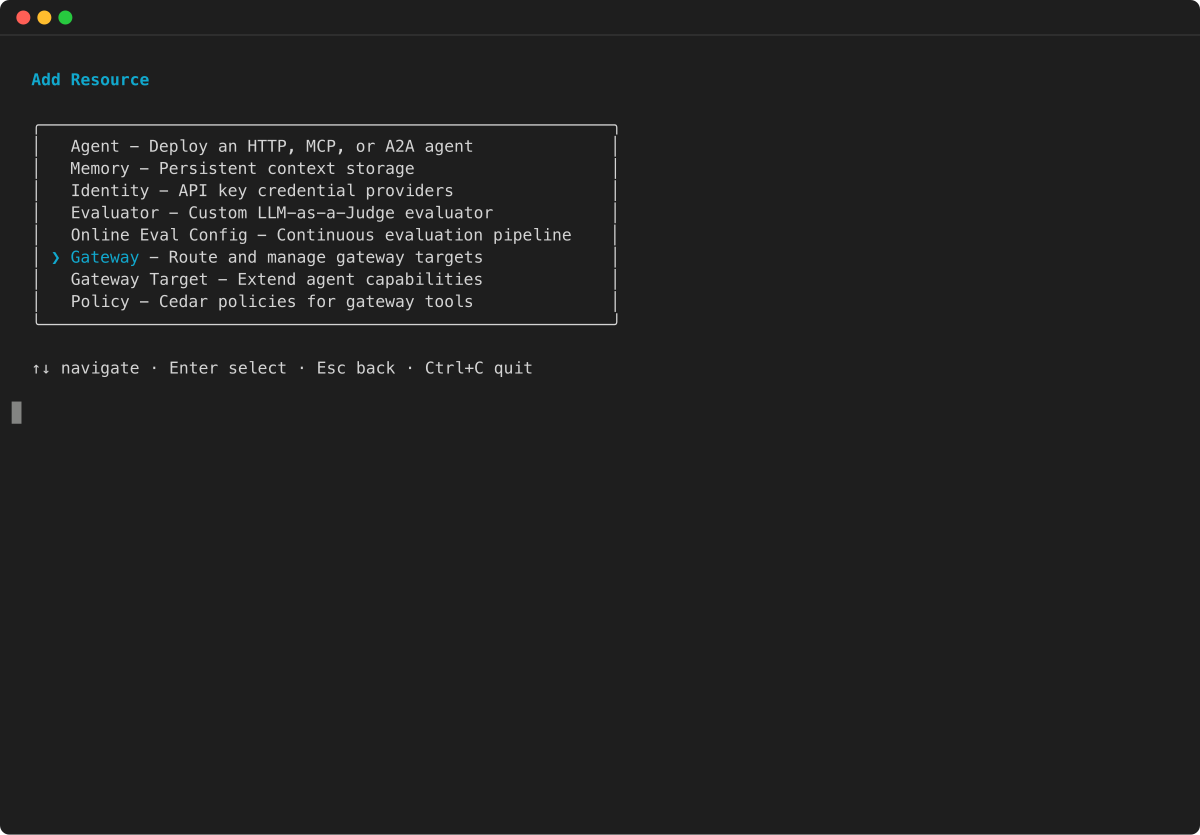
È inoltre possibile utilizzare l'interfaccia utente interattiva del terminale AgentCore CLI. Esegui agentcore per aprire il TUI, quindi seleziona aggiungi e scegli Gateway:
-
Nel menu Aggiungi risorsa, seleziona Gateway e premi Invio.
-
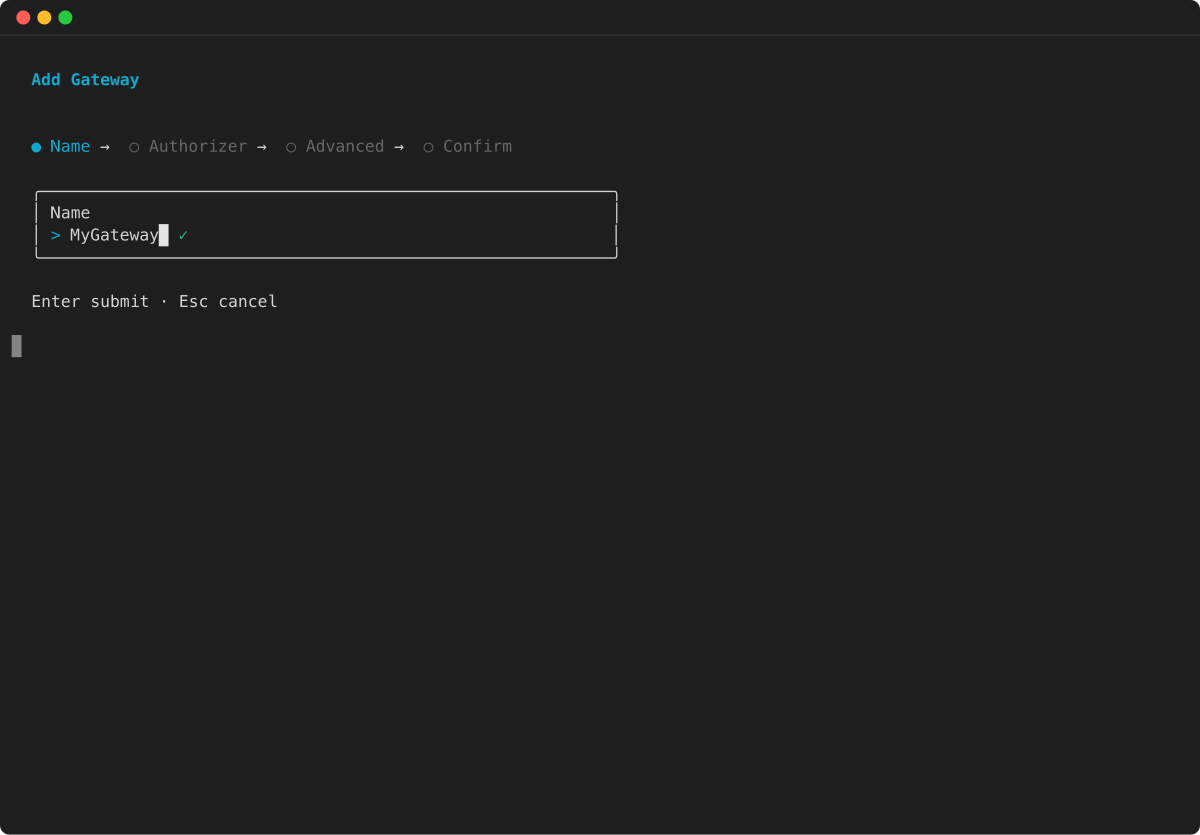
Inserisci un nome per il gateway e premi Invio.
-
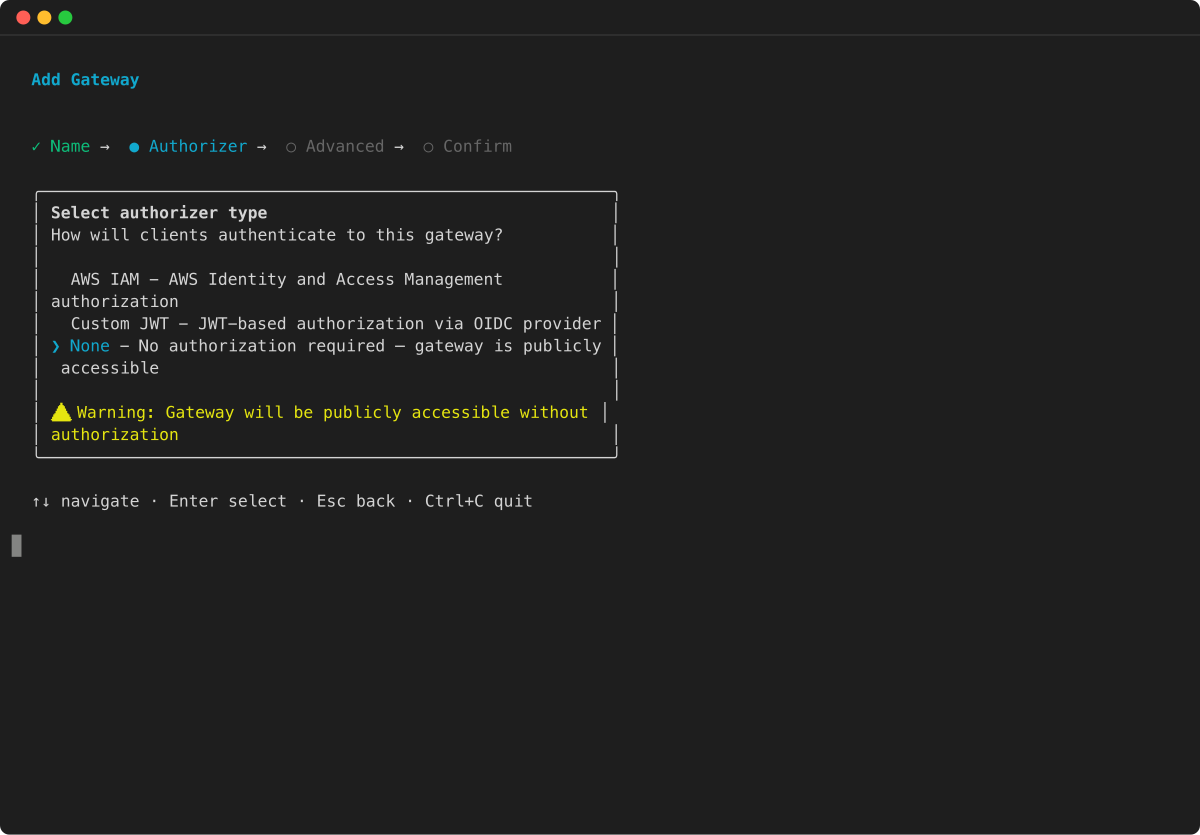
Seleziona il tipo di autorizzazione per il tuo gateway. Scegli Nessuno, Custom JWT o IAM, quindi premi Invio.
-
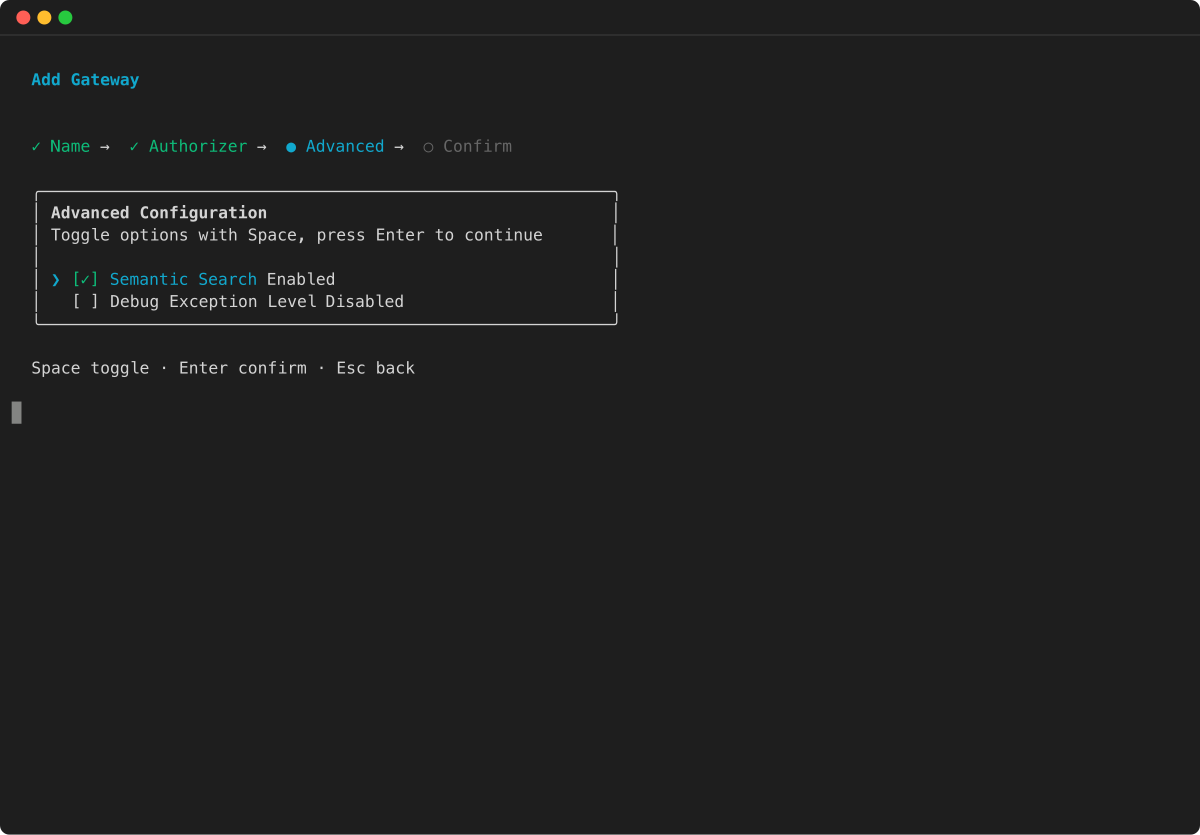
(Facoltativo) Configura impostazioni avanzate come la ricerca semantica e il livello di eccezione di debug. Usa la barra spaziatrice per attivare o disattivare le opzioni, quindi premi Invio per continuare.
-
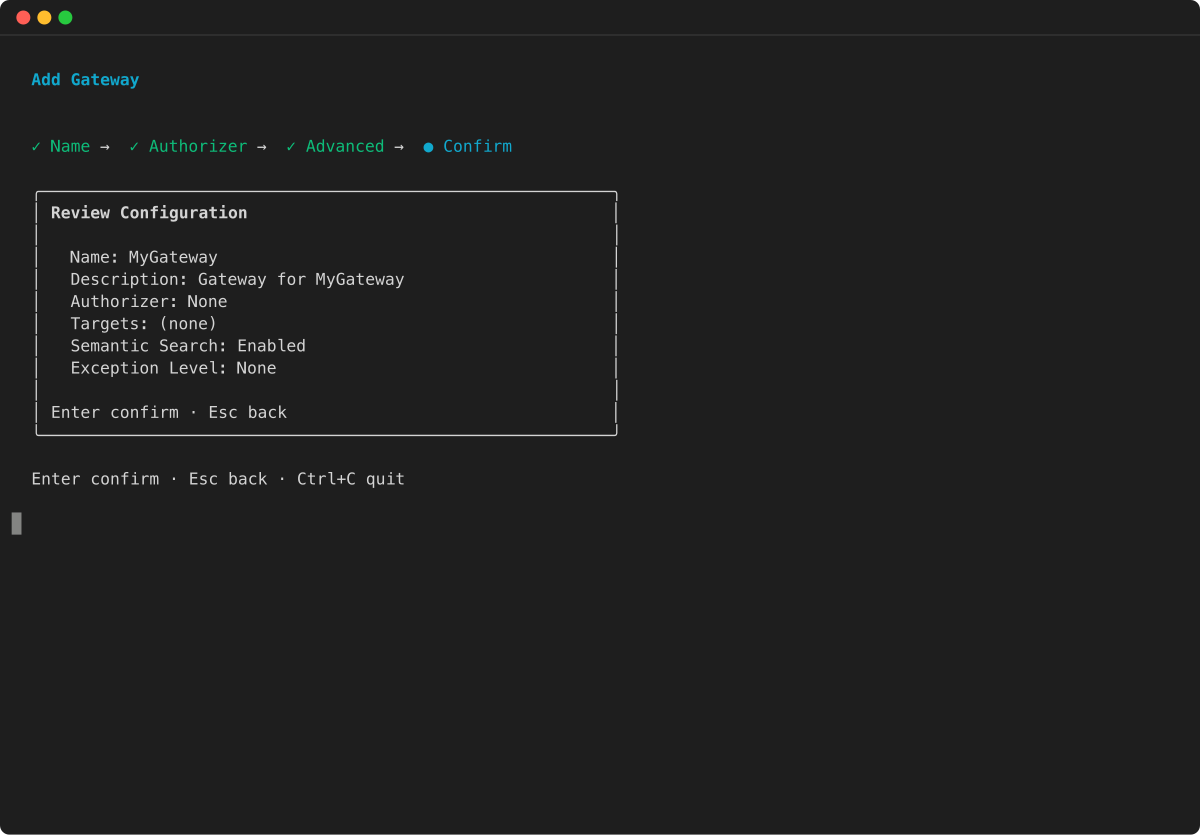
Controlla il riepilogo della configurazione del gateway e premi Invio per confermare.
Dopo aver creato il gateway, è possibile aggiungere destinazioni utilizzando il agentcore add gateway-target comando. Per ulteriori informazioni sui comandi CLI, consulta la Guida introduttiva a Gateway. AgentCore