Tentukan konfigurasi target gateway
Konfigurasi target tergantung pada jenis target yang Anda tambahkan ke gateway. Untuk informasi selengkapnya tentang jenis target gateway yang didukung, lihat Target yang didukung untuk AgentCore gateway Amazon Bedrock.
Pilih topik untuk melihat contoh menambahkan jenis target:
Tambahkan target Lambda
Anda dapat menambahkan target Lambda ke gateway Anda menggunakan AgentCore CLI dengan menentukan sebagai dan menyediakan Lambda ARN --type dan lambda-function-arn file skema alat.
Konfigurasi target
Konfigurasi target (atau payload) untuk fungsi Lambda berisi bidang-bidang berikut:
Untuk informasi selengkapnya tentang target Lambda, lihat Target fungsi AWS Lambda.
Pilih salah satu metode berikut:
contoh
- AgentCore CLI
-
-
Untuk menambahkan fungsi Lambda sebagai target, jalankan agentcore add gateway-target dengan opsi. --type lambda-function-arn Berikan Lambda ARN dan file JSON yang berisi skema alat:
agentcore add gateway-target \
  --name MyLambdaTarget \
  --type lambda-function-arn \
  --lambda-arn arn:aws:lambda:us-east-1:123456789012:function:MyFunction \
  --tool-schema-file tools.json \
  --gateway MyGateway
agentcore deploy
- AgentCore Python SDK
-
-
Dengan AgentCore CLI, Anda dapat dengan mudah membuat target Lambda dengan konfigurasi default.
# Import dependencies
from bedrock_agentcore_starter_toolkit.operations.gateway.client import GatewayClient

# Initialize the client
client = GatewayClient(region_name="us-east-1")

# Create a lambda target.
lambda_target = client.create_mcp_gateway_target(
    gateway=gateway,
    name=None, # If you don't set one, one will be generated.
    target_type="lambda",
    target_payload=None, # Define your own lambda if you pre-created one. Otherwise leave this as None and one will be created for you.
    credentials=None, # If you leave this as None, one will be created for you
)
Berikut ini adalah contoh argumen yang dapat Anda berikan untuktarget_payload. Jika Anda menghilangkan target_payload argumen, payload ini digunakan:
{
    "lambdaArn": "<insert your lambda arn>",
    "toolSchema": {
        "inlinePayload": [
            {
                "name": "get_weather",
                "description": "Get weather for a location",
                "inputSchema": {
                    "type": "object",
                    "properties": {
                        "location": {
                            "type": "string",
                            "description": "the location e.g. seattle, wa"
                        }
                    },
                    "required": [
                        "location"
                    ]
                }
            },
            {
                "name": "get_time",
                "description": "Get time for a timezone",
                "inputSchema": {
                    "type": "object",
                    "properties": {
                        "timezone": {
                            "type": "string"
                        }
                    },
                    "required": [
                        "timezone"
                    ]
                }
            }
        ]
    }
}
- Boto3
-
-
Kode Python berikut menunjukkan cara menambahkan target Lambda menggunakan AWS Python SDK (Boto3):
import boto3

# Create the agentcore client
agentcore_client = boto3.client('bedrock-agentcore-control')

# Create a Lambda target
target = agentcore_client.create_gateway_target(
    gatewayIdentifier="your-gateway-id",
    name="LambdaTarget",
    targetConfiguration={
        "mcp": {
            "lambda": {
                "lambdaArn": "arn:aws:lambda:us-west-2:123456789012:function:YourLambdaFunction",
                "toolSchema": {
                    "inlinePayload": [
                        {
                            "name": "get_weather",
                            "description": "Get weather for a location",
                            "inputSchema": {
                                "type": "object",
                                "properties": {"location": {"type": "string"}},
                                "required": ["location"],
                            },
                        },
                        {
                            "name": "get_time",
                            "description": "Get time for a timezone",
                            "inputSchema": {
                                "type": "object",
                                "properties": {"timezone": {"type": "string"}},
                                "required": ["timezone"],
                            },
                        },
                    ]
                }
            }
        }
    },
    credentialProviderConfigurations=[
        {
            "credentialProviderType": "GATEWAY_IAM_ROLE"
        }
    ]
)
- Interactive
-
-
Di UI terminal interaktif AgentCore CLI, jalankan, pilih add agentcore, pilih Gateway Target, lalu pilih fungsi Lambda:
Wizard kemudian meminta Anda untuk nama target, ARN fungsi Lambda, file skema alat, dan konfigurasi otorisasi keluar.
Menambahkan target tahap API Gateway
Untuk menambahkan tahap API Gateway REST API sebagai target, tentukan ARN API dan tahapan serta tentukan pengaturan untuk memfilter alat di gateway API atau untuk mengganti nama dan deskripsi alat di gateway:
Contoh berikut menunjukkan cara menambahkan target API Gateway. Konfigurasi berikut juga diterapkan:
Pilih salah satu metode berikut:
contoh
- AgentCore CLI
-
-
Untuk menambahkan tahap API Gateway REST API sebagai target, jalankan agentcore add gateway-target dengan --type api-gateway opsi:
agentcore add gateway-target \
  --name MyAPIGatewayTarget \
  --type api-gateway \
  --rest-api-id your-rest-api-id \
  --stage your-stage \
  --gateway MyGateway
agentcore deploy
- AWS CLI
-
-
Perintah berikut menggunakan AWS CLI:
aws bedrock-agentcore-control create-gateway-target \
    --gateway-identifier "your-gateway-id" \
    --name "SearchAPITarget" \
    --target-configuration '{
        "mcp": {
            "apiGateway": {
                "restApiId": "your-rest-api-id",
                "stage": "your-stage",
                "apiGatewayToolConfiguration": {
                    "toolFilters": [
                        {
                            "filterPath": "/products",
                            "methods": [
                                "GET",
                                "POST"
                            ]
                        }
                    ],
                    "toolOverrides": [
                        {
                            "path": "/products",
                            "method": "GET",
                            "name": "get_items",
                            "description": "Gets information for items in the list of products."
                        }
                    ]
                }
            }
        }
    }'
    --credential-provider-configurations '[
        {
            "credentialProviderType": "GATEWAY_IAM_ROLE"
        }
    ]'
- Boto3
-
-
Kode berikut menunjukkan menggunakan AWS Python SDK (Boto3):
import boto3

# Create the client
agentcore_client = boto3.client('bedrock-agentcore-control')

# Create an API gateway REST API target with gateway service role authentication
target = agentcore_client.create_gateway_target(
    gatewayIdentifier="your-gateway-id",
    name="SearchAPITarget",
    targetConfiguration={
        "mcp": {
            "apiGateway": {
                "restApiId": "your-rest-api-id",
                "stage": "your-stage",
                "apiGatewayToolConfiguration": {
                    "toolFilters": [
                        {
                            "filterPath": "/products",
                            "methods": [
                                "GET",
                                "POST"
                            ]
                        }
                    ],
                    "toolOverrides": [
                        {
                            "path": "/products",
                            "method": "GET",
                            "name": "get_item",
                            "description": "Gets information for a specific item in the product list."
                        }
                    ]
                }
            }
        }
    },
    credentialProviderConfigurations=[
        {
            "credentialProviderType": "GATEWAY_IAM_ROLE"
        }
    ]
)
- Interactive
-
-
Di UI terminal interaktif AgentCore CLI, jalankan, pilih add agentcore, pilih Gateway Target, lalu pilih API Gateway REST API:
Wizard kemudian meminta Anda untuk nama target, REST API ID, tahap, dan konfigurasi otorisasi keluar.
Tambahkan target OpenAPI
Pilih salah satu metode berikut:
contoh
- AgentCore CLI
-
-
Untuk menambahkan target skema OpenAPI, jalankan agentcore add gateway-target dengan --type open-api-schema opsi dan berikan jalur ke file spesifikasi OpenAPI Anda:
agentcore add gateway-target \
  --name MyOpenAPITarget \
  --type open-api-schema \
  --schema path/to/openapi-spec.json \
  --outbound-auth none|api-key|oauth \
  --gateway MyGateway
agentcore deploy
- Boto3
-
-
Kode Python berikut menunjukkan cara menambahkan target OpenAPI menggunakan AWS Python SDK (Boto3). Skema telah diunggah ke lokasi S3 yang URI direferensikan di. target_payload Otorisasi keluar untuk target adalah melalui kunci API.
import boto3

# Create the client
agentcore_client = boto3.client('bedrock-agentcore-control')

# Create an OpenAPI target with API Key authentication
target = agentcore_client.create_gateway_target(
    gatewayIdentifier="your-gateway-id",
    name="SearchAPITarget",
    targetConfiguration={
        "mcp": {
            "openApiSchema": {
                "s3": {
                    "uri": "s3://your-bucket/path/to/open-api-spec.json",
                    "bucketOwnerAccountId": "123456789012"
                }
            }
        }
    },
    credentialProviderConfigurations=[
        {
            "credentialProviderType": "API_KEY",
            "credentialProvider": {
                "apiKeyCredentialProvider": {
                    "providerArn": "arn:aws:agent-credential-provider:us-east-1:123456789012:token-vault/default/apikeycredentialprovider/abcdefghijk",
                    "credentialLocation": "HEADER",
                    "credentialParameterName": "X-API-Key"
                }
            }
        }
    ]
)
- Interactive
-
-
Di UI terminal interaktif AgentCore CLI, jalankan, pilih add agentcore, pilih Gateway Target, lalu pilih OpenAPI Schema:
Wizard kemudian meminta Anda untuk nama target, jalur ke file spesifikasi OpenAPI, dan konfigurasi otorisasi keluar.
Tambahkan target Smithy
Pilih salah satu metode berikut:
contoh
- AgentCore CLI
-
-
Untuk menambahkan target model Smithy, jalankan agentcore add gateway-target dengan --type smithy-model opsi dan berikan path ke file model Smithy Anda:
agentcore add gateway-target \
  --name MySmithyTarget \
  --type smithy-model \
  --schema path/to/smithy-model.json \
  --gateway MyGateway
agentcore deploy
- Boto3
-
-
Kode Python berikut menunjukkan cara menambahkan target model Smithy menggunakan AWS Python SDK (Boto3):
import boto3

# Create the agentcore client
agentcore_client = boto3.client('bedrock-agentcore-control')

# Create a Smithy model target
target = agentcore_client.create_gateway_target(
    gatewayIdentifier="your-gateway-id",
    name="DynamoDBTarget",
    targetConfiguration={
        "mcp": {
            "smithyModel": {
                "s3": {
                    "uri": "s3://your-bucket/path/to/smithy-model.json",
                    "bucketOwnerAccountId": "123456789012"
                }
            }
        }
    },
    credentialProviderConfigurations=[
        {
            "credentialProviderType": "GATEWAY_IAM_ROLE"
        }
    ]
)
- Interactive
-
-
Di UI terminal interaktif AgentCore CLI, jalankan, pilih add agentcore, pilih Gateway Target, lalu pilih Smithy Model:
Wizard kemudian meminta Anda untuk nama target, jalur ke file model Smithy, dan konfigurasi otorisasi keluar.
Tambahkan target runtime HTTP
Anda dapat menambahkan agen Amazon Bedrock AgentCore Runtime sebagai target HTTP ke gateway Anda. Gateway mengirimkan lalu lintas langsung ke agen runtime tanpa agregasi atau terjemahan protokol.
Untuk informasi selengkapnya tentang target HTTP, lihat target AgentCore Runtime Amazon Bedrock.
Pilih salah satu metode berikut:
contoh
- AWS CLI
-
-
Perintah berikut membuat target runtime HTTP dengan otorisasi IAM:
aws bedrock-agentcore-control create-gateway-target \
    --gateway-identifier "your-gateway-id" \
    --name "MyRuntimeTarget" \
    --description "Runtime gateway target" \
    --target-configuration '{
        "http": {
            "agentcoreRuntime": {
                "arn": "arn:aws:bedrock-agentcore:us-west-2:111122223333:runtime/RUNTIME_ID"
            }
        }
    }' \
    --credential-provider-configurations '[{
        "credentialProviderType": "GATEWAY_IAM_ROLE"
    }]'
- Boto3
-
-
Kode Python berikut menunjukkan cara menambahkan target runtime HTTP menggunakan AWS Python SDK (Boto3):
import boto3

agentcore_client = boto3.client('bedrock-agentcore-control')

target = agentcore_client.create_gateway_target(
    gatewayIdentifier="your-gateway-id",
    name="MyRuntimeTarget",
    description="Runtime gateway target",
    targetConfiguration={
        "http": {
            "agentcoreRuntime": {
                "arn": "arn:aws:bedrock-agentcore:us-west-2:111122223333:runtime/RUNTIME_ID"
            }
        }
    },
    credentialProviderConfigurations=[
        {
            "credentialProviderType": "GATEWAY_IAM_ROLE"
        }
    ]
)
Tambahkan target server MCP
Anda dapat menambahkan target server MCP menggunakan AgentCore CLI atau AWS Python SDK (Boto3). Contoh berikut menunjukkan cara membuat target server MCP dengan jenis otorisasi keluar yang berbeda.
Server MCP dengan otorisasi IAM (SiGv4)
Contoh berikut membuat target server MCP dengan otorisasi IAM. Gateway menandatangani permintaan ke server MCP menggunakan SiGv4 dengan kredenal peran layanan gateway. Anda harus menentukan service nama untuk penandatanganan. regionIni opsional dan default ke Region gateway.
Nilai service tergantung pada di mana server MCP Anda di-host. Berikut ini adalah nilai-nilai umum:
-
bedrock-agentcore— Untuk server MCP yang dihosting di Amazon Bedrock AgentCore, seperti runtime (lihat Menyebarkan server MCP di AgentCore Runtime) atau gateway lain.
-
execute-api— Untuk server MCP di belakang Amazon API Gateway.
-
lambda— Untuk server MCP di belakang URL Fungsi Lambda.
Pilih salah satu metode berikut:
contoh
- AWS CLI
-
-
aws bedrock-agentcore-control create-gateway-target \
    --gateway-identifier "your-gateway-id" \
    --name "MyMCPTarget" \
    --target-configuration '{
        "mcp": {
            "mcpServer": {
                "endpoint": "https://my-server.bedrock-agentcore.us-west-2.api.aws"
            }
        }
    }' \
    --credential-provider-configurations '[{
        "credentialProviderType": "GATEWAY_IAM_ROLE",
        "credentialProvider": {
            "iamCredentialProvider": {
                "service": "bedrock-agentcore",
                "region": "us-west-2"
            }
        }
    }]'
- Interactive
-
-
Di UI terminal interaktif AgentCore CLI, jalankan, pilih add agentcore, pilih Gateway Target, lalu pilih endpoint MCP Server:
Wizard kemudian meminta Anda untuk nama target, URL endpoint server MCP, dan konfigurasi otorisasi keluar.
- Boto3
-
-
import boto3

agentcore_client = boto3.client('bedrock-agentcore-control')

target = agentcore_client.create_gateway_target(
    gatewayIdentifier="your-gateway-id",
    name="MyMCPTarget",
    targetConfiguration={
        "mcp": {
            "mcpServer": {
                "endpoint": "https://my-server.bedrock-agentcore.us-west-2.api.aws"
            }
        }
    },
    credentialProviderConfigurations=[
        {
            "credentialProviderType": "GATEWAY_IAM_ROLE",
            "credentialProvider": {
                "iamCredentialProvider": {
                    "service": "bedrock-agentcore",
                    "region": "us-west-2"
                }
            }
        }
    ]
)
Server MCP dengan otorisasi OAuth
Contoh berikut membuat target server MCP dengan otorisasi OAuth (kredensial klien).
Pilih salah satu metode berikut:
contoh
- AWS CLI
-
-
aws bedrock-agentcore-control create-gateway-target \
    --gateway-identifier "your-gateway-id" \
    --name "MyMCPTarget" \
    --target-configuration '{
        "mcp": {
            "mcpServer": {
                "endpoint": "https://my-mcp-server.example.com"
            }
        }
    }' \
    --credential-provider-configurations '[{
        "credentialProviderType": "OAUTH",
        "credentialProvider": {
            "oauthCredentialProvider": {
                "providerArn": "arn:aws:bedrock-agentcore:us-west-2:123456789012:token-vault/default/oauth2credentialprovider/my-oauth-provider",
                "scopes": []
            }
        }
    }]'
- AgentCore CLI
-
-
Untuk menambahkan target server MCP dengan otorisasi OAuth, jalankan agentcore add gateway-target dengan --type mcp-server opsi dan tentukan kredenal OAuth:
agentcore add gateway-target \
  --type mcp-server \
  --name MyMCPTarget \
  --endpoint https://my-mcp-server.example.com \
  --gateway MyGateway \
  --outbound-auth oauth \
  --oauth-client-id my-client \
  --oauth-client-secret my-secret \
  --oauth-discovery-url https://auth.example.com/.well-known/openid-configuration
agentcore deploy
- Boto3
-
-
import boto3

agentcore_client = boto3.client('bedrock-agentcore-control')

target = agentcore_client.create_gateway_target(
    gatewayIdentifier="your-gateway-id",
    name="MyMCPTarget",
    targetConfiguration={
        "mcp": {
            "mcpServer": {
                "endpoint": "https://my-mcp-server.example.com"
            }
        }
    },
    credentialProviderConfigurations=[
        {
            "credentialProviderType": "OAUTH",
            "credentialProvider": {
                "oauthCredentialProvider": {
                    "providerArn": "arn:aws:bedrock-agentcore:us-west-2:123456789012:token-vault/default/oauth2credentialprovider/my-oauth-provider",
                    "scopes": []
                }
            }
        }
    ]
)
Server MCP dengan otorisasi kunci API
Contoh berikut membuat target server MCP dengan otorisasi kunci API.
Pilih salah satu metode berikut:
contoh
- AWS CLI
-
-
aws bedrock-agentcore-control create-gateway-target \
    --gateway-identifier "your-gateway-id" \
    --name "MyMCPTarget" \
    --target-configuration '{
        "mcp": {
            "mcpServer": {
                "endpoint": "https://my-mcp-server.example.com"
            }
        }
    }' \
    --credential-provider-configurations '[{
        "credentialProviderType": "API_KEY",
        "credentialProvider": {
            "apiKeyCredentialProvider": {
                "providerArn": "arn:aws:bedrock-agentcore:us-west-2:123456789012:token-vault/default/apikeycredentialprovider/my-api-key",
                "credentialLocation": "HEADER",
                "credentialParameterName": "x-api-key",
                "credentialPrefix": ""
            }
        }
    }]'
- Boto3
-
-
import boto3

agentcore_client = boto3.client('bedrock-agentcore-control')

target = agentcore_client.create_gateway_target(
    gatewayIdentifier="your-gateway-id",
    name="MyMCPTarget",
    targetConfiguration={
        "mcp": {
            "mcpServer": {
                "endpoint": "https://my-mcp-server.example.com"
            }
        }
    },
    credentialProviderConfigurations=[
        {
            "credentialProviderType": "API_KEY",
            "credentialProvider": {
                "apiKeyCredentialProvider": {
                    "providerArn": "arn:aws:bedrock-agentcore:us-west-2:123456789012:token-vault/default/apikeycredentialprovider/my-api-key",
                    "credentialLocation": "HEADER",
                    "credentialParameterName": "x-api-key",
                    "credentialPrefix": ""
                }
            }
        }
    ]
)
Menambahkan target Konektor dengan Pangkalan Pengetahuan Terkelola Amazon Bedrock
Anda dapat menambahkan konektor Amazon Bedrock Managed Knowledge Bases sebagai target ke gateway Anda.
Untuk informasi selengkapnya tentang konektor Amazon Bedrock Managed Knowledge Bases, lihat Amazon Bedrock Managed Knowledge Bases.
Menyiapkan basis pengetahuan yang dikelola
Konektor mengekspos dua alat, masing-masing dinamai setelah operasi backend-nya: AgenticRetrieveStream (multi-langkah, pengambilan agen streaming) dan Retrieve (pencarian hibrida tunggal). Anda menambahkan entri konfigurasi per alat.
UntukAgenticRetrieveStream, atur retrievers (basis pengetahuan terkelola ke kueri) dan agenticRetrieveConfiguration masukparameterValues. Keduanya diperlukan - menghilangkan agenticRetrieveConfiguration menyebabkan kesalahan runtime. Ini bisa menjadi objek kosong ({}) untuk menerima default yang dikelola layanan, tetapi menentukan foundationModelType dan membuat konfigurasi eksplisit. rerankingModelType Agen tidak menyediakan ID basis pengetahuan pada waktu panggilan. UntukRetrieve, atur knowledgeBaseId masukparameterValues; itu diperlukan.
Konektor hanya mendukung basis pengetahuan yang dikelola. Target konektor hanya mendukung jenis penyedia GATEWAY_IAM_ROLE kredensi.
contoh
- Boto3
-
-
Kode Python berikut menunjukkan cara membuat Target Gateway dengan konfigurasi konektor Amazon Bedrock Managed Knowledge Bases menggunakan AWS Python SDK (Boto3):
import boto3

gateway_client = boto3.client("bedrock-agentcore-control", region_name="<REGION>")

gateway_client.create_gateway_target(
    name="managed-kb",
    gatewayIdentifier="<GATEWAY_ID>",
    targetConfiguration={
        "mcp": {
            "connector": {
                "source": {"connectorId": "bedrock-knowledge-bases"},
                "configurations": [
                    {
                        "name": "AgenticRetrieveStream",
                        "parameterValues": {
                            "retrievers": [
                                {
                                    "description": "Product documentation",
                                    "configuration": {"knowledgeBase": {"knowledgeBaseId": "<KB_ID_1>"}},
                                },
                                {
                                    "description": "Engineering runbooks",
                                    "configuration": {"knowledgeBase": {"knowledgeBaseId": "<KB_ID_2>"}},
                                },
                            ],
                            "agenticRetrieveConfiguration": {
                                "foundationModelType": "MANAGED",
                                "rerankingModelType": "MANAGED",
                            },
                        },
                    },
                    {
                        "name": "Retrieve",
                        "parameterValues": {"knowledgeBaseId": "<KB_ID>"},
                    },
                ],
            }
        }
    },
    credentialProviderConfigurations=[
        {"credentialProviderType": "GATEWAY_IAM_ROLE"}
    ],
)
- AWS CLI
-
-
Perintah berikut membuat Target Gateway dengan konfigurasi konektor Amazon Bedrock Managed Knowledge Bases menggunakan AWS CLI:
aws bedrock-agentcore-control create-gateway-target \
  --gateway-identifier "<GATEWAY_ID>" \
  --name "managed-kb" \
  --target-configuration '{
    "mcp": {
      "connector": {
        "source": {
          "connectorId": "bedrock-knowledge-bases"
        },
        "configurations": [
          {
            "name": "AgenticRetrieveStream",
            "parameterValues": {
              "retrievers": [
                {
                  "description": "Product documentation",
                  "configuration": {"knowledgeBase": {"knowledgeBaseId": "<KB_ID_1>"}}
                },
                {
                  "description": "Engineering runbooks",
                  "configuration": {"knowledgeBase": {"knowledgeBaseId": "<KB_ID_2>"}}
                }
              ],
              "agenticRetrieveConfiguration": {
                "foundationModelType": "MANAGED",
                "rerankingModelType": "MANAGED"
              }
            }
          },
          {
            "name": "Retrieve",
            "parameterValues": {
              "knowledgeBaseId": "<KB_ID>"
            }
          }
        ]
      }
    }
  }' \
  --credential-provider-configurations '[{"credentialProviderType": "GATEWAY_IAM_ROLE"}]' \
  --region "<REGION>"
- AgentCore CLI
-
-
Untuk menambahkan target konektor basis pengetahuan terkelola, jalankan agentcore add gateway-target dengan--type connector --connector bedrock-knowledge-bases:
agentcore add gateway-target \
  --name MyKnowledgeBaseTarget \
  --type connector \
  --connector bedrock-knowledge-bases \
  --knowledge-base-id <KB_ID> \
  --gateway MyGateway
agentcore deploy
- Interactive
-
-
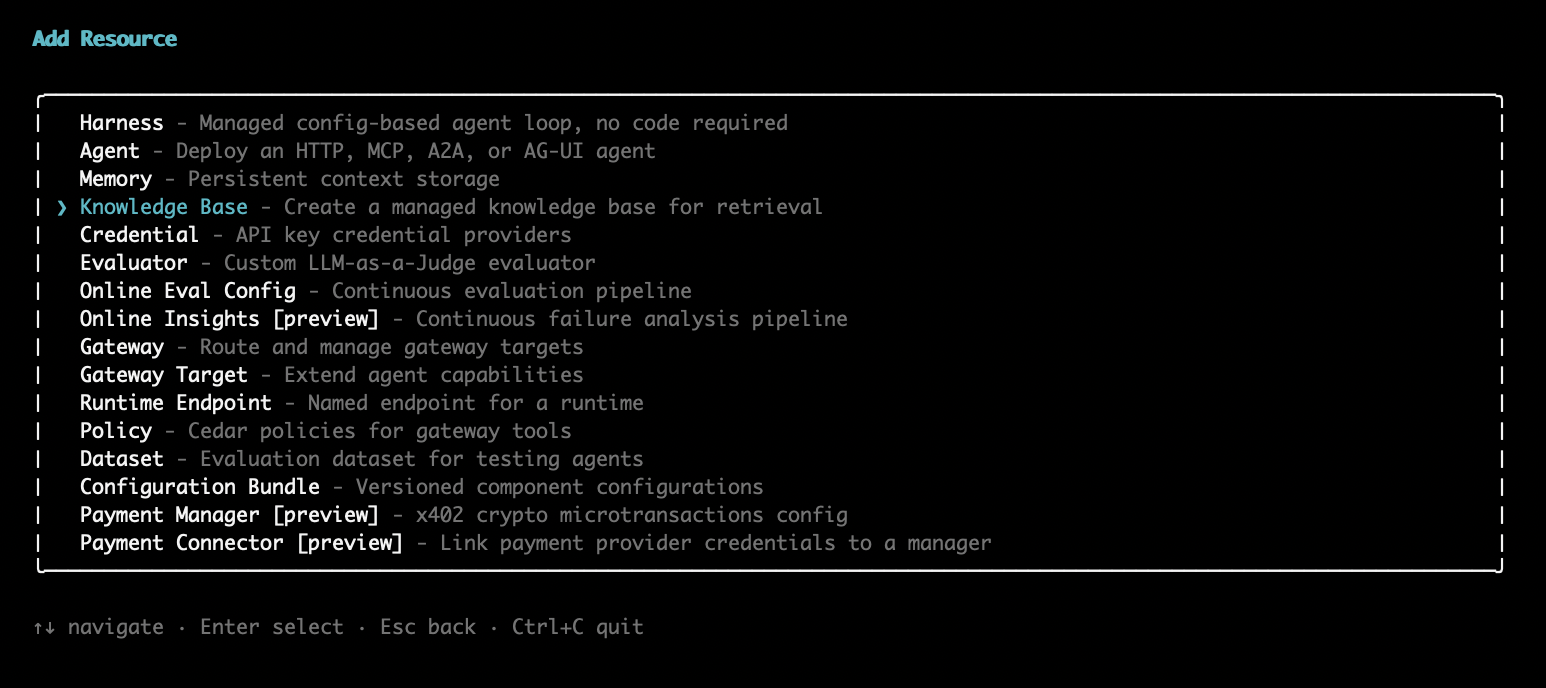
Di UI terminal interaktif AgentCore CLI, jalankanagentcore add gateway-target, lalu pilih Pangkalan Pengetahuan Batuan Dasar Amazon dari pemilih tipe target:
Wizard meminta Anda untuk nama, deskripsi, dan memungkinkan Anda untuk memilih satu atau beberapa jenis sumber & sumber.
Setelah Anda meneleponCreateGatewayTarget, Gateway memvalidasi konfigurasi secara asinkron (biasanya dalam waktu sekitar 30 detik), yang mencakup GetKnowledgeBase pemeriksaan pada setiap basis pengetahuan terikat. Poll GetGatewayTarget sampai saat status iniREADY; FAILED status mencakup alasan yang menjelaskan masalah.
Untuk menyesuaikan pengambilan agen — misalnya, untuk membatasi iterasi perencanaan atau melampirkan pagar pembatas — tambahkan bidang opsional ke. agenticRetrieveConfiguration Jika Anda menghilangkannya, default yang dikelola layanan berlaku. Untuk semua nilai yang diterima, lihat Referensi konfigurasi.
{
  "name": "AgenticRetrieveStream",
  "parameterValues": {
    "retrievers": [
      { "configuration": { "knowledgeBase": { "knowledgeBaseId": "<KB_ID>" } } }
    ],
    "agenticRetrieveConfiguration": {
      "maxAgentIteration": 5,
      "policyConfiguration": {
        "guardrailConfiguration": {
          "guardrailId": "<GUARDRAIL_ID>",
          "guardrailVersion": "1"
        }
      }
    }
  }
}
Kontrol parameter mana yang dapat diatur agen
Setiap entri konfigurasi alat menerima dua kontrol parameter yang menentukan apa yang dilihat agen pemanggil dan apa yang dikirim Gateway ke basis pengetahuan:
-
parameterValues— nilai set administrator dikirim ke basis pengetahuan pada setiap panggilan, seperti terikat knowledgeBaseId atau default. numberOfResults Ini digunakan kecuali agen mengganti bidang yang telah Anda ekspos.
-
parameterOverrides— daftar yang mengontrol bidang permintaan mana yang dapat dilihat dan disetel agen pada waktu panggilan. Setiap entri memiliki:
-
path— bidang dalam Retrieve permintaan, misalnya $.retrievalQuery.text atau$.retrievalConfiguration.managedSearchConfiguration.numberOfResults.
-
description— teks opsional yang ditampilkan kepada agen yang menjelaskan bidang.
-
visible— atur true untuk mengekspos bidang ke agen, atau false untuk menyembunyikannya saat masih mengirim default yang dikonfigurasi administrator.
Ikat knowledgeBaseId parameterValues dan jangan mengeksposnya.
Entri konfigurasi berikut mengikat basis pengetahuan, menetapkan default 10 hasil, dan mengekspos teks kueri dan jumlah hasil ke agen:
{
  "name": "Retrieve",
  "description": "Search the knowledge base for relevant documents.",
  "parameterValues": {
    "knowledgeBaseId": "<KB_ID>",
    "retrievalConfiguration": {
      "managedSearchConfiguration": {
        "numberOfResults": 10
      }
    }
  },
  "parameterOverrides": [
    {
      "path": "$.retrievalQuery.text",
      "description": "The search query. Use specific keywords for best results.",
      "visible": true
    },
    {
      "path": "$.retrievalConfiguration.managedSearchConfiguration.numberOfResults",
      "description": "Number of results to retrieve (1-100).",
      "visible": true
    }
  ]
}
Konfigurasikan Peran Layanan Gateway
Konektor ini menggunakan peran eksekusi gateway — peran IAM ARN yang Anda berikan, yang AgentCore diasumsikan layanan CreateGateway untuk memanggil backend atas nama Anda. Ini adalah peran yang Anda buat, bukan peran terkait layanan. Untuk konektor Amazon Bedrock Managed Knowledge Bases, diperlukan izin berikut:
-
bedrock:GetKnowledgeBase— untuk memvalidasi basis pengetahuan terikat saat target dibuat. Tercakup pada sumber daya basis pengetahuan yang dikelola.
-
bedrock:RetrieveUntuk Retrieve alat tersebut. Tercakup pada sumber daya basis pengetahuan yang dikelola.
-
bedrock:AgenticRetrieveStreamUntuk AgenticRetrieveStream alat tersebut. Tindakan ini tidak mencakup sumber daya basis pengetahuan yang dikelola, jadi berikan saja. *
Gateway menandatangani panggilan backend sebagai layanan. bedrock Sertakan alat bedrock:GetKnowledgeBase apa pun yang Anda tambahkan; jika Anda hanya menambahkan satu alat, sertakan hanya tindakan pengambilan alat itu.
bedrock-agentcore:InvokeGatewaybukan bagian dari peran eksekusi. Izin itu milik penelepon — agen atau aplikasi yang memanggil Gateway — bukan untuk peran yang diasumsikan oleh Gateway.
Tambahkan kebijakan dengan konten berikut ke peran eksekusi yang dilampirkan ke Gateway:
{
  "Version": "2012-10-17",
  "Statement": [
    {
      "Sid": "ValidateKnowledgeBase",
      "Effect": "Allow",
      "Action": "bedrock:GetKnowledgeBase",
      "Resource": "arn:aws:bedrock:<REGION>:<ACCOUNT_ID>:knowledge-base/<KB_ID>"
    },
    {
      "Sid": "RetrieveFromKnowledgeBase",
      "Effect": "Allow",
      "Action": "bedrock:Retrieve",
      "Resource": "arn:aws:bedrock:<REGION>:<ACCOUNT_ID>:knowledge-base/<KB_ID>"
    },
    {
      "Sid": "AgenticRetrieveStream",
      "Effect": "Allow",
      "Action": "bedrock:AgenticRetrieveStream",
      "Resource": "*"
    }
  ]
}
Peran layanan juga harus mempercayai AgentCore layanan sehingga dapat mengambil peran tersebut. Lampirkan kebijakan kepercayaan berikut, lingkup ke akun Anda dan Gateway dengan ketentuan aws:SourceAccount dan aws:SourceArn ketentuan:
{
  "Version": "2012-10-17",
  "Statement": [
    {
      "Sid": "AllowAgentCoreToAssumeRole",
      "Effect": "Allow",
      "Principal": {
        "Service": "bedrock-agentcore.amazonaws.com"
      },
      "Action": "sts:AssumeRole",
      "Condition": {
        "StringEquals": {
          "aws:SourceAccount": "<ACCOUNT_ID>"
        },
        "ArnLike": {
          "aws:SourceArn": "arn:aws:bedrock-agentcore:<REGION>:<ACCOUNT_ID>:gateway/*"
        }
      }
    }
  ]
}
Tambahkan target Konektor dengan Alat Pencarian Web
Anda dapat menambahkan konektor bawaan sebagai target ke gateway Anda. Konektor Web Search Tool menyediakan kemampuan pencarian web terkelola tanpa memerlukan infrastruktur khusus atau kunci API.
Untuk informasi selengkapnya tentang konektor Alat Penelusuran Web, lihat Alat Penelusuran Web.
Siapkan Alat Pencarian Web
contoh
- Boto3
-
-
Kode Python berikut menunjukkan cara membuat Target Gateway dengan konfigurasi konektor Web Search Tool menggunakan AWS Python SDK (Boto3):
import boto3

gateway_client = boto3.client("bedrock-agentcore-control", region_name="<REGION>")

gateway_client.create_gateway_target(
    name="web-search-tool",
    gatewayIdentifier="<GATEWAY_ID>",
    targetConfiguration={
        "mcp": {
            "connector": {
                "source": {"connectorId": "web-search"},
                "configurations": [{"name": "WebSearch", "parameterValues": {}}],
            }
        }
    },
    credentialProviderConfigurations=[
        {"credentialProviderType": "GATEWAY_IAM_ROLE"}
    ],
)
- AWS CLI
-
-
Perintah berikut membuat Target Gateway dengan konfigurasi konektor Web Search Tool menggunakan AWS CLI:
aws bedrock-agentcore-control create-gateway-target \
  --gateway-identifier "<GATEWAY_ID>" \
  --name "web-search-tool" \
  --target-configuration '{
    "mcp": {
      "connector": {
        "source": {
          "connectorId": "web-search"
        },
        "configurations": [
          {
            "name": "WebSearch",
            "parameterValues": {}
          }
        ]
      }
    }
  }' \
  --credential-provider-configurations '[{"credentialProviderType": "GATEWAY_IAM_ROLE"}]' \
  --region "<REGION>"
- AgentCore CLI
-
-
Untuk menambahkan target Alat Pencarian Web, jalankan agentcore add gateway-target dengan--type connector --connector web-search:
agentcore add gateway-target \
  --name MyWebSearchTarget \
  --type connector \
  --connector web-search \
  --gateway MyGateway
agentcore deploy
- Interactive
-
-
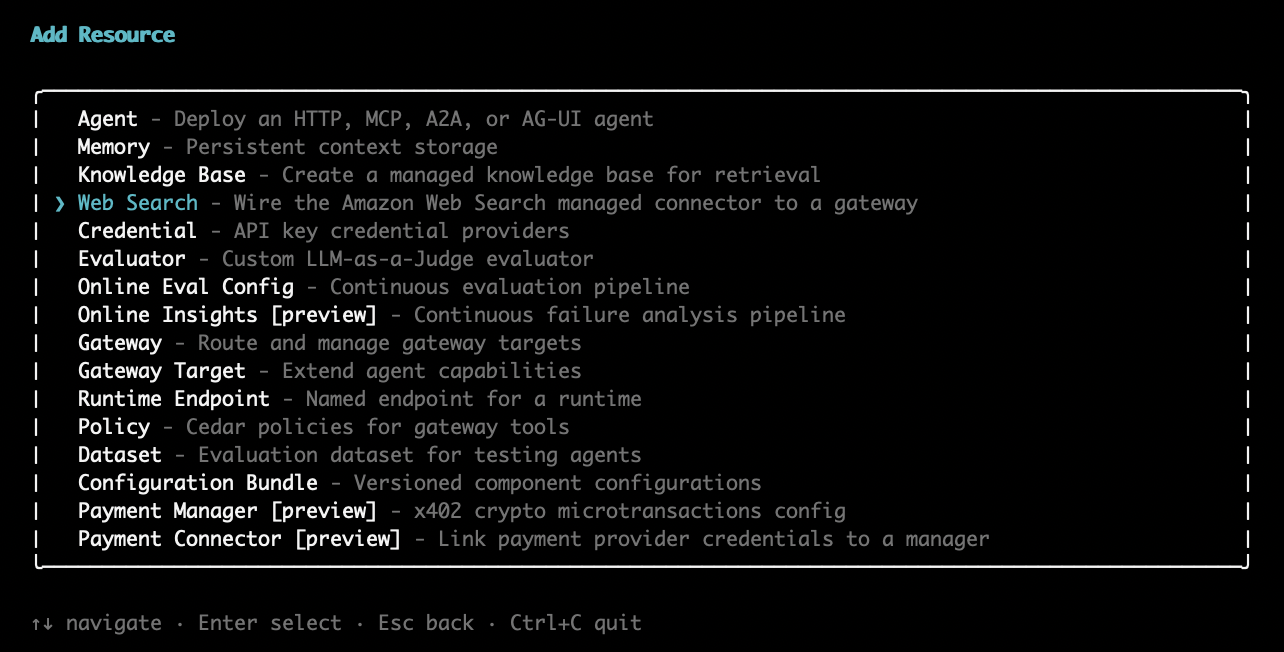
Di UI terminal interaktif AgentCore CLI, jalankanagentcore add gateway-target, lalu pilih Amazon Web Search dari pemilih tipe target:
Wizard meminta Anda untuk nama target, gateway untuk dilampirkan, dan daftar opsional domain untuk dikecualikan dari hasil pencarian.
Konfigurasikan pemfilteran domain
Anda dapat membatasi domain mana yang diizinkan untuk ditanyakan oleh Alat Pencarian Web dengan mengonfigurasi daftar denylist domain. Ini berguna bagi administrator yang ingin mencegah agen mengembalikan hasil dari situs web tertentu.
Pemfilteran domain dikonfigurasi pada tingkat alat menggunakan parameterValues.domainFilter.exclude bidang saat membuat atau memperbarui Target Gateway. Denylist diberlakukan di sisi server dan disembunyikan dari LLM — agen tidak menyadari pembatasan dan tidak menerima hasil dari domain yang dikecualikan.
Contoh berikut membuat target Alat Pencarian Web dengan pemfilteran domain yang mengecualikan hasil dari blocked-website-1.com dan: blocked-website-2.com
contoh
- Boto3
-
-
Kode Python berikut menunjukkan cara membuat target Web Search Tool dengan pemfilteran domain menggunakan AWS Python SDK (Boto3):
import boto3

gateway_client = boto3.client("bedrock-agentcore-control", region_name="<REGION>")

gateway_client.create_gateway_target(
    name="web-search-tool",
    gatewayIdentifier="<GATEWAY_ID>",
    targetConfiguration={
        "mcp": {
            "connector": {
                "source": {"connectorId": "web-search"},
                "configurations": [
                    {
                        "name": "WebSearch",
                        "parameterValues": {
                            "domainFilter": {
                                "exclude": ["blocked-website-1.com", "blocked-website-2.com"]
                            }
                        },
                    }
                ],
            }
        }
    },
    credentialProviderConfigurations=[
        {"credentialProviderType": "GATEWAY_IAM_ROLE"}
    ],
)
- AWS CLI
-
-
Perintah berikut membuat target Web Search Tool dengan pemfilteran domain menggunakan AWS CLI:
aws bedrock-agentcore-control create-gateway-target \
  --gateway-identifier "<GATEWAY_ID>" \
  --name "web-search-tool" \
  --target-configuration '{
    "mcp": {
      "connector": {
        "source": {
          "connectorId": "web-search"
        },
        "configurations": [
          {
            "name": "WebSearch",
            "parameterValues": {
              "domainFilter": {
                "exclude": ["blocked-website-1.com", "blocked-website-2.com"]
              }
            }
          }
        ]
      }
    }
  }' \
  --credential-provider-configurations '[{"credentialProviderType": "GATEWAY_IAM_ROLE"}]' \
  --region "<REGION>"
- AgentCore CLI
-
-
Lewati daftar domain yang dipisahkan koma melalui: --exclude-domains
agentcore add gateway-target \
  --name MyWebSearchTarget \
  --type connector \
  --connector web-search \
  --exclude-domains blocked-website-1.com,blocked-website-2.com \
  --gateway MyGateway
agentcore deploy
- Interactive
-
-
Di UI terminal interaktif AgentCore CLI, wizard Add Gateway Target meminta daftar domain yang dipisahkan koma opsional untuk dikecualikan dari hasil penelusuran setelah Anda memilih Amazon Web Search dan memilih gateway. Membiarkan prompt kosong membuat target tanpa pemfilteran domain.
Anda juga dapat memperbarui target yang ada untuk menambah atau memodifikasi pemfilteran domain menggunakanUpdateGatewayTarget.
Konfigurasikan Peran Layanan Gateway
Gateway memerlukan peran layanan yang memungkinkan AgentCore layanan melakukan tindakan atas nama Anda. Untuk Web Search Tool, peran tersebut memerlukan izin berikut:
-
bedrock-agentcore:InvokeGateway— untuk memanggil Gateway
-
bedrock-agentcore:InvokeWebSearch— untuk mengotorisasi pemanggilan pencarian web, diperiksa per permintaan terhadap ARN milik layanan arn:aws:bedrock-agentcore:<region>:aws:tool/web-search.v1
Tambahkan kebijakan dengan konten berikut ke peran layanan yang dilampirkan ke Gateway:
{
  "Version": "2012-10-17",
  "Statement": [
    {
      "Sid": "InvokeGateway",
      "Effect": "Allow",
      "Action": "bedrock-agentcore:InvokeGateway",
      "Resource": "arn:aws:bedrock-agentcore:<REGION>:<ACCOUNT_ID>:gateway/*"
    },
    {
      "Sid": "InvokeWebSearch",
      "Effect": "Allow",
      "Action": "bedrock-agentcore:InvokeWebSearch",
      "Resource": "arn:aws:bedrock-agentcore:<REGION>:aws:tool/web-search.v1"
    }
  ]
}