Les traductions sont fournies par des outils de traduction automatique. En cas de conflit entre le contenu d'une traduction et celui de la version originale en anglais, la version anglaise prévaudra.
Les outils sont déclaratifs. Vous listez ce que l'agent peut appeler ; il AgentCore gère les appels, les informations d'identification et les résultats. Le harnais prend en charge cinq types d'outils, ainsi que le système de fichiers et les outils shell intégrés.
-
Serveurs MCP : connectez-vous à n'importe quel point de terminaison distant du Model Context Protocol par URL. Aucune passerelle n'est requise pour les cas simples.
-
AgentCore Passerelle : connectivité gouvernée aux API et aux serveurs MCP avec inbound/outbound authentification, contrôle d'accès et application des politiques. Référencez l'ARN d'une passerelle et chaque outil configuré sur cette passerelle devient disponible. Utilisez Gateway lorsque vous avez besoin d'une surface d'outils gérée et basée sur des politiques.
-
AgentCore Navigateur : navigation Web gérée et automatisation.
-
AgentCore Interpréteur de code : exécution de Python/JavaScript/TypeScript code en sandbox pour l'analyse et le calcul des données.
-
Fonctions intégrées : schémas d'outils qui s'exécutent côté client, et non sur la machine virtuelle du harnais. Le harnais fait une pause lorsque l'outil est appelé et renvoie l'appel à votre code, qui décide de la marche à suivre et renvoie un résultat. C'est le modèle pour les approbations humaines et les intégrations personnalisées.
Les outils shell par défaut file_operations sont disponibles dans chaque session, sauf si vous les limitez avecallowedTools. shellexécute des commandes bash ; file_operations prend en charge l'affichage, la création et la modification de fichiers.
Le allowedTools paramètre contrôle les outils que l'agent peut utiliser. En cas d'omission, tous les outils sont autorisés.
Frais généraux liés aux jetons liés aux définitions d'outils
Les définitions d'outils sont prises en compte dans les jetons d'entrée du modèle, même lorsque l'agent n'appelle pas les outils. Ensemble, la valeur par défaut shell et file_operations les définitions ajoutent environ 900 jetons d'entrée à chaque demande de modèle. Le nombre exact varie selon le modèle et peut changer à mesure que les définitions des outils évoluent. Étant donné qu'un appel peut générer plusieurs demandes de modèle, cette surcharge peut se produire plusieurs fois par appel. allowedToolsÀ utiliser pour exposer uniquement les outils nécessaires à une demande et réduire l'utilisation des jetons.
Modèles pris en charge :
| Modèle |
Exemple |
Correspondance |
|
*
|
"*"
|
Tous les outils
|
|
Nom simple
|
"shell"
|
Intégré par nom
|
|
Globe intégré
|
"file_*"
|
file_operations, file_read
|
|
@builtin
|
"@builtin"
|
Tous les outils intégrés
|
|
@builtin/name
|
"@builtin/shell"
|
Intégré spécifique
|
|
@server
|
"@git"
|
Tous les outils d'un serveur MCP
|
|
@server/tool
|
"@git/git_status"
|
Outil MCP spécifique
|
|
@server/glob
|
"@git/read_*"
|
Glob au sein d'un serveur
|
|
@*/tool
|
"@*-mcp/status"
|
Passez d'un serveur à l'autre
|
allowedToolsétend la sélection de l'outil LLM uniquement pendantInvokeHarness. Cela n'affecte InvokeAgentRuntimeCommandpas le fait qu'il s'agit d'une API distincte dotée de sa propre action IAM (bedrock-agentcore:InvokeAgentRuntimeCommand) qui exécute les commandes directement sans passer par le LLM. Pour empêcher l'exécution directe de commandes, n'bedrock-agentcore:InvokeAgentRuntimeCommandautorisez pas vos politiques IAM.
Exemple
- AWS CLI/boto3
-
Passez tools au moment de la création, de la mise à jour ou de l'appel :
tools = [
    # MCP server
    {
        "type": "remote_mcp",
        "name": "exa",
        "config": {"remoteMcp": {"url": "https://mcp.exa.ai/mcp"}},
    },
    # MCP server with authentication headers (plain text)
    {
        "type": "remote_mcp",
        "name": "my-private-mcp",
        "config": {"remoteMcp": {
            "url": "https://mcp.example.com/api",
            "headers": {"Authorization": "Bearer <your-token>"}
        }},
    },
    # MCP server with API key stored in AgentCore Identity Token Vault.
    # Use ${arn:...} to reference a credential provider - the ARN is resolved
    # to the actual API key at invocation time.
    {
        "type": "remote_mcp",
        "name": "exa-secure",
        "config": {"remoteMcp": {
            "url": "https://mcp.exa.ai/mcp",
            "headers": {"x-api-key": "${arn:aws:bedrock-agentcore:us-west-2:123456789012:token-vault/default/apikeycredentialprovider/my-exa-key}"}
        }},
    },
    # For managed credential rotation and OAuth-protected tools, put your MCP server
    # behind AgentCore Gateway and use AgentCore Identity instead of raw headers.
    #
    # AgentCore Gateway with SigV4 auth (default)
    {
        "type": "agentcore_gateway",
        "name": "my-gateway",
        "config": {"agentCoreGateway": {"gatewayArn": "arn:aws:bedrock-agentcore:us-west-2:123456789012:gateway/my-gateway"}},
    },
    # AgentCore Gateway with OAuth auth
    {
        "type": "agentcore_gateway",
        "name": "my-oauth-gateway",
        "config": {"agentCoreGateway": {
            "gatewayArn": "arn:aws:bedrock-agentcore:us-west-2:123456789012:gateway/my-oauth-gateway",
            "outboundAuth": {"oauth": {
                "credentialProviderName": "my-oauth-provider",
                "scopes": ["read", "write"]
            }}
        }},
    },
    # AgentCore Browser
    {"type": "agentcore_browser", "name": "browser"},
    # AgentCore Code Interpreter
    {"type": "agentcore_code_interpreter", "name": "code_interpreter"},
    # Inline function - executes on the client side, not on the harness VM.
    # When the agent calls this tool, the call is returned to your code for handling.
    {
        "type": "inline_function",
        "name": "approve_purchase",
        "config": {
            "inlineFunction": {
                "description": "Request human approval for a purchase.",
                "inputSchema": {
                    "type": "object",
                    "properties": {
                        "item": {"type": "string"},
                        "amount": {"type": "number"},
                    },
                    "required": ["item", "amount"],
                },
            }
        },
    },
]

response = client.invoke_harness(
    harnessArn=HARNESS_ARN,
    runtimeSessionId=SESSION_ID,
    tools=tools,
    messages=[{"role": "user", "content": [{"text": "Find a mechanical keyboard under $200 and request approval."}]}],
)
- AgentCore CLI
-
Lorsque vous créez un nouveau harnais de manière interactive, l'agentcore add harnessassistant vous permet de sélectionner des outils. Pour ajouter des outils via la CLI, utilisez agentcore add tool après avoir créé le harnais :
L'--typeindicateur utilise des noms séparés par des traits de soulignement (par exemple,agentcore_browser), qui correspondent aux identificateurs de type d'outil contenus dans. harness.json
# Add a remote MCP server
agentcore add tool --harness my-agent --type remote_mcp \
  --name exa --url https://mcp.exa.ai/mcp

# Create a harness with a remote MCP server and request headers.
# Use ${arn:...} syntax to reference a credential provider.
agentcore add harness \
  --name secure_agent \
  --model-provider bedrock \
  --model-id us.anthropic.claude-sonnet-4-5-20250514-v1:0 \
  --tools remote_mcp \
  --mcp-name exa-secure \
  --mcp-url https://mcp.exa.ai/mcp \
  --mcp-headers '{"x-api-key":"${arn:aws:bedrock-agentcore:us-west-2:123456789012:token-vault/default/apikeycredentialprovider/my-exa-key}"}'

# Add Browser
agentcore add tool --harness my-agent --type agentcore_browser --name browser

# Add Code Interpreter
agentcore add tool --harness my-agent --type agentcore_code_interpreter --name code-interpreter

# Add Gateway by ARN
agentcore add tool --harness my-agent --type agentcore_gateway \
  --name my-gateway --gateway-arn arn:aws:bedrock-agentcore:us-west-2:123456789012:gateway/my-gateway

# Add Gateway by project-local name
agentcore add tool --harness my-agent --type agentcore_gateway \
  --name my-gateway --gateway my-gateway

# Add an inline function tool (executes client-side, not on the harness VM)
agentcore add tool --harness my-agent --type inline_function \
  --name approve_purchase \
  --description "Request human approval for a purchase" \
  --input-schema '{"type": "object", "properties": {"item": {"type": "string"}, "amount": {"type": "number"}}, "required": ["item", "amount"]}'
Déployez pour appliquer.
Remplacez les outils lors d'un seul appel :
agentcore invoke --harness research-agent --tools agentcore_browser "Find the latest news on AI agents"
- Interactive
-
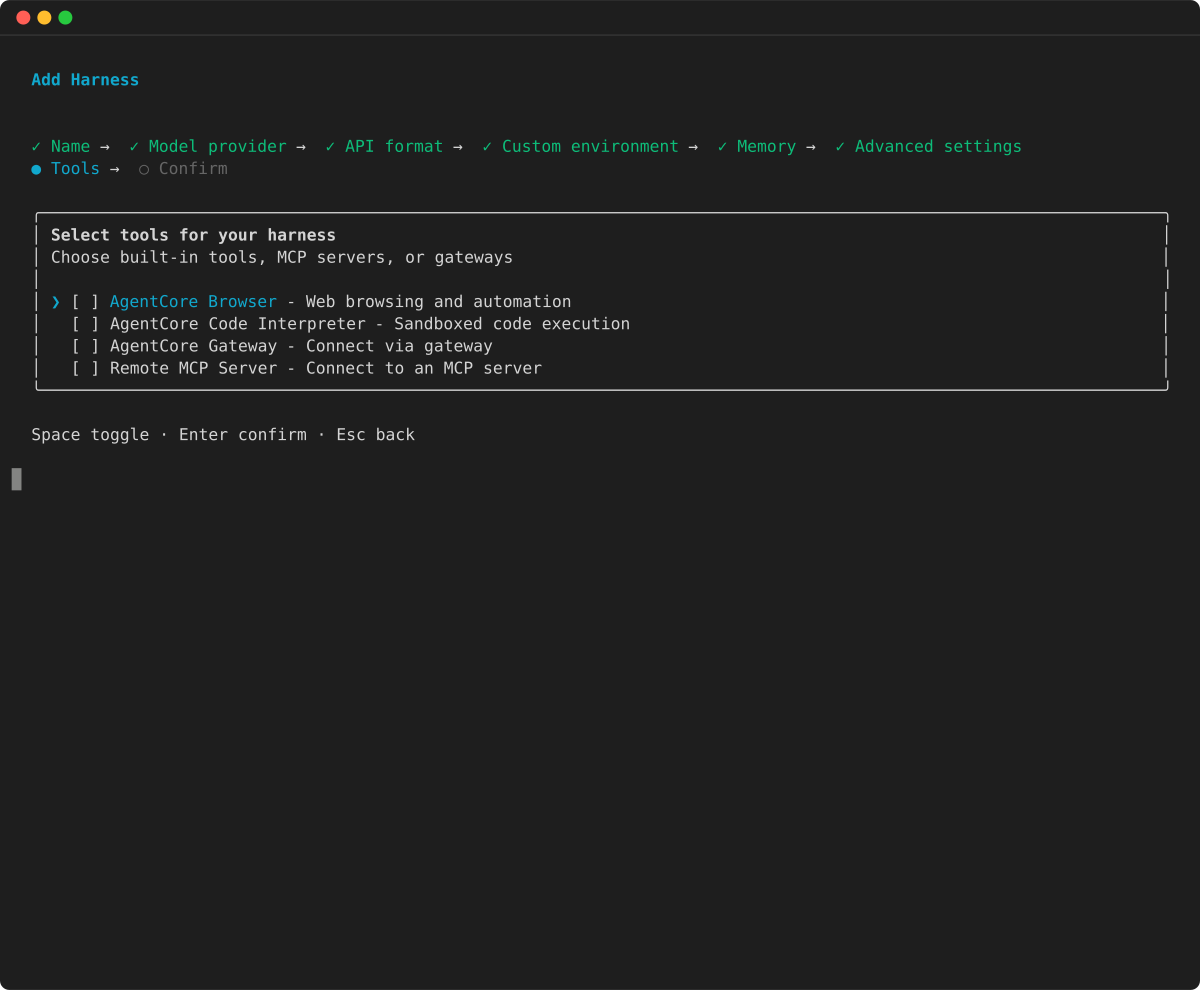
Exécutez agentcore dans un répertoire de projet, sélectionnez Ajouter, choisissez Harness et passez aux paramètres avancés. Activez Outils avec espace, puis appuyez sur Entrée.
-
Sélectionnez les outils adaptés à votre harnais : AgentCore navigateur, interpréteur de AgentCore code, AgentCore passerelle ou serveur MCP distant. Utilisez la touche Espace pour passer d'une option à l'autre, puis appuyez sur Entrée.
-
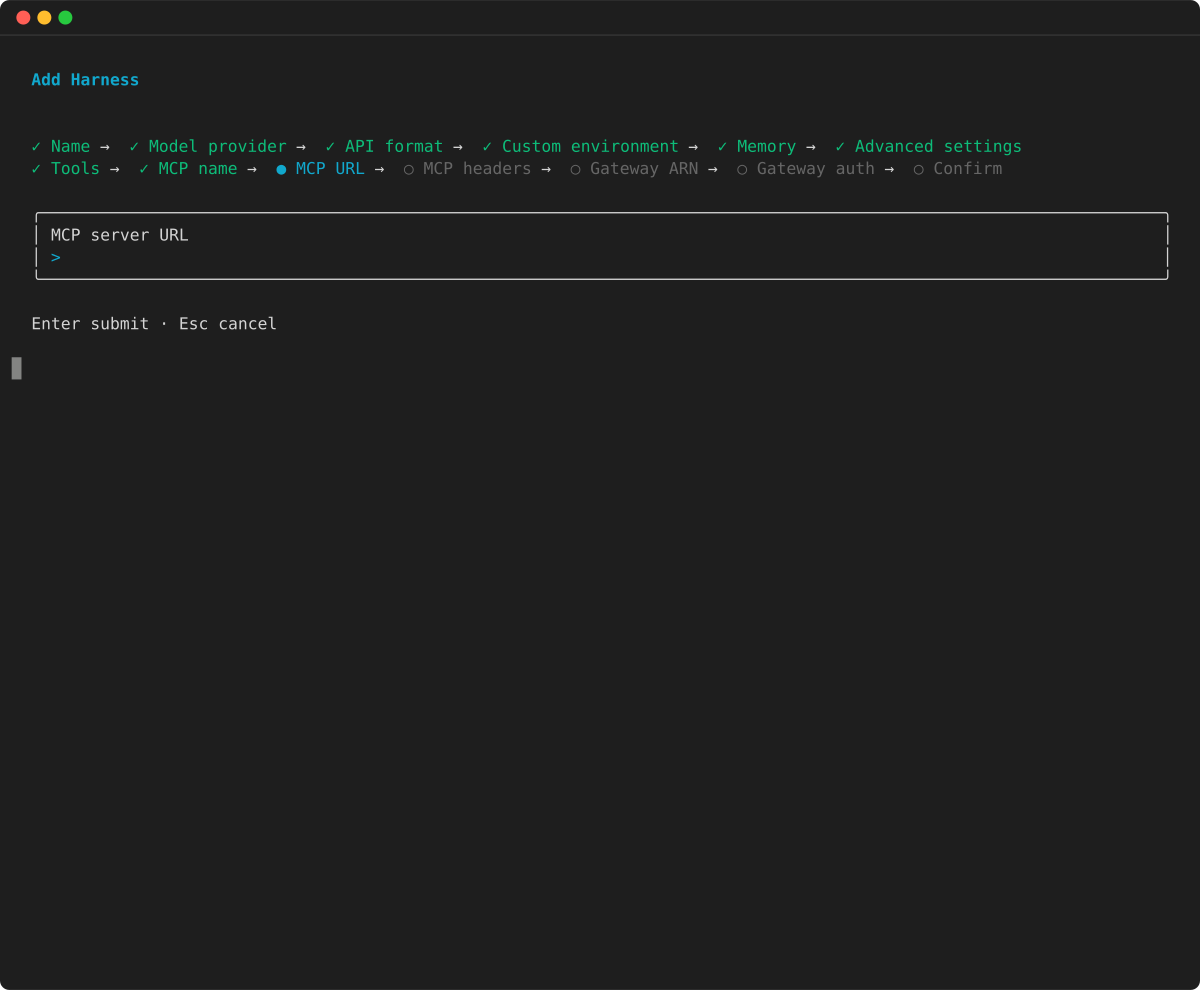
Pour un serveur MCP distant, l'assistant demande le nom du serveur, l'URL et les en-têtes de demande facultatifs.
-
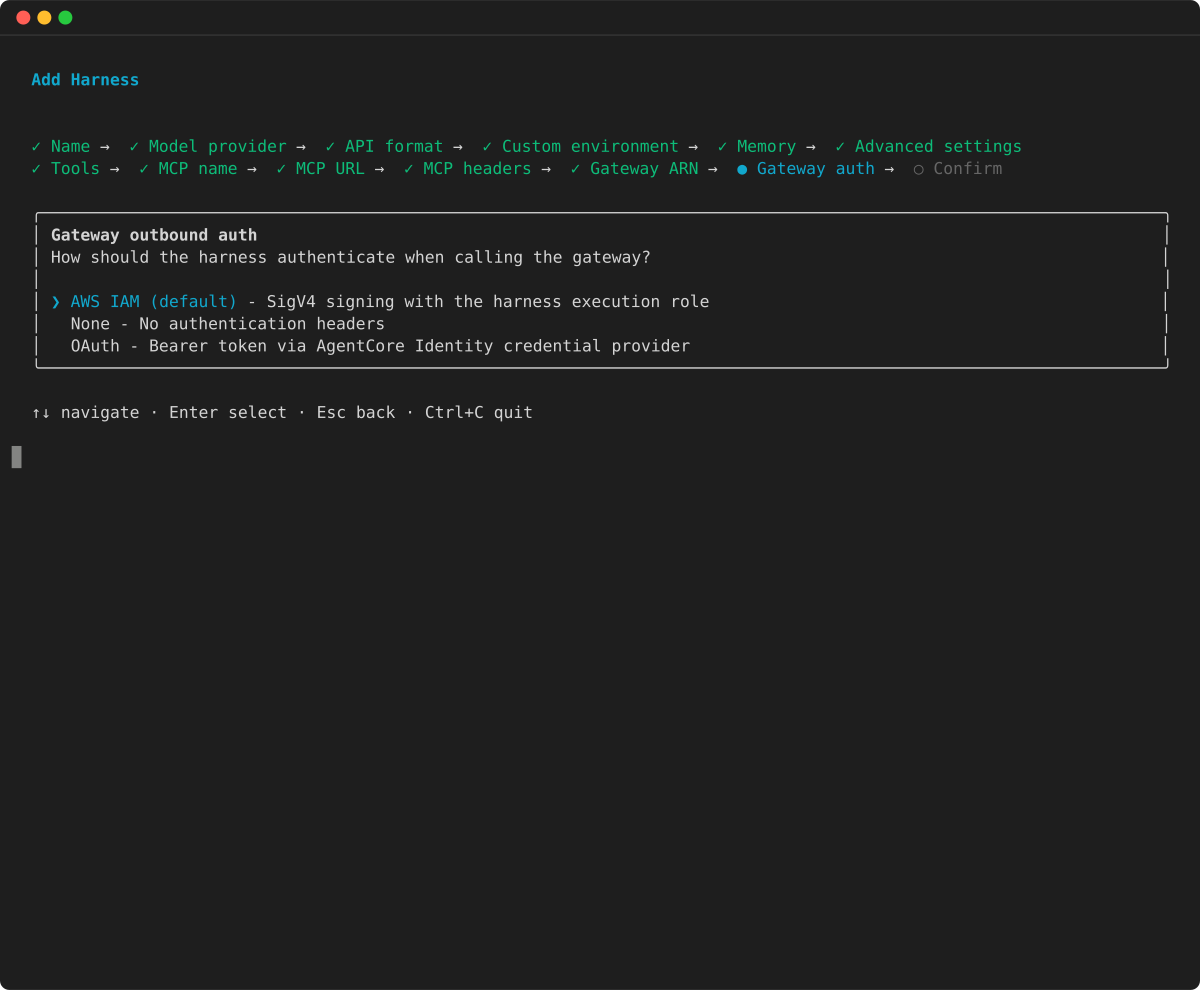
Pour une AgentCore passerelle, entrez l'ARN de la passerelle et choisissez son authentification sortante : AWS IAM (par défaut), None ou OAuth.
-
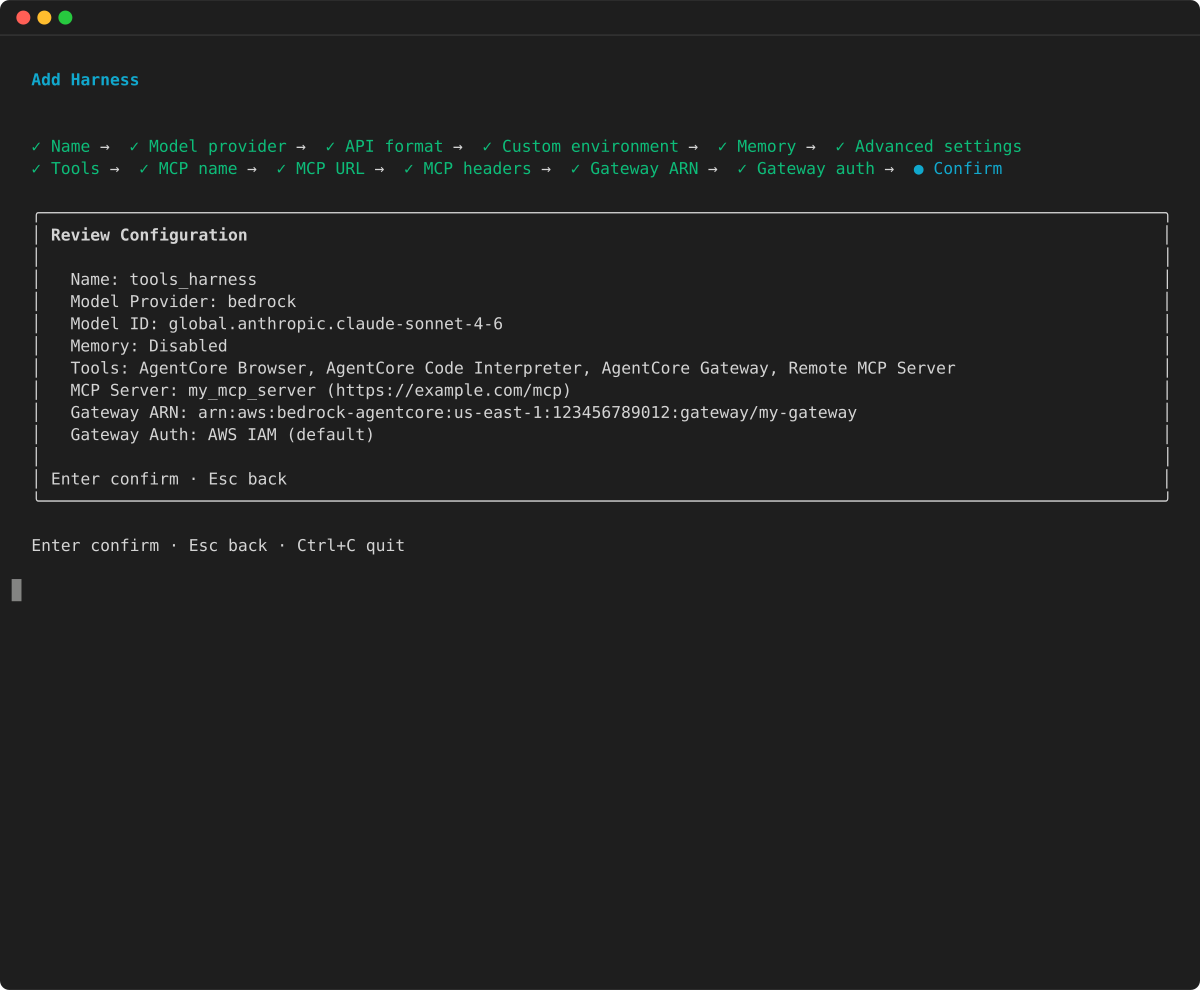
Consultez le résumé de configuration et confirmez.
Exécutez ensuite agentcore deploy pour appliquer.
Recherche sur le Web
Pour permettre à votre agent d'effectuer des recherches sur le Web, placez le connecteur de l'outil de recherche Web derrière une AgentCore passerelle et attachez cette passerelle à votre harnais en tant qu'agentcore_gatewayoutil. La passerelle présente la recherche sur le Web comme un outil MCP WebSearch standard. Votre agent le découvre et l'appelle comme n'importe quel autre outil de passerelle. AgentCore Gateway répond entièrement à toutes les requêtes AWS. Pour plus d'informations sur le modèle de confidentialité et l'index Web spécialement conçu, consultez la page du connecteur de l'outil de recherche Web.
Disponibilité dans les Régions
L'outil de recherche Web est disponible dans plusieurs AWS régions. Pour la liste actuelle, voir Disponibilité sur la page du connecteur de l'outil de recherche Web. Créez la passerelle et le harnais dans une région prise en charge.
Procédez comme suit pour configurer la recherche sur le Web pour votre harnais.
-
Créez la passerelle et la cible du connecteur. Suivez les étapes décrites dans Configurer l'outil de recherche Web pour créer une passerelle (protocole MCP, authentification AWS_IAM entrante) et ajouter une cible avec. connectorId: "web-search" Cette cible a besoin d'un rôle de service de passerelle bedrock-agentcore:InvokeWebSearch sur le connecteur. Pour plus d'informations, voir Configurer le rôle du service de passerelle. Notez l'ARN de la passerelle une fois qu'il est atteintREADY.
-
Accordez l'accès au rôle d'exécution du harnais. Le rôle d'exécution du harnais (distinct du rôle de service de passerelle de l'étape précédente) doit se trouver bedrock-agentcore:InvokeGateway sur l'ARN de la passerelle. Pour plus d'informations sur les autorisations requises, consultez la politique d'autorisations facultatives de AgentCore Gateway dans la rubrique relative à la sécurité. Si votre harnais utilise de la mémoire gérée (par défaut), le rôle d'exécution a également besoin des autorisations de AgentCore mémoire. L'agent lit et écrit la mémoire de session à chaque appel.
-
Fixez la passerelle au harnais. Ajoutez-le en tant qu'agentcore_gatewayoutil avec l'authentification AWS_IAM sortante par défaut. Les exemples suivants montrent comment associer la passerelle au moment de la création.
Exemple
- AWS CLI/boto3
-
Attachez la passerelle au moment de la création (ou tools transmettez-laupdate_harness/invoke_harness) :
tools = [
    {
        "type": "agentcore_gateway",
        "name": "web-search",
        "config": {"agentCoreGateway": {
            "gatewayArn": "arn:aws:bedrock-agentcore:us-east-1:123456789012:gateway/my-web-search-gateway",
            "outboundAuth": {"awsIam": {}}
        }},
    },
]

client.create_harness(
    harnessName="research-agent",
    executionRoleArn="arn:aws:iam::123456789012:role/MyHarnessRole",
    tools=tools,
)
Les outils de la passerelle sont désormais à la disposition de l'agent. Appelez le harnais avec une invite qui nécessite des informations à jour :
response = client.invoke_harness(
    harnessArn=HARNESS_ARN,
    runtimeSessionId=SESSION_ID,
    messages=[{"role": "user", "content": [{"text": "Search the web for the latest AWS announcements and cite your sources."}]}],
)
- AgentCore CLI
-
# Attach the web-search gateway to your harness
agentcore add tool --harness research-agent --type agentcore_gateway \
  --name web-search \
  --gateway-arn arn:aws:bedrock-agentcore:us-east-1:123456789012:gateway/my-web-search-gateway

# Deploy, then invoke
agentcore deploy
agentcore invoke --harness research-agent "Search the web for the latest AWS announcements and cite your sources."
Appels fonctionnels en ligne
Les fonctions intégrées vous permettent de définir un outil qui s'exécute dans votre code, et non sur le harnais. Cela est utile pour les approbations humaines, pour appeler des API internes ou pour toute autre logique que vous souhaitez contrôler côté client.
Exemple
- AWS CLI/boto3
-
Passez un outil de fonction en ligne au moment de l'appel :
import json

tools = [{
    "type": "inline_function",
    "name": "get_weather",
    "config": {"inlineFunction": {
        "description": "Get the current weather for a city.",
        "inputSchema": {
            "type": "object",
            "properties": {"city": {"type": "string"}},
            "required": ["city"]
        }
    }}
}]

# 1. Invoke with the inline function tool
response = client.invoke_harness(
    harnessArn=HARNESS_ARN,
    runtimeSessionId=SESSION_ID,
    tools=tools,
    messages=[{"role": "user", "content": [{"text": "What's the weather in Seattle?"}]}],
)

# 2. Capture the toolUseId and input, then wait for the handoff boundary
tool_use_id = None
tool_block_index = None
tool_input = None
last_stop_reason = None
for event in response["stream"]:
    if "contentBlockStart" in event:
        content_block_start = event["contentBlockStart"]
        start = content_block_start.get("start", {})
        if (
            tool_use_id is None
            and "toolUse" in start
            and start["toolUse"].get("name") == "get_weather"
        ):
            tool_use_id = start["toolUse"]["toolUseId"]
            tool_block_index = content_block_start["contentBlockIndex"]
    if "contentBlockDelta" in event:
        content_block_delta = event["contentBlockDelta"]
        delta = content_block_delta.get("delta", {})
        if (
            content_block_delta.get("contentBlockIndex") == tool_block_index
            and "toolUse" in delta
        ):
            tool_input = (tool_input or "") + delta["toolUse"].get("input", "")
    if "messageStop" in event:
        last_stop_reason = event["messageStop"].get("stopReason")

if last_stop_reason != "tool_use" or tool_use_id is None:
    raise RuntimeError("The inline function was not handed off for execution.")

# 3. Execute the tool yourself and send the matching result back
tool_arguments = json.loads(tool_input or "{}")
# Run your client-side implementation with tool_arguments.
tool_result = "72°F, partly cloudy"
response = client.invoke_harness(
    harnessArn=HARNESS_ARN,
    runtimeSessionId=SESSION_ID,
    tools=tools,
    messages=[{
        "role": "user",
        "content": [{
            "toolResult": {
                "toolUseId": tool_use_id,
                "content": [{"text": tool_result}],
                "status": "success",
            }
        }],
    }],
)
Utilisez le même runtimeSessionId pour les deux demandes. Le harnais stocke l'assistant faisant autorité toolUse et en attente d'exécution au cours de cette session. La demande de suivi ne nécessite que l'utilisateur correspondanttoolResult. Si vous renvoyez l'assistanttoolUse, le harnais ignore cette copie et reprend l'exécution initiale à partir de l'état de session. Si vous avez fourni l'outil intégré InvokeHarness en remplacement, incluez-le à nouveau afin que l'outil en attente reste disponible. Un résultat manquant, dupliqué, périmé ou rejoué ne peut pas reprendre le transfert.
Pour les appels de fonction en ligne adjacents dans une réponse de modèle, renvoyez le résultat en attente et tous les résultats immédiatement suivants dans une seule demande de suivi. Le harnais les traite dans l'ordre. Si un outil exécuté par harnais sépare deux appels en ligne, attendez un autre tool_use transfert avant de renvoyer le résultat ultérieur.
Avant d'utiliser un after_tool_call événement pour une fonction en ligne comme signal d'autorisation ou d'audit, lisez Utiliser des crochets d'appel d'outils avec des fonctions en ligne.
response["stream"]À consommer pour recevoir le résultat de l'outil diffusé en continu et toute sortie ultérieure de l'agent. Si le dernier messageStop est stopReason réglé surtool_use, répétez le flux de transfert pour la fonction en ligne suivante.
- AgentCore CLI
-
Ajoutez un outil fonctionnel intégré à un harnais :
agentcore add tool --harness my-agent --type inline_function \
  --name get_weather
Définissez ensuite la description et le schéma de saisie dans app/my-agent/harness.json :
{
  "type": "inline_function",
  "name": "get_weather",
  "config": {
    "inlineFunction": {
      "description": "Get the current weather for a city.",
      "inputSchema": {
        "type": "object",
        "properties": { "city": { "type": "string" } },
        "required": ["city"]
      }
    }
  }
}
Courez agentcore deploy pour postuler. Lorsque l'agent appelle la fonction intégrée pendant un appel, le TUI fait une pause et vous invite à fournir le résultat de l'outil en ligne. En mode non interactif (CLI), le flux revient avec stopReason: "tool_use" et vous renvoyez le résultat avec un appel d'appel de suivi qui utilise la même session d'exécution.
En savoir plus sur chaque outil :