Die vorliegende Übersetzung wurde maschinell erstellt. Im Falle eines Konflikts oder eines Widerspruchs zwischen dieser übersetzten Fassung und der englischen Fassung (einschließlich infolge von Verzögerungen bei der Übersetzung) ist die englische Fassung maßgeblich.
Migrieren Sie IIS-hosted Anwendungen mithilfe von appcmd.exe zu Amazon EC2
Deepak Kumar, Amazon Web Services
Zusammenfassung
Wenn Sie von Internet Information Services (IIS) gehostete Anwendungen zu Amazon Elastic Compute Cloud (Amazon EC2) -Instances migrieren, müssen Sie mehrere Authentifizierungsherausforderungen bewältigen. Zu diesen Herausforderungen gehören die erneute Eingabe von Domänenanmeldedaten für Anwendungspool-Identitäten und die potenzielle Neugenerierung von Maschinenschlüsseln, damit die Website ordnungsgemäß funktioniert. Dieses Muster beschreibt einen sauberen Migrationsansatz, der die Sicherungs- und Wiederherstellungsfunktionen von IIS auf Amazon EC2 EC2-Instances verwendet. Der Ansatz verwendet appcmd.exe, um IIS auf den Amazon EC2 EC2-Zielinstanzen zu deinstallieren und neu zu installieren, was eine erfolgreiche Migration von IIS-hosted Websites, Anwendungspool-Identitäten und Computerschlüsseln ermöglicht.
Voraussetzungen und Einschränkungen
Voraussetzungen
Ein aktiver AWS-Konto für den Zielserver.
Ein funktionierender IIS-Quellserver, auf dem Websites gehostet werden.
Verständnis der IIS-Arbeitsprinzipien wie Verwaltung und Konfiguration.
Systemadministratorzugriff sowohl auf dem Quell- als auch auf dem Zielserver.
Die Migration des IIS-Quellservers auf den Zielserver wurde abgeschlossen AWS-Konto. Sie können Migrationstools wie AWS Transform MGN einen auf Amazon Machine Image (AMI) -Snapshots basierenden Ansatz oder andere Migrationstools verwenden.
Windows Server 2012 R2 oder höher auf Quell- und Zielservern.
Microsoft.NET Framework 4.5 oder höher ist auf beiden Servern installiert (erforderlich für Schlüsselcontaineroperationen mit aspnet_regiis.exe)
Eine Methode zum Übertragen von Sicherungsdateien und exportierten wichtigen XML-Dateien vom Quell- auf den Zielserver, z. B. Amazon Simple Storage Service (Amazon S3), ein gemeinsam genutztes Netzlaufwerk oder eine sichere Kopie.
Die IIS-Quell- und Ziel-Instances müssen dieselbe IIS-Version (8.5 oder 10.0) ausführen.
Einschränkungen
Einige AWS-Services sind nicht in allen verfügbar AWS-Regionen. Informationen zur Verfügbarkeit in den einzelnen Regionen finden Sie unter AWS Dienste nach Regionen
. Informationen zu bestimmten Endpunkten finden Sie unter Dienstendpunkte und Kontingente. Wählen Sie dort den Link für den Dienst aus.
Produktversionen
IIS 8.5 oder IIS 10.0
Architektur
Quelltechnologie-Stack
Windows Server mit installiertem IIS 8.5 oder IIS 10.0
Zieltechnologie-Stack
Windows Server mit installiertem IIS 8.5 oder IIS 10.0
AWS Transform MGN
Zielarchitektur
Das folgende Diagramm zeigt den Workflow und die Architekturkomponenten für dieses Muster.
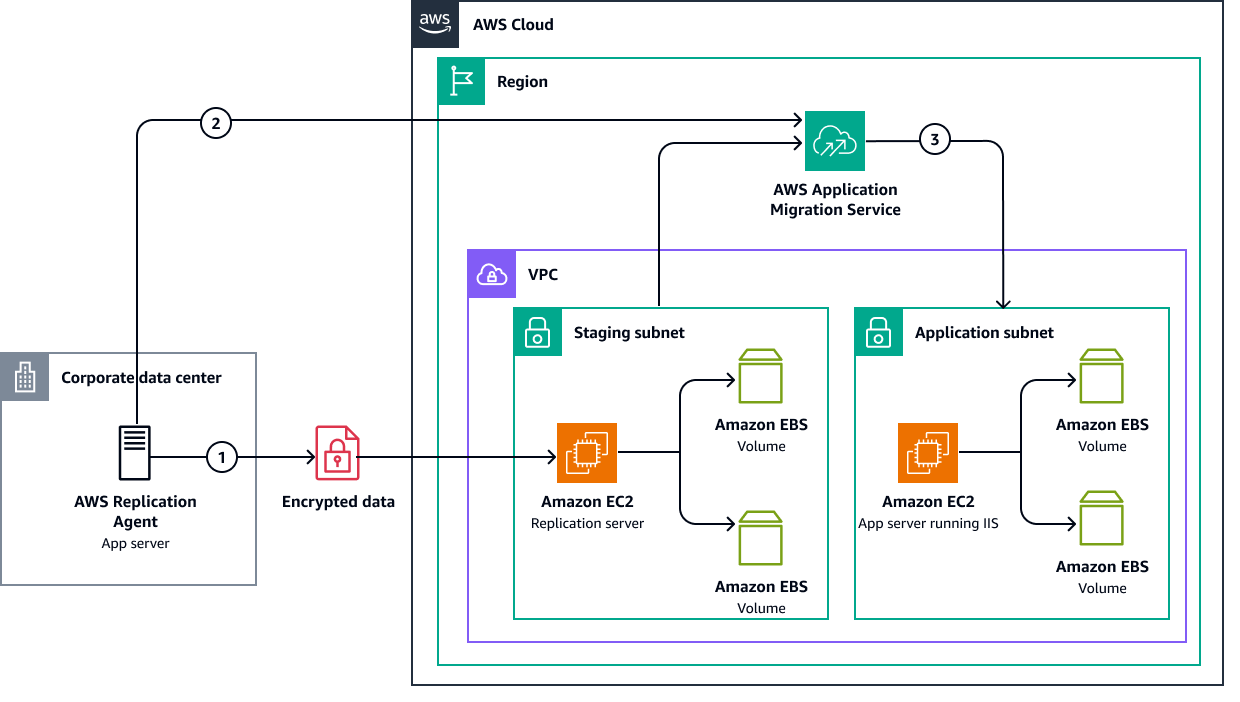
Die Lösung umfasst die folgenden Schritte:
Installieren und konfigurieren Sie den AWS Replication Agent auf dem IIS-Quellserver in Ihrem Unternehmensrechenzentrum. Dieser Agent initiiert den Replikationsprozess und verwaltet die Datenübertragung zu AWS.
Der AWS Replication Agent stellt eine sichere Verbindung zu MGN her und beginnt mit der Replikation der Quellserverdaten, einschließlich IIS-Konfigurationen, Websites und Anwendungsdateien.
MGN startet Amazon EC2 EC2-Instances im Anwendungssubnetz mit den replizierten Daten. Die Amazon EC2 EC2-Zielinstanz führt IIS aus und enthält die migrierten Anwendungen mit ihren zugehörigen Amazon Elastic Block Store (Amazon EBS) -Volumes. Nach der ersten Replikation synchronisiert MGN die Änderungen weiter, bis Sie bereit sind, auf die neue Umgebung umzusteigen.
Tools
AWS-Services
AWS Transform MGNunterstützt Sie beim Rehosten (Lift and Shift) von Anwendungen AWS Cloud ohne Änderungen und mit minimalen Ausfallzeiten.
Amazon Elastic Block Store (Amazon EBS) bietet Volumes für die Speicherung auf Blockebene, die in Verbindung mit Amazon-EC2-Instances verwendet werden.
Amazon Elastic Compute Cloud (Amazon EC2) bietet sichere und skalierbare Rechenkapazität in der AWS Cloud. Sie können so viele virtuelle Server wie nötig nutzen und sie schnell nach oben oder unten skalieren.
Andere Tools
Internet Information Services (IIS)
für Windows Server ist ein Webserver mit einer skalierbaren und offenen Architektur für das Hosten aller Inhalte im Internet. IIS bietet eine Reihe von Verwaltungstools, darunter Verwaltungs- und Befehlszeilentools (z. B. appcmd.exe), APIs für verwalteten Code und Skripterstellung sowie PowerShell Windows-Unterstützung.
Best Practices
Sichere exportierte Schlüsseldateien — Die XML-Dateien, die die exportierten privaten Schlüssel enthalten, sollten sicher übertragen (bei der Übertragung verschlüsselt) und nach einer erfolgreichen Migration sowohl vom Quell- als auch vom Zielserver gelöscht werden.
Test in einer Umgebung außerhalb der Produktionsumgebung — Führen Sie den Sicherungs- und Wiederherstellungsvorgang auf einem Testserver durch, bevor Sie ihn in der Produktion ausführen.
Dokumentieren Sie die Identitäten des Anwendungspools — Notieren Sie sich vor der Migration alle Anmeldeinformationen für die Anwendungspool-Identität, da Sie die Passwörter nach der Wiederherstellung erneut eingeben müssen.
SSL-Zertifikate separat sichern — Die Sicherung von appcmd.exe enthält keine SSL- oder TLS-Zertifikate. Exportieren Sie diese separat mithilfe des Zertifikats-MMC-Snap-Ins oder PowerShell
Überprüfen Sie die Webinhaltsdateien — Die IIS-Konfigurationssicherung enthält keine Webanwendungsdateien (wwwroot-Inhalt). Stellen Sie sicher, dass diese zusammen mit dem Server-Image migriert werden. AWS Transform MGN
Epen
| Aufgabe | Description | Erforderliche Fähigkeiten |
|---|---|---|
Erstellen Sie Backups von IIS-hosted Websites, Konfigurationsschlüssel und | Verwenden Sie appcmd.exe auf dem Quellserver, um Backups für IIS-hosted Websites, den
Gehen Sie wie folgt vor, um den
| IIS-Administrator |
| Aufgabe | Description | Erforderliche Fähigkeiten |
|---|---|---|
Deinstallieren Sie IIS auf dem Zielserver. | Gehen Sie wie folgt vor, um IIS auf dem Zielserver zu deinstallieren:
| IIS-Administrator |
Installieren Sie IIS auf dem Zielserver. | Gehen Sie wie folgt vor, um IIS auf dem Zielserver zu installieren:
| IIS-Administrator |
| Aufgabe | Description | Erforderliche Fähigkeiten |
|---|---|---|
Stellen Sie die IIS-Websites und die Konfiguration wieder her. | Gehen Sie wie folgt vor, um die IIS-Backups wiederherzustellen, die Sie vom Quellserver auf dem Zielserver erstellt haben:
| IIS-Administrator |
Zugehörige Ressourcen
AWS Dokumentation
Installation des AWS Replication Agents (AWS Transform MGN Dokumentation)
AWS Präskriptive Leitlinien
Microsoft-Ressourcen
Zusätzliche Informationen
Das Backup von appcmd.exe umfasst: Anwendungspools, Websites, globale Konfiguration und IIS-Schema. Es enthält keine Webinhaltsdateien, SSL-Zertifikate oder gemeinsam genutzte Konfigurationsdateien.
Bei groß angelegten IIS-Farmmigrationen sollten Sie erwägen, das PowerShell Web-Administration Modul für skriptgesteuerte Sicherungs- und Wiederherstellungsvorgänge zu verwenden.
