Erste Schritte mit der AgentCore CLI
Dieses Tutorial zeigt Ihnen, wie Sie die AgentCore CLI
Die AgentCore CLI ist ein Befehlszeilentool, das Agentenprojekte erstellt, sie in Amazon Bedrock AgentCore Runtime bereitstellt und aufruft. Sie können die CLI mit gängigen Python-Agent-Frameworks wie Strands Agents
Informationen zum HTTP-Protokoll, das der Agent verwendet, finden Sie unter HTTP-Protokollvertrag.
Voraussetzungen
Bevor Sie beginnen, stellen Sie sicher, dass Sie über Folgendes verfügen:
-
AWS Konto mit konfigurierten Anmeldeinformationen. Informationen zur Konfiguration Ihrer AWS Anmeldeinformationen finden Sie unter Konfiguration und Einstellungen für Anmeldeinformationsdateien in der AWS CLI.
-
Node.js Über 20 installiert. Die AgentCore CLI wird als npm-Paket verteilt.
-
Python 3.10+ installiert. Der generierte Agentencode ist Python.
-
AWS CDK ist installiert. Die CLI verwendet das AWS CDK, um Ressourcen bereitzustellen. Informationen finden Sie unter Erste Schritte mit dem AWS CDK.
-
AWS Berechtigungen: Um einen Agenten mit der AgentCore CLI zu erstellen und bereitzustellen, benötigen Sie die entsprechenden Berechtigungen. Weitere Informationen finden Sie unter Verwenden der AgentCore CLI.
-
Modellzugriff: Anthropic Claude Sonnet 4.0 ist in der Amazon Bedrock-Konsole aktiviert (wenn Bedrock als Modellanbieter verwendet wird). Informationen zur Verwendung eines anderen Modells mit Strands Agents finden Sie im Abschnitt Model Providers in der Strands
Agents SDK-Dokumentation.
Schritt 1: AgentCore CLI installieren
Installieren Sie die AgentCore CLI global:
npm install -g @aws/agentcore
Überprüfen Sie die Installation:
agentcore --help
Die Ausgabe sollte folgendermaßen oder ähnlich aussehen:
Usage: agentcore [options] [command]

Build and deploy Agentic AI applications on AgentCore

Options:
  -V, --version                output the version number
  -h, --help                   Display help

Commands:
  add [subcommand]             Add resources (agent, evaluator, online-eval,
                               memory, identity, target)
  dev|d [options]              Launch local development server with hot-reload.
  deploy|p [options]           Deploy project infrastructure to AWS via CDK.
  create [options]             Create a new AgentCore project
  evals                        View past eval run results.
  fetch                        Fetch access info for deployed resources.
  help                         Display help topics
  invoke|i [options] [prompt]  Invoke a deployed agent endpoint.
  logs|l [options]             Stream or search agent runtime logs.
  package|pkg [options]        Package agent artifacts without deploying.
  pause                        Pause an online eval config.
  remove [subcommand]          Remove resources from project config.
  resume                       Resume a paused online eval config.
  run                          Run on-demand evaluation.
  status|s [options]           Show deployed resource details and status.
  traces|t                     View and download agent traces.
  update [options]             Check for and install CLI updates
  validate [options]           Validate agentcore/ config files.
Schritt 2: Erstellen Sie Ihr Agentenprojekt
Verwenden Sie den agentcore create Befehl, um ein neues Agentenprojekt einzurichten:
Beispiel
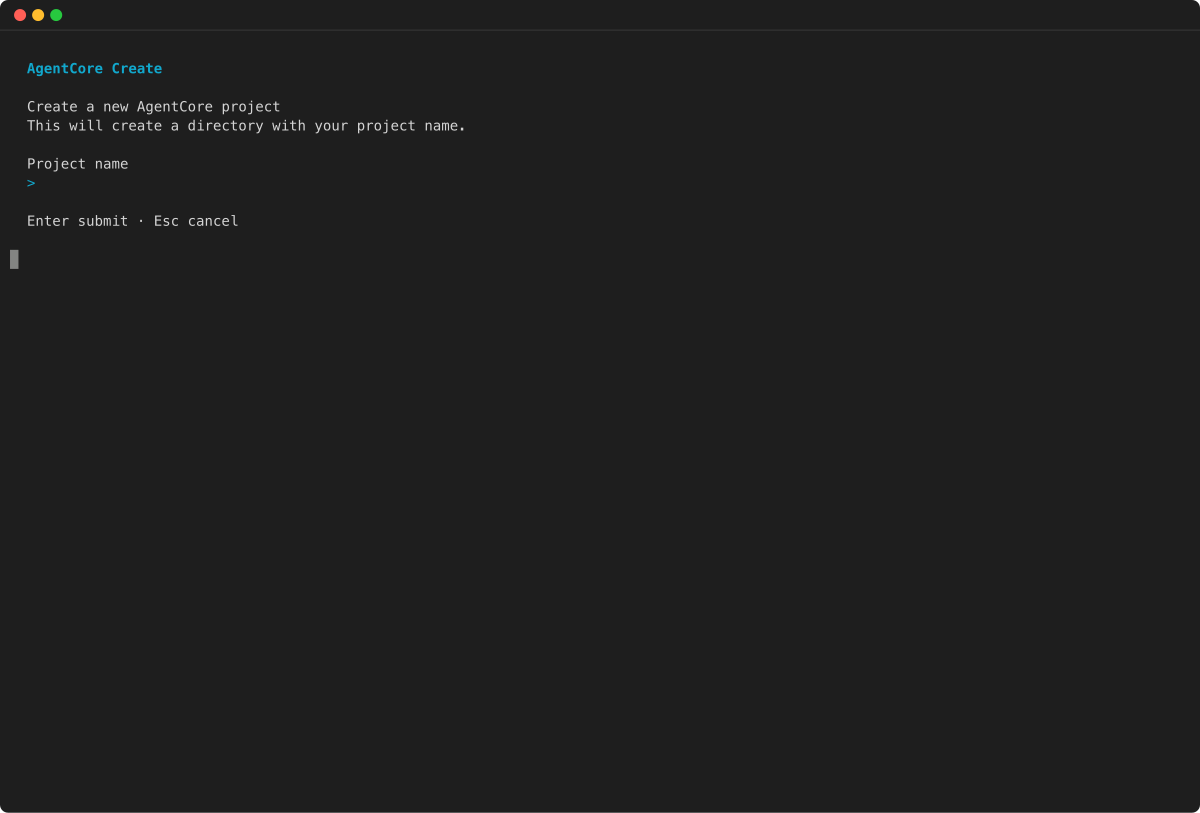
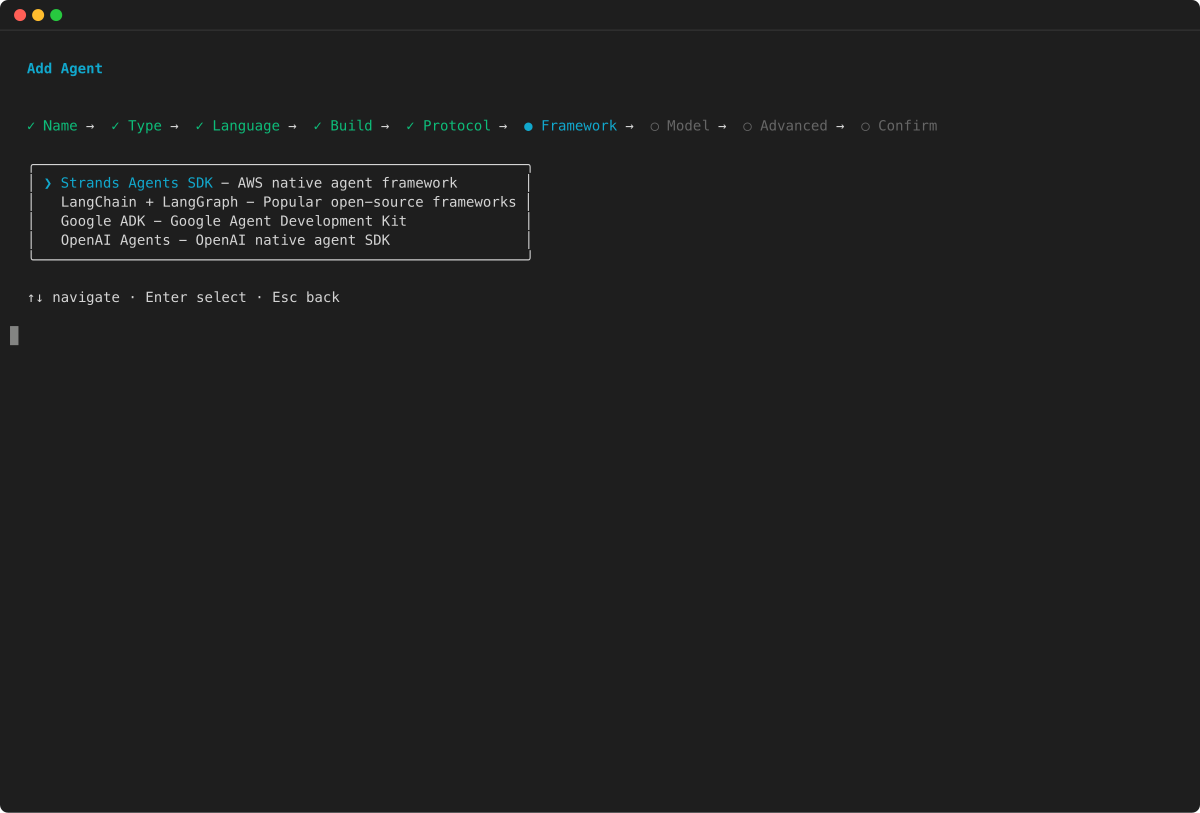
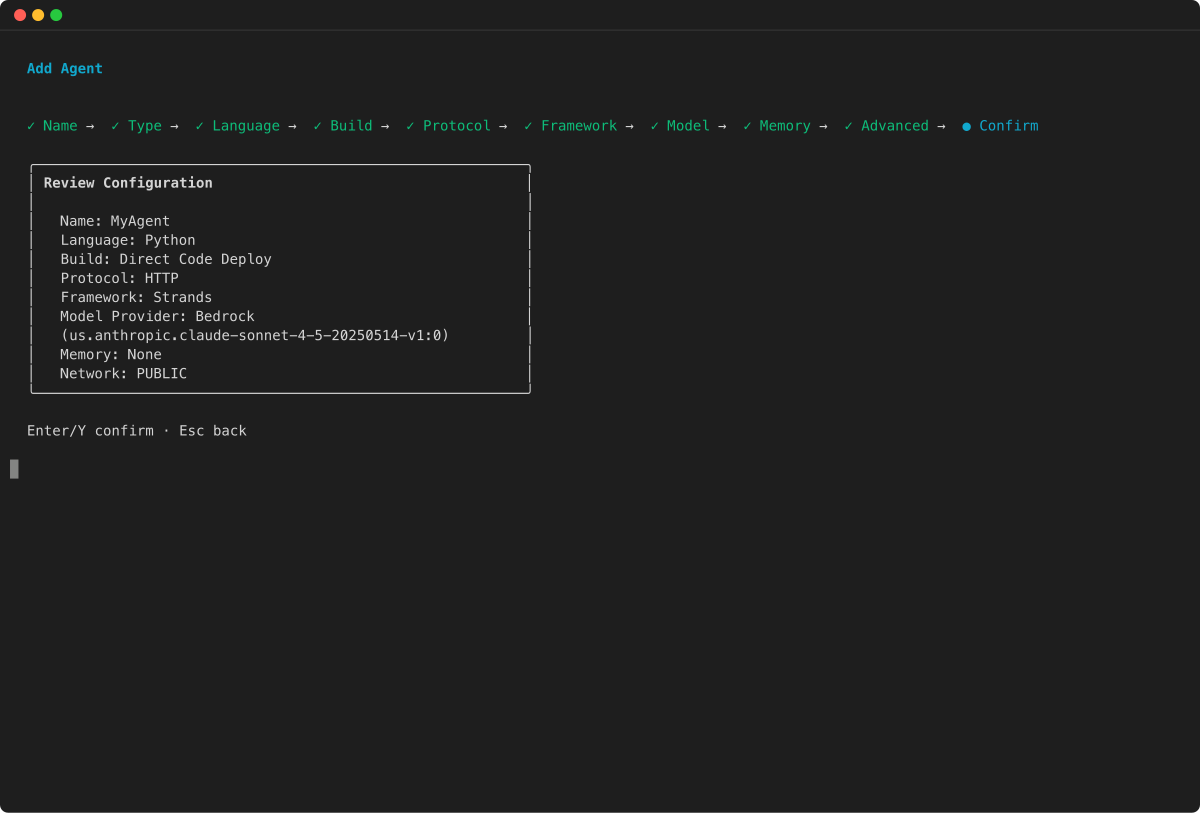
Der agentcore create Befehl akzeptiert die folgenden Flags:
-
--name— Der Projektname (alphanumerisch, beginnt mit einem Buchstaben, max. 36 Zeichen). -
--framework— Das Agenten-Framework. Unterstützte Werte:Strands,LangChain_LangGraph,GoogleADK,OpenAIAgents. -
--protocol— Der Protokollmodus. Unterstützte Werte:HTTP(Standard),MCP,A2A. -
--build— Der Build-Typ. Unterstützte Werte:CodeZip(Standard),Container. -
--model-provider— Der Modellanbieter. Unterstützte Werte:Bedrock,Anthropic,OpenAI,Gemini. -
--memory— Speicherkonfiguration. Unterstützte Werte:none,shortTerm,longAndShortTerm.
Der Befehl generiert ein Projektverzeichnis mit der folgenden Struktur:
MyAgent/
  agentcore/
    agentcore.json        # Project and agent configuration
    aws-targets.json      # AWS account and region targets
    .env.local            # Local environment variables (gitignored)
  app/
    MyAgent/
      main.py             # Agent entrypoint
      pyproject.toml      # Python dependencies
  README.md
Die agentcore/agentcore.json Datei enthält Ihre Projekt- und Agentenkonfiguration. Die app/MyAgent/main.py Datei enthält Starter-Agentencode, der das von Ihnen gewählte Framework verwendet.
Um Ihrem Projekt Zahlungsmöglichkeiten hinzuzufügen, führen Sie folgenden Befehl aus:
agentcore add payment-manager --name MyPayments --auto-payment --default-spend-limit 5.00
agentcore add payment-connector --manager MyPayments --name MyConnector --provider CoinbaseCDP \
  --api-key-id <KEY_ID> --api-key-secret <KEY_SECRET> --wallet-secret <WALLET_SECRET>
Dadurch wird die AgentCorePaymentsPlugin in Ihrem Agenten konfiguriert und die Zahlungsinfrastruktur bei der Bereitstellung bereitgestellt. Den vollständigen Arbeitsablauf finden Sie unter Schnellstart für Zahlungen.
Schritt 3: Testen Sie Ihren Agenten vor Ort
Testen Sie Ihren Agenten vor der Bereitstellung auf lokal auf dem Entwicklungsserver. AWS Wechseln Sie zunächst in das Projektverzeichnis:
cd MyAgent
Wenn Sie einen Modellanbieter ausgewählt haben, der einen API-Schlüssel benötigt (OpenAI, Anthropic oder Gemini), stellen Sie sicher, dass der Schlüssel in konfiguriert ist. agentcore/.env.local
Starten Sie den lokalen Entwicklungsserver:
Beispiel
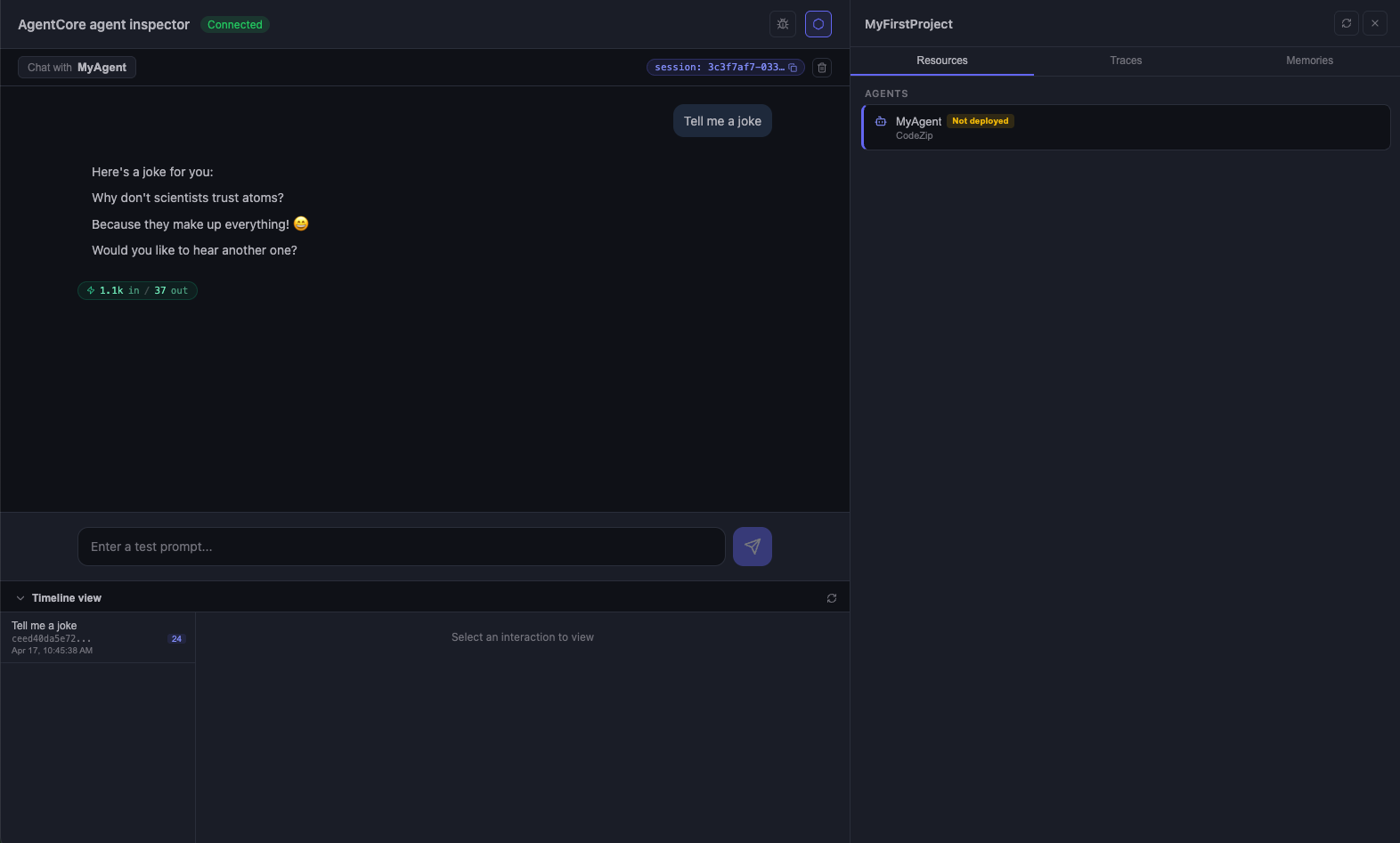
Der agentcore dev Befehl:
-
Öffnet Agent Inspector in Ihrem Webbrowser
-
Erstellt automatisch eine virtuelle Python-Umgebung und installiert Abhängigkeiten
-
Startet einen lokalen Server, der die AgentCore Runtime-Umgebung nachahmt
-
Läuft
http://localhost:8080standardmäßig an (wird verwendet-p, um den Port zu ändern)
Um Serverprotokolle in Echtzeit (nicht interaktiver Modus) anzuzeigen, verwenden Sie das --logs Flag:
agentcore dev --logs
Rufen Sie in einem separaten Terminal Ihren lokalen Agenten auf:
agentcore dev "Hello, tell me a joke"
Wenn Sie eine Eingabeaufforderung übergeben, wird sie an den laufenden lokalen Entwicklungsserver gesendet. Wird verwendet--stream, um die gestreamte Antwort in Echtzeit zu sehen.
Schritt 4: Aktivieren Sie Observability für Ihren Agenten
Amazon Bedrock AgentCore Observability hilft Ihnen dabei, Agenten, die Sie in Amazon Bedrock Runtime hosten, zu verfolgen, zu debuggen und zu überwachen. AgentCore Aktivieren Sie zunächst die CloudWatch Transaktionssuche, indem Sie den Anweisungen unter Amazon Bedrock AgentCore Runtime Observability aktivieren folgen. Informationen zur Beobachtung Ihres Agenten finden Sie unter Beobachtbarkeitsdaten für Ihre Amazon AgentCore Bedrock-Agenten anzeigen.
Nachdem Sie Ihren Agenten bereitgestellt haben, können Sie die AgentCore CLI verwenden, um Protokolle zu streamen und Traces anzuzeigen:
# Stream agent logs
agentcore logs

# List recent traces
agentcore traces list
Schritt 5: Auf Amazon Bedrock AgentCore Runtime bereitstellen
Stellen Sie Ihren Agenten auf Amazon Bedrock AgentCore Runtime bereit:
Beispiel
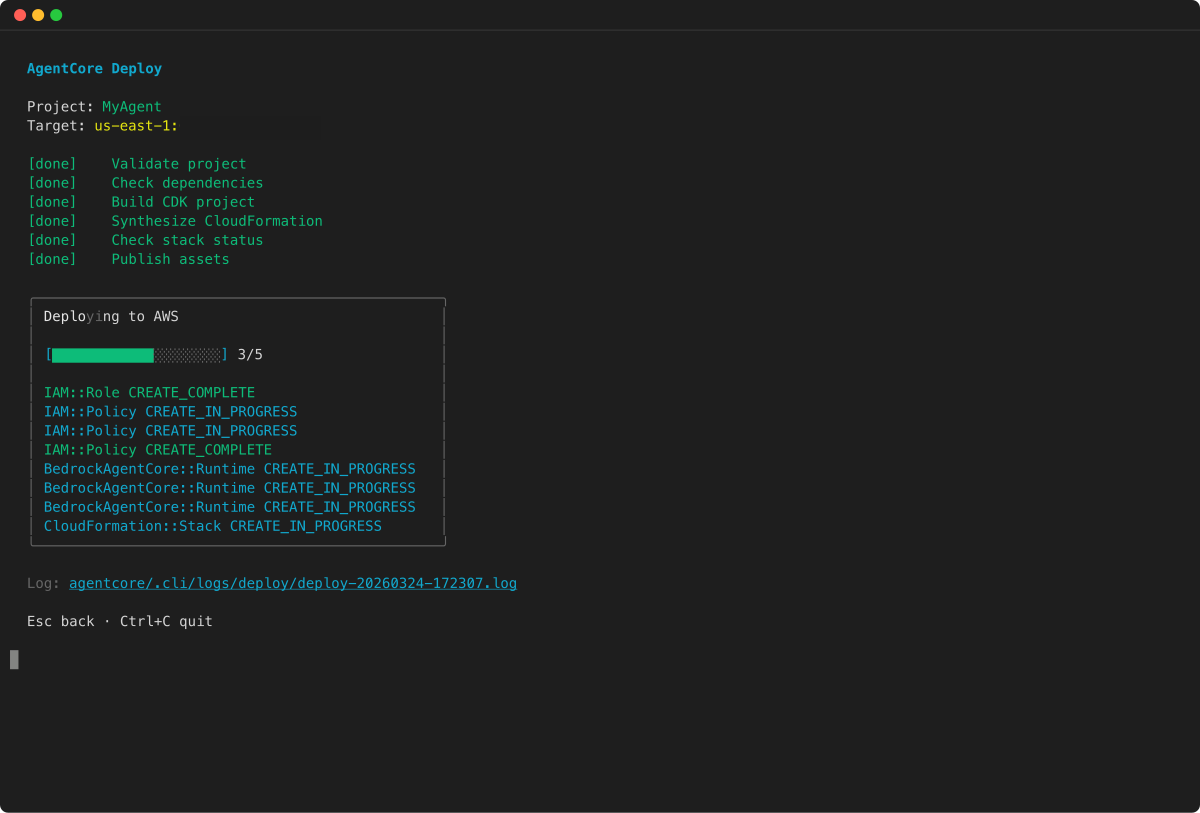
Um eine Vorschau der Bereitstellung anzuzeigen, ohne Änderungen vorzunehmen, verwenden Sie die --dry-run Markierung:
agentcore deploy --dry-run
Der agentcore deploy Befehl:
-
Liest Ihre
agentcore/agentcore.jsonagentcore/aws-targets.jsonAND-Konfiguration -
Paketiert Ihren Agentencode (je nach Build-Typ als CodeZip Archiv oder Docker-Container)
-
Verwendet das AWS CDK, um Ressourcen zu synthetisieren und bereitzustellen CloudFormation
-
Erstellt die erforderlichen AWS Ressourcen (IAM-Rollen, Amazon Bedrock AgentCore Runtime usw.)
Wird -v für eine ausführliche Ausgabe verwendet, in der Bereitstellungsereignisse auf Ressourcenebene angezeigt werden. Wird verwendet-y, um die Bereitstellung ohne Aufforderung automatisch zu bestätigen.
Wenn die Bereitstellung fehlschlägt, suchen Sie nach häufigen Problemen.
Schritt 6: Testen Sie Ihren eingesetzten Agenten
Rufen Sie nach Abschluss der Bereitstellung Ihren bereitgestellten Agenten auf:
Beispiel
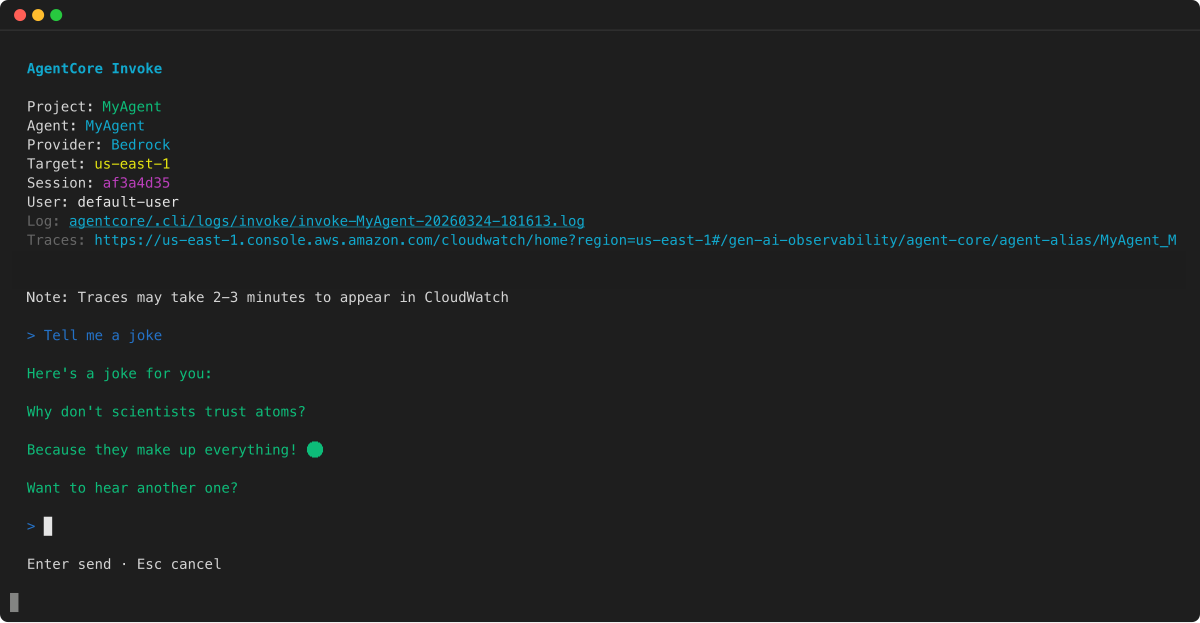
Wenn Sie in der Antwort einen Witz sehen, läuft Ihr Agent in Amazon Bedrock AgentCore Runtime und kann aufgerufen werden. Falls nicht, suchen Sie nach häufigen Problemen.
Schritt 7: Rufen Sie Ihren bereitgestellten Agenten auf
Beispiel
Schritt 8: Bereinigen
Wenn Sie den Agenten nicht mehr in Amazon Bedrock AgentCore Runtime hosten möchten, entfernen Sie die bereitgestellten AWS Ressourcen. Entfernen Sie zunächst alle Ressourcen aus Ihrer lokalen Konfiguration:
Beispiel
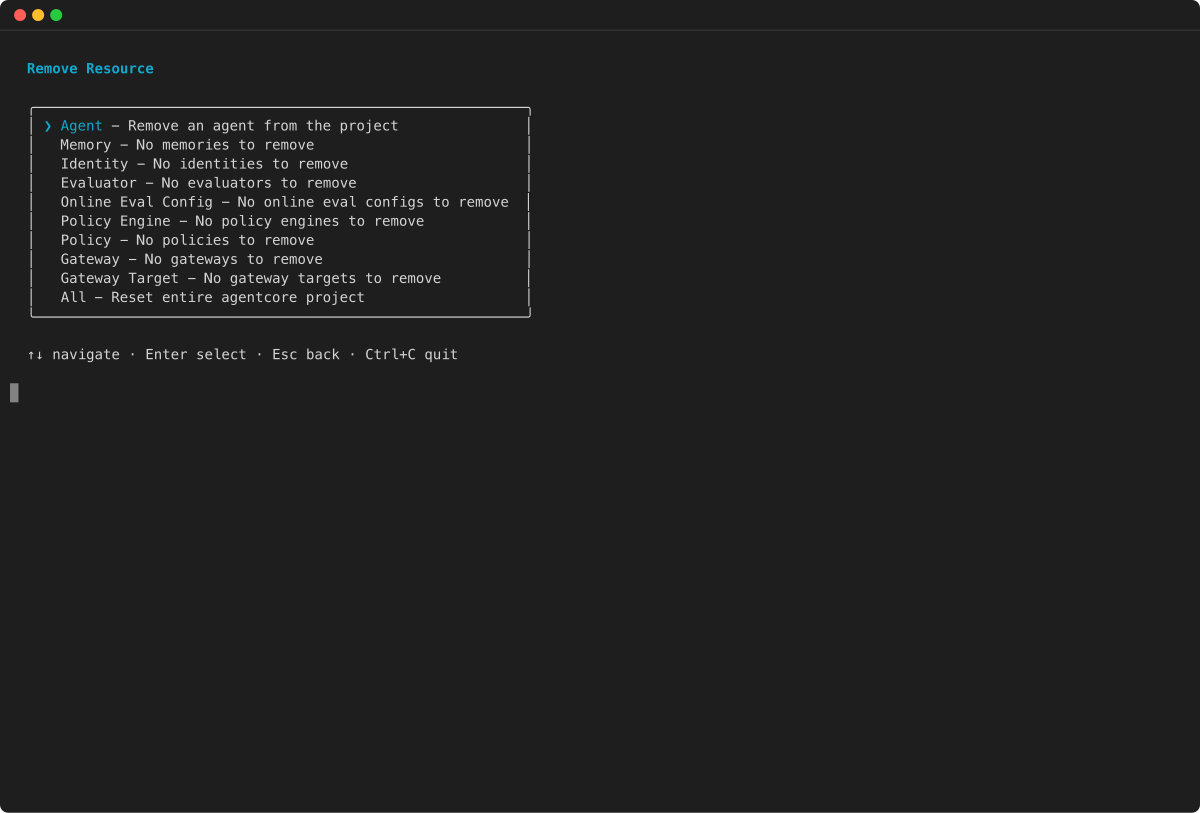
Setzen Sie es dann erneut ein, um die AWS Ressourcen abzubauen:
Beispiel
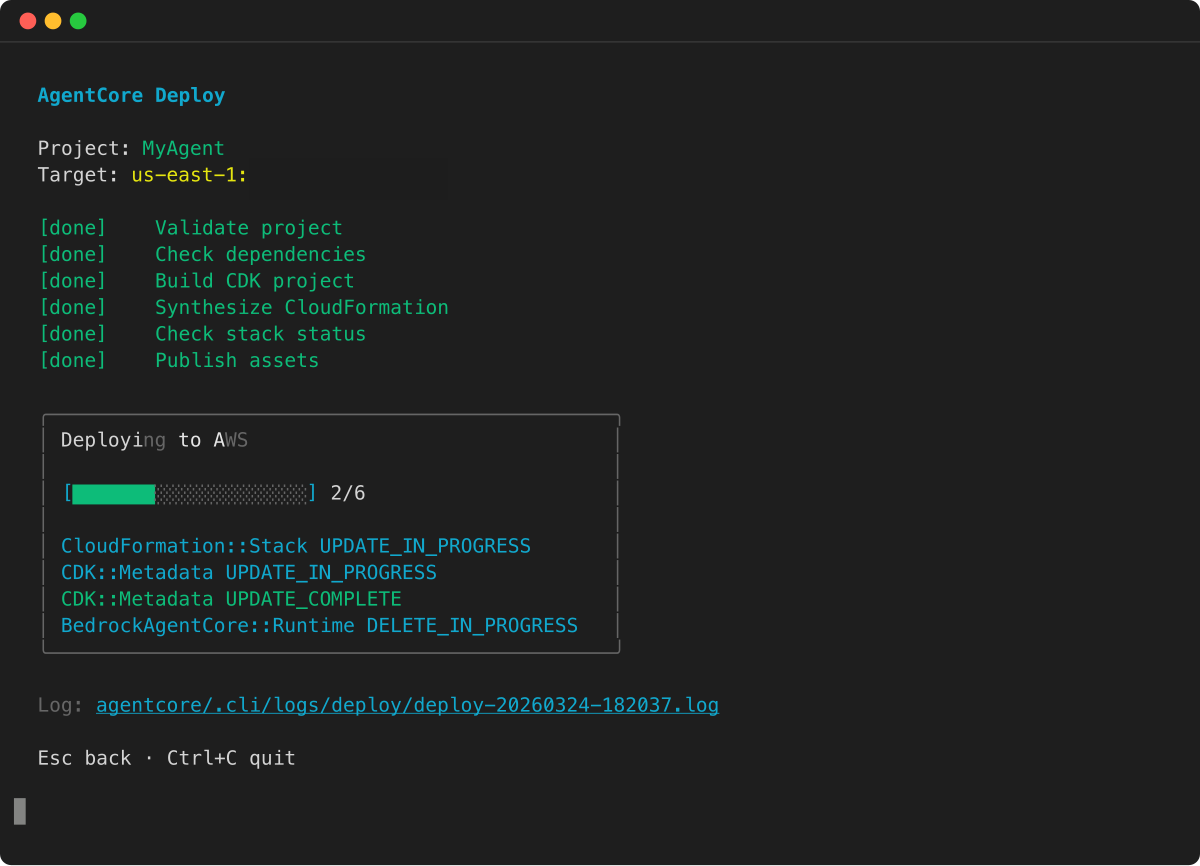
Der remove all Befehl setzt die agentcore/agentcore.json Konfigurationsdatei zurück, wobei der Bereitstellungsstatus beibehalten agentcore/aws-targets.json wird. Der nachfolgende deploy Befehl erkennt die entfernten Ressourcen und entfernt die entsprechenden AWS Ressourcen.
Ihre Ressourcen finden
Nach der Bereitstellung können Sie den Status Ihrer Ressourcen mithilfe der AgentCore CLI überprüfen:
Beispiel
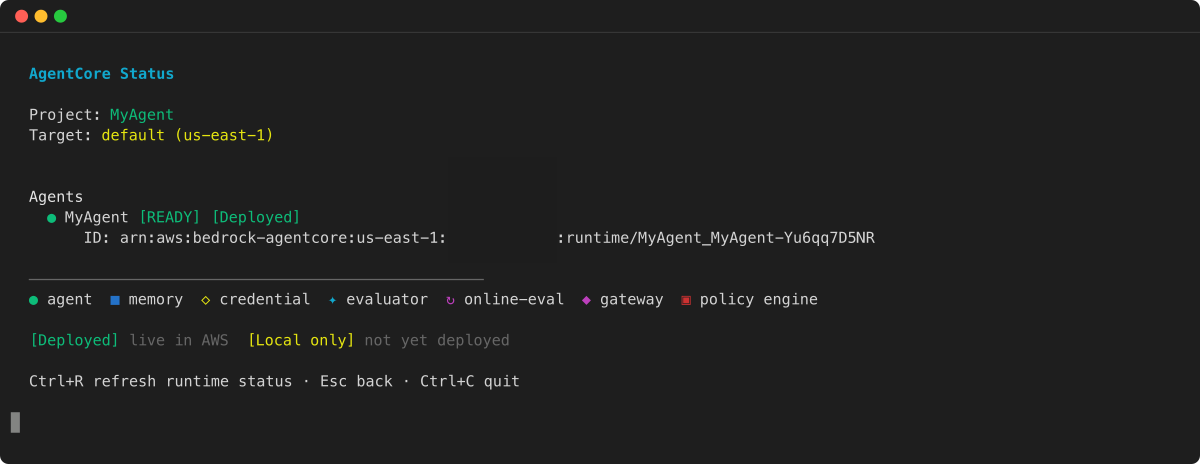
Sie können Ihre Ressourcen auch in der AWS Konsole einsehen:
| Ressource | Speicherort |
|---|---|
|
Agentenprotokolle |
CloudWatch → Gruppen protokollieren → |
|
CloudFormation Stapel |
CloudFormation → Stacks → suche nach deinem Projektnamen |
|
IAM Role (IAM-Rolle) |
IAM → Rollen → Suchen Sie nach "“ BedrockAgentCore |
|
S3-Vermögenswerte () CodeZip |
S3 → Buckets → CDK-Staging-Bucket |
Häufige Probleme und Lösungen
Häufige Probleme und Lösungen bei den ersten Schritten mit der AgentCore CLI. Weitere Informationen zur Fehlerbehebung finden Sie unter Problembehandlung bei Amazon Bedrock AgentCore Runtime.
- Fehler „Zugriff verweigert“
-
Überprüfen Sie Ihre AWS Anmeldeinformationen und Berechtigungen:
-
Verifizieren Sie AWS Ihre Anmeldedaten:
aws sts get-caller-identity -
Vergewissern Sie sich, dass Ihnen die erforderlichen Richtlinien beigefügt sind
-
Die detaillierten Anforderungen finden Sie in den Richtlinien zu Anruferberechtigungen
-
- Modellzugriff verweigert
-
Aktivieren Sie den Modellzugriff in der Bedrock-Konsole:
-
Aktivieren Sie Anthropic Claude 4.0 in der Bedrock-Konsole
-
Stellen Sie sicher, dass Sie sich in der richtigen AWS Region befinden (standardmäßig us-west-2)
-
- Fehler bei der CDK-Bereitstellung
-
Überprüfen Sie das CDK-Setup und die Berechtigungen:
-
Stellen Sie sicher, dass Sie Ihr AWS Konto für CDK gebootet haben:
cdk bootstrap -
Vergewissern Sie sich, dass Ihre Anruferberechtigungen auch CDK-Zugriff enthalten CloudFormation
-
Verwenden Sie diese Option
agentcore deploy -vfür ausführliche Ausgaben, um die fehlerhafte Ressource zu identifizieren
-
- Port 8080 wird verwendet (nur lokal)
-
Suchen und beenden Sie Prozesse, die Port 8080 verwenden:
Dient
lsof -ti:8080zum Abrufen einer Liste von Prozessen, die Port 8080 verwenden.Wird verwendet
kill -9 PID, um den Prozess zu beenden.PIDDurch die Prozess-ID ersetzen.Alternativ können Sie den Dev-Server auf einem anderen Port starten:
agentcore dev -p 3000 - Regionen stimmen nicht überein
-
Überprüfen Sie die AWS Region mit
aws configure get regionund stellen Sie sicher, dass die Region mit der Regionagentcore/aws-targets.jsonübereinstimmt, in der Ihre Ressourcen eingesetzt werden sollen. - Fehler bei der Konfigurationsvalidierung
-
Überprüfen Sie Ihre Konfigurationsdateien:
Wird verwendet
agentcore validate, um nach Syntax- oder Schemafehlern inagentcore/agentcore.jsonund verwandten Konfigurationsdateien zu suchen.
Erweiterte Optionen (optional)
Nachdem Sie Ihr Agentenprojekt mit erstellt habenagentcore create, können Sie es mithilfe der agentcore add Befehle erweitern. Die vollständige CLI-Referenz finden Sie in der AgentCore CLI-Dokumentation
Build-Typen
Wählen Sie bei der Erstellung Ihres Projekts einen Build-Typ, der Ihren Anforderungen entspricht:
- CodeZip (Standard)
-
Ihr Agentencode wird als ZIP-Archiv verpackt und auf S3 hochgeladen. Dies ist die einfachste Option und erfordert kein Docker:
agentcore create --name MyAgent --framework Strands --model-provider Bedrock --memory none --build CodeZip - Behälter
-
Ihr Agentencode ist als Docker-Container-Image verpackt. Verwenden Sie diese Option, wenn Sie benutzerdefinierte Abhängigkeiten auf Systemebene oder ein bestimmtes Basis-Image benötigen:
agentcore create --name MyAgent --framework Strands --model-provider Bedrock --memory none --build Container
Fügen Sie Ihrem Projekt Ressourcen hinzu
Sie können Ihrem Projekt nach der Erstellung zusätzliche Ressourcen hinzufügen:
# Add another agent to the same project
agentcore add agent --name SecondAgent --language Python --framework Strands --model-provider Bedrock

# Add a memory store for conversational context
agentcore add memory --name MyMemory --strategies SEMANTIC

# Add an API key credential for external services
agentcore add credential --name MyApiKey --type api-key --api-key your-api-key

# Add a payment manager for x402 microtransactions
agentcore add payment-manager --name MyPayments --auto-payment --default-spend-limit 5.00
Führen Sie nach dem Hinzufügen von Ressourcen den agentcore deploy Befehl aus, um die neuen Ressourcen in bereitzustellen AWS.
Warum ARM64?
Amazon Bedrock AgentCore Runtime läuft auf ARM64 (AWS Graviton). Die AgentCore CLI kümmert sich automatisch um die Architekturkompatibilität sowohl für die CodeZip Build-Typen als auch für Container. Bei Container-Builds funktionieren nur für ARM64 erstellte Images, wenn sie in Amazon Bedrock AgentCore Runtime bereitgestellt werden.
