本文為英文版的機器翻譯版本，如內容有任何歧義或不一致之處，概以英文版為準。

# 增強版 AI Crowd HTML 元素
<a name="crowd-elements-a2i-list"></a>

以下 Crowd HTML 元素僅適用於 Amazon 增強版 AI 人力工作流程任務。

# crowd-textract-analyze-document
<a name="a2i-crowd-textract-detection"></a>

可對 Amazon Textract 文件分析結果啟用人工審核的 Widget。

## 屬性
<a name="a2i-textract-crowd-attributes"></a>

此元素支援下列屬性。

### header
<a name="textract-attributes-header"></a>

這是顯示為標題的文字。

### src
<a name="textract-attributes-src"></a>

這是要由工作者分析之影像的連結。

### initialValue
<a name="textract-attributes-initialValue"></a>

這針對工作者使用者介面中找到的屬性設定初始值。

以下為 `initialValue` 輸入的範例：

```
[
            {
                "blockType": "KEY_VALUE_SET",
                "confidence": 38.43309020996094,
                "geometry": {
                    "boundingBox": {
                        "width": 0.32613086700439453,
                        "weight": 0.0942094624042511,
                        "left": 0.4833833575248718,
                        "top": 0.5227988958358765
                    },
                    "polygon": [
                        {"x": 0.123, "y": 0.345}, ...
                    ]
                }
                "id": "8c97b240-0969-4678-834a-646c95da9cf4",
                "relationships": [
                    {
                        "type": "CHILD",
                        "ids": [
                            "7ee7b7da-ee1b-428d-a567-55a3e3affa56",
                            "4d6da730-ba43-467c-a9a5-c6137ba0c472"
                        ]
                    },
                    {
                        "type": "VALUE",
                        "ids": [
                            "6ee7b7da-ee1b-428d-a567-55a3e3affa54"
                        ]
                    }
                ],
                "entityTypes": [
                    "KEY"
                ],
                "text": "Foo bar"
            },
]
```

### blockTypes
<a name="textract-attributes-blockTypes"></a>

這決定工作者可以執行的分析類型。目前僅支援 `KEY_VALUE_SET`。

### keys
<a name="textract-attributes-keys"></a>

這指定工作者可新增的新索引鍵和相關文字值。`keys` 的輸入值可以包括下列元素：
+ `importantFormKey` 接受字串，並用於指定單一索引鍵。
+ `importantFormKeyAliases` 可用來指定除了提供的索引鍵之外還可接受的替代別名。使用此元素來識別索引鍵的替代拼寫或表示法。此參數接受一或多個字串的清單。

以下為 `keys` 輸入的範例。

```
[
      {
        importantFormKey: 'Address',
        importantFormKeyAliases: [
          'address',
          'Addr.',
          'Add.',
        ]
      },
      {
        importantFormKey: 'Last name',
        importantFormKeyAliases: ['Surname']
      }
]
```

### no-key-edit
<a name="textract-attributes-no-key-edit"></a>

這防止工作者編輯經由 `initialValue` 傳遞的註釋的索引鍵。這防止工作者編輯文件上偵測到的索引鍵。這是必要項目。

### no-geometry-edit
<a name="textract-attributes-no-geometry-edit"></a>

這防止工作者編輯經由 `initialValue` 傳遞的註釋的多邊形。例如，這樣可防止工作者編輯某個索引鍵的邊界框。這是必要項目。

## 元素階層
<a name="textract-crowd-element-hierarchy"></a>

 此元素具有下列父元素及子元素。
+ 父元素 – crowd-form
+ 子元素 – [full-instructions](#textract-full-instructions) 、 [short-instructions](#textract-short-instructions)

## 大區 (Regions)
<a name="textract-crowd-regions"></a>

此元素支援下列區域。您可以在這些區域內使用自訂 HTML 和 CSS 程式碼，以格式化要呈現給工作者的指示。例如，使用 `short-instructions` 區段提供如何完成任務的良好與不良範例。

### full-instructions
<a name="textract-full-instructions"></a>

如何使用小工具的一般說明。

### short-instructions
<a name="textract-short-instructions"></a>

在明顯位置顯示的重要任務特定指示。

## 使用 crowd 元素的工作者範本範例
<a name="textract-example-crowd-elements"></a>

使用此 crowd 元素的工作者範本範例下所示。

```
<script src="https://assets.crowd.aws/crowd-html-elements.js"></script>
{% capture s3_uri %}http://s3.amazonaws.com/{{ task.input.aiServiceRequest.document.s3Object.bucket }}/{{ task.input.aiServiceRequest.document.s3Object.name }}{% endcapture %}

<crowd-form>
  <crowd-textract-analyze-document
    src="{{ s3_uri | grant_read_access }}"
    initial-value="{{ task.input.selectedAiServiceResponse.blocks }}"
    header="Review the key-value pairs listed on the right and correct them if they don't match the following document."
    no-key-edit
    no-geometry-edit
    keys="{{ task.input.humanLoopContext.importantFormKeys }}"
    block-types="['KEY_VALUE_SET']"
  >
    <short-instructions header="Instructions">
      <style>
        .instructions {
          white-space: pre-wrap;
        }
        .instructionsImage {
          display: inline-block;
          max-width: 100%;
        }
      </style>
      <p class='instructions'>Click on a key-value block to highlight the corresponding key-value pair in the document.

If it is a valid key-value pair, review the content for the value. If the content is incorrect, correct it.

The text of the value is incorrect, correct it.
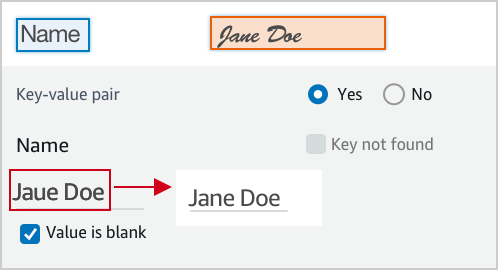
<img class='instructionsImage' src="https://assets.crowd.aws/images/a2i-console/correct-value-text.png" />

A wrong value is identified, correct it.
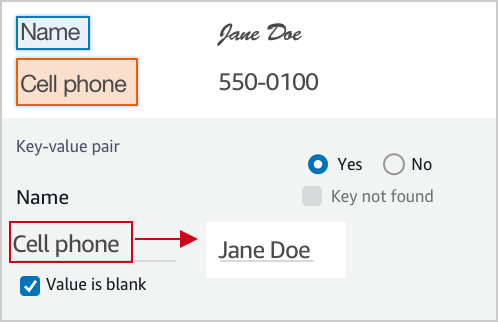
<img class='instructionsImage' src="https://assets.crowd.aws/images/a2i-console/correct-value.png" />

If it is not a valid key-value relationship, choose No.
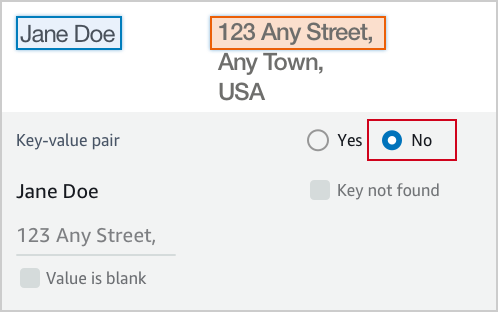
<img class='instructionsImage' src="https://assets.crowd.aws/images/a2i-console/not-a-key-value-pair.png" />

If you can’t find the key in the document, choose Key not found.
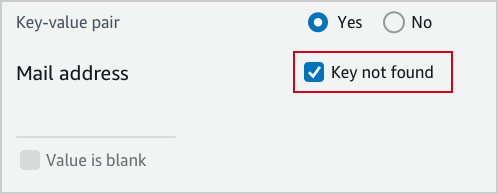
<img class='instructionsImage' src="https://assets.crowd.aws/images/a2i-console/key-is-not-found.png" />

If the content of a field is empty, choose Value is blank.
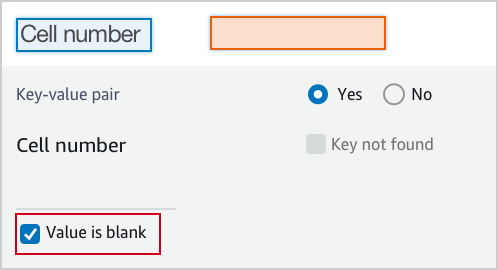
<img class='instructionsImage' src="https://assets.crowd.aws/images/a2i-console/value-is-blank.png" />

<b>Examples</b>
Key and value are often displayed next or below to each other.

Key and value displayed in one line.

<img class='instructionsImage' src="https://assets.crowd.aws/images/a2i-console/sample-key-value-pair-1.png" />

Key and value displayed in two lines.
<img class='instructionsImage' src="https://assets.crowd.aws/images/a2i-console/sample-key-value-pair-2.png" />

If the content of the value has multiple lines, enter all the text without line break. Include all value text even if it extends beyond the highlight box.
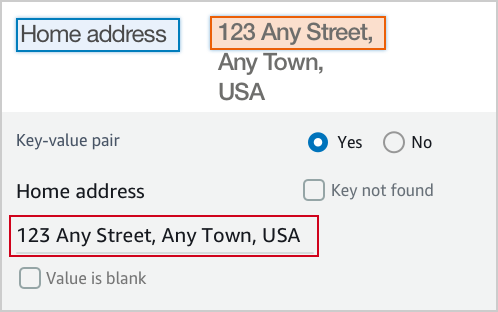
<img class='instructionsImage' src="https://assets.crowd.aws/images/a2i-console/multiple-lines.png" /></p>
    </short-instructions>

    <full-instructions header="Instructions"></full-instructions>
  </crowd-textract-analyze-document>
</crowd-form>
```

## Output
<a name="textract-crowd-element-output"></a>

下列是此元素中輸出的範本。您可以在 Amazon Textract [AnalyzeDocument](https://docs.aws.amazon.com/textract/latest/dg/API_AnalyzeDocument.html) API 文件中找到此輸出的詳細說明。

```
{
  "AWS/Textract/AnalyzeDocument/Forms/V1": {
    blocks: [
      {
        "blockType": "KEY_VALUE_SET",
        "id": "8c97b240-0969-4678-834a-646c95da9cf4",
        "relationships": [
          {
            "type": "CHILD",
            "ids": ["7ee7b7da-ee1b-428d-a567-55a3e3affa56", "4d6da730-ba43-467c-a9a5-c6137ba0c472"]
          },
          {
            "type": "VALUE",
            "ids": ["6ee7b7da-ee1b-428d-a567-55a3e3affa54"]
          }
        ],
        "entityTypes": ["KEY"],
        "text": "Foo bar baz"
      }
    ]
  }
}
```

# crowd-rekognition-detect-moderation-labels
<a name="a2i-crowd-rekognition-detection"></a>

支援對 Amazon Rekognition Image 仲裁結果進行人工審核的 Widget。

## 屬性
<a name="rekognition-attributes"></a>

此元素支援下列屬性。

### header
<a name="rekognition-attributes-header"></a>

這是顯示為標題的文字。

### src
<a name="rekognition-attributes-src"></a>

這是要由工作者分析之影像的連結。

### categories
<a name="rekognition-attributes-categories"></a>

這支援 `categories` 作為字串陣列**或**物件陣列，其中每個物件都有一個 `name` 欄位。

如果以物件形式傳入類別，則情況如下：
+ 顯示的類別是 `name` 欄位的值。
+ 傳回的答案包含所選任何類別的**完整**物件。

如果以字串形式傳入類別，則情況如下：
+ 傳回的答案是所選全部字串的陣列。

### exclusion-category
<a name="rekognition-attributes-exclusion-category"></a>

您可以設定這個屬性，在使用者介面中的類別下建立按鈕。
+ 當使用者選擇此按鈕，所有類別將取消選取並停用。
+ 再次選擇此按鈕會重新啟用類別，讓使用者可以選擇類別。
+ 如果您在選擇此按鈕後提交，則會傳回空陣列。

## 元素階層
<a name="rekognition-crowd-element-hierarchy"></a>

此元素具有下列父元素及子元素。
+ 父元素 – crowd-form
+ 子元素 – [full-instructions](#rek-full-instructions) 、 [short-instructions](#rek-short-instructions)

## AWS 區域
<a name="rek-crowd-regions"></a>

此元素支援下列 AWS 區域。您可以在這些區域內使用自訂 HTML 和 CSS 程式碼，以格式化要呈現給工作者的指示。例如，使用 `short-instructions` 區段提供如何完成任務的良好與不良範例。

### full-instructions
<a name="rek-full-instructions"></a>

如何使用小工具的一般說明。

### short-instructions
<a name="rek-short-instructions"></a>

在明顯位置顯示的重要任務特定指示。

## 使用 crowd 元素的工作者範本範例
<a name="rek-crowd-element-example"></a>

使用 crowd 元素的工作者範本範例下所示。

```
<script src="https://assets.crowd.aws/crowd-html-elements.js"></script>
{% capture s3_uri %}http://s3.amazonaws.com/{{ task.input.aiServiceRequest.image.s3Object.bucket }}/{{ task.input.aiServiceRequest.image.s3Object.name }}{% endcapture %}

<crowd-form>
  <crowd-rekognition-detect-moderation-labels
    categories='[
      {% for label in task.input.selectedAiServiceResponse.moderationLabels %}
        {
          name: "{{ label.name }}",
          parentName: "{{ label.parentName }}",
        },
      {% endfor %}
    ]'
    src="{{ s3_uri | grant_read_access }}"
    header="Review the image and choose all applicable categories."
  >
    <short-instructions header="Instructions">
      <style>
        .instructions {
          white-space: pre-wrap;
        }
      </style>
      <p class='instructions'>Review the image and choose all applicable categories.
If no categories apply, choose None.

<b>Nudity</b>
Visuals depicting nude male or female person or persons

<b>Graphic Male Nudity</b>
Visuals depicting full frontal male nudity, often close ups

<b>Graphic Female Nudity</b>
Visuals depicting full frontal female nudity, often close ups

<b>Sexual Activity</b>
Visuals depicting various types of explicit sexual activities and pornography

<b>Illustrated Nudity or Sexual Activity</b>
Visuals depicting animated or drawn sexual activity, nudity or pornography

<b>Adult Toys</b>
Visuals depicting adult toys, often in a marketing context

<b>Female Swimwear or Underwear</b>
Visuals depicting female person wearing only swimwear or underwear

<b>Male Swimwear Or Underwear</b>
Visuals depicting male person wearing only swimwear or underwear

<b>Partial Nudity</b>
Visuals depicting covered up nudity, for example using hands or pose

<b>Revealing Clothes</b>
Visuals depicting revealing clothes and poses, such as deep cut dresses

<b>Graphic Violence or Gore</b>
Visuals depicting prominent blood or bloody injuries

<b>Physical Violence</b>
Visuals depicting violent physical assault, such as kicking or punching

<b>Weapon Violence</b>
Visuals depicting violence using weapons like firearms or blades, such as shooting

<b>Weapons</b>
Visuals depicting weapons like firearms and blades

<b>Self Injury</b>
Visuals depicting self-inflicted cutting on the body, typically in distinctive patterns using sharp objects

<b>Emaciated Bodies</b>
Visuals depicting extremely malnourished human bodies

<b>Corpses</b>
Visuals depicting human dead bodies

<b>Hanging</b>
Visuals depicting death by hanging</p>
    </short-instructions>

    <full-instructions header="Instructions"></full-instructions>
  </crowd-rekognition-detect-moderation-labels>
</crowd-form>
```

## Output
<a name="rek-crowd-element-output"></a>

下列是此元素中輸出的範本。如需此輸出的詳細資訊，請參閱 Amazon Rekognition [DetectModerationLabels](https://docs.aws.amazon.com/rekognition/latest/dg/API_DetectModerationLabels.html) API 文件。

```
{
  "AWS/Rekognition/DetectModerationLabels/Image/V3": {
    "ModerationLabels": [
        { name: 'Gore', parentName: 'Violence' },
        { name: 'Corpses', parentName: 'Violence' },
    ]
  }
}
```