亚马逊 Monitron 不再向新客户开放。现有客户可以继续正常使用该服务。如需了解与 Amazon Monitron 类似的功能，请参阅我们的[博客文章](https://aws.amazon.com/blogs/machine-learning/maintain-access-and-consider-alternatives-for-amazon-monitron)。

本文属于机器翻译版本。若本译文内容与英语原文存在差异，则一律以英文原文为准。

# 查看网关列表
<a name="ethernet-gateway-list"></a>

本页面介绍了如何在 Amazon Monitron 应用程序中列出网关。

**Topics**
+ [使用移动应用程序列出网关](#w2aac19c13c39b7)
+ [使用 Web 应用程序列出网关](#w2aac19c13c39b9)

## 使用移动应用程序列出网关
<a name="w2aac19c13c39b7"></a>

1. 使用智能手机登录 Amazon Monitron 移动应用程序。

1. 选择屏幕左上角的菜单图标。  
![带有汉堡菜单图标、返回箭头和 AnyCompany 标签的导航栏。](http://docs.aws.amazon.com/zh_cn/Monitron/latest/user-guide/images/navigation.png)

1. 选择**网关**。

   屏幕中会显示与项目关联的所有网关的列表。  
![网关列表显示了三个连接的网关，其中包含标识符和站点名称占位符。](http://docs.aws.amazon.com/zh_cn/Monitron/latest/user-guide/images/gateway_list.png)

## 使用 Web 应用程序列出网关
<a name="w2aac19c13c39b9"></a>

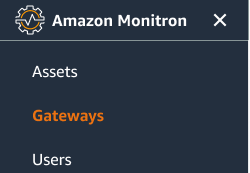
1. 从左侧导航栏中选择**网关**。  
![带有资产、网关和用户选项的导航菜单，其中网关突出显示。](http://docs.aws.amazon.com/zh_cn/Monitron/latest/user-guide/images/webapp_leftnav-gateways.png)

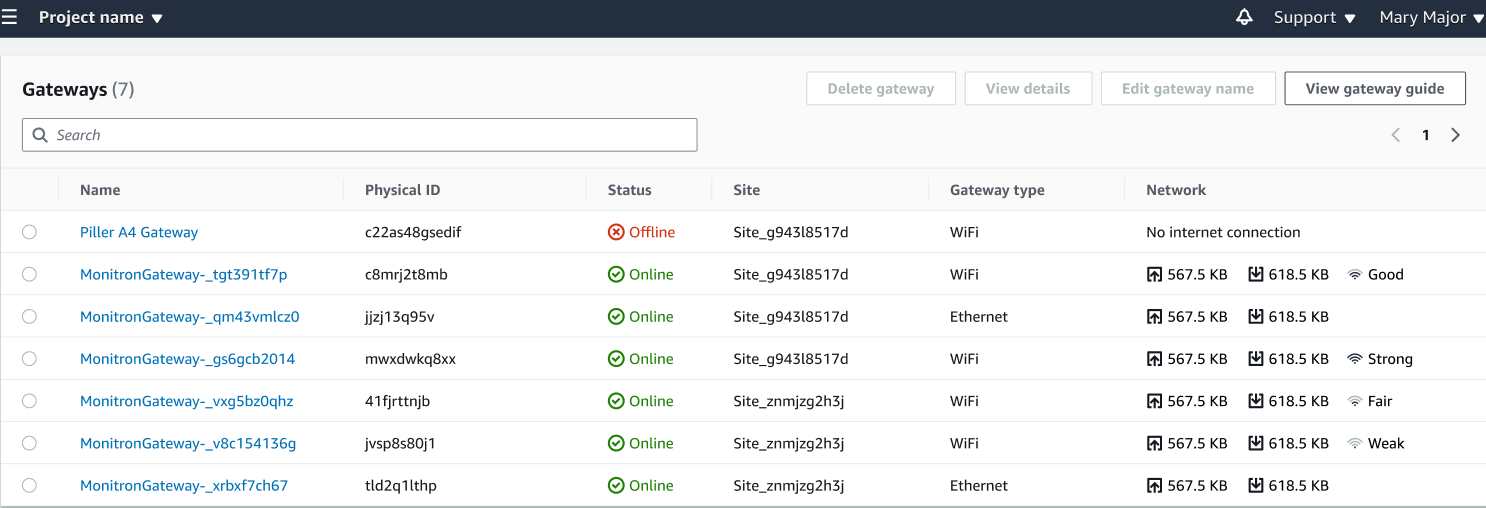
1. 网关列表会显示在右侧窗格中。  
![该表显示了七个网关，其中包含名称、物理 ID、状态、站点、网关类型和网络详细信息列。](http://docs.aws.amazon.com/zh_cn/Monitron/latest/user-guide/images/webapp_gateway-list.png)