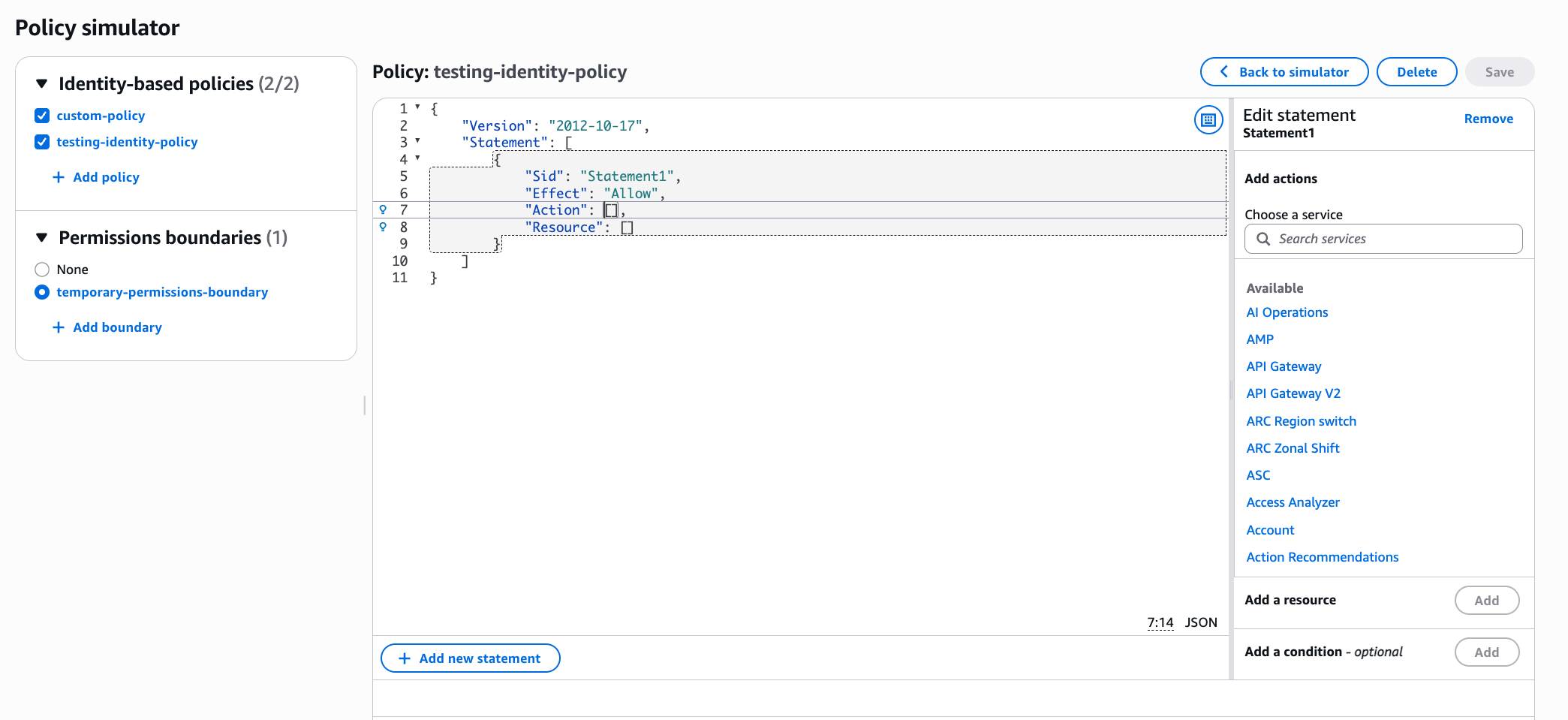
How to simulate policies
You can run simulations in the IAM console or with the AWS CLI and AWS API. For an overview of what the simulator evaluates, the two modes, and how it reaches a result, see IAM policy testing with the IAM policy simulator. For the permissions you need, see Permissions for using the policy simulator.
Simulate policies (console)
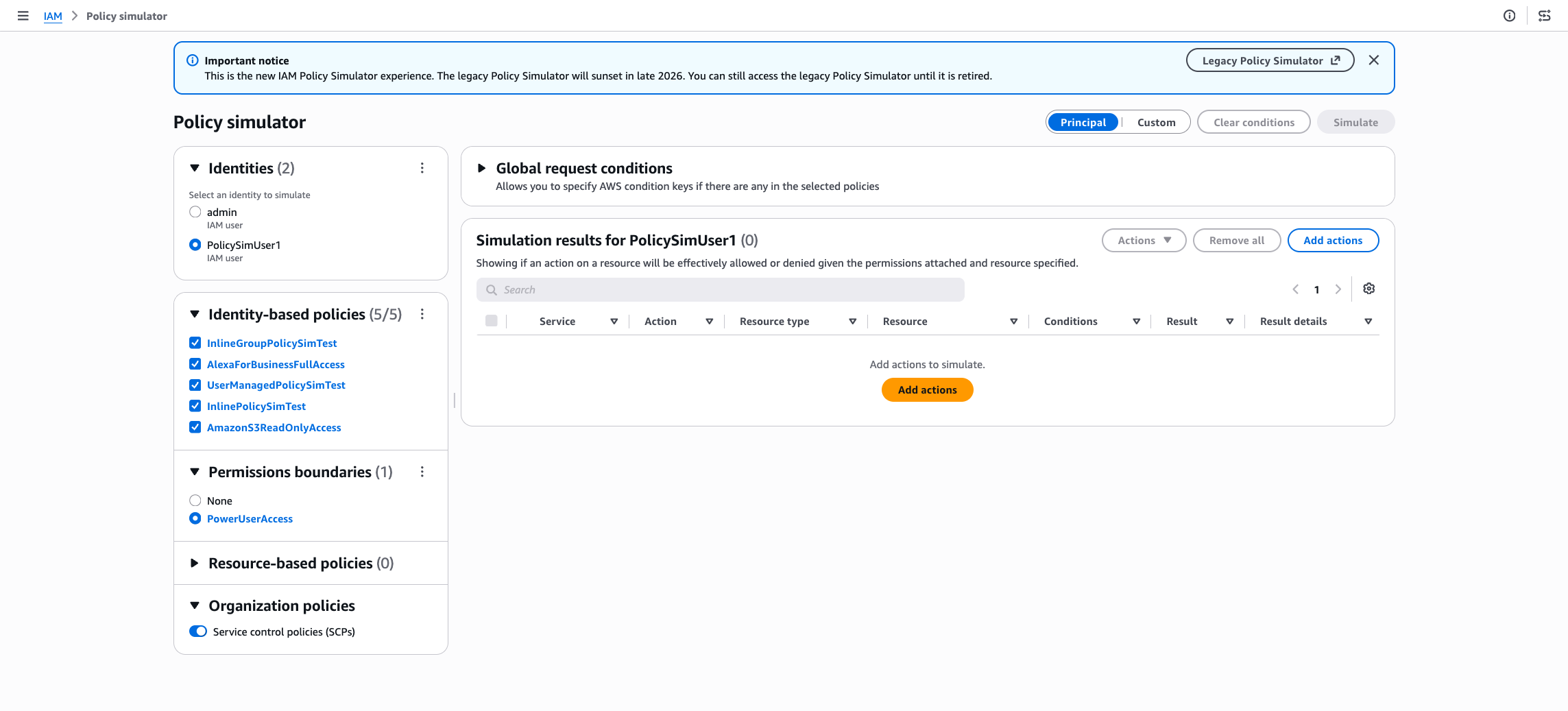
You can run simulations from the policy simulator in the IAM console
Note
The standalone policy simulator console at https://policysim.aws.amazon.com/
Principal mode
Select an identity
You first start by selecting an identity. You can select IAM users, roles, or groups in that account. The side panel will populate the policies attached to these identities after your selection.
Include or exclude policies
The side panel lists the policies in scope for the simulation, including inline, AWS managed, and customer managed policies, and any permissions boundary. You can exclude a policy to see how the result changes without it, then include it again. Excluding a policy that granted access changes the result to an implicit deny.
Add actions and resources
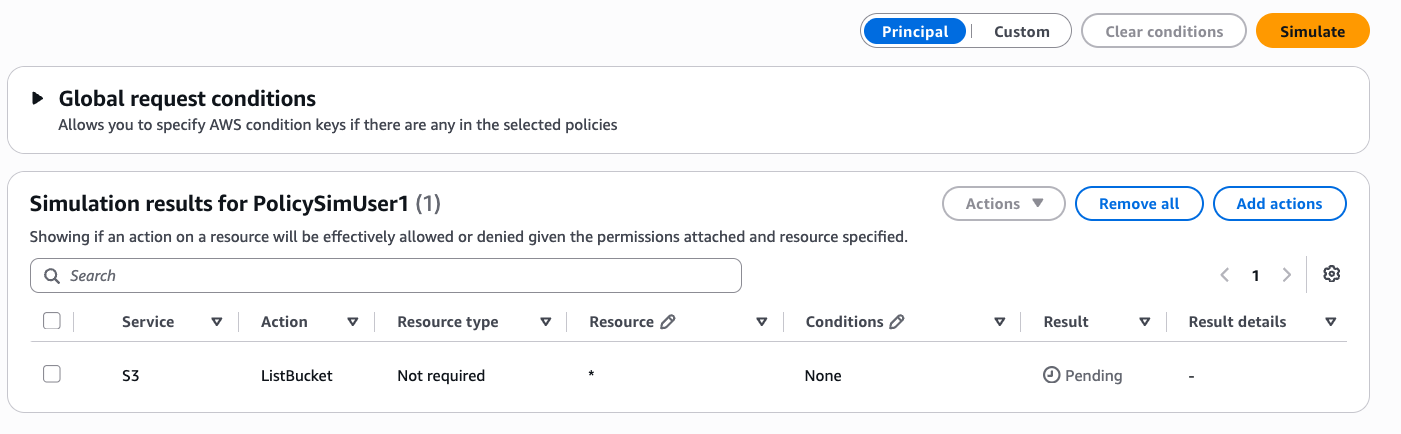
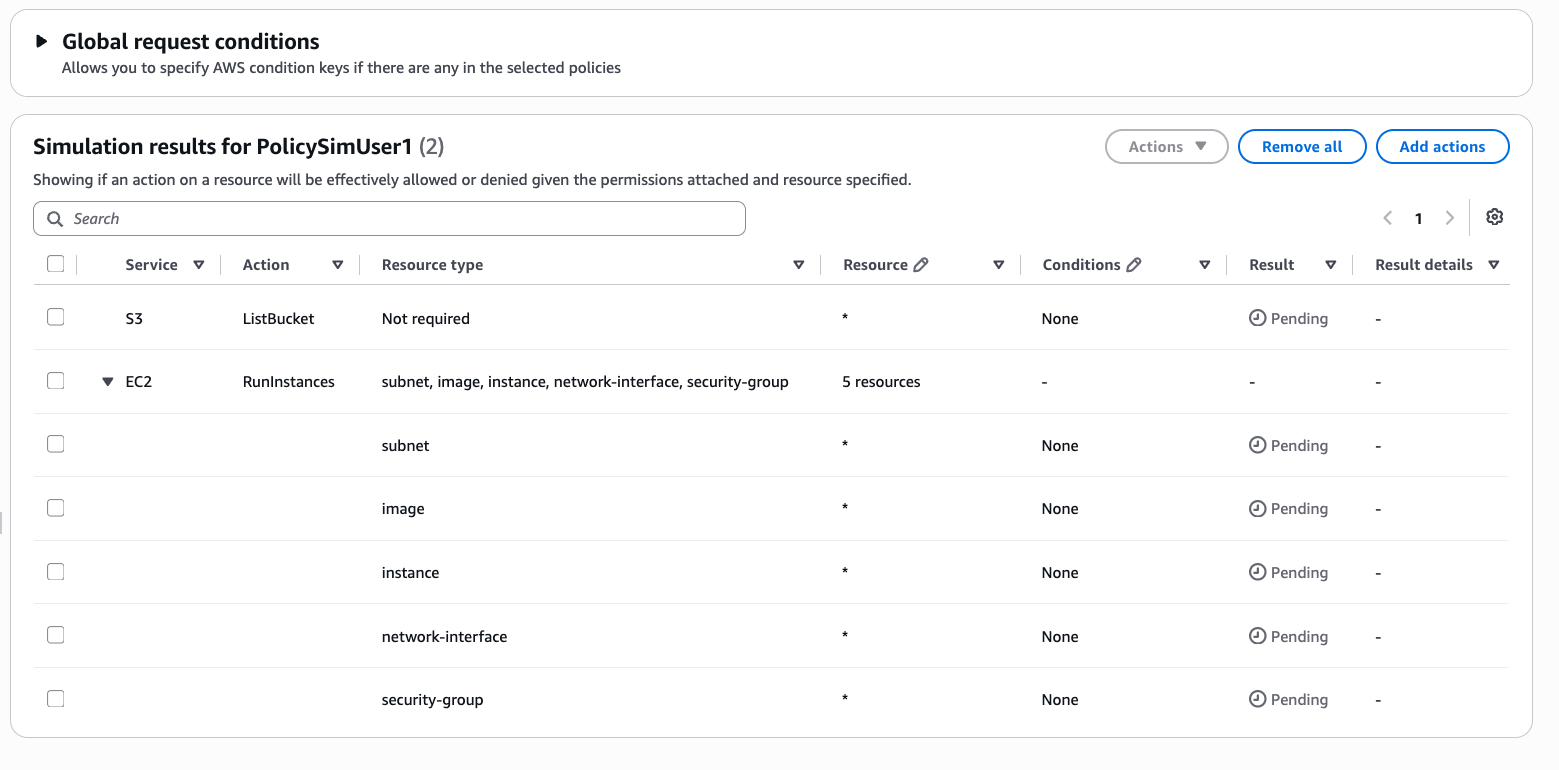
After you choose identities and policies in the left panel, add the actions that you want to test. For an action that supports a resource selection, you can test against all resources or enter one or more specific resource ARNs. When several actions use the same resource type, you can apply one resource to all of them at once, or scope it to a single action.
Some actions require a group of related resource types before the simulator can
evaluate them. For example, when you simulate ec2:RunInstances, the console
prompts you to specify an image, an instance, and a security group together, and a subnet
or a volume depending on the scenario.
Provide condition key values
If the policies that you test include condition keys, the simulator lists the relevant keys and lets you set values before you run the simulation. The keys shown reflect the policies that are currently selected, so selecting or clearing a policy adds or removes its keys. If a value does not satisfy a condition, the action is denied.
The simulator provides values for condition keys in two places. Global request conditions apply to the whole simulated request. These are
the keys that begin with aws:, such as aws:MultiFactorAuthPresent
or aws:PrincipalServiceNamesList, and you set their values once in the global
conditions area. Selecting or clearing a policy adds or removes its global keys, and the
values you enter are retained as you adjust which policies are in scope. Service-specific conditions apply to a single action. Each action
row shows the number of conditions it references, and you open the row to set the
service-specific keys for that action, such as cloudwatch:namespace for
cloudwatch:PutMetricData or ram:PermissionResourceType for
ram:ListPermissionAssociations. An action row can include both a global key
and a service-specific key, and if any value does not satisfy a condition, that action is
denied.
IAM policy simulator populates some principal and organization context keys for you, and you provide values for the rest. For the list of keys that are populated automatically and more about how condition keys are evaluated, see How condition key evaluation works in the IAM policy simulator.
To learn how to use condition keys, see AWS global condition context keys.
Test a permissions boundary
When an identity has a permissions boundary, it appears in the side panel and is included by default. You can also exclude the boundary and run the simulation again, if you want to find out whether the boundary is the reason an action is denied.
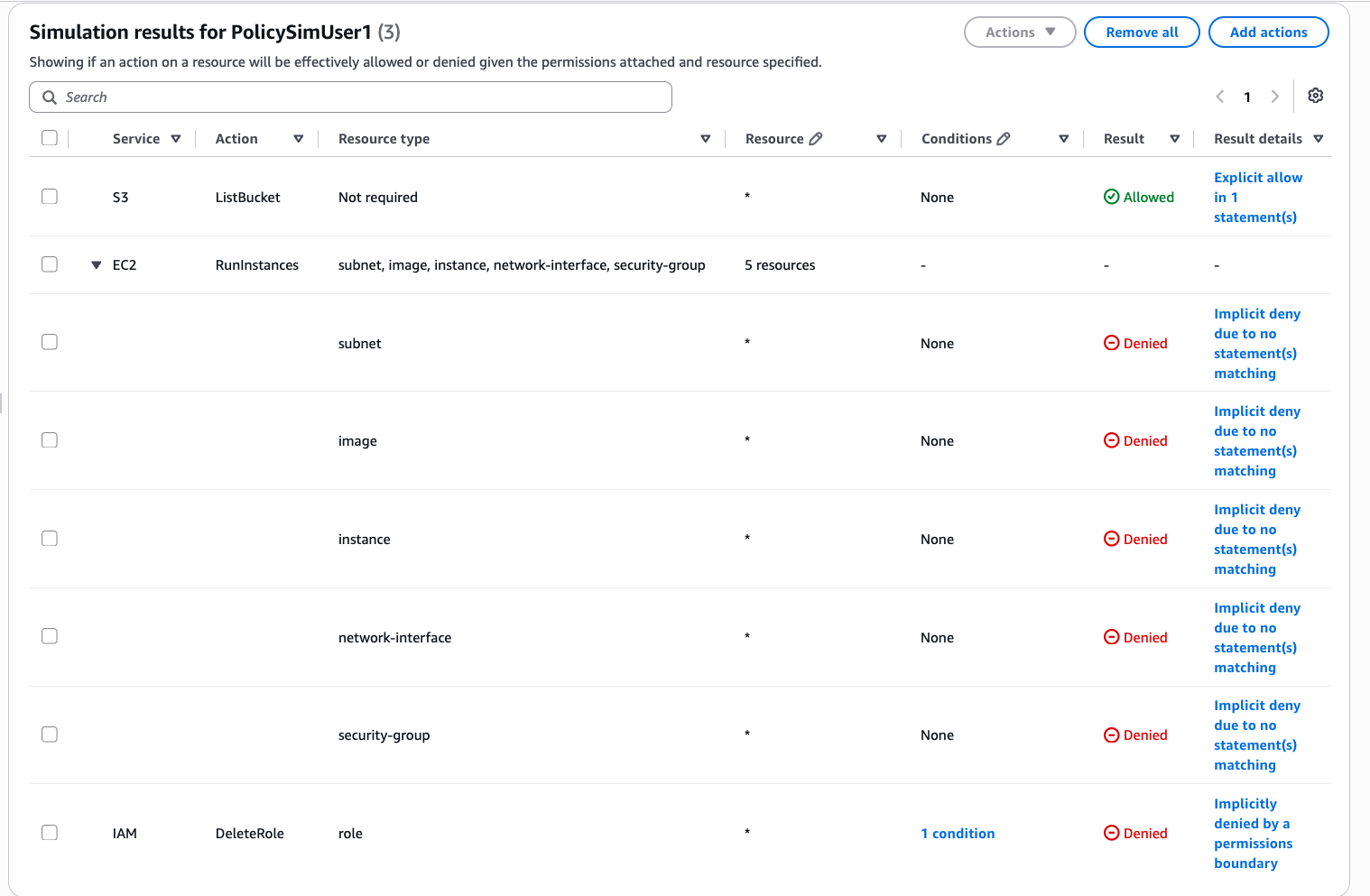
For example, suppose you simulate iam:DeleteRole for an identity whose
boundary does not allow it. The result is a deny attributed to the permissions boundary.
If you then add a policy that allows the action and exclude the boundary, the result
changes to an allow. This confirms that the boundary was the only control blocking the
action.
Include service control policies
If your account is a member of an organization, you can include service control policies (SCPs) in the simulation from the side panel. The simulator evaluates the auto-populated condition keys and resource scoping in SCPs when it determines the result. When an SCP explicitly denies an action, the result is an explicit deny attributed to AWS Organizations, and an allow in another policy cannot override it. Turn the control off and run the simulation again to see the result without the organization's controls. For a list of the auto-populated condition keys, see How condition key evaluation works in the IAM policy simulator.
Note
For security reasons, the simulator does not surface the details of SCP evaluation. Condition keys that are referenced only by SCPs are not listed for you to set values, and the matched statements returned for a result do not include statements from SCPs. The keys and matched statements come from the identity-based policies attached to the identity, and any policies that you provide.
Test a resource-based policy
To include a resource-based policy in a console simulation, enter a specific resource ARN and choose the option to include the resource's policy. The resource-based policy appears in the side panel and is evaluated in the result. In the console, this is available for Amazon S3 buckets, Amazon SQS queues, Amazon SNS topics, and Amazon Glacier vaults.
Note
Simulation of resource-based policies isn't supported for IAM roles.
Read results
Each row in the results table shows whether the action is allowed, implicitly denied, or explicitly denied, along with a short explanation of the outcome. Use the explanation to identify which policy or control determined the result, such as an explicit allow, the absence of a matching statement, a permissions boundary, or an organization control.
Custom mode
You can use the IAM policy editor to write or paste in identity-based policies and permission boundaries in custom mode. These policies are not attached to an identity and can be evaluated before you apply them. You can include multiple identity-based policies, but only one permissions boundary for simulation.
Note
In Custom mode, the console does not support passing in custom SCPs or simulating resource-based policies. To simulate custom SCPs or resource-based policies, use the AWS CLI or AWS API.
Simulate policies (AWS CLI and AWS API)
Simulating policies with the AWS CLI or AWS API generally takes two steps:
-
Evaluate the policies and return the list of context keys that they reference, so that you know which context key values to supply. This step is optional.
-
Simulate the policies, providing the actions, resources, and context key values to use during the simulation.
Each action is paired with each resource, and the simulation determines whether the
policies allow or deny that action for that resource. You can provide values for any context
keys that your policies reference. If you do not provide a value for a context key, the
simulation still runs and returns an implicit deny, and the missing keys are returned in
missingContextValues so you know which values to add. If a missing context key
is referenced only by an SCP, that key is not returned for security reasons, but you still
receive the decision.
The API actions are split into two groups:
-
Actions that simulate only policies passed directly to the API as strings: GetContextKeysForCustomPolicy and SimulateCustomPolicy.
-
Actions that simulate the policies attached to a specified IAM user, user group, role, or resource: GetContextKeysForPrincipalPolicy and SimulatePrincipalPolicy. Because these can reveal permissions assigned to other IAM entities, consider restricting access to them.
These actions also support the following:
-
OrderedOrganizationPolicyInputListon SimulateCustomPolicy lets you simulate the effect of an organization's SCP hierarchy without using a live principal. -
PolicyExclusionListon SimulatePrincipalPolicy lets you test "what if I remove this policy?" scenarios without changing which policies are attached to the principal. -
The response returns a single
EvaluationResultper action, with aggregate decisions at the top level and per-resource details inResourceSpecificResults.
AWS CLI and AWS API reference
For sample AWS CLI commands to simulate policies, see the following: