End of support notice: On March 31, 2027, AWS will end support for Amazon WorkSpaces Thin Client. After March 31, 2027, you will no longer be able to access the WorkSpaces Thin Client console or WorkSpaces Thin Client resources. For more information, see Amazon WorkSpaces Thin Client end of support.
Performing a screen capture
The WorkSpaces Thin Client is able to perform a screen capture or save an image of the contents of your display.
Using the PrintScreen button
If you are using Windows 10 or Windows 11, you can use the PRINT SCREEN button located in the upper right of your keyboard. Depending on your keyboard, the button may be labeled PrintScreen or PrtScn.
You can do a screen capture on a selected active window in your display or the entire display.
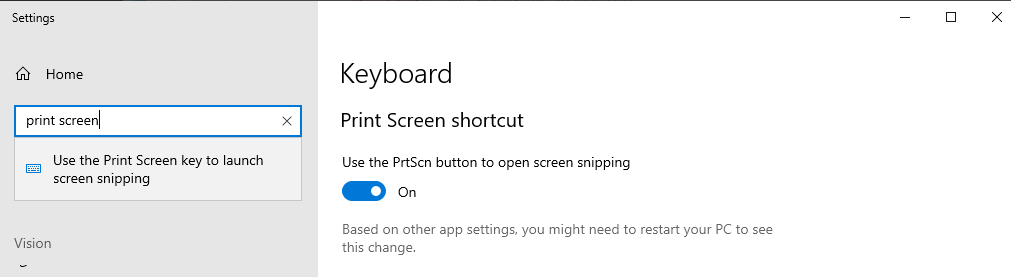
To use the Print Screen key, you need to enable the Print Screen keyboard shortcut in your Windows settings.
Capturing an image on the display
Press PRINT SCREEN.
Press CRTL+V to paste the image into another application.
