End of support notice: On March 31, 2027, AWS will end support for Amazon WorkSpaces Thin Client. After March 31, 2027, you will no longer be able to access the WorkSpaces Thin Client console or WorkSpaces Thin Client resources. For more information, see Amazon WorkSpaces Thin Client end of support.
Detecting network latency
If your WorkSpaces Thin Client device is lagging in either performance or display, it may be experiencing network latency. Network latency is measured in milliseconds (ms). If a WorkSpaces Thin Client device has a network latency over 150 ms, a notification will appear.

When this occurs, you can check your network connection for any possible issues.
Go to Settings, Network.
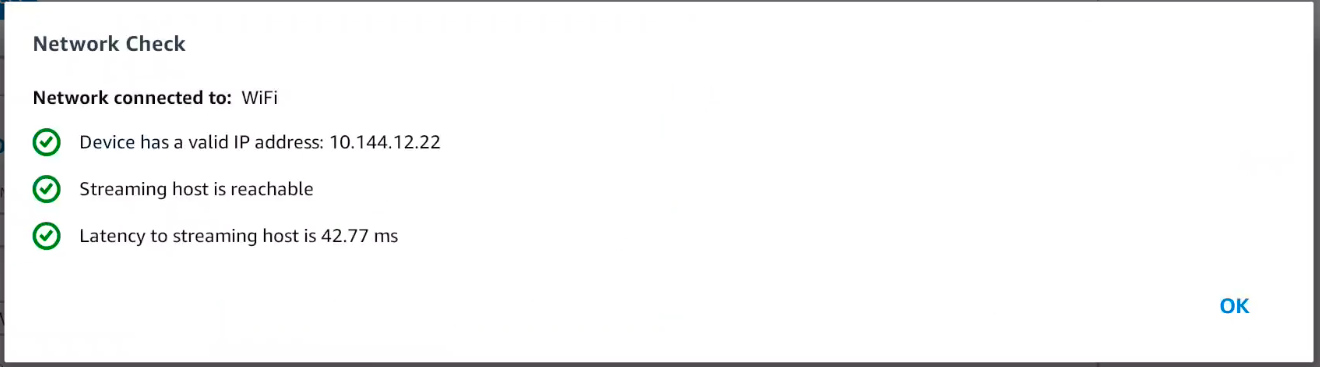
Select Check your network connection.

Verify the following have green checks:
Device has a valid IP address
Streaming host is reachable
Latency to streaming host is under 150 milliseconds (ms).
If an issue appears within that checklist, contact your administrator.
