End of support notice: On March 31, 2027, AWS will end support for Amazon WorkSpaces Thin Client. After March 31, 2027, you will no longer be able to access the WorkSpaces Thin Client console or WorkSpaces Thin Client resources. For more information, see Amazon WorkSpaces Thin Client end of support.
System and network alerts
WorkSpaces Thin Client uses alerts to inform you of system and network issues that may affect your device. Some of these notifications contain a button to restart the device when it is updated or modified.
These notifications are, by default, disabled. If desired, they can be enabled.
Note
This feature should only be enabled for troubleshooting issues. It is not intended for daily use.
Enabling system alerts
As part of the operating system of your WorkSpaces Thin Client device, you will receive notifications regarding your system. These notifications alert you if you experience any change to you device or connected peripheral. Some of them include:
Monitor added
Monitor removed
If needed, you can turn on these notifications. By default, notifications are set to Off.
Turning network notifications on and off
Open the toolbar on the side of your display.
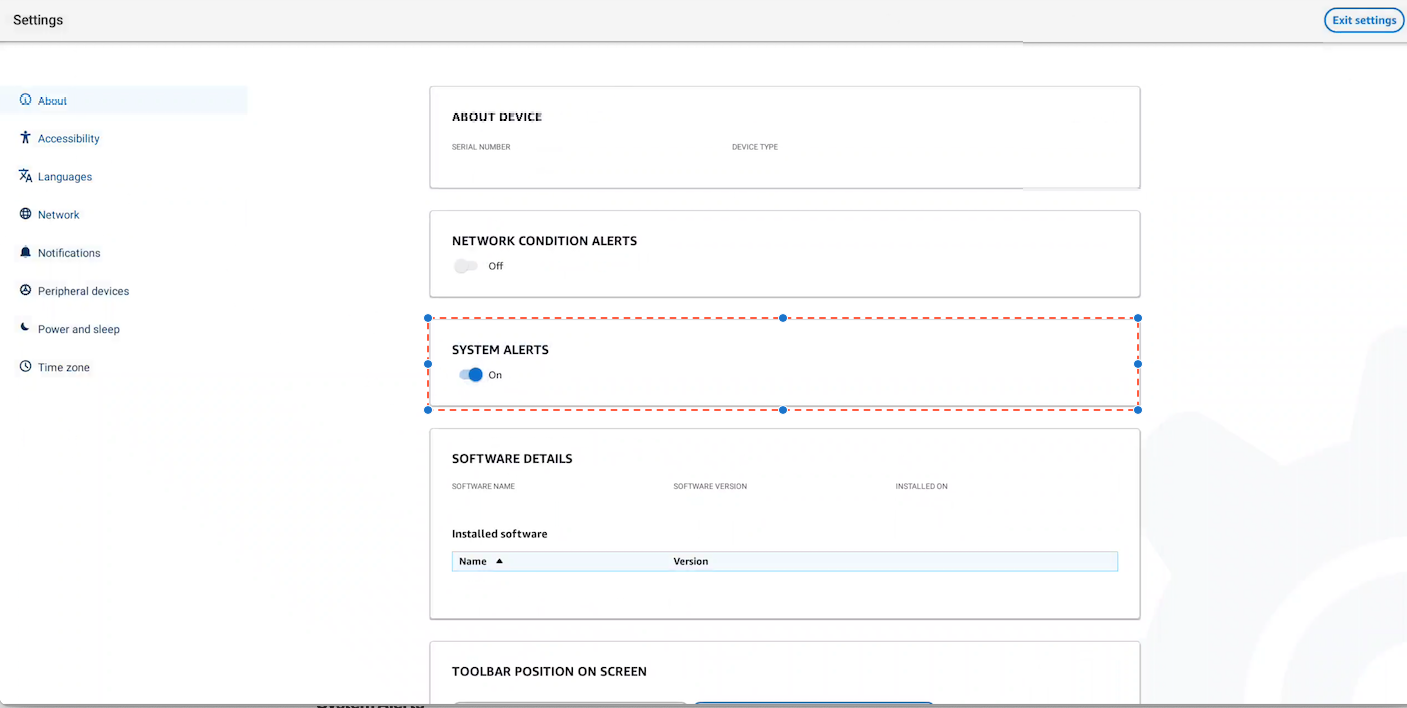
Select Settings, About, SYSTEMS ALERT.
Select the switch to On to enable the notifications.
Enabling network alerts
As part of the operating system of your WorkSpaces Thin Client device, you will receive notifications regarding your network. These notifications alert you if you experience any degraded network conditions. Some of them include:
Ethernet or WiFi Network disruptions
Wifi signal strength
Packet loss or data lost in transmission
If needed, you can turn on these notifications. By default, notifications are set to Off.
Turning network notifications on and off
Open the toolbar on the side of your display.
Select Settings, About, NETWORK CONDITIONS ALERT.
Select the switch to On to enable the notifications.

