This whitepaper is for historical reference only. Some content might be outdated and some links might not be available.
Install and configure Active Directory and Certificate Authority
To install Active Directory on the server:
-
From the task bar, open the Server Manager.
-
From the Server Manager dashboard, select Manage and then Add roles and features. The Roles and Features Wizard launches. This wizard enables you to make modifications to the Windows Server instance.
-
On the Installation Type screen, select Role-based or features-based and select Next.
-
By default, the current server is selected. Choose Next.
-
On the Server Roles screen, choose the check box next to Active Directory Domain Services. A notice explains that you must also install additional roles, services, or features to install Domain Services. These additional capabilities include certificate services, federation services, lightweight directory services, and rights management.
-
To select additional capabilities, select Add Features. Choose Next.
-
On the Select features screen, select the check boxes next to the features that you want to install during the AD DS installation process. Choose Next.
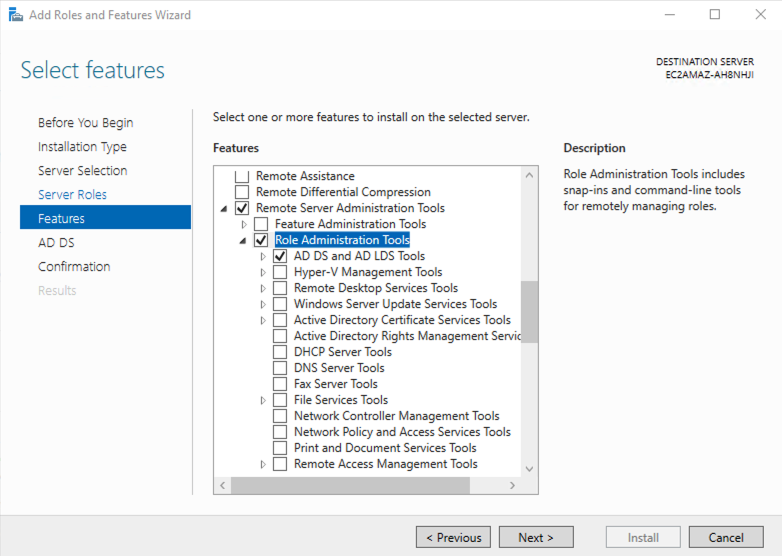
Active Directory feature installation
-
Review the information on the AD DS tab, then select Next.
-
Review the information on the Confirm installation selections screen, then select Install. Information on the progress of the installation displays. After the installation is complete, the AD DS role displays on the "Server Manager" landing page.
