Testing state machines with TestState API
Note
Starting November 2025, the TestState API includes enhancements that enable you to build automated unit tests for your AWS Step Functions workflows. These enhancements are available through AWS CLI and SDKs. Key enhancements added:
-
Mock AWS service integrations or services invoked through HTTP Task state to test state logic without calling the actual service
-
Test advanced states like Map, Parallel, and Activity states with mocked responses
-
Control execution context to test specific retry attempts, Map iteration positions, and error scenarios
Overview
You can test a supported state using the TestState feature in the Step Functions console, AWS Command Line Interface (AWS CLI), or the SDK.
The TestState API accepts the definition of a state and executes it. It allows you to test a state without creating a state machine or updating an existing state machine. You can provide:
-
A single state definition
-
A complete state machine definition with
stateNameparameter
The TestState API assumes an IAM role which must contain the required IAM permissions for the resources your state accesses. When you specify a mock, specifying the role becomes optional, allowing you to test state machine logic without configuring IAM permissions. For information about the permissions a state might need, see IAM permissions for using TestState API.
Topics
Using inspection levels in TestState API
When you test a state using the TestState API, you can specify the amount of detail you want to view in the test results. For example, if you've used input and output data processing filters such as InputPath or ResultPath, you can view the intermediate and final data processing results. Step Functions provides the following inspection levels:
All these levels also return the status and nextState fields. status indicates the status of the state execution. For example, SUCCEEDED, FAILED, RETRIABLE, and CAUGHT_ERROR. nextState indicates the name of the next state to transition to. If you haven't defined a next state in your definition, this field returns an empty value.
For information about testing a state using these inspection levels in the Step Functions console and AWS CLI, see Testing a state using AWS Step Functions console and Testing a state using AWS CLI.
INFO inspectionLevel
If the test succeeds, this level shows the state output. If the test fails, this level shows the error output. By default, Step Functions sets Inspection level to INFO if you don't specify a level.
The following image shows a test for a Pass state that succeeds. The Inspection level for this state is set to INFO and the output for the state appears in the Output tab.

The following image shows a test that failed for a Task state when the Inspection level is set to INFO. The Output tab shows the error output that includes the error name and a detailed explanation of the cause for that error.

DEBUG inspectionLevel
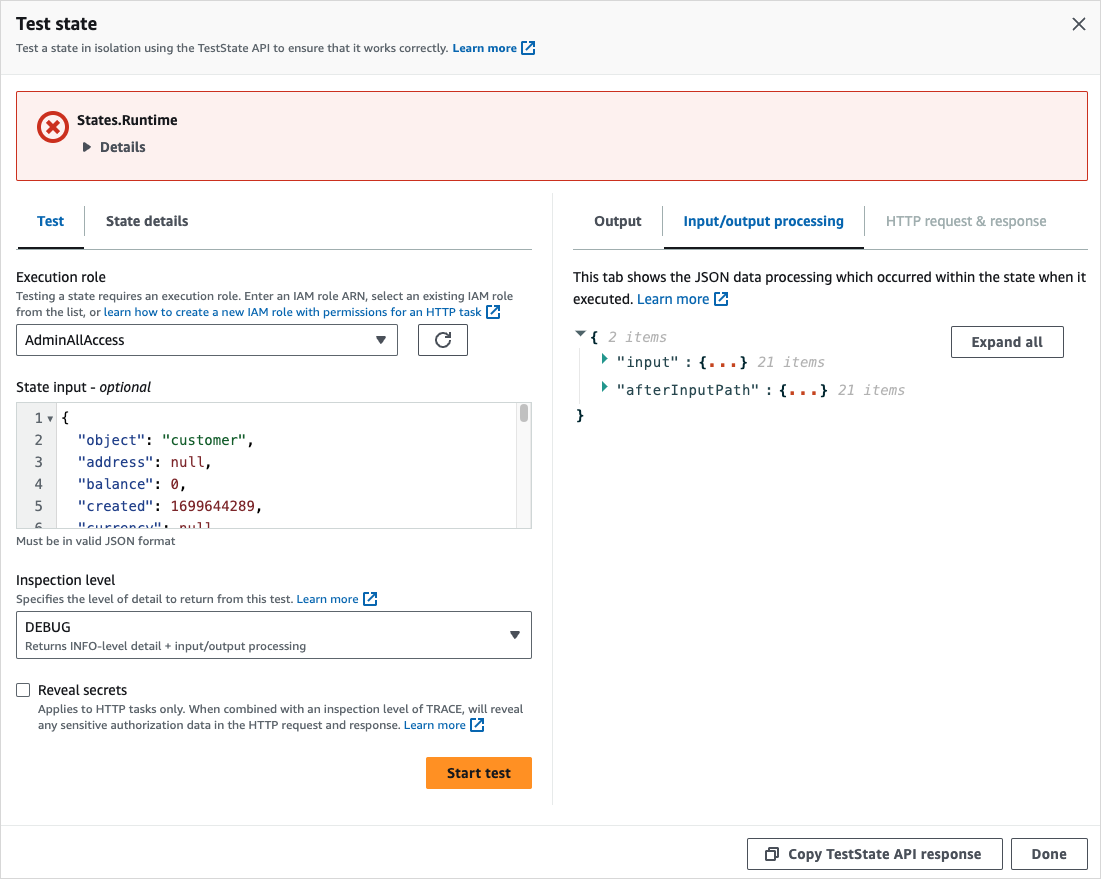
If the test succeeds, this level shows the state output and the result of input and output data processing.
If the test fails, this level shows the error output. This level shows the intermediate data processing results up to the point of failure. For example, say that you tested a Task state that invokes a Lambda function. Imagine that you had applied the InputPath, Parameters, Specifying state output using ResultPath in Step Functions, and Filtering state output using OutputPath filters to the Task state. Say that the invocation failed. In this case, the DEBUG level shows data processing results based on the application of the filters in the following order:
-
input– Raw state input -
afterInputPath– Input after Step Functions applies theInputPathfilter. -
afterParameters– The effective input after Step Functions applies theParametersfilter.
The diagnostic information available in this level can help you troubleshoot issues related to a service integration or input and output data processing flow that you might have defined.
The following image shows a test for a Pass state that succeeds. The Inspection level for this state is set to DEBUG. The Input/output processing tab in the following image shows the result of the application of Parameters on the input provided for this state.

The following image shows a test that failed for a Task state when the Inspection level is set to DEBUG. The Input/output processing tab in the following image shows the input and output data processing result for the state up to the point of its failure.
TRACE inspectionLevel
Step Functions provides the TRACE level to test an HTTP Task. This level returns information about the HTTP request that Step Functions makes and response that a HTTPS API returns. The response might contain information, such as headers and request body. In addition, you can view the state output and result of input and output data processing in this level.
If the test fails, this level shows the error output.
This level is only applicable for HTTP Task. Step Functions throws an error if you use this level for other state types.
When you set the Inspection level to TRACE, you can also view secrets included in the EventBridge connection. To do this, you must set the revealSecrets parameter to true in the TestState API. In addition, you must make sure that the IAM user that calls the TestState API has permission for the states:RevealSecrets action. For an example of IAM policy that sets the states:RevealSecrets permission, see IAM permissions for using TestState API. Without this permission, Step Functions throws an access denied error.
If you set the revealSecrets parameter to false, Step Functions omits all secrets in the HTTP request and response data. Note that you cannot use revealSecrets when mocking is enabled. If you specify both revealSecrets and a mock in the TestState API request, Step Functions returns a validation exception.
The following image shows a test for an HTTP Task that succeeds. The Inspection level for this state is set to TRACE. The HTTP request & response tab in the following image shows the result of the HTTPS API call.

IAM permissions for using TestState API
The IAM user that calls the TestState API must have permission to perform the states:TestState action. When you are not using mocking, the IAM user must also have permission to perform the iam:PassRole action to pass the execution role to Step Functions. In addition, if you set the revealSecrets parameter to true, the IAM user must have permission to perform the states:RevealSecrets action. Without this permission, Step Functions throws an access denied error.
Note that when you specify a mock in the TestState API request, you can test your state machine logic without providing an execution role (see more details under Mocking service integrations). When you are not using mocks, you must provide an execution role that contains the required permissions for the resources your state accesses. For information about the permissions your state might need, see Managing execution roles.
Testing a state using AWS Step Functions console
You can test a state in the console and check the state output or input and output data processing flow. For an HTTP Task, you can test the raw HTTP request and response.
Note
The console TestState feature does not yet support some of the enhancements described in this document, such as mocking service integrations, testing Map and Parallel states, or Activity, .sync and .waitForTaskToken patterns. These capabilities are currently available only through the TestState API using the AWS CLI or SDK.
To test a state
-
Open the Step Functions console
. -
Choose Create state machine to start creating a state machine or choose an existing state machine.
-
In the Design mode of Workflow Studio, choose a state that you want to test.
-
Choose Test state in the Inspector panel of Workflow Studio.
-
In the Test state dialog box, do the following:
-
For Execution role, choose an execution role to test the state. Make sure that you have the required IAM permissions for the state that you want to test.
-
(Optional) Provide any JSON input that your selected state needs for the test.
-
For Inspection level, select one of the following options based on the values you want to view:
-
INFO – Shows the state output in the Output tab if the test succeeds. If the test fails, INFO shows the error output, which includes the error name and a detailed explanation of the cause for that error. By default, Step Functions sets Inspection level to INFO if you don't select a level.
-
DEBUG – Shows the state output and the result of input and output data processing if the test succeeds. If the test fails, DEBUG shows the error output, which includes the error name and a detailed explanation of the cause for that error.
-
TRACE – Shows the raw HTTP request and response, and is useful for verifying headers, query parameters, and other API-specific details. This option is only available for the HTTP Task.
Optionally, you can choose to select Reveal secrets. In combination with TRACE, this setting lets you see the sensitive data that the EventBridge connection inserts, such as API keys. The IAM user identity that you use to access the console must have permission to perform the
states:RevealSecretsaction. Without this permission, Step Functions throws an access denied error when you start the test. For an example of an IAM policy that sets thestates:RevealSecretspermission, see IAM permissions for using TestState API.
-
-
Choose Start test.
-
Testing a state using AWS CLI
You can test a state using the TestState API in the AWS CLI. This API accepts the definition of a state and executes it.
For each state, you can specify the amount of detail you want to view in the test results. These details provide additional information about the state's execution, including its input and output data processing result and HTTP request and response information. The following examples showcase the different inspection levels you can specify for the TestState API.
This section contains the following examples that describe how you can use the different inspection levels that Step Functions provides in the AWS CLI:
Example 1: Using INFO inspectionLevel to test a Choice state
To test a state using the INFO inspectionLevel in the AWS CLI, run the test-state command as shown in the following example.
aws stepfunctions test-state \ --definition '{"Type": "Choice", "Choices": [{"Variable": "$.number", "NumericEquals": 1, "Next": "Equals 1"}, {"Variable": "$.number", "NumericEquals": 2, "Next": "Equals 2"}], "Default": "No Match"}' \ --role-arn arn:aws:iam::account-id:role/myRole\ --input '{"number": 2}'
This example uses a Choice state to determine the execution path for the state based on the numeric input you provide. By default, Step Functions sets the inspectionLevel to INFO if you don't set a level.
Step Functions returns the following output.
{
    "output": "{\"number\": 2}",
    "nextState": "Equals 2",
    "status": "SUCCEEDED"
}
Example 2: Using DEBUG inspectionLevel to debug input and output data processing in a Pass state
To test a state using the DEBUG inspectionLevel in the AWS CLI, run the test-state command as shown in the following example.
aws stepfunctions test-state \ --definition '{"Type": "Pass", "InputPath": "$.payload", "Parameters": {"data": 1}, "ResultPath": "$.result", "OutputPath": "$.result.data", "Next": "Another State"}' \ --role-arn arn:aws:iam::account-id:role/myRole\ --input '{"payload": {"foo": "bar"}}' \ --inspection-level DEBUG
This example uses a Pass workflow state state to showcase how Step Functions filters and manipulates input JSON data using the input and output data processing filters. This example uses these filters: InputPath, Parameters, Specifying state output using ResultPath in Step Functions, and Filtering state output using OutputPath.
Step Functions returns the following output.
{
    "output": "1",
    "inspectionData": {
        "input": "{\"payload\": {\"foo\": \"bar\"}}",
        "afterInputPath": "{\"foo\":\"bar\"}",
        "afterParameters": "{\"data\":1}",
        "afterResultSelector": "{\"data\":1}",
        "afterResultPath": "{\"payload\":{\"foo\":\"bar\"},\"result\":{\"data\":1}}"
    },
    "nextState": "Another State",
    "status": "SUCCEEDED"
}
Example 3: Using TRACE inspectionLevel and revealSecrets to inspect the HTTP request sent to a HTTPS API
To test an HTTP Task using the TRACE inspectionLevel along with the revealSecrets parameter in the AWS CLI, run the test-state command as shown in the following example.
aws stepfunctions test-state \
    --definition '{"Type": "Task", "Resource": "arn:aws:states:::http:invoke", "Parameters": {"Method": "GET", "Authentication": {"ConnectionArn": "arn:aws:events:region:account-id:connection/MyConnection/0000000-0000-0000-0000-000000000000"}, "ApiEndpoint": "https://httpbin.org/get", "Headers": {"definitionHeader": "h1"}, "RequestBody": {"message": "Hello from Step Functions!"}, "QueryParameters": {"queryParam": "q1"}}, "End": true}' \
    --role-arn arn:aws:iam::account-id:role/myRole \
    --inspection-level TRACE \
    --reveal-secrets
This example tests if the HTTP Task calls the specified HTTPS API, https://httpbin.org/. It also shows the HTTP request and response data for the API call.
Step Functions returns output similar to the original example in the current documentation.
Example 4: Using jq utility to filter and print the response that TestState API returns
The TestState API returns JSON data as escaped strings in its response. The following AWS CLI example extends Example 3 and uses the jq utility to filter and print the HTTP response that the TestState API returns in a human-readable format. For information about jq and its installation instructions, see jq
aws stepfunctions test-state \
    --definition '{"Type": "Task", "Resource": "arn:aws:states:::http:invoke", "Parameters": {"Method": "GET", "Authentication": {"ConnectionArn": "arn:aws:events:region:account-id:connection/MyConnection/0000000-0000-0000-0000-000000000000"}, "ApiEndpoint": "https://httpbin.org/get", "Headers": {"definitionHeader": "h1"}, "RequestBody": {"message": "Hello from Step Functions!"}, "QueryParameters": {"queryParam": "q1"}}, "End": true}' \
    --role-arn arn:aws:iam::account-id:role/myRole \
    --inspection-level TRACE \
    --reveal-secrets \
    | jq '.inspectionData.response.body | fromjson'
The following example shows the output returned in a human-readable format.
{
  "args": {
    "QueryParam1": "QueryParamValue1",
    "queryParam": "q1"
  },
  "headers": {
    "Authorization": "Basic XXXXXXXX",
    "Content-Type": "application/json; charset=UTF-8",
    "Customheader1": "CustomHeaderValue1",
    "Definitionheader": "h1",
    "Host": "httpbin.org",
    "Range": "bytes=0-262144",
    "Transfer-Encoding": "chunked",
    "User-Agent": "Amazon|StepFunctions|HttpInvoke|region",
    "X-Amzn-Trace-Id": "Root=1-0000000-0000-0000-0000-000000000000"
  },
  "origin": "12.34.567.891",
  "url": "https://httpbin.org/get?queryParam=q1&QueryParam1=QueryParamValue1"
}
Testing and debugging input and output data flow
The TestState API is helpful for testing and debugging the data that flows through your workflow. This section provides some key concepts and explains how to use the TestState for this purpose.
Key concepts
In Step Functions, the process of filtering and manipulating JSON data as it passes through the states in your state machine is called input and output processing. For information about how this works, see Processing input and output in Step Functions.
All the state types in the Amazon States Language (ASL) (Task, Parallel, Map, Pass, Wait, Choice, Succeed, and Fail) share a set of common fields for filtering and manipulating the JSON data that passes through them. These fields are: InputPath, Parameters, ResultSelector, Specifying state output using ResultPath in Step Functions, and Filtering state output using OutputPath. Support for each field varies across states
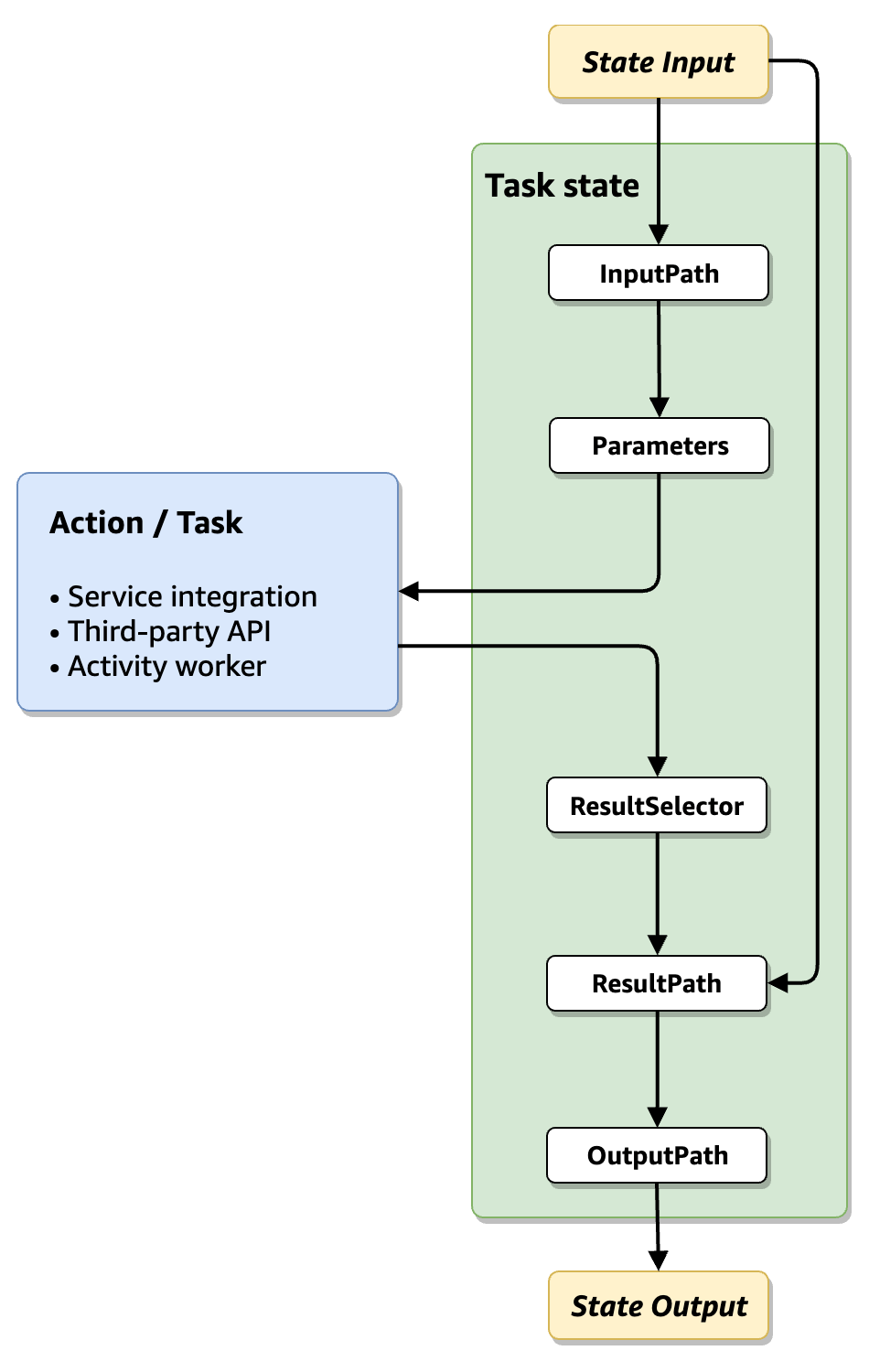
The following list describes the order of application of the input and output processing fields shown in the diagram.
-
State input is the JSON data passed to the current state from a previous state.
-
InputPath filters a portion of the raw state input.
-
Parameters configures the set of values to pass to the Task.
-
The task performs work and returns a result.
-
ResultSelector selects a set of values to keep from the task result.
-
Specifying state output using ResultPath in Step Functions combines the result with the raw state input, or replaces the result with it.
-
Filtering state output using OutputPath filters a portion of the output to pass along to the next state.
-
State output is the JSON data passed from the current state to the next state.
These input and output processing fields are optional. If you don't use any of these fields in your state definition, the task will consume the raw state input, and return the task result as the state output.
Using TestState to inspect input and output processing
When you call the TestState API and set the inspectionLevel parameter to DEBUG, the API response includes an object called inspectionData. This object contains fields to help you inspect how data was filtered or manipulated within the state when it was executed. The following example shows the inspectionData object for a Task state.
"inspectionData":   {
  "input": string,
  "afterInputPath": string,
  "afterParameters": string,
  "result": string,
  "afterResultSelector": string,
  "afterResultPath": string,
  "output": string
}
In this example, each field that contains the after prefix, shows the data after a particular field was applied. For example, afterInputPath shows the effect of applying the InputPath field to filter the raw state input. The following diagram maps each ASL definition field to its corresponding field in the inspectionData object:

For examples of using the TestState API to debug input and output processing, see the following:
For Map state specifically, when inspectionLevel is set to DEBUG, the inspectionData object includes additional fields that help you inspect how the Map state extracts and transforms items. You can learn more these fields under Understanding Map state inspection data section.
Understanding Map state inspection data
When you test a Map state with inspectionLevel set to DEBUG, the TestState API response includes additional fields in the inspectionData object that show how your Map state processes data:
Note
afterItemsPath is only populated when using JSONPath as the query language.
-
afterItemsPath(String) – The effective input after the ItemsPath filter is applied. This shows the array of items extracted from your input. -
afterItemsPointer(String) – The effective input after the ItemsPointer filter is applied. This is only applicable to JSON inputs (not JSONata). -
afterItemSelector(Array of Strings) – An array containing the input values after the ItemSelector transformation is applied. Each element in the array represents one transformed item. This field is only present when testing a Map state. -
afterItemBatcher(Array of Strings) – An array containing the input values after the ItemBatcher grouping is applied. This shows how items are grouped into batches. This field is only present when testing a Map state. -
toleratedFailureCount(Number) – The tolerated failure threshold for a Map state expressed as a count of Map state iterations. This value is derived from either the value specified in ToleratedFailureCount or the value evaluated at runtime from ToleratedFailureCountPath. -
toleratedFailurePercentage(Number) – The tolerated failure threshold for a Map state expressed as a percentage of Map state iterations. This value is derived from either the value specified in ToleratedFailurePercentage or the value evaluated at runtime from ToleratedFailurePercentagePath. -
maxConcurrency(Number) – The maximum concurrency setting of the Map state.
These fields allow you to validate that your Map state's data transformations and failure tolerance configurations work correctly before deployment.
What you can test and assert with the TestState API
The TestState API enables you to write comprehensive unit tests for your state machines. You can assert on multiple aspects of your state machine logic, including the following:
Error handling: Which Catch or Retry applies
When you mock an error, you can use TestState API to see which error handler activates.
For Catch blocks, you can assert:
-
Which Catch handler catches the error (via
catchIndexin the response) -
What the next state will be (via
nextStatein the response) -
What data flows to the error handler (via
outputin the response, considering ResultPath)
For Retry blocks, you can assert:
-
Which Retry applies (via
retryIndexin the response) -
What the backoff duration is (via
retryBackoffIntervalSecondsin the response) -
Whether retries are exhausted and the error gets caught
Data transformations: Input and output processing
Using TestState API, you can validate how your state data is transformed at each stage of processing.
You can assert on:
-
Input after InputPath filter (
afterInputPath) -
Data after Parameters/Arguments transformation (
afterParametersorafterArguments) -
Result after ResultSelector (
afterResultSelector) -
Output after ResultPath (
afterResultPath) -
Final output after OutputPath (
output)
Map state transformations: ItemSelector, ItemsPath, ItemBatcher, ItemsPointer
For Map states, you can use TestState API to see how items are extracted and transformed.
You can assert on:
-
Items after ItemsPath filter (
afterItemsPath) -
Items after ItemsPointer filter (
afterItemsPointer) -
Items after ItemSelector transformation (
afterItemSelector) -
Items after ItemBatcher grouping (
afterItemBatcher)
Map state failure thresholds: Testing States.ExceedToleratedFailureThreshold
Test whether a specific number of failed iterations triggers the tolerated failure threshold.
You can assert on:
-
Whether the Map state fails with States.ExceedToleratedFailureThreshold
Error propagation in Map and Parallel states
When testing states within Map or Parallel states, errors propagate to parent state error handlers just as they would in a real execution.
Specifying error source with errorCausedByState
When mocking errors for Map or Parallel states, you must specify which sub-state caused the error using the stateConfiguration.errorCausedByState parameter. This is particularly important when testing wildcard errors like States.TaskFailed. States.TaskFailed is a wildcard error that applies to any Task state failure. To test how your Map or Parallel state handles this error, you need to identify the specific sub-state that threw it. See example below:
aws stepfunctions test-state \
  --definition '{...Map or Parallel state definition...}' \
  --input '[...]' \
  --state-configuration '{"errorCausedByState": "ProcessItem"}' \
  --mock '{"errorOutput": {"error": "States.TaskFailed", "cause": "Task execution failed"}}'
In this example, errorCausedByState tells TestState that the "ProcessItem" state within the Map/Parallel workflow threw the error. The parent Map/Parallel state's Catch or Retry handlers will process the error as they would during actual execution. The nextState field in the response shows which error handler caught the error. You can assert on:
-
Whether child state errors are caught by parent Catch handlers
-
Whether child state errors trigger parent Retry policies
-
What the next state is after error propagation
Mocking service integrations
The TestState API supports mocking the results of service integrations, allowing you to test your state machine logic without invoking actual AWS services.
When to use mocking
Mocking is useful for:
-
Unit testing state machine definitions in isolation
-
Testing error handling and retry logic
-
Validating input and output data transformations
-
Simulating various service responses and error conditions
-
Testing without configuring IAM permissions
When you specify a mock, the roleArn parameter becomes optional, allowing you to focus on testing your state machine definition without dealing with permissions-related issues.
Note
Mocking is necessary if you need to test the following state types or service integration patterns - Map, Parallel, Activity, .sync service integrations and waitForTaskToken service integrations.
Basic mocking syntax
To mock a service integration result:
aws stepfunctions test-state \
  --definition '{
    "Type": "Task",
    "Resource": "arn:aws:states:::lambda:invoke",
    "Arguments": {
      "FunctionName": "MyFunction",
      "Payload.$": "$"
    },
    "End": true
  }' \
  --input '{"key": "value"}' \
  --mock '{"result": "{\"Payload\": {\"statusCode\": 200, \"body\": \"Success\"}}"}'
To mock an error:
aws stepfunctions test-state \
  --definition '{
    "Type": "Task",
    "Resource": "arn:aws:states:::lambda:invoke",
    "Arguments": {...},
    "End": true
  }' \
  --input '{"key": "value"}' \
  --mock '{"errorOutput": {"error": "Lambda.ServiceException", "cause": "Service unavailable"}}'
Note
You cannot provide both mock.result and mock.errorOutput in the same API call. This results in a validation exception.
Mock validation modes
The TestState API validates mocked responses against AWS service API models to ensure correctness. You can control the validation behavior using the fieldValidationMode parameter:
-
STRICT (default) – Enforces field naming, size, shape, and data type constraints from AWS API models. All required fields must be present with correct types. This mode helps ensure your mocks accurately represent real service responses.
-
PRESENT – Validates only the fields that are present in the mock. Unknown fields are ignored. This mode is useful when you want flexibility but still want validation on known fields.
-
NONE – Skips validation entirely. Use with caution as this may lead to incorrect test assumptions and behavior that differs from actual executions.
Note
Validation is performed only on fields defined in the AWS service API model. Any fields not specified in the API model are ignored during validation, regardless of the validation mode. For example, if using STRICT mode for an API that defines no 'Required' fields, an empty mock response will pass validation.
Example with validation mode:
aws stepfunctions test-state \
  --definition '{
    "Type": "Task",
    "Resource": "arn:aws:states:::dynamodb:putItem",
    "Parameters": {...},
    "End": true
  }' \
  --input '{"key": "value"}' \
  --mock '{"fieldValidationMode": "STRICT", "result": "{\"Attributes\": {...}}"}'
Important
Mock validation is not supported for HTTP Task, API Gateway, EKS Call, and EKS RunJob integrations.
Testing Map and Parallel states
The TestState API supports testing Map and Parallel states when a mock is specified. This allows you to test the input and output processing of these flow states.
Understanding Map state testing
When you test a Map state with the TestState API, you are testing the Map state's input and output processing without executing the iterations inside. This approach allows you to test:
-
ItemsPath or ItemsPointer extraction from the input
-
ItemSelector transformation applied to each item
-
ItemBatcher grouping (if specified)
-
The Map state's output processing (ResultPath, OutputPath)
-
Tolerated failure thresholds
You are not testing what happens inside the ItemProcessor (the states that process each item).
Testing a Map state
When testing a Map state, the mocked result must represent the output of the entire Map state. The mock result must be a valid JSON array or JSON object depending on your Map state configuration. See example below:
aws stepfunctions test-state \
  --definition '{
    "Type": "Map",
    "ItemsPath": "$.items",
    "ItemSelector": {
      "value.$": "$$.Map.Item.Value",
      "index.$": "$$.Map.Item.Index"
    },
    "ItemProcessor": {
      "ProcessorConfig": {"Mode": "INLINE"},
      "StartAt": "ProcessItem",
      "States": {
        "ProcessItem": {
          "Type": "Task",
          "Resource": "arn:aws:states:::lambda:invoke",
          "End": true
        }
      }
    },
    "End": true
  }' \
  --input '{"items": [1, 2, 3, 4, 5]}' \
  --mock '{"result": "[10, 20, 30, 40, 50]"}' \
  --inspection-level DEBUG
Testing Distributed Map states
Distributed Map states are tested similarly to inline Map states. When your Map uses an ItemReader to read from S3, provide the data directly in the input (as if it had already been read from S3). For example:
aws stepfunctions test-state \
  --definition '{
    "Type": "Map",
    "ItemReader": {
      "Resource": "arn:aws:states:::s3:getObject",
      "Parameters": {
        "Bucket": "my-bucket",
        "Key": "orders.json"
      }
    },
    "ItemsPath": "$.orders",
    "ItemProcessor": {
      "ProcessorConfig": {"Mode": "DISTRIBUTED"},
      ...
    },
    "ToleratedFailureCount": 5,
    "End": true
  }' \
  --input '{
    "orders": [
      {"orderId": "123"},
      {"orderId": "456"},
      {"orderId": "789"}
    ]
  }' \
  --mock '{"result": "..."}'
Note
When testing Distributed Map state (Mode set to DISTRIBUTED), you can also assert on mapIterationFailureCount. The value for this field cannot exceed the number of items in the input, or equal the number of items when testing a state within a Map.
Automatic Context population
When testing a state within a Map state (using the stateName parameter) without providing a context parameter, TestState automatically populates the Context object with default values. This includes Map-specific context fields such as:
-
$$.Map.Item.Index=0(first iteration) -
$$.Map.Item.Value= your input value -
$$.Map.Item.Key(for Distributed Maps with certain ItemReader configurations) -
$$.Map.Item.Source(for Distributed Maps, indicating the source of the item)
Testing Parallel states
When testing a Parallel state, the mocked result must be a JSON array with one element for each branch, in the same order as the branches appear in the definition.
Testing Activity, .sync, and .waitForTaskToken states
The TestState API supports testing Activity states, .sync service integration patterns, and .waitForTaskToken patterns when a mock is specified. Without a mock, invoking these states via TestState API will return a validation exception.
Note
For testing .sync integrations using TestState API, the mocked response is validated against the polling API's schema. For example, when testing startExecution.sync:2, your mock must match the DescribeExecution response schema (which Step Functions polls for status), not the StartExecution response.
Iterating through state machine definitions
You can provide a complete state machine definition to TestState API and specify which state to test using the stateName parameter. This allows you to test that specific state within the context of your complete state machine. You can also chain tests by using the output and nextState from one test as input to the next. This allows you to test partial or complete execution paths within your state machine.
Using context field in the TestState API
The context parameter allows you to provide values for the Context object that would normally be populated during execution. This is useful for testing states that reference context values like execution ID, state name, or entered time. The example below demonstrates how you can use the Context object in your TestState API call:
aws stepfunctions test-state \
  --definition '{
    "Type": "Task",
    "Resource": "arn:aws:states:::lambda:invoke",
    "Arguments": {
      "FunctionName": "MyFunction",
      "Payload": {
        "executionId.$": "$$.Execution.Id",
        "stateName.$": "$$.State.Name",
        "enteredTime.$": "$$.State.EnteredTime"
      }
    },
    "End": true
  }' \
  --input '{"data": "value"}' \
  --context '{
    "Execution": {
      "Id": "arn:aws:states:us-east-1:123456789012:execution:MyStateMachine:test-exec-123",
      "Name": "test-exec-123",
      "StartTime": "2024-01-01T10:00:00.000Z"
    },
    "State": {
      "Name": "ProcessData",
      "EnteredTime": "2024-01-01T10:00:05.000Z"
    }
  }' \
  --mock '{"result": "{\"status\": \"success\"}"}'
Testing retry and error handling
The TestState API allows you to simulate retry scenarios and test error handling logic by specifying retry attempts and mocking errors.
Simulating retry attempts
aws stepfunctions test-state \
  --definition '{
    "Type": "Task",
    "Resource": "arn:aws:states:::lambda:invoke",
    "Arguments": {...},
    "Retry": [{
      "ErrorEquals": ["Lambda.ServiceException"],
      "IntervalSeconds": 2,
      "MaxAttempts": 3,
      "BackoffRate": 2.0
    }],
    "End": true
  }' \
  --input '{"data": "value"}' \
  --state-configuration '{"retrierRetryCount": 1}' \
  --mock '{"errorOutput": {"error": "Lambda.ServiceException", "cause": "Service error"}}' \
  --inspection-level DEBUG
The response includes error details in the inspectionData:
{
  "status": "RETRIABLE",
  "inspectionData": {
    "errorDetails": {
      "retryBackoffIntervalSeconds": 4,
      "retryIndex": 0
    }
  }
}
This response indicates:
-
The error is retriable (status: RETRIABLE)
-
The backoff duration is 4 seconds (2 × 2.0^1)
-
The first Retry (index 0) applies
Testing catch handlers
When an error is mocked and matches a Catch handler, the nextState field in the TestState API response indicates which state will handle the error. In the example below:
For the given TestState API request below,
aws stepfunctions test-state \
  --definition '{
    "Type": "Task",
    "Resource": "arn:aws:states:::lambda:invoke",
    "Arguments": {...},
    "Catch": [{
      "ErrorEquals": ["Lambda.TooManyRequestsException"],
      "ResultPath": "$.error",
      "Next": "HandleThrottling"
    }],
    "Next": "Success"
  }' \
  --input '{"data": "value"}' \
  --mock '{"errorOutput": {"error": "Lambda.TooManyRequestsException", "cause": "Rate exceeded"}}' \
  --inspection-level DEBUG
The expected API response should be:
{
  "status": "CAUGHT_ERROR",
  "nextState": "HandleThrottling",
  "error": "Lambda.TooManyRequestsException",
  "cause": "Rate exceeded",
  "output": "{\"data\": \"value\", \"error\": {\"Error\": \"Lambda.TooManyRequestsException\", \"Cause\": \"Rate exceeded\"}}",
  "inspectionData": {
    "errorDetails": {
      "catchIndex": 0
    }
  }
}
This response indicates that:
-
the error is caught (status: CAUGHT_ERROR)
-
the next state is HandleThrottling
-
the error information is added to the output via ResultPath
-
the first Catch handler (index 0) caught the error
You can also test what happens when all retry attempts are exhausted by increasing RetryCount values in your context object.
