# Augmented AI Crowd HTML Elements
<a name="crowd-elements-a2i-list"></a>

The following Crowd HTML Elements are only available for Amazon Augmented AI human workflow tasks.

# crowd-textract-analyze-document
<a name="a2i-crowd-textract-detection"></a>

A widget to enable human review of a Amazon Textract document analysis result.

## Attributes
<a name="a2i-textract-crowd-attributes"></a>

The following attributes are supported by this element.

### header
<a name="textract-attributes-header"></a>

This is the text that is displayed as the header.

### src
<a name="textract-attributes-src"></a>

This is a link to the image to be analyzed by the worker. 

### initialValue
<a name="textract-attributes-initialValue"></a>

This sets initial values for attributes found in the worker UI.

The following is an example of an `initialValue` input: 

```
[
            {
                "blockType": "KEY_VALUE_SET",
                "confidence": 38.43309020996094,
                "geometry": {
                    "boundingBox": {
                        "width": 0.32613086700439453,
                        "weight": 0.0942094624042511,
                        "left": 0.4833833575248718,
                        "top": 0.5227988958358765
                    },
                    "polygon": [
                        {"x": 0.123, "y": 0.345}, ...
                    ]
                }
                "id": "8c97b240-0969-4678-834a-646c95da9cf4",
                "relationships": [
                    {
                        "type": "CHILD",
                        "ids": [
                            "7ee7b7da-ee1b-428d-a567-55a3e3affa56",
                            "4d6da730-ba43-467c-a9a5-c6137ba0c472"
                        ]
                    },
                    {
                        "type": "VALUE",
                        "ids": [
                            "6ee7b7da-ee1b-428d-a567-55a3e3affa54"
                        ]
                    }
                ],
                "entityTypes": [
                    "KEY"
                ],
                "text": "Foo bar"
            },
]
```

### blockTypes
<a name="textract-attributes-blockTypes"></a>

This determines the kind of analysis the workers can do. Only `KEY_VALUE_SET` is currently supported. 

### keys
<a name="textract-attributes-keys"></a>

This specifies new keys and the associated text value the worker can add. The input values for `keys` can include the following elements: 
+ `importantFormKey` accepts strings, and is used to specify a single key. 
+ `importantFormKeyAliases` can be used to specify aliases that are acceptable alternatives to the keys supplied. Use this element to identify alternative spellings or presentations of your keys. This parameter accepts a list of one or more strings. 

The following is an example of an input for `keys`.

```
[
      {
        importantFormKey: 'Address',
        importantFormKeyAliases: [
          'address',
          'Addr.',
          'Add.',
        ]
      },
      {
        importantFormKey: 'Last name',
        importantFormKeyAliases: ['Surname']
      }
]
```

### no-key-edit
<a name="textract-attributes-no-key-edit"></a>

This prevents the workers from editing the keys of annotations passed through `initialValue`. This prevents workers from editing the keys that have been detected on your documents. This is required. 

### no-geometry-edit
<a name="textract-attributes-no-geometry-edit"></a>

This prevents workers from editing the polygons of annotations passed through `initialValue`. For example, this would prevent the worker from editing the bounding box around a given key. This is required. 

## Element Hierarchy
<a name="textract-crowd-element-hierarchy"></a>

 This element has the following parent and child elements. 
+ Parent elements – crowd-form
+ Child elements – [full-instructions](#textract-full-instructions), [short-instructions](#textract-short-instructions) 

## Regions
<a name="textract-crowd-regions"></a>

The following regions are supported by this element. You can use custom HTML and CSS code within these regions to format your instructions to workers. For example, use the `short-instructions` section to provide good and bad examples of how to complete a task. 

### full-instructions
<a name="textract-full-instructions"></a>

General instructions about how to work with the widget. 

### short-instructions
<a name="textract-short-instructions"></a>

Important task-specific instructions that are displayed in a prominent place.

## Example of a Worker Template Using the crowd Element
<a name="textract-example-crowd-elements"></a>

An example of a worker template using this crowd element would look like the following.

```
<script src="https://assets.crowd.aws/crowd-html-elements.js"></script>
{% capture s3_uri %}http://s3.amazonaws.com/{{ task.input.aiServiceRequest.document.s3Object.bucket }}/{{ task.input.aiServiceRequest.document.s3Object.name }}{% endcapture %}

<crowd-form>
  <crowd-textract-analyze-document
    src="{{ s3_uri | grant_read_access }}"
    initial-value="{{ task.input.selectedAiServiceResponse.blocks }}"
    header="Review the key-value pairs listed on the right and correct them if they don't match the following document."
    no-key-edit
    no-geometry-edit
    keys="{{ task.input.humanLoopContext.importantFormKeys }}"
    block-types="['KEY_VALUE_SET']"
  >
    <short-instructions header="Instructions">
      <style>
        .instructions {
          white-space: pre-wrap;
        }
        .instructionsImage {
          display: inline-block;
          max-width: 100%;
        }
      </style>
      <p class='instructions'>Click on a key-value block to highlight the corresponding key-value pair in the document.

If it is a valid key-value pair, review the content for the value. If the content is incorrect, correct it.

The text of the value is incorrect, correct it.
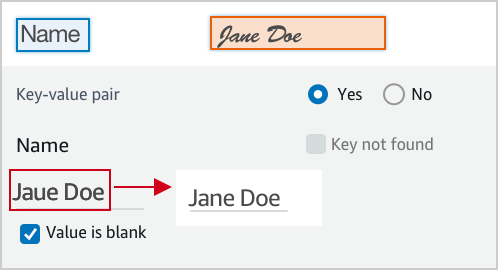
<img class='instructionsImage' src="https://assets.crowd.aws/images/a2i-console/correct-value-text.png" />

A wrong value is identified, correct it.
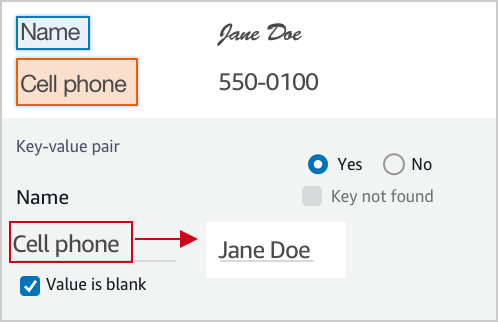
<img class='instructionsImage' src="https://assets.crowd.aws/images/a2i-console/correct-value.png" />

If it is not a valid key-value relationship, choose No.
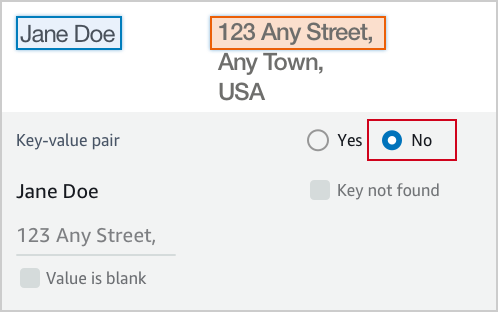
<img class='instructionsImage' src="https://assets.crowd.aws/images/a2i-console/not-a-key-value-pair.png" />

If you can’t find the key in the document, choose Key not found.
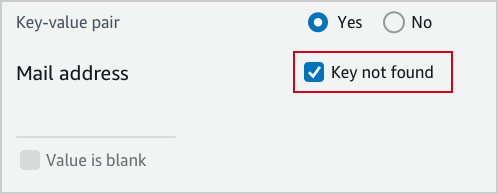
<img class='instructionsImage' src="https://assets.crowd.aws/images/a2i-console/key-is-not-found.png" />

If the content of a field is empty, choose Value is blank.
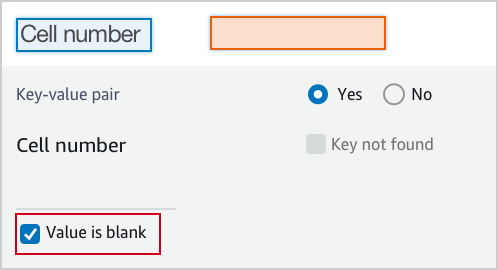
<img class='instructionsImage' src="https://assets.crowd.aws/images/a2i-console/value-is-blank.png" />

<b>Examples</b>
Key and value are often displayed next or below to each other.

Key and value displayed in one line.

<img class='instructionsImage' src="https://assets.crowd.aws/images/a2i-console/sample-key-value-pair-1.png" />

Key and value displayed in two lines.
<img class='instructionsImage' src="https://assets.crowd.aws/images/a2i-console/sample-key-value-pair-2.png" />

If the content of the value has multiple lines, enter all the text without line break. Include all value text even if it extends beyond the highlight box.
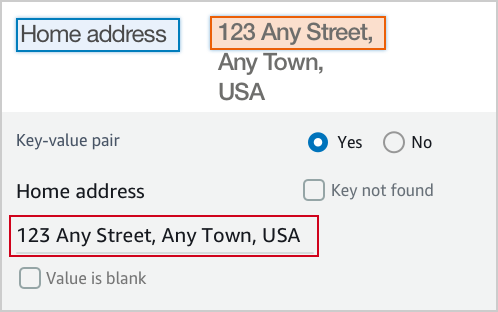
<img class='instructionsImage' src="https://assets.crowd.aws/images/a2i-console/multiple-lines.png" /></p>
    </short-instructions>

    <full-instructions header="Instructions"></full-instructions>
  </crowd-textract-analyze-document>
</crowd-form>
```

## Output
<a name="textract-crowd-element-output"></a>

The following is a sample of the output from this element. You can find a detailed explanation of this output in the Amazon Textract [AnalyzeDocument](https://docs.aws.amazon.com/textract/latest/dg/API_AnalyzeDocument.html) API documentation.

```
{
  "AWS/Textract/AnalyzeDocument/Forms/V1": {
    blocks: [
      {
        "blockType": "KEY_VALUE_SET",
        "id": "8c97b240-0969-4678-834a-646c95da9cf4",
        "relationships": [
          {
            "type": "CHILD",
            "ids": ["7ee7b7da-ee1b-428d-a567-55a3e3affa56", "4d6da730-ba43-467c-a9a5-c6137ba0c472"]
          },
          {
            "type": "VALUE",
            "ids": ["6ee7b7da-ee1b-428d-a567-55a3e3affa54"]
          }
        ],
        "entityTypes": ["KEY"],
        "text": "Foo bar baz"
      }
    ]
  }
}
```

# crowd-rekognition-detect-moderation-labels
<a name="a2i-crowd-rekognition-detection"></a>

A widget to enable human review of an Amazon Rekognition image moderation result.

## Attributes
<a name="rekognition-attributes"></a>

The following attributes are supported by this element.

### header
<a name="rekognition-attributes-header"></a>

This is the text that is displayed as the header.

### src
<a name="rekognition-attributes-src"></a>

This is a link to the image to be analyzed by the worker. 

### categories
<a name="rekognition-attributes-categories"></a>

This supports `categories` as an array of strings **or** an array of objects where each object has a `name` field.

If the categories come in as objects, the following applies:
+ The displayed categories are the value of the `name` field.
+ The returned answer contains the **full** objects of any selected categories.

If the categories come in as strings, the following applies:
+ The returned answer is an array of all the strings that were selected.

### exclusion-category
<a name="rekognition-attributes-exclusion-category"></a>

By setting this attribute you create a button underneath the categories in the UI. 
+ When a user chooses the button, all categories are deselected and disabled.
+ Choosing the button again re-enables the categories so that users can choose them.
+ If you submit after choosing the button, it returns an empty array.

## Element Hierarchy
<a name="rekognition-crowd-element-hierarchy"></a>

This element has the following parent and child elements.
+ Parent elements – crowd-form
+ Child elements – [full-instructions](#rek-full-instructions), [short-instructions](#rek-short-instructions) 

## AWS Regions
<a name="rek-crowd-regions"></a>

The following AWS Regions are supported by this element. You can use custom HTML and CSS code within these Regions to format your instructions to workers. For example, use the `short-instructions` section to provide good and bad examples of how to complete a task. 

### full-instructions
<a name="rek-full-instructions"></a>

General instructions about how to work with the widget. 

### short-instructions
<a name="rek-short-instructions"></a>

Important task-specific instructions that are displayed in a prominent place. 

## Example Worker Template with the crowd Element
<a name="rek-crowd-element-example"></a>

An example of a worker template using the crowd element would look like the following.

```
<script src="https://assets.crowd.aws/crowd-html-elements.js"></script>
{% capture s3_uri %}http://s3.amazonaws.com/{{ task.input.aiServiceRequest.image.s3Object.bucket }}/{{ task.input.aiServiceRequest.image.s3Object.name }}{% endcapture %}

<crowd-form>
  <crowd-rekognition-detect-moderation-labels
    categories='[
      {% for label in task.input.selectedAiServiceResponse.moderationLabels %}
        {
          name: "{{ label.name }}",
          parentName: "{{ label.parentName }}",
        },
      {% endfor %}
    ]'
    src="{{ s3_uri | grant_read_access }}"
    header="Review the image and choose all applicable categories."
  >
    <short-instructions header="Instructions">
      <style>
        .instructions {
          white-space: pre-wrap;
        }
      </style>
      <p class='instructions'>Review the image and choose all applicable categories.
If no categories apply, choose None.

<b>Nudity</b>
Visuals depicting nude male or female person or persons

<b>Graphic Male Nudity</b>
Visuals depicting full frontal male nudity, often close ups

<b>Graphic Female Nudity</b>
Visuals depicting full frontal female nudity, often close ups

<b>Sexual Activity</b>
Visuals depicting various types of explicit sexual activities and pornography

<b>Illustrated Nudity or Sexual Activity</b>
Visuals depicting animated or drawn sexual activity, nudity or pornography

<b>Adult Toys</b>
Visuals depicting adult toys, often in a marketing context

<b>Female Swimwear or Underwear</b>
Visuals depicting female person wearing only swimwear or underwear

<b>Male Swimwear Or Underwear</b>
Visuals depicting male person wearing only swimwear or underwear

<b>Partial Nudity</b>
Visuals depicting covered up nudity, for example using hands or pose

<b>Revealing Clothes</b>
Visuals depicting revealing clothes and poses, such as deep cut dresses

<b>Graphic Violence or Gore</b>
Visuals depicting prominent blood or bloody injuries

<b>Physical Violence</b>
Visuals depicting violent physical assault, such as kicking or punching

<b>Weapon Violence</b>
Visuals depicting violence using weapons like firearms or blades, such as shooting

<b>Weapons</b>
Visuals depicting weapons like firearms and blades

<b>Self Injury</b>
Visuals depicting self-inflicted cutting on the body, typically in distinctive patterns using sharp objects

<b>Emaciated Bodies</b>
Visuals depicting extremely malnourished human bodies

<b>Corpses</b>
Visuals depicting human dead bodies

<b>Hanging</b>
Visuals depicting death by hanging</p>
    </short-instructions>

    <full-instructions header="Instructions"></full-instructions>
  </crowd-rekognition-detect-moderation-labels>
</crowd-form>
```

## Output
<a name="rek-crowd-element-output"></a>

The following is a sample of the output from this element. For details about this output, see Amazon Rekognition [DetectModerationLabels](https://docs.aws.amazon.com/rekognition/latest/dg/API_DetectModerationLabels.html) API documentation. 

```
{
  "AWS/Rekognition/DetectModerationLabels/Image/V3": {
    "ModerationLabels": [
        { name: 'Gore', parentName: 'Violence' },
        { name: 'Corpses', parentName: 'Violence' },
    ]
  }
}
```