Using serverless visual workflows
With Amazon SageMaker Unified Studio serverless visual workflows, you can create and orchestrate tasks using an intuitive drag-and-drop interface without writing code. Visual workflows supports over 80 tasks to help interact with multiple AWS services and automate use-cases across analytics, compute, catalog and storage. For the full list of supported tasks, see Supported operators.
Create a serverless visual workflow
Use visual workflows to orchestrate tasks in your project. With visual workflows, you can define a collection of tasks organized as a directed acyclic graph (DAG) that can run on a user-defined schedule.
To create a visual workflow
-
Log in to Amazon SageMaker Unified Studio.
-
In the left navigation pane, choose Workflows.
-
Choose Create new workflow to open the Visual Workflows editor.
-
Provide a name to your workflow and choose Save.
-
In the Find tasks search window under Add tasks, choose a task to add to your workflow. The selected task appears in the canvas.
-
Configure the task by giving it a name and editing the prepopulated fields.
-
Choose the + symbol to add more tasks. You can drag the tasks to fit your workflow.
-
Complete the workflow by connecting the tasks. To connect the tasks, choose the + symbol of one task to the + symbol of another task. The arrows represent the execution order and data flow.
-
After you've created your workflow, you can configure its settings. Choose the settings gear.
-
In the Workflow settings tab you can:
-
Edit the Workflow name if the workflow has never been saved to a project.
-
Provide an optional description to the workflow.
-
Toggle the Run on schedule button and set the Schedule status to Active or Paused.
-
Choose an option from the Schedule dropdown menu to set a schedule for your workflow or specify a CRON expression in the Start date and time in UTC and End date and time in UTC fields below.
-
-
After the settings are set, choose Apply to save them.
-
In the Default parameters tab, choose Add parameter and provide a name and a default value to the parameter and choose Apply to save them.
-
In the Tags tab, choose Add tag to create an airflow tag to your workflow and provide a name to the tag, then choose Apply to save it. Airflow tags help in filtering the workflows. This step is optional.
-
-
Choose Save to save the current workflow. If there are any validation errors, the notifications symbol next to the settings gear will show a number next to it which indicates the number of errors. You must fix them before you can successfully run the workflow.
Add Python and Bash operators to a workflow
In addition to operators that integrate with AWS services, you can use two general purpose operators to run your own code as a task:
-
Python Operator – Runs a Python callable that you provide.
-
Bash Operator – Runs a Bash script, command, or set of commands that you provide.
To find these operators, open the task search window and expand the General Purpose category.
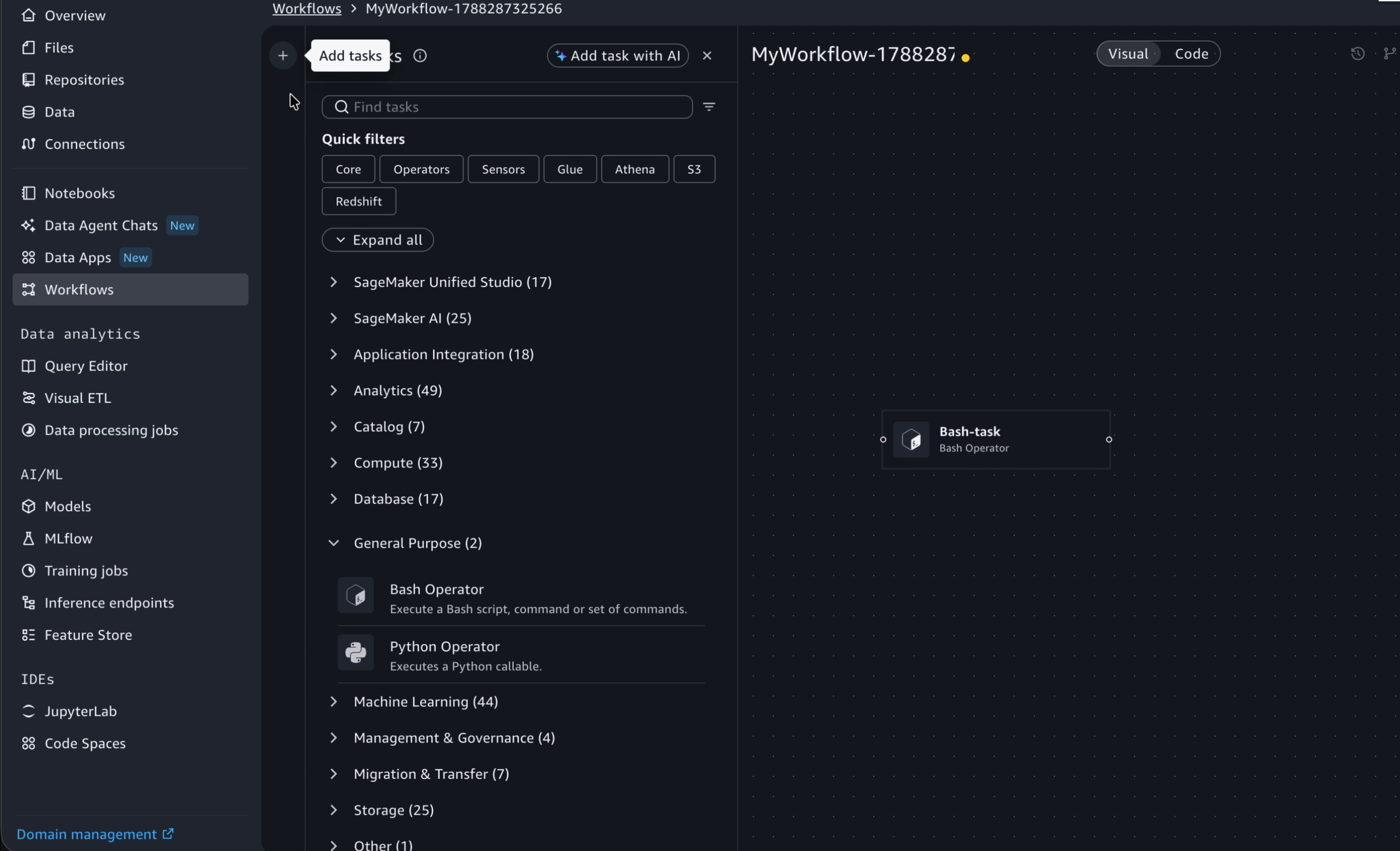
Before you begin, prepare the Python or Bash files that your operators reference. You upload these files in the Storage settings, as described in Upload Python and Bash operator files.
Add a Bash Operator task
To add a Bash Operator task
-
In the task search window under Add tasks, expand General Purpose and choose Bash Operator. The task appears on the canvas.
-
Provide a Task name.
-
In the Bash command field, enter the command, set of commands, or a reference to a Bash script to run. A referenced script must have a
.shextension and must be uploaded in the Storage settings. This field supports templated values, so you can reference other task outputs or workflow variables in the command.
-
(Optional) Expand Optional configurations to set additional operator parameters.
To use the output of a Bash Operator task in another task, reference it using the syntax
shown under Task output (for example,
{{Bash-task.output}}).
Add a Python Operator task
To add a Python Operator task
-
In the task search window under Add tasks, expand General Purpose and choose Python Operator. The task appears on the canvas.
-
Provide a Task name.
-
Under Python Callable, specify the callable to run in the format
module_name.function_nameusing the following fields:-
For File, choose the Python file that contains your callable. This file must be uploaded in the Storage settings.
-
For Function, enter the name of the function to call.

-
-
(Optional) Expand Optional configurations to pass arguments to your callable:
-
Op arguments – A list of positional arguments that are unpacked when calling your callable (for example,
[us-east-1, gold,
                100]
). -
Op kwargs – A dictionary of keyword arguments that are unpacked when calling your callable.
-
To use the output of a Python Operator task in another task, reference it using the
syntax shown under Task output (for example,
{{Python-task.output}}).
Upload Python and Bash operator files
You must upload the Python (.py) and Bash (.sh) files
that your operators reference so that they are available when the workflow runs. If you
upload a single file, you can upload it as is without zipping. If you upload multiple files,
they are packaged into a .zip archive, uploaded to Amazon S3, and extracted
during workflow execution.
To upload operator files
-
In the visual workflows editor, choose the settings gear to open Settings, then expand Storage.
-
Under Python/Bash Operator Files, choose Choose file, or drag and drop your files, to upload the Python, Bash, or
.zipfiles that your operators need.
-
Choose Save. Your uploaded files are zipped, stored in the operator files S3 location, and referenced from your workflow definition.
Note
The following considerations apply to operator files:
-
Only
.py,.sh, and.zipfiles are supported. The total size of the resulting.ziparchive must be less than 250 MB. -
To use third-party Python dependencies, run
pip install --target ./package
                your-dependency
locally, then upload the contents of the package folder alongside your scripts.
View visual workflows code
To view a visual workflow code, navigate to the workflow details page by selecting a workflow from the Workflows page list. Then choose the Actions dropdown menu and choose View code.
Monitor your workflow
To monitor your workflow
-
From the Workflows view, choose the vertical dots to the far right of your workflow's name and select View runs.
-
In the subsequent Runs view you will see your workflow runs.
-
Choose the run to show the tasks.
-
Choose the task ID to show the task output and associated logs.

Converting existing Airflow DAGs
You can convert existing Airflow workflows to YAML through a Python library. For more
information, see Introducing
Amazon MWAA Serverless
Import SageMaker Pipelines
You can import existing SageMaker pipelines into Amazon SageMaker Unified Studio and automatically convert them to Serverless Apache Airflow workflows. This is particularly beneficial for teams looking to migrate existing ML pipelines to Serverless Apache Airflow without rebuilding from scratch.
Important
This feature is only available for IAM domains.
To import a SageMaker pipeline
-
On the Workflows listing page, choose Create Workflow.
-
Select Import SageMaker Pipeline from the dropdown.
-
In the side panel, select the pipeline you want to import from the list of SageMaker pipelines in your account.
-
Choose Import.
Amazon SageMaker Unified Studio converts the SageMaker pipeline definition into a Serverless Apache Airflow workflow YAML and creates an interactive visual workflow DAG. The resulting workflow opens in the visual workflows editor, where you can continue to edit, rearrange, and add tasks using the drag-and-drop interface. This means you can use the imported pipeline as a starting point and customize it further to fit your needs.
Note
The following limitations apply when importing SageMaker pipelines:
-
A model evaluation step followed by a condition step is not currently supported.
-
Only the latest version of the pipeline is imported. Older versions are not included.
-
Associated schedules are not imported.
-
The import creates a copy of the pipeline definition. Changes to the original SageMaker pipeline are not reflected in the imported workflow.
