Nova Forge access and setup
To get onboarded to Nova Forge, follow this 2-step process:
Step 1: Subscribe to Nova Forge
Step 2: Set up HyperPod infrastructure
Getting the Nova Forge documents
To get the Nova Forge documents follow the below steps:
mkdir NovaForgeHyperpodCLI
cd NovaForgeHyperpodCLI
aws s3 cp s3://nova-forge-c7363-206080352451-us-east-1/v1/ ./ --recursive
pip install -e .
Step 1: Subscribe to Nova Forge
Quick Summary:
Verify that you have administrator access to the Amazon Web Services account.
Navigate to the SageMaker AI console and request access to Nova Forge.
Wait for the Nova team to email a confirmation after your subscription request is approved.
-
Tag your SageMaker HyperPod execution role with the
forge-subscriptiontag. This tag is required to access Nova Forge features and checkpoints. Add the following tag to your execution role:Key:
forge-subscriptionValue:
true
Detailed Guide
To subscribe to Nova Forge and effectively use the customization service, an Amazon Web Services customer must have admin access to their Amazon Web Services account or have their administrator grant them admin access. This document outlines the steps required to:
Secure admin access
Set up policies to subscribe to Nova Forge
Access customization recipes
Configure customization
Monitor the workflow
Evaluate the customized model checkpoint
Option A
Flow 1: The account user must reach out to the account admin to request the following:
Add the
forge-subscriptiontag to the account through IAM (see Appendix A for steps).Add the
ListRoleTagsandListAttachedRolePoliciespermissions through IAM (see Appendix B for steps).

Option B
Flow: The account user must reach out to the account admin to request admin access to the account.
Once admin access is granted, follow the steps in Flow 2.
Flow 2. Amazon Web Services account with admin access
Add forge-subscription tag to account through IAM. See Steps in Appendix A
Appendix A. Add forge-subscription policy to Amazon Web Services account
Go to the Amazon Web Services IAM Dashboard. Click on Roles on the left. Search for a role with Admin permissions and select it.

Select <AssumedRoleToUse>. Click on the Tags tab.

Click on Manage tabs. Add new tag. Type "forge-subscription" under Key and click on save changes

Ensure that you see forge-subscription as a key in Tags section

Appendix B. Add ListRoleTags and ListAttachedPolicies policies to Amazon Web Services account for Non-Admin Role by Admin
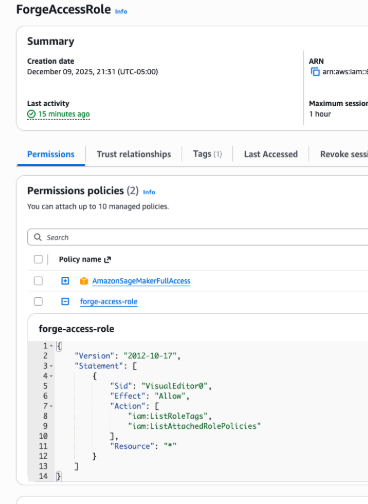
Go to the Amazon Web Services IAM Dashboard. Click on Roles on the left. Search for <AssumedRoleToUse> (e.g., ForgeAccessRole) and click on the <AssumedRoleToUse> (e.g., ForgeAccessRole) role

Click on the <AssumedRoleToUse> (e.g., ForgeAccessRole) role and select Tags. Add a new tag with type "forge-subscription"

-
Under Permissions, add new permission: Add Permissions → Create inline policy → Add the following policy listed below
{
    "Version": "2012-10-17",
    "Statement": [
        {
            "Sid": "VisualEditor0",
            "Effect": "Allow",
            "Action": [
                "iam:ListRoleTags",
                "iam:ListAttachedRolePolicies"
            ],
            "Resource": "*"
        }
    ]
}
Step 2. Set up HyperPod infrastructure
Set up the necessary SageMaker HyperPod infrastructure by following the workshop instructions
Content moderation settings
If you need access to Nova Forge, customizable content moderation settings (CCMS) are available for Amazon Nova Lite 1.0 and Pro 1.0 models. CCMS allows adjustment of content moderation controls to align with specific business requirements while maintaining essential responsible AI safeguards. To determine if a business model is appropriate for CCMS, contact an Amazon Web Services Account Manager.
For additional information on configuring and using CCMS with custom models, see the Responsible AI Toolkit and Content Moderation section.
