Launch and configure a WordPress instance on Lightsail
Amazon Lightsail is the easiest way to get started with Amazon Web Services (AWS). Lightsail
includes everything you need to launch your project quickly — instances (virtual private
servers), managed databases, SSD-based storage, backups (snapshots), data transfer, domain DNS
management, static IPs, and load balancers — for a low, predictable price.
With this tutorial, you will learn how to launch and configure a WordPress instance on
Lightsail. It includes steps to configure a custom domain name, secure internet traffic with
HTTPS, connect to your instance by using SSH, and sign in to your WordPress website. When you’re
done with this tutorial, you have the fundamentals to get your instance up and running on
Lightsail.
As part of the AWS Free Tier, you can get started with Amazon Lightsail for free on
select instance bundles. For more information, see AWS Free Tier
on the Amazon Lightsail Pricing page.
Prerequisites
Step 1: Sign up for AWS
Amazon Lightsail requires an AWS account. Sign up for AWS, or sign in to AWS if you already
have an account.
Step 2: Create a WordPress instance
Complete the following steps to get your WordPress instance up and running. For more
information, see Create a Lightsail instance.
To create a Lightsail instance for WordPress
-
Sign in to the Lightsail console.
-
On the Instances section of the Lightsail home page, choose
Create instance.
-
Choose the AWS Region and Availability Zone for your instance.
-
Choose the image for your instance as follows:
-
For Select a platform, choose Linux/Unix.
-
Select a WordPress blueprint.
You can choose a Amazon Lightsail or Bitnami provider.
-
Choose an instance plan.
A plan includes a machine configuration (RAM, SSD, vCPU) at a low, predictable cost, plus a
data transfer allowance.
-
Enter a name for your instance. Resource names:
-
Must be unique within each AWS Region in your Lightsail account.
-
Must contain 2 to 255 characters.
-
Must start and end with an alphanumeric character or number.
-
Can include alphanumeric characters, numbers, periods, dashes, and
underscores.
-
Choose Create instance.
-
To view the test blog post, go to the instance management page and copy the public IPv4 address shown in the upper-right corner of the page.
Paste the address into the address field of an internet-connected web browser. The browser displays the test blog post.
After your instance is running, identify your WordPress blueprint vendor on the instance
management page, then select the appropriate guide below:
- Bitnami
-
Step 3: Configure your WordPress instance
You can configure your WordPress instance by using a guided, step-by-step workflow, or you
can complete the individual tasks. Using either option, you will configure the
following:
-
A registered domain name – Your WordPress site
needs a domain name that is easy to remember. Users will specify this domain name to access
your WordPress site. For more information, see
Register and manage domains for your website in Lightsail.
-
DNS management – You must decide how to manage
the DNS records for your domain. A DNS record tells the DNS server which IP address or hostname a domain or subdomain is associated with. A DNS zone contains the DNS records for
your domain. For more information, see Understanding DNS in Lightsail.
-
A Static IP address – The default public IP address
for your WordPress instance changes if you stop and start your instance. When you attach a
static IP address to your instance, it stays the same even if you stop and start your instance.
For more information, see View and manage IP addresses for Lightsail resources.
-
An SSL/TLS certificate – After you create a
validated certificate and install it on your instance, you can enable HTTPS for your
WordPress website so that traffic that is routed to the instance through your registered domain
is encrypted using HTTPS. For more information, see
Secure your WordPress site with HTTPS on Lightsail.
Review the following tips before you begin. For troubleshooting information, see Troubleshooting WordPress setup.
-
Setup supports Lightsail instances with WordPress version 6 and newer, that were created after
January 1, 2023.
-
The Certbot dependency file, HTTPS rewrite script and certificate renewal script that are run during setup are saved in the /opt/bitnami/lightsail/scripts/ directory on your instance.
-
Your instance must be in a Running state. Allow a few minutes for the SSH connection to become ready
if the instance was just started.
-
Ports 22, 80, and 443 on your instance firewall must allow TCP connections from
any IP address while setup is running. For more information, see Instance
firewalls.
-
When you add or update DNS records that point traffic from your apex domain
(example.com) and its www subdomains
(www.example.com), they will need to propagate throughout the
Internet. You can verify that your DNS changes have taken effect by using tools such
as nslookup, or DNS
Lookup from MxToolbox.
-
Wordpress instances that were created prior to January 1, 2023, might contain a deprecated Certbot Personal Package Archive (PPA) repository that will
cause website setup to fail. If this repository is present during setup, it will be removed from the existing path and backed up to the following
location on your instance: ~/opt/bitnami/lightsail/repo.backup. For more information about the deprecated PPA, see Certbot PPA on the Canonical website.
-
Let's Encrypt certificates will automatically renew
every 60 to 90 days.
-
While setup is in progress, do not stop or make changes to your instance. It can
take up to 15 minutes to configure your instance. You can view the progress for each
step in the instance connect tab.
To configure your instance using the website setup wizard
-
On the instance management page, on the Connect tab, choose
Set up your website.
-
For Specify a domain name, use an existing Lightsail managed domain,
register a new domain with Lightsail, or use a domain that you registered by using another
domain registrar. Choose Use this domain to go to the next step.
-
For Configure DNS, do one of the following:
-
Choose Lightsail managed domain to use a Lightsail DNS
zone. Choose Use this DNS zone to go to the next step.
-
Choose Third-party domain to use the hosting service that
manages the DNS records for your domain. Note that we create a matching DNS zone
in your Lightsail account in case you decide to use it later on. Choose
Use third-party DNS to go to the next step.
-
For Create a static IP address, enter a name for your static IP
address and then choose Create static IP.
-
For Manage domain assignments, choose Add
assignment, choose a domain type, and then choose
Add. Choose Continue to go to the next
step.
-
For Create an SSL/TLS certificate, choose your domains and
subdomains, enter an email address, select I authorize Lightsail to
configure a Let's Encrypt certificate on my instance, and choose
Create certificate. We start to configure the Lightsail
resources.
While setup is in progress, do not stop or make changes to your instance.
It can take up to 15 minutes to configure your instance. You can view the progress for
each step in the instance connect tab.
-
After the website setup is complete, verify that the URLs that you specified in the
domain assignments step open your WordPress site.
To configure your instance by completing the individual tasks
-
Create a static IP address
On the instance management page, on the Networking tab,
choose Create static IP. The static IP location and instance are
selected for you. Specify a name for your static IP address and then choose
Create and attach.
-
Create a DNS zone
In the navigation pane, choose Domains & DNS. Choose
Create DNS zone, enter your domain, and then choose
Create DNS zone. If web traffic is currently being routed to
your domain, make sure that all of the existing DNS records are present in the
Lightsail DNS zone before changing the name servers at your domain's current DNS
hosting provider. This way, traffic continually flows uninterrupted after the transfer
to the Lightsail DNS zone
-
Manage domain assignments
On the page for the DNS zone, on the Assignments tab, choose
Add assignment. Choose the domain or subdomain, select your
instance, attach the static IP address, and then choose
Assign.
Allow time for these changes to propagate to the internet before your domain
starts routing traffic to your WordPress instance.
-
Create and install an SSL/TLS certificate
For step-by-step directions, see Secure your WordPress site with HTTPS on Lightsail.
-
Verify that the URLs that you specified in the domain assignments step open your
WordPress site.
Step 4: Get the admin password for your WordPress website
The default password to sign in to the administration dashboard of your WordPress website
is stored on the instance. Complete the following steps to get the password.
To get the default password for the WordPress administrator
-
Open the instance management page for your WordPress instance.
-
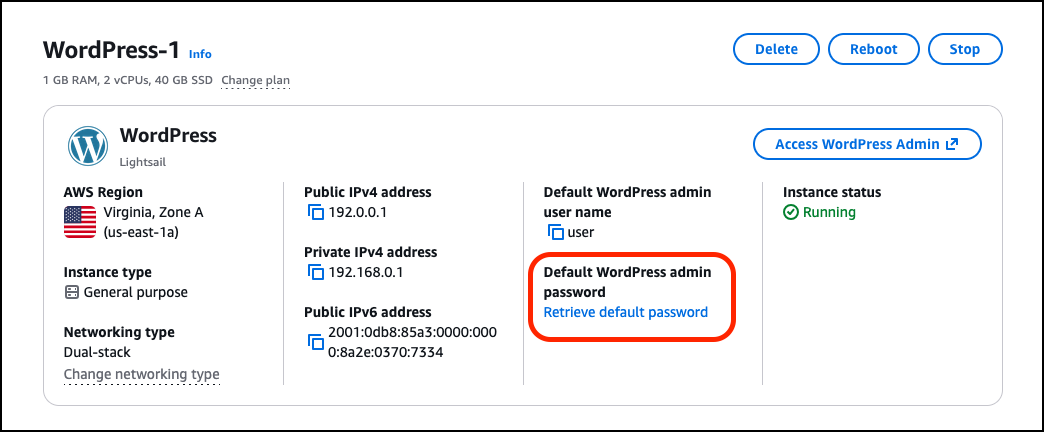
On the WordPress panel, choose Retrieve default
password. This expands Access default password at
the bottom of the page.
-
Choose Launch CloudShell. This opens a panel at the bottom of
the page.
-
Choose Copy and then paste the contents into the CloudShell
window. You can either put your cursor at the CloudShell prompt and press Ctrl+V,
or you can right-click to open the menu and then choose Paste.
-
Make a note of the password displayed in the CloudShell window. You need this
to sign in to the administration dashboard of your WordPress website.
Step 5: Sign in to the administration dashboard of your WordPress website
Now that you have the password for the administration dashboard of your WordPress website,
you can sign in. In the administration dashboard, you can change your user password, install
plugins, change the theme of your website, and more.
Complete the following steps to sign in to the administration dashboard of your WordPress
website.
To sign in to the administration dashboard
-
Open the instance management page for your WordPress instance.
-
On the WordPress panel, choose Access WordPress
Admin.
-
On the Access your WordPress Admin Dashboard panel, under
Use public IP address, choose the link with this format:
http://public-ipv4-address./wp-admin
-
For Username or Email Address, enter user.
-
For Password, enter the password obtained in the previous step.
-
Choose Log in.
You are now signed in to the administration dashboard of your WordPress website where
you can perform administrative actions. For more information about administering your
WordPress website, see the WordPress
Codex in the WordPress documentation.
- Lightsail
-
Step 3: Configure your WordPress instance
You can configure your WordPress instance by using a guided, step-by-step workflow, or you
can complete the individual tasks. Using either option, you will configure the
following:
-
A registered domain name – Your WordPress site
needs a domain name that is easy to remember. Users will specify this domain name to access
your WordPress site. For more information, see
Register and manage domains for your website in Lightsail.
-
DNS management – You must decide how to manage
the DNS records for your domain. A DNS record tells the DNS server which IP address or hostname a domain or subdomain is associated with. A DNS zone contains the DNS records for
your domain. For more information, see Understanding DNS in Lightsail.
-
A Static IP address – The default public IP address
for your WordPress instance changes if you stop and start your instance. When you attach a
static IP address to your instance, it stays the same even if you stop and start your instance.
For more information, see View and manage IP addresses for Lightsail resources.
-
An SSL/TLS certificate – After you create a
validated certificate and install it on your instance, you can enable HTTPS for your
WordPress website so that traffic that is routed to the instance through your registered domain
is encrypted using HTTPS. For more information, see
Secure your WordPress site with HTTPS on Lightsail.
Review the following tips before you begin. For troubleshooting information, see Troubleshooting WordPress setup.
-
Your instance must be in a Running state. Allow a few minutes for the SSH connection to become ready
if the instance was just started.
-
Ports 22, 80, and 443 on your instance firewall must allow TCP connections from
any IP address while setup is running. For more information, see Instance
firewalls.
-
When you add or update DNS records that point traffic from your apex domain
(example.com) and its www subdomains
(www.example.com), they will need to propagate throughout the
Internet. You can verify that your DNS changes have taken effect by using tools such
as nslookup, or DNS
Lookup from MxToolbox.
-
Let's Encrypt certificates will automatically renew
every 60 to 90 days.
-
While setup is in progress, do not stop or make changes to your instance. It can
take up to 15 minutes to configure your instance. You can view the progress for each
step in the instance connect tab.
To configure your instance using the website setup wizard
-
On the instance management page, on the Connect tab, choose
Set up your website.
-
For Specify a domain name, use an existing Lightsail managed domain,
register a new domain with Lightsail, or use a domain that you registered by using another
domain registrar. Choose Use this domain to go to the next step.
-
For Configure DNS, do one of the following:
-
Choose Lightsail managed domain to use a Lightsail DNS
zone. Choose Use this DNS zone to go to the next step.
-
Choose Third-party domain to use the hosting service that
manages the DNS records for your domain. Note that we create a matching DNS zone
in your Lightsail account in case you decide to use it later on. Choose
Use third-party DNS to go to the next step.
-
For Create a static IP address, enter a name for your static IP
address and then choose Create static IP.
-
For Manage domain assignments, choose Add
assignment, choose a domain type, and then choose
Add. Choose Continue to go to the next
step.
-
For Create an SSL/TLS certificate, choose your domains and
subdomains, enter an email address, select I authorize Lightsail to
configure a Let's Encrypt certificate on my instance, and choose
Create certificate. We start to configure the Lightsail
resources.
While setup is in progress, do not stop or make changes to your instance.
It can take up to 15 minutes to configure your instance. You can view the progress for
each step in the instance connect tab.
-
After the website setup is complete, verify that the URLs that you specified in the
domain assignments step open your WordPress site.
To configure your instance by completing the individual tasks
-
Create a static IP address
On the instance management page, on the Networking tab,
choose Create static IP. The static IP location and instance are
selected for you. Specify a name for your static IP address and then choose
Create and attach.
-
Create a DNS zone
In the navigation pane, choose Domains & DNS. Choose
Create DNS zone, enter your domain, and then choose
Create DNS zone. If web traffic is currently being routed to
your domain, make sure that all of the existing DNS records are present in the
Lightsail DNS zone before changing the name servers at your domain's current DNS
hosting provider. This way, traffic continually flows uninterrupted after the transfer
to the Lightsail DNS zone
-
Manage domain assignments
On the page for the DNS zone, on the Assignments tab, choose
Add assignment. Choose the domain or subdomain, select your
instance, attach the static IP address, and then choose
Assign.
Allow time for these changes to propagate to the internet before your domain
starts routing traffic to your WordPress instance.
-
Create and install an SSL/TLS certificate
For step-by-step directions, see Secure your WordPress site with HTTPS on Lightsail.
-
Verify that the URLs that you specified in the domain assignments step open your
WordPress site.
Step 4: Get the admin password for your WordPress website
The default password to sign in to the administration dashboard of your WordPress website
is stored on the instance. Complete the following steps to get the password.
To get the default password for the WordPress administrator
-
Open the instance management page for your WordPress instance.
-
On the WordPress panel, choose Retrieve default
password. This expands Access default password at
the bottom of the page.
-
Choose Launch CloudShell. This opens a panel at the bottom of
the page.
-
Choose Copy and then paste the contents into the CloudShell
window. You can either put your cursor at the CloudShell prompt and press Ctrl+V,
or you can right-click to open the menu and then choose Paste.
-
Make a note of the password displayed in the CloudShell window. You need this
to sign in to the administration dashboard of your WordPress website.
Step 5: Sign in to the administration dashboard of your WordPress website
Now that you have the password for the administration dashboard of your WordPress website,
you can sign in. In the administration dashboard, you can change your user password, install
plugins, change the theme of your website, and more.
Complete the following steps to sign in to the administration dashboard of your WordPress
website.
To sign in to the administration dashboard
-
Open the instance management page for your WordPress instance.
-
On the WordPress panel, choose Access WordPress
Admin.
-
On the Access your WordPress Admin Dashboard panel, under
Use public IP address, choose the link with this format:
http://public-ipv4-address./wp-admin
-
For Username or Email Address, enter user.
-
For Password, enter the password obtained in the previous step.
-
Choose Log in.
You are now signed in to the administration dashboard of your WordPress website where
you can perform administrative actions. For more information about administering your
WordPress website, see the WordPress
Codex in the WordPress documentation.
Additional information
Here are some additional steps that you can perform after launching a WordPress instance
in Amazon Lightsail: