Request access to data
When you find a table in the catalog that you want to use, you need to request access to it through a subscription. A subscription is a request from your project to access a specific table. When you submit a subscription request, an administrator reviews it and decides whether to approve or reject it. After approved, you automatically receive the Lake Formation permissions needed to query the table from your project.
You can request a subscription from two places. On the search results page, choose Subscribe next to any table. Or, open a table's detail page and choose Subscribe. Both open the Request subscription panel.
Request a subscription
To request a subscription
-
Open your project in Amazon SageMaker Unified Studio.
-
In the search bar at the top of the page, enter your search query and choose Show all results for "[query]".
-
Choose Subscribe next to the asset you want access to, or choose the asset to open its detail page and then choose Subscribe.
-
In the Request subscription panel, review the listing details (owning project, asset type, technical name, and metadata last updated).
-
For Reason for access, enter a justification for your request.
-
Choose Submit request.
Your request is sent to an administrator or the owner of the asset for review. You will receive a notification within the Amazon SageMaker Unified Studio portal when the request is approved or rejected.

Note
The subscription request is made on behalf of the project you are currently working in. To request access for a different project, switch to that project first.
What happens after approval
When an administrator approves your subscription request, Amazon SageMaker Unified Studio automatically grants the necessary Lake Formation permissions to your project's execution IAM role. You do not need to configure any permissions manually. After the subscription is approved, the table appears in your project's data explorer (under the Data tab) and you can start querying it using the Query Editor or a notebook. On the search results page, the table shows a Query button instead of Subscribe.
View and manage your subscriptions
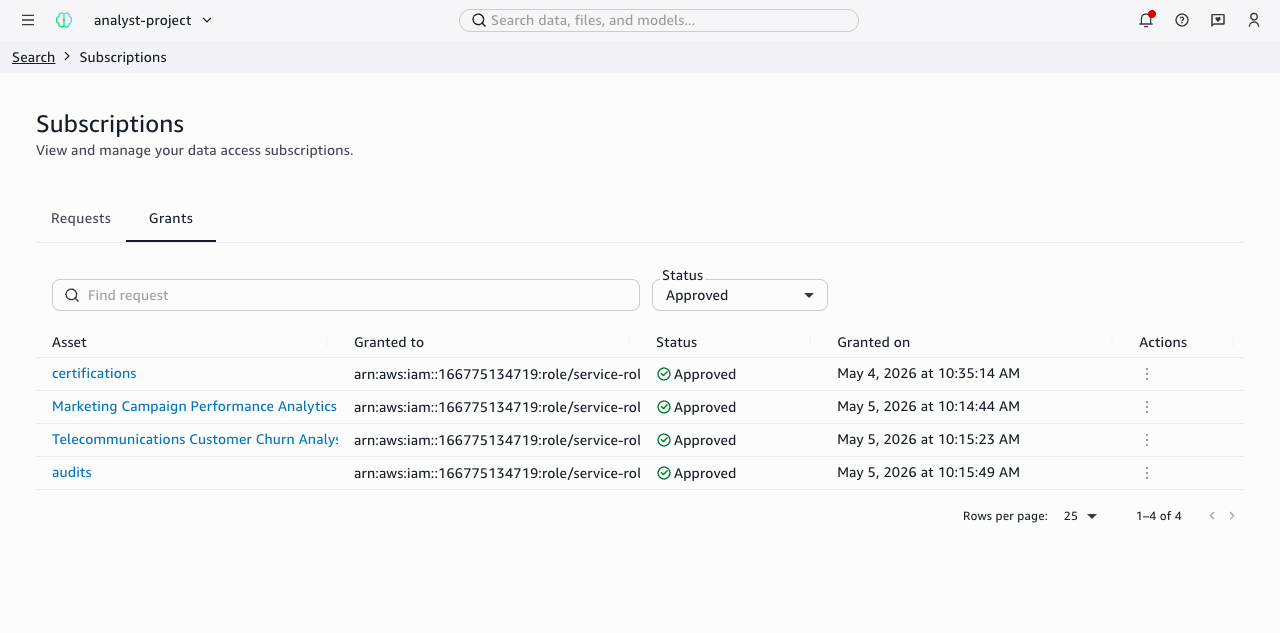
To see the status of your subscription requests and active grants, choose Subscriptions on the search results page. The Subscriptions page has the following tabs.
- Requests tab
-
The Requests tab shows subscription requests you have submitted. Use the Status dropdown to filter by status (Pending or Rejected). Each request shows the requested asset, status, date requested, reason for the request, and available actions.
- Grants tab
-
The Grants tab shows subscriptions that have been approved and are currently active. Each grant shows the asset name, who it was granted to (your project's execution role), status, date granted, and available actions.

Cancel a pending request
If you no longer need access to a table, you can cancel a subscription request that is still pending.
To cancel a pending request
-
Open your project in Amazon SageMaker Unified Studio.
-
In the search bar at the top of the page, enter any search query and choose Show all results for "[query]".
-
Choose Subscriptions on the search results page.
-
On the Requests tab, use the Status dropdown to filter by Pending.
-
Find the request you want to cancel.
-
In the Actions column, choose Actions, then choose Cancel request.
The request is removed and the administrator will no longer see it in their queue.
Unsubscribe from a table
If you have an active subscription to a table and no longer need access, you can unsubscribe to release the permissions.
To unsubscribe from a table
-
Open your project in Amazon SageMaker Unified Studio.
-
In the search bar at the top of the page, enter any search query and choose Show all results for "[query]".
-
Choose Subscriptions on the search results page.
-
Choose the Grants tab.
-
Find the approved subscription you want to remove.
-
In the Actions column, choose Actions, then choose Unsubscribe.
After you unsubscribe, the Lake Formation permissions granted through the subscription are revoked and you can no longer query the table from your project.
