기계 번역으로 제공되는 번역입니다. 제공된 번역과 원본 영어의 내용이 상충하는 경우에는 영어 버전이 우선합니다.
프라이빗 호스팅 도구에 연결
프라이빗 연결 개요
AWS DevOps 에이전트는 사용자 지정 모델 컨텍스트 프로토콜(MCP) 도구 및 에이전트에게 프라이빗 패키지 레지스트리, 자체 호스팅 관찰성 플랫폼, 내부 설명서 APIs 및 소스 제어 인스턴스와 같은 내부 시스템에 대한 액세스 권한을 부여하는 기타 통합을 통해 확장할 수 있습니다( 참조AWS DevOps Agent에 대한 기능 구성). 이러한 서비스는 퍼블릭 인터넷 액세스가 제한되거나 없는 Amazon Virtual Private Cloud(Amazon VPC) 내에서 실행되는 경우가 많습니다. 즉, AWS DevOps Agent는 기본적으로 해당 서비스에 연결할 수 없습니다.
프라이빗 연결 for AWS DevOps 에이전트를 사용하면 에이전트 스페이스를 퍼블릭 인터넷에 노출하지 않고 VPC에서 실행되는 서비스에 안전하게 연결할 수 있습니다. 프라이빗 연결은 MCP 서버, 자체 호스팅 Grafana 또는 Splunk 인스턴스, GitHub Enterprise Server 및 GitLab 자체 관리형과 같은 소스 제어 시스템을 포함하여 프라이빗 엔드포인트에 도달해야 하는 모든 통합과 함께 작동합니다.
참고
프라이빗 호스팅 도구가 VPC 내에서 AWS DevOps 에이전트에 아웃바운드 요청을 하는 경우 네트워크 내에 유지되도록 VPC 엔드포인트를 사용하여이 트래픽을 보호할 수도 있습니다 AWS . 예를 들어 웹후크 이벤트를 통해 DevOps 에이전트를 트리거하는 도구와 함께 사용할 수 있습니다( 참조Webhook를 통해 DevOps 에이전트 호출). 자세한 내용은 VPC 엔드포인트(AWS PrivateLink) 단원을 참조하십시오.
프라이빗 연결 작동 방식
프라이빗 연결은 AWS DevOps 에이전트와 VPC의 대상 리소스 간에 보안 네트워크 경로를 생성합니다. 후드에서 AWS DevOps 에이전트는 Amazon VPC Lattice를 사용하여이 보안 프라이빗 연결 경로를 설정합니다. VPC Lattice는 기본 네트워크 인프라를 관리하지 않고도 VPCs, 계정 및 컴퓨팅 유형 전반의 애플리케이션 간 통신을 연결, 보호 및 모니터링할 수 있는 애플리케이션 네트워킹 서비스입니다.
프라이빗 연결을 생성하면 다음이 발생합니다.
대상 서비스에 네트워크로 연결된 VPC, 서브넷 및 (선택 사항) 보안 그룹을 제공합니다.
AWS DevOps Agent는 서비스 관리형 리소스 게이트웨이를 생성하고 지정한 서브넷에 탄력적 네트워크 인터페이스(ENIs)를 프로비저닝합니다.
에이전트는 리소스 게이트웨이를 사용하여 프라이빗 네트워크 경로를 통해 대상 서비스의 IP 주소 또는 DNS 이름으로 트래픽을 라우팅합니다.
리소스 게이트웨이는 AWS DevOps Agent에서 완전히 관리되며 계정에 읽기 전용 리소스(명명)로 표시됩니다aidevops-{your-private-connection-name}. 구성하거나 유지 관리할 필요가 없습니다. VPC에서 생성된 유일한 리소스는 지정한 서브넷의 ENIs입니다. 이러한 ENIs 프라이빗 트래픽의 진입점 역할을 하며 전적으로 서비스에 의해 관리됩니다. 인터넷으로부터의 인바운드 연결을 허용하지 않으며 자체 보안 그룹을 통해 트래픽을 완전히 제어할 수 있습니다.
보안
프라이빗 연결은 여러 보안 계층으로 설계되었습니다.
퍼블릭 인터넷 노출 없음 - AWS DevOps 에이전트와 대상 서비스 간의 모든 트래픽은 AWS 네트워크에 남아 있습니다. 서비스에 퍼블릭 IP 주소나 인터넷 게이트웨이가 필요하지 않습니다.
서비스 제어 리소스 게이트웨이 - 서비스 관리형 리소스 게이트웨이는 계정에서 읽기 전용입니다. AWS DevOps 에이전트만 사용할 수 있으며 다른 서비스 또는 보안 주체는 트래픽을 라우팅할 수 없습니다. 모든 VPC Lattice API 호출을 기록하는 AWS CloudTrail 로그에서 이를 확인할 수 있습니다.
보안 그룹 및 규칙 - 소유하고 관리하는 보안 그룹을 통해 ENIs에 대한 인바운드 및 아웃바운드 트래픽을 제어합니다. 보안 그룹을 지정하지 않으면 AWS DevOps Agent는 정의한 포트로 범위가 지정된 기본 보안 그룹을 생성합니다.
최소 권한이 있는 서비스 연결 역할 - AWS DevOps Agent는 서비스 연결 역할을 사용하여 필요한 VPC Lattice 및 Amazon EC2 리소스만 생성합니다. 이 역할은 태그가 지정된 리소스로 범위가 지정
AWSAIDevOpsManaged되며 계정의 다른 리소스에 액세스할 수 없습니다.
참고
조직에 VPC Lattice API 작업을 제한하는 서비스 제어 정책(SCPs)이 있는 경우 서비스 연결 역할을 통해 서비스 관리형 리소스 게이트웨이가 생성됩니다. SCPs 서비스 연결 역할에 필요한 작업을 허용하는지 확인합니다.
아키텍처
다음 다이어그램은 프라이빗 연결의 네트워크 경로를 보여줍니다.
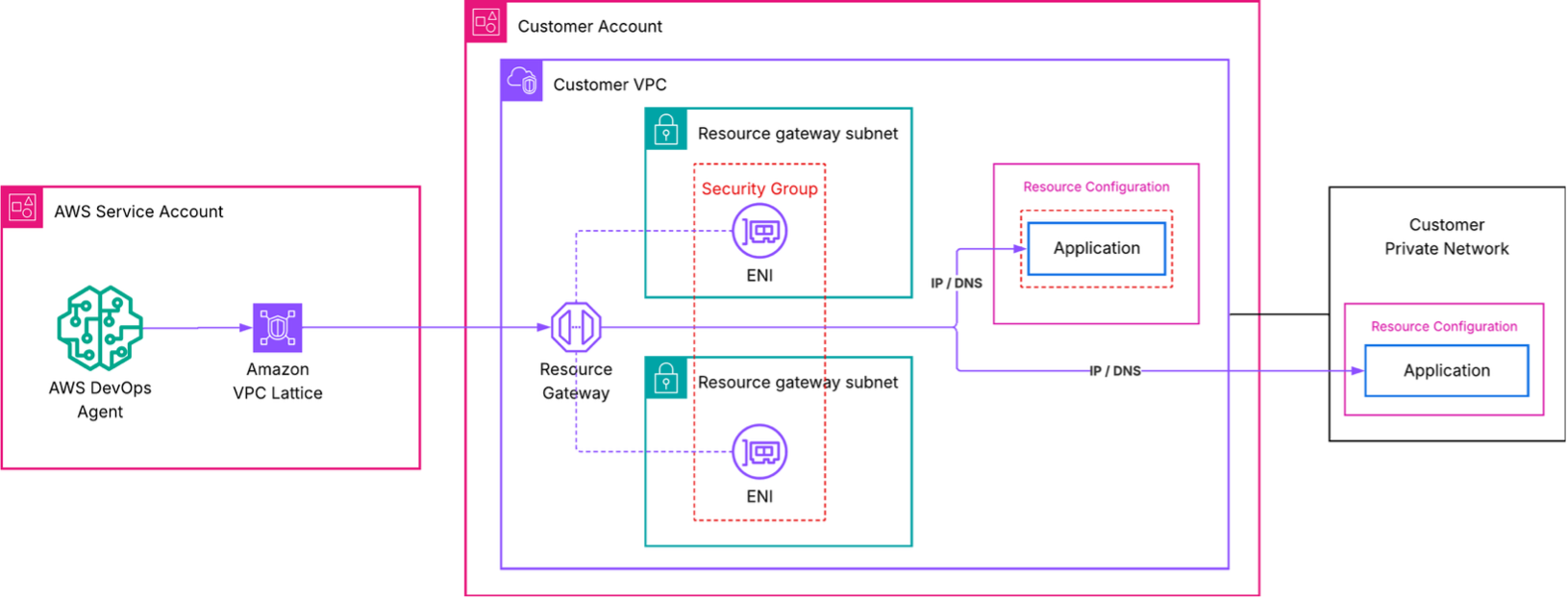
이 아키텍처에서,
AWS DevOps Agent는 대상 서비스에 대한 요청을 시작합니다.
Amazon VPC Lattice는 VPC의 서비스 관리형 리소스 게이트웨이를 통해 요청을 라우팅합니다. 자체 VPC Lattice 리소스를 사용한 고급 설정은 기존 VPC Lattice 리소스를 사용한 고급 설정을 참조하세요.
VPC의 ENI는 트래픽을 수신하여 대상 서비스의 IP 주소 또는 DNS 이름으로 전달합니다.
보안 그룹은 ENIs.
대상 서비스의 관점에서 요청은 VPC 내 ENIs의 프라이빗 IP 주소에서 시작됩니다.
프라이빗 연결 생성
AWS Management Console 또는 AWS CLI를 사용하여 프라이빗 연결을 생성할 수 있습니다.
참고
VPC Lattice에서 지원하지 않는 가용 영역은 use1-az3, , usw1-az2, apne1-az3, apne2-az2, euc1-az2euw1-az4, , cac1-az3입니다ilc1-az2.
사전 조건
프라이빗 연결을 생성하기 전에 다음이 있는지 확인합니다.
활성 에이전트 스페이스 - 계정에 기존 에이전트 스페이스가 필요합니다. 없으면 AWS DevOps 에이전트 시작하기 섹션을 참조하세요.
비공개로 연결할 수 있는 대상 서비스 - 리소스 게이트웨이가 배포된 VPC의 알려진 프라이빗 IP 주소 또는 DNS 이름으로 MCP 서버, 관찰성 플랫폼 또는 기타 서비스에 연결할 수 있어야 합니다. 리소스 게이트웨이 서브넷에서 라우팅할 수 있는 한 서비스는 동일한 VPC, 피어링된 VPC 또는 온프레미스에서 실행될 수 있습니다. 서비스는 연결을 생성할 때 지정한 포트에서 최소 TLS 버전이 1.2인 HTTPS 트래픽을 제공해야 합니다.
VPC의 서브넷 - ENIs될 서브넷 1~20개를 식별합니다. 고가용성을 위해 여러 가용 영역에서 서브넷을 선택하는 것이 좋습니다. 이러한 서브넷에는 대상 서비스에 대한 네트워크 연결이 있어야 합니다. VPC Lattice는 가용 영역당 하나의 서브넷을 사용할 수 있습니다.
(선택 사항) 보안 그룹 - 특정 규칙으로 트래픽을 제어하려면 ENIs에 연결할 보안 그룹 IDs를 최대 5개까지 준비합니다. 보안 그룹을 생략하면 AWS DevOps 에이전트가 기본 보안 그룹을 생성합니다.
프라이빗 연결은 계정 수준 리소스입니다. 프라이빗 연결을 생성한 후 동일한 호스트에 연결해야 하는 여러 통합 및 에이전트 스페이스에서 프라이빗 연결을 재사용할 수 있습니다.
콘솔을 사용하여 프라이빗 연결 생성
AWS DevOps 에이전트 콘솔을 엽니다.
탐색 창에서 기능 공급자를 선택한 다음 프라이빗 연결을 선택합니다.
새 연결 생성을 선택합니다.
이름에와 같이 연결을 설명하는 이름을 입력합니다
my-mcp-tool-connection.VPC에서 리소스 게이트웨이 ENIs 배포할 VPC를 선택합니다.
서브넷에서 하나 이상의 서브넷(최대 20개)을 선택합니다. 두 개 이상의 가용 영역에서 서브넷을 선택하는 것이 좋습니다.
IP 주소 유형에서 대상 서비스의 IP 주소 유형(
IPv4,IPv6또는DualStack)을 선택합니다.(선택 사항) IPv4 주소 수에 IP 주소 유형으로 IPv4 또는 듀얼 스택을 선택한 경우 리소스 게이트웨이의 ENI당 IPv4 주소 수를 입력할 수 있습니다. 기본값은 ENI당 16개의 IPv4 주소입니다.
(선택 사항) 보안 그룹에서 기존 보안 그룹(최대 5개)을 선택하여 대상 서비스에 도달할 수 있는 트래픽을 제한합니다. 아무것도 선택하지 않으면 기본 보안 그룹이 생성됩니다.
(선택 사항) 포트 범위에서 대상 애플리케이션이 수신하는 TCP 포트(예:
443또는 )를 지정합니다8080-8090. 최대 11개의 포트 범위를 지정할 수 있습니다.호스트 주소에 대상 서비스의 IP 주소 또는 DNS 이름(예:
mcp.internal.example.com또는10.0.1.50)을 입력합니다. 선택한 VPC에서 서비스에 연결할 수 있어야 합니다. DNS 이름을 선택하는 경우 선택한 VPC에서 확인할 수 있어야 합니다.(선택 사항) 인증서 퍼블릭 키의 경우 지정한 호스트 주소가 프라이빗 인증 기관에서 발급한 TLS 인증서를 사용하는 경우 인증서의 PEM 인코딩 퍼블릭 키를 입력합니다. 이렇게 하면 AWS DevOps 에이전트가 대상 서비스에 대한 TLS 연결을 신뢰할 수 있습니다.
연결 생성을 선택합니다.
연결 상태가 생성 진행 중으로 변경됩니다. 이 프로세스는 최대 10분이 걸릴 수 있습니다. 상태가 활성으로 변경되면 네트워크 경로가 준비된 것입니다.
상태가 생성 실패로 변경되면 다음을 확인합니다.
지정한 서브넷에 사용 가능한 IP 주소가 있습니다.
계정이 VPC Lattice 서비스 할당량에 도달하지 않았습니다.
제한적인 IAM 정책으로 인해 서비스 연결 역할이 리소스를 생성할 수 없습니다.
참고
이러한 단계는 기능 공급자를 등록하는 Create a new private connection 동안를 선택하여 수행할 수도 있습니다. 자세한 내용은 기능 공급자와의 프라이빗 연결 사용을 참조하세요.
AWS CLI를 사용하여 프라이빗 연결 생성
다음 명령을 실행하여 프라이빗 연결을 생성합니다. 자리 표시자 값을 해당 값으로 바꿉니다.
aws devops-agent create-private-connection \
    --name my-mcp-tool-connection \
    --mode '{
        "serviceManaged": {
            "hostAddress": "mcp.internal.example.com",
            "vpcId": "vpc-0123456789abcdef0",
            "subnetIds": [
                "subnet-0123456789abcdef0",
                "subnet-0123456789abcdef1"
            ],
            "securityGroupIds": [
                "sg-0123456789abcdef0"
            ],
            "portRanges": ["443"]
        }
    }'
응답에는 연결 이름과 상태가 포함됩니다CREATE_IN_PROGRESS.
{
    "name": "my-mcp-tool-connection",
    "status": "CREATE_IN_PROGRESS",
    "resourceGatewayId": "rgw-0123456789abcdef0",
    "hostAddress": "mcp.internal.example.com",
    "vpcId": "vpc-0123456789abcdef0"
}
연결 상태를 확인하려면 describe-private-connection 명령을 사용합니다.
aws devops-agent describe-private-connection \
    --name my-mcp-tool-connection
상태가 이면 프라이빗 연결을 사용할 준비가 된 ACTIVE것입니다.
기능 공급자와의 프라이빗 연결 사용
프라이빗 연결을 사용하려면 기능 공급자를 등록하는 동안 프라이빗 연결에 연결할 수 있습니다. 프라이빗 연결에 사용할 수 있는 지원되는 기능은 GitHub, GitLab, MCP Server및 입니다Grafana. AWS Management Console 또는 AWS CLI를 사용하여이 단계를 수행할 수 있습니다.
참고
기능 공급자를 등록할 때 AWS DevOps Agent는 엔드포인트에 연결할 수 있고 응답하는지 확인합니다. 등록을 완료하기 전에 대상 서비스가 실행 중이고 연결을 수락하고 있는지 확인합니다.
콘솔을 사용하여 기능 공급자와의 프라이빗 연결 사용
AWS DevOps 에이전트 콘솔에서 "프라이빗 연결을 사용하여 엔드포인트에 연결" 옵션을 선택하여 등록 중에 프라이빗 연결을 기능에 연결할 수 있습니다.
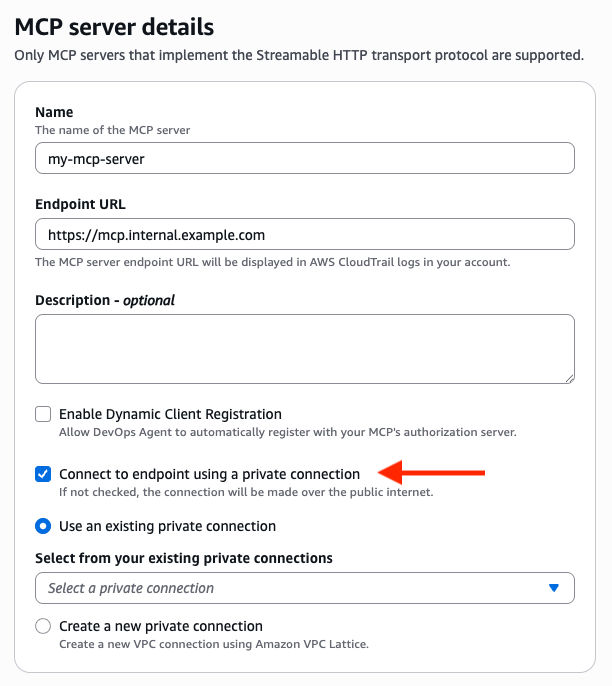
AWS DevOps 에이전트 콘솔을 열고 에이전트 공간으로 이동합니다.
기능 공급자 섹션에서 등록을 선택합니다.
프라이빗 연결에 사용할 기능 유형에 대해 등록을 선택합니다.
등록 세부 정보 보기에서 프라이빗 연결을 사용하여 연결하려는 엔드포인트 URL(예:
https://mcp.internal.example.com)을 입력합니다.프라이빗 연결을 사용하여 엔드포인트에 연결을 선택합니다.
연결하려는 엔드포인트 URL에 해당하는 기존 프라이빗 연결을 선택하거나 새 프라이빗 연결 생성을 선택하여 생성합니다.
기능 공급자의 등록 프로세스를 완료합니다.
참고
OAuth 인증(클라이언트 자격 증명 또는 3LO)을 사용하는 기능 공급자에 대한 프라이빗 연결을 선택하면 프라이빗 연결이 기능 공급자 엔드포인트와 토큰 교환 엔드포인트 모두에 적용됩니다. 프라이빗 연결이 두 엔드포인트로 트래픽을 라우팅할 수 있는 호스트 주소로 구성되어 있는지 확인합니다.
AWS CLI를 사용하여 기능 공급자와의 프라이빗 연결 사용
private-connection-name 인수를 포함하여 프라이빗 연결에 기능을 등록할 수 있습니다. 다음은 my-mcp-tool-connection 프라이빗 연결을 사용하여 API 키 권한 부여로 MCP 서버를 등록하는 예제입니다. 자리 표시자 값을 해당 값으로 바꿉니다.
aws devops-agent register-service \
    --service mcpserver \
    --private-connection-name my-mcp-tool-connection \
    --service-details '{
        "mcpserver": {
            "name": "my-mcp-tool",
            "endpoint": "https://mcp.internal.example.com",
            "authorizationConfig": {
                "apiKey": {
                    "apiKeyName": "api-key",
                    "apiKeyValue": "secret-value",
                    "apiKeyHeader": "x-api-key"
                }
            }
        }
    }' \
    --region us-east-1
프라이빗 연결 확인
프라이빗 연결이 활성 상태에 도달하고 기능 공급자가 이를 활용한 후 AWS DevOps 에이전트가 대상 서비스에 도달할 수 있는지 확인합니다.
AWS DevOps 에이전트 콘솔을 열고 에이전트 공간으로 이동합니다.
새 채팅 세션을 시작합니다.
프라이빗 연결에서 지원하는 통합을 사용하는 명령을 호출합니다. 예를 들어 MCP 도구가 내부 지식 기반에 대한 액세스를 제공하는 경우 에이전트에게 해당 지식 기반이 필요한 질문을 합니다.
에이전트가 프라이빗 서비스의 결과를 반환하는지 확인합니다.
연결이 실패하면 다음을 확인합니다.
VPC Lattice 제한 - 리소스 게이트웨이 또는 기타 VPC Lattice 할당량 제한에 도달하지 않았는지 확인합니다.
보안 그룹 규칙 - ENIs에 연결된 보안 그룹이 서비스가 수신하는 포트에서 아웃바운드 트래픽을 허용하는지 확인합니다. 또한 서비스의 보안 그룹이 대상 포트에서 인바운드 트래픽을 허용하는지 확인합니다. 트래픽은 VPC CIDR 범위 내의 VPC Lattice 데이터 영역 IPs에서 도착합니다. 보안 그룹 참조(ENI 보안 그룹을 소스로 허용)를 사용하거나 VPC CIDR에서 인바운드를 허용할 수 있습니다.
서브넷 연결 - 선택한 서브넷이 서비스로 트래픽을 라우팅할 수 있는지 확인합니다. 서비스가 다른 서브넷에서 실행되는 경우 라우팅 테이블이 둘 사이의 트래픽을 허용하는지 확인합니다.
서비스 가용성 - 서비스가 실행 중이고 예상 포트에서 연결을 수락하고 있는지 확인합니다.
지원되지 않는 가용 영역 - 서브넷이 지원되는 가용 영역에 있는지 확인합니다. 를 실행
aws ec2 describe-subnets --subnet-ids <your-subnet-ids> --query 'Subnets[*].[SubnetId,AvailabilityZoneId]'하고 위에 나열된 지원되지 않는 가용 영역을 확인합니다.
프라이빗 연결 삭제
AWS Management Console 또는 AWS CLI를 사용하여 미사용 프라이빗 연결을 삭제할 수 있습니다.
콘솔을 사용하여 프라이빗 연결 삭제
AWS DevOps 에이전트 콘솔을 엽니다.
탐색 창에서 기능 공급자를 선택한 다음 프라이빗 연결을 선택합니다.
삭제할 프라이빗 연결의 작업 메뉴를 선택하고 제거를 선택합니다.
프라이빗 연결은 "연결 제거" 상태로 표시되는 반면 AWS , DevOps Agent는 VPC에서 관리형 리소스 게이트웨이와 ENIs 제거합니다. 삭제가 완료되면 프라이빗 연결 목록에 연결이 더 이상 표시되지 않습니다.
AWS CLI를 사용하여 프라이빗 연결 삭제
aws devops-agent delete-private-connection \
    --name my-mcp-tool-connection
응답은 상태를 반환합니다DELETE_IN_PROGRESS. AWS DevOps 에이전트는 VPC에서 관리형 리소스 게이트웨이와 ENIs 제거합니다. 삭제가 완료되면 프라이빗 연결 목록에 연결이 더 이상 표시되지 않습니다.
기존 VPC Lattice 리소스를 사용한 고급 설정
조직에서 이미 Amazon VPC Lattice를 사용하고 자체 리소스 구성을 관리하는 경우 자체 관리형 모드에서 프라이빗 연결을 생성할 수 있습니다. AWS DevOps 에이전트가 리소스 게이트웨이를 생성하도록 하는 대신 대상 서비스를 가리키는 기존 리소스 구성의 Amazon 리소스 이름(ARN)을 제공합니다.
이 접근 방식은 다음과 같은 경우에 유용합니다.
리소스 게이트웨이 및 리소스 구성 수명 주기를 완전히 제어하고자 합니다.
여러 AWS 계정 또는 서비스에서 리소스 구성을 공유해야 합니다.
자세한 트래픽 모니터링을 위해 VPC Lattice 액세스 로그가 필요합니다.
hub-and-spoke 네트워크 아키텍처를 실행합니다.
AWS CLI를 사용하여 자체 관리형 프라이빗 연결을 생성하려면:
aws devops-agent create-private-connection \
    --name my-advanced-connection \
    --mode '{
        "selfManaged": {
            "resourceConfigurationId": "arn:aws:vpc-lattice:us-east-1:123456789012:resourceconfiguration/rcfg-0123456789abcdef0"
        }
    }'
VPC Lattice 리소스 게이트웨이 및 리소스 구성 설정에 대한 자세한 내용은 Amazon VPC Lattice 사용 설명서를 참조하세요.
관련 주제
