기계 번역으로 제공되는 번역입니다. 제공된 번역과 원본 영어의 내용이 상충하는 경우에는 영어 버전이 우선합니다.
# AWS CDK에서 AWS AppSync API 사용
**작은 정보**
CDK를 사용하기 전에 CDK의 [공식 설명서를](https://docs.aws.amazon.com/cdk/v2/guide/getting_started.html) [CDK 참조](https://docs.aws.amazon.com/cdk/api/v2/docs/aws-cdk-lib.aws_appsync-readme.html)와 함께 검토 AWS AppSync하는 것이 좋습니다.
또한 [AWS CLI](https://docs.aws.amazon.com/cli/latest/userguide/getting-started-install.html) 및 [NPM](https://docs.npmjs.com/) 설치가 시스템에서 작동하는지 확인하는 것이 좋습니다.
이 섹션에서는 DynamoDB 테이블에서 항목을 추가하고 가져올 수 있는 간단한 CDK 애플리케이션을 만듭니다. 이 예제는 [스키마 디자인](https://docs.aws.amazon.com/appsync/latest/devguide/designing-your-schema.html), [데이터 소스 연결](https://docs.aws.amazon.com/appsync/latest/devguide/attaching-a-data-source.html), [해석기 구성(JavaScript)](https://docs.aws.amazon.com/appsync/latest/devguide/configuring-resolvers-js.html) 섹션의 일부 코드를 사용하는 빠른 시작 예제입니다.
## CDK 프로젝트 만들기
**주의**
환경에 따라 이러한 단계가 완전히 정확하지 않을 수 있습니다. 시스템에 필요한 유틸리티, AWS 서비스와의 인터페이스 방법, 적절한 구성이 설치되어 있다고 가정합니다.
첫 번째 단계는 AWS CDK를 설치하는 것입니다. CLI에 다음 명령을 입력할 수 있습니다.
```
npm install -g aws-cdk
```
다음으로 프로젝트 디렉터리를 만든 다음 해당 디렉터리로 이동해야 합니다. 디렉터리를 만들고 탐색하기 위한 명령 세트의 예는 다음과 같습니다.
```
mkdir example-cdk-app
cd example-cdk-app
```
다음으로 앱을 만들어야 합니다. Amazon 서비스는 주로 TypeScript를 사용합니다. 프로젝트 디렉터리에서 다음 명령을 입력합니다.
```
cdk init app --language typescript
```
이렇게 하면 초기화 파일과 함께 CDK 앱이 설치됩니다.

프로젝트 구조는 다음과 같습니다.

다음과 같은 몇 가지 중요한 디렉토리가 있다는 것을 알 수 있습니다.
+ `bin`: 초기 bin 파일이 앱을 생성합니다. 이 안내서에서는 이 내용을 다루지 않겠습니다.
+ `lib`: lib 디렉토리에는 스택 파일이 들어 있습니다. 스택 파일은 개별 실행 단위로 생각할 수 있습니다. 구조는 스택 파일 안에 있을 것입니다. 기본적으로 이러한 리소스는 앱이 배포될 CloudFormation 때에서 스핀업되는 서비스의 리소스입니다. 대부분의 코딩이 이루어지는 곳입니다.
+ `node_modules`: 이 디렉터리는 NPM에서 생성하며 `npm` 명령을 사용하여 설치한 모든 패키지 종속성을 포함합니다.
초기 스택 파일에는 다음과 같은 내용이 포함될 수 있습니다.
```
import * as cdk from 'aws-cdk-lib';
import { Construct } from 'constructs';
// import * as sqs from 'aws-cdk-lib/aws-sqs';
export class ExampleCdkAppStack extends cdk.Stack {
constructor(scope: Construct, id: string, props?: cdk.StackProps) {
super(scope, id, props);
// The code that defines your stack goes here
// example resource
// const queue = new sqs.Queue(this, 'ExampleCdkAppQueue', {
// visibilityTimeout: cdk.Duration.seconds(300)
// });
}
}
```
앱에서 스택을 생성하기 위한 보일러플레이트 코드입니다. 이 예제의 코드 대부분은 이 클래스의 범위에 속합니다.
스택 파일이 앱의 디렉터리에 있는지 확인하려면 터미널에서 다음 명령어를 실행합니다.
```
cdk ls
```
스택 목록이 표시되어야 합니다. 그렇지 않으면 단계를 다시 실행하거나 공식 설명서에서 도움을 받아야 할 수 있습니다.
배포하기 전에 코드 변경사항을 빌드하려면 언제든지 터미널에서 다음 명령을 실행하면 됩니다.
```
npm run build
```
그리고 배포하기 전에 변경 사항을 확인하는 방법은 다음과 같습니다.
```
cdk diff
```
스택 파일에 코드를 추가하기 전에 부트스트랩을 수행합니다. 부트스트래핑을 통해 앱을 배포하기 전에 CDK용 리소스를 프로비저닝할 수 있습니다. 이 프로세스에 대한 자세한 내용은 [여기](https://docs.aws.amazon.com/cdk/v2/guide/bootstrapping.html)에서 확인할 수 있습니다. 부트스트랩을 생성하기 위한 명령은 다음과 같습니다.
```
cdk bootstrap aws://ACCOUNT-NUMBER/REGION
```
**작은 정보**
이 단계를 수행하려면 계정에 여러 IAM 권한이 필요합니다. 권한이 없으면 부트스트랩이 거부됩니다. 이 경우 부트스트랩이 생성하는 S3 버킷과 같이 부트스트랩으로 인해 발생한 불완전한 리소스를 삭제해야 할 수도 있습니다.
부트스트랩은 여러 리소스를 가동합니다. 최종 메시지는 다음과 같습니다.

이 작업은 리전별로 계정당 한 번 수행되므로 자주 수행하지 않아도 됩니다. 부트스트랩의 주요 리소스는 CloudFormation 스택과 Amazon S3 버킷입니다.
Amazon S3 버킷은 배포를 수행하는 데 필요한 권한을 부여하는 파일 및 IAM 역할을 저장하는 데 사용됩니다. 필요한 리소스는 일반적으로 이름이 인 부트스트랩 CloudFormation 스택이라는 스택에 정의됩니다`CDKToolkit`. CloudFormation 스택과 마찬가지로 배포되면 CloudFormation 콘솔에 표시됩니다.

버킷도 마찬가지입니다.

스택 파일에서 필요한 서비스를 가져오려면 다음 명령을 사용할 수 있습니다.
```
npm install aws-cdk-lib # V2 command
```
**작은 정보**
V2에 문제가 있는 경우 V1 명령을 사용하여 개별 라이브러리를 설치할 수 있습니다.
```
npm install @aws-cdk/aws-appsync @aws-cdk/aws-dynamodb
```
V1은 더 이상 사용되지 않으므로 권장하지 않습니다.
## CDK 프로젝트 구현 - 스키마
이제 코드 구현을 시작할 수 있습니다. 먼저 스키마를 만들어야 합니다. 앱에서 간단히 `.graphql` 파일을 만들 수 있습니다.
```
mkdir schema
touch schema.graphql
```
이 예제에서는 `schema`라는 최상위 디렉터리에 `schema.graphql`이 포함되어 있습니다.

스키마 안에 간단한 예제를 포함시켜 보겠습니다.
```
input CreatePostInput {
title: String
content: String
}
type Post {
id: ID!
title: String
content: String
}
type Mutation {
createPost(input: CreatePostInput!): Post
}
type Query {
getPost: [Post]
}
```
스택 파일로 돌아가서 다음과 같은 가져오기 지시문이 정의되어 있는지 확인해야 합니다.
```
import * as cdk from 'aws-cdk-lib';
import * as appsync from 'aws-cdk-lib/aws-appsync';
import * as dynamodb from 'aws-cdk-lib/aws-dynamodb';
import { Construct } from 'constructs';
```
클래스 내에서 GraphQL API를 만드는 코드를 추가하고 `schema.graphql` 파일에 연결합니다.
```
export class ExampleCdkAppStack extends cdk.Stack {
constructor(scope: Construct, id: string, props?: cdk.StackProps) {
super(scope, id, props);
// makes a GraphQL API
const api = new appsync.GraphqlApi(this, 'post-apis', {
name: 'api-to-process-posts',
schema: appsync.SchemaFile.fromAsset('schema/schema.graphql'),
});
}
}
```
또한 GraphQL URL, API 키, 지역을 출력하는 코드를 추가할 예정입니다.
```
export class ExampleCdkAppStack extends cdk.Stack {
constructor(scope: Construct, id: string, props?: cdk.StackProps) {
super(scope, id, props);
// Makes a GraphQL API construct
const api = new appsync.GraphqlApi(this, 'post-apis', {
name: 'api-to-process-posts',
schema: appsync.SchemaFile.fromAsset('schema/schema.graphql'),
});
// Prints out URL
new cdk.CfnOutput(this, "GraphQLAPIURL", {
value: api.graphqlUrl
});
// Prints out the AppSync GraphQL API key to the terminal
new cdk.CfnOutput(this, "GraphQLAPIKey", {
value: api.apiKey || ''
});
// Prints out the stack region to the terminal
new cdk.CfnOutput(this, "Stack Region", {
value: this.region
});
}
}
```
이제 앱 배포를 다시 사용하겠습니다.
```
cdk deploy
```
결과는 다음과 같습니다.

이 예제는 성공한 것으로 보이지만 AWS AppSync 콘솔을 확인하여 다음을 확인해 보겠습니다.

API가 생성된 것 같습니다. 이제 API에 연결된 스키마를 확인해 보겠습니다.

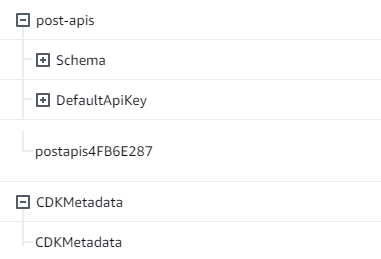
이 코드가 스키마 코드와 일치하는 것 같으니 성공입니다. 메타데이터 관점에서 이를 확인하는 또 다른 방법은 CloudFormation 스택을 보는 것입니다.

CDK 앱을 배포하면 부트스트랩과 같은 리소스를 가동 CloudFormation 합니다. 앱 내의 각 스택은 CloudFormation 스택과 1:1로 매핑됩니다. 스택 코드로 돌아가면 클래스 이름 `ExampleCdkAppStack`에서 스택 이름을 가져왔습니다. GraphQL API 구조의 명명 규칙과 일치하는 리소스가 생성된 것을 확인할 수 있습니다.
## CDK 프로젝트 구현 - 데이터 소스
다음으로 데이터 소스를 추가해야 합니다. 이 예제에서는 DynamoDB 테이블을 사용합니다. 스택 클래스 내에 새 테이블을 생성하는 코드를 몇 가지 추가해 보겠습니다.
```
export class ExampleCdkAppStack extends cdk.Stack {
constructor(scope: Construct, id: string, props?: cdk.StackProps) {
super(scope, id, props);
// Makes a GraphQL API construct
const api = new appsync.GraphqlApi(this, 'post-apis', {
name: 'api-to-process-posts',
schema: appsync.SchemaFile.fromAsset('schema/schema.graphql'),
});
//creates a DDB table
const add_ddb_table = new dynamodb.Table(this, 'posts-table', {
partitionKey: {
name: 'id',
type: dynamodb.AttributeType.STRING,
},
});
// Prints out URL
new cdk.CfnOutput(this, "GraphQLAPIURL", {
value: api.graphqlUrl
});
// Prints out the AppSync GraphQL API key to the terminal
new cdk.CfnOutput(this, "GraphQLAPIKey", {
value: api.apiKey || ''
});
// Prints out the stack region to the terminal
new cdk.CfnOutput(this, "Stack Region", {
value: this.region
});
}
}
```
이제 다시 배포해 보겠습니다.
```
cdk deploy
```
DynamoDB 콘솔에서 새 테이블을 확인해야 합니다.

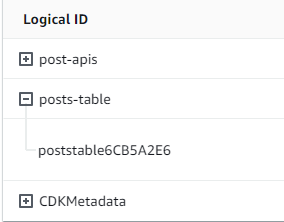
스택 이름이 올바르고 테이블 이름이 코드와 일치합니다. CloudFormation 스택을 다시 확인하면 이제 새 테이블이 표시됩니다.
## CDK 프로젝트 구현 - 해석기
이 예제에서는 두 개의 해석기를 사용합니다. 하나는 테이블을 쿼리하고 다른 하나는 테이블에 추가합니다. 파이프라인 해석기를 사용하고 있으므로 각각 함수가 하나씩 포함된 파이프라인 해석기 두 개를 선언해야 합니다. 쿼리에 다음 코드를 추가할 것입니다.
```
export class ExampleCdkAppStack extends cdk.Stack {
constructor(scope: Construct, id: string, props?: cdk.StackProps) {
super(scope, id, props);
// Makes a GraphQL API construct
const api = new appsync.GraphqlApi(this, 'post-apis', {
name: 'api-to-process-posts',
schema: appsync.SchemaFile.fromAsset('schema/schema.graphql'),
});
//creates a DDB table
const add_ddb_table = new dynamodb.Table(this, 'posts-table', {
partitionKey: {
name: 'id',
type: dynamodb.AttributeType.STRING,
},
});
// Creates a function for query
const add_func = new appsync.AppsyncFunction(this, 'func-get-post', {
name: 'get_posts_func_1',
api,
dataSource: api.addDynamoDbDataSource('table-for-posts', add_ddb_table),
code: appsync.Code.fromInline(`
export function request(ctx) {
return { operation: 'Scan' };
}
export function response(ctx) {
return ctx.result.items;
}
`),
runtime: appsync.FunctionRuntime.JS_1_0_0,
});
// Creates a function for mutation
const add_func_2 = new appsync.AppsyncFunction(this, 'func-add-post', {
name: 'add_posts_func_1',
api,
dataSource: api.addDynamoDbDataSource('table-for-posts-2', add_ddb_table),
code: appsync.Code.fromInline(`
export function request(ctx) {
return {
operation: 'PutItem',
key: util.dynamodb.toMapValues({id: util.autoId()}),
attributeValues: util.dynamodb.toMapValues(ctx.args.input),
};
}
export function response(ctx) {
return ctx.result;
}
`),
runtime: appsync.FunctionRuntime.JS_1_0_0,
});
// Adds a pipeline resolver with the get function
new appsync.Resolver(this, 'pipeline-resolver-get-posts', {
api,
typeName: 'Query',
fieldName: 'getPost',
code: appsync.Code.fromInline(`
export function request(ctx) {
return {};
}
export function response(ctx) {
return ctx.prev.result;
}
`),
runtime: appsync.FunctionRuntime.JS_1_0_0,
pipelineConfig: [add_func],
});
// Adds a pipeline resolver with the create function
new appsync.Resolver(this, 'pipeline-resolver-create-posts', {
api,
typeName: 'Mutation',
fieldName: 'createPost',
code: appsync.Code.fromInline(`
export function request(ctx) {
return {};
}
export function response(ctx) {
return ctx.prev.result;
}
`),
runtime: appsync.FunctionRuntime.JS_1_0_0,
pipelineConfig: [add_func_2],
});
// Prints out URL
new cdk.CfnOutput(this, "GraphQLAPIURL", {
value: api.graphqlUrl
});
// Prints out the AppSync GraphQL API key to the terminal
new cdk.CfnOutput(this, "GraphQLAPIKey", {
value: api.apiKey || ''
});
// Prints out the stack region to the terminal
new cdk.CfnOutput(this, "Stack Region", {
value: this.region
});
}
}
```
이 코드 조각에는 `func-add-post`라는 함수가 첨부되어 호출되는 `pipeline-resolver-create-posts` 파이프라인 리졸버를 추가했습니다. 테이블에 `Posts`를 추가하는 코드입니다. 다른 파이프라인 해석기는 테이블에 추가된 `Posts`를 검색하는 `func-get-post`라는 함수가 있는 `pipeline-resolver-get-posts`라고 불렀습니다.
이를 배포하여 AWS AppSync 서비스에 추가합니다.
```
cdk deploy
```
AWS AppSync 콘솔이 GraphQL API에 연결되어 있는지 확인해 보겠습니다.

맞는 것 같습니다. 코드에서 이 두 해석기는 모두 우리가 만든 GraphQL API에 연결되었습니다(해석기와 함수 모두에 있는 `api` 속성 값으로 표시됨). GraphQL API에서 해석기를 연결한 필드는 속성에도 지정되어 있습니다(각 해석기의 `typename` 및 `fieldname` 속성으로 정의됨).
`pipeline-resolver-get-posts`부터 해석기의 콘텐츠가 올바른지 확인해 보겠습니다.

이전 핸들러와 이후 핸들러가 `code` 속성 값과 일치합니다. 또한 해석기에 연결된 함수 이름과 일치하는 `add_posts_func_1`이라는 함수가 있음을 알 수 있습니다.
해당 함수의 코드 내용을 살펴보겠습니다.
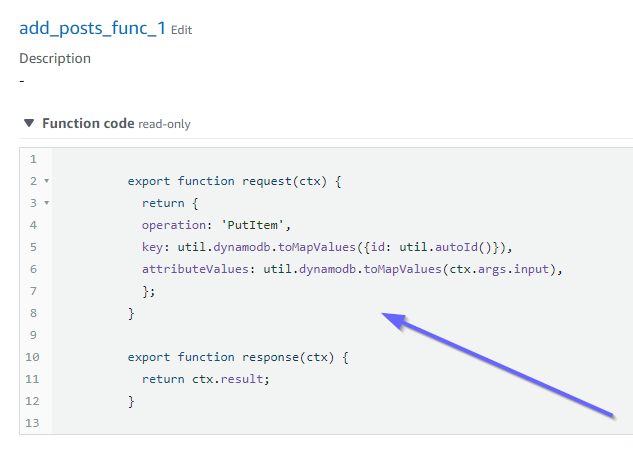
이는 `add_posts_func_1` 함수의 `code` 속성과 일치합니다. 쿼리가 성공적으로 업로드되었으니 쿼리를 확인해 보겠습니다.

이것도 코드와 일치합니다. `get_posts_func_1`을 살펴보자면 다음과 같습니다.
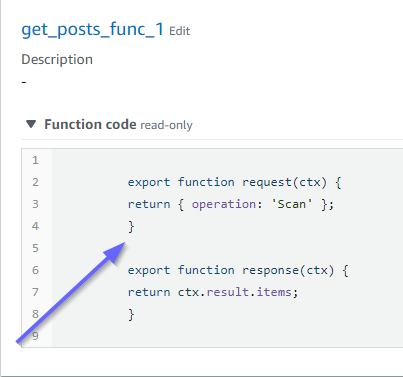
모든 것이 제자리에 있는 것 같네요. 메타데이터 관점에서 이를 확인하기 위해 CloudFormation 에서 스택을 다시 확인할 수 있습니다.

이제 몇 가지 요청을 수행하여 이 코드를 테스트해야 합니다.
## CDK 프로젝트 만들기 - 요청
AWS AppSync 콘솔에서 앱을 테스트하기 위해 쿼리 하나와 변형 하나를 만들었습니다.
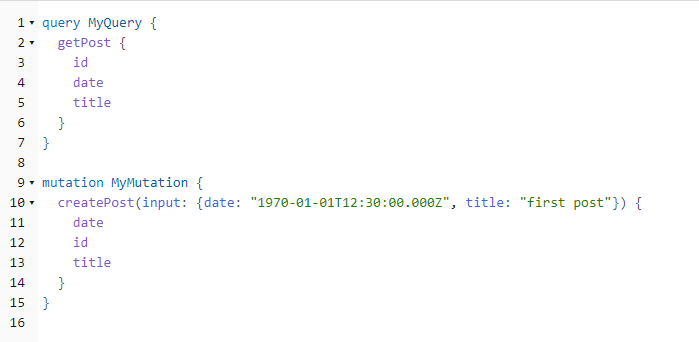
`MyMutation`에는 `1970-01-01T12:30:00.000Z` 및 `first post` 인수가 있는 `createPost` 작업이 포함됩니다. 자동으로 생성된 `id` 값뿐만 아니라 우리가 전달한 `date` 및 `title`을 반환합니다. 뮤테이션을 실행하면 다음과 같은 결과가 나옵니다.
```
{
"data": {
"createPost": {
"date": "1970-01-01T12:30:00.000Z",
"id": "4dc1c2dd-0aa3-4055-9eca-7c140062ada2",
"title": "first post"
}
}
}
```
DynamoDB 테이블을 빠르게 확인하면 테이블을 스캔할 때 테이블에 있는 항목을 확인할 수 있습니다.

AWS AppSync 콘솔로 돌아가서 쿼리를 실행하여이를 검색하면 다음과 같은 결과가 나타납니다`Post`.
```
{
"data": {
"getPost": [
{
"id": "9f62c4dd-49d5-48d5-b835-143284c72fe0",
"date": "1970-01-01T12:30:00.000Z",
"title": "first post"
}
]
}
}
```