翻訳は機械翻訳により提供されています。提供された翻訳内容と英語版の間で齟齬、不一致または矛盾がある場合、英語版が優先します。
# ジョブキューイング
ジョブキューイングを使用すると、同時に処理できる数よりも多くの文字起こしジョブリクエストを送信できます。ジョブキューイングを使用しない場合、同時実行可能なリクエストのクォータに達すると、1 つ以上のリクエストが完了するまで待ってから、新しいリクエストを送信する必要があります。
ジョブキューイングは、文字起こしジョブと通話後分析ジョブリクエストの両方のオプションです。
ジョブキューイングを有効にすると、Amazon Transcribe は制限を超えるすべてのリクエストを含むキューを作成します。リクエストが完了するとすぐに、新しいリクエストがキューから取り出されて処理されます。キューに入っているリクエストは FIFO (先入れ先出し) の順序で処理されます。
キューに最大 10,000 件のジョブを追加できます。この制限を超えた場合、`LimitExceededConcurrentJobException` エラーが発生します。最適なパフォーマンスを維持するために、Amazon Transcribe はキューに入っているジョブを処理するために、クォータの最大 90% (帯域幅比 0.9) までしか使用しません。これらはデフォルト値であり、リクエストに応じて増やすことができます。
**ヒント**
Amazon Transcribe リソースのデフォルト制限とクォータの一覧は、「[AWS 全般のリファレンス](https://docs.aws.amazon.com/general/latest/gr/aws_service_limits.html)」に記載されています。これらのデフォルトの一部は、リクエストに応じて増やすことができます。
ジョブキューイングを有効にしても、同時実行リクエストのクォータを超えないようにすると、すべてのリクエストが同時に処理されます。
## ジョブキューイングの有効化
**AWS マネジメントコンソール**、**AWS CLI**、または **AWS SDK** を使用して、ジョブキューイングを有効にできます。例については以下を参照してください。
### AWS マネジメントコンソール
1. [AWS マネジメントコンソール](https://console.aws.amazon.com/transcribe/) にサインインします。
1. ナビゲーションペインで、[**文字起こしジョブ**] を選択後、[**ジョブの作成**] (右上) を選択します。これにより、「**ジョブの詳細を指定**」ページが開きます。
1. **ジョブ設定**ボックスには、**追加設定**パネルがあります。このパネルを展開すると、「**ジョブキューに追加**」ボックスを選択してジョブキューイングを有効にできます。
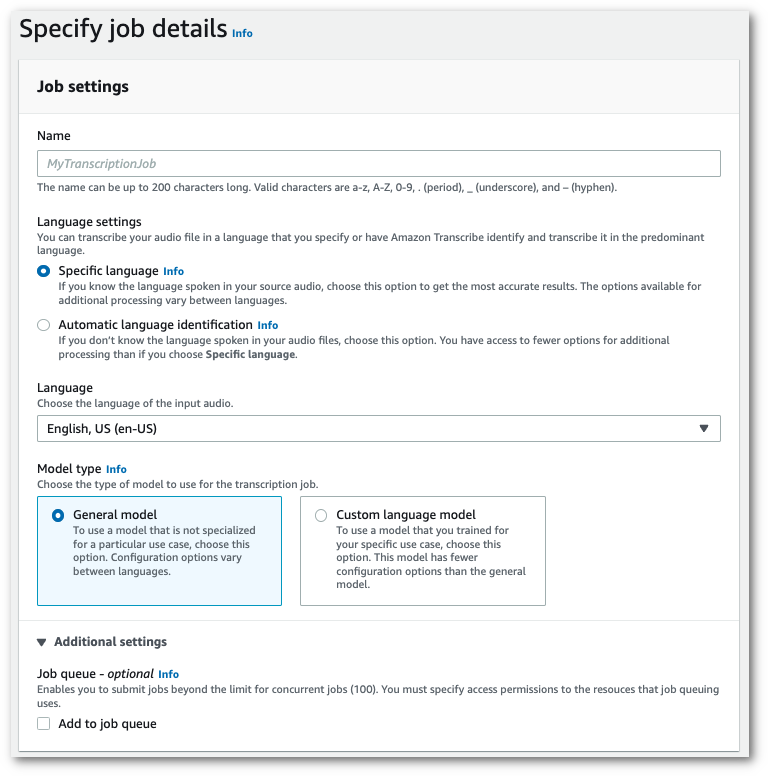
1. **ジョブの詳細を指定**ページに追加したいその他のフィールドに入力し、「**次へ**」を選択します。これにより、**ジョブの設定 - *オプション*ページ**へ移動します。
1. [**ジョブの作成**] を選択して、文字起こしジョブを実行します。
### AWS CLI
この例では、[start-transcription-job](https://awscli.amazonaws.com/v2/documentation/api/latest/reference/transcribe/start-transcription-job.html) コマンドと `job-execution-settings` パラメータ、`AllowDeferredExecution` サブパラメータを使用します。`AllowDeferredExecution` をリクエストに含める場合は、`DataAccessRoleArn` も含める必要があることに注意してください。
詳細については、「[https://docs.aws.amazon.com/transcribe/latest/APIReference/API_StartTranscriptionJob.html](https://docs.aws.amazon.com/transcribe/latest/APIReference/API_StartTranscriptionJob.html)」および「[https://docs.aws.amazon.com/transcribe/latest/APIReference/API_JobExecutionSettings.html](https://docs.aws.amazon.com/transcribe/latest/APIReference/API_JobExecutionSettings.html)」を参照してください。
```
aws transcribe start-transcription-job \
--region {{us-west-2}} \
--transcription-job-name {{my-first-transcription-job}} \
--media MediaFileUri=s3://{{amzn-s3-demo-bucket}}/{{my-input-files}}/{{my-media-file}}.{{flac}} \
--output-bucket-name {{amzn-s3-demo-bucket}} \
--output-key {{my-output-files}}/ \
--language-code {{en-US}} \
--job-execution-settings AllowDeferredExecution=true,DataAccessRoleArn=arn:aws:iam::{{111122223333}}:role/{{ExampleRole}}
```
[start-transcription-job](https://awscli.amazonaws.com/v2/documentation/api/latest/reference/transcribe/start-transcription-job.html) コマンド、およびキューイングを有効にするリクエストボディを使用した別の例になります。
```
aws transcribe start-transcription-job \
--region {{us-west-2}} \
--cli-input-json file://{{my-first-queueing-request}}.json
```
ファイル *my-first-queueing-request.json* には、次のリクエストボディが含まれています。
```
{
"TranscriptionJobName": "{{my-first-transcription-job}}",
"Media": {
"MediaFileUri": "s3://{{amzn-s3-demo-bucket}}/{{my-input-files}}/{{my-media-file}}.{{flac}}"
},
"OutputBucketName": "{{amzn-s3-demo-bucket}}",
"OutputKey": "{{my-output-files}}/",
"LanguageCode": "{{en-US}}",
"JobExecutionSettings": {
"AllowDeferredExecution": true,
"DataAccessRoleArn": "arn:aws:iam::{{111122223333}}:role/{{ExampleRole}}"
}
}
```
### AWS SDK for Python (Boto3)
この例では、AWS SDK for Python (Boto3) を使用して、[start\_transcription\_job](https://boto3.amazonaws.com/v1/documentation/api/latest/reference/services/transcribe.html#TranscribeService.Client.start_transcription_job) メソッドの `AllowDeferredExecution` 引数で、ジョブキューイングを有効にします。`AllowDeferredExecution` をリクエストに含める場合は、`DataAccessRoleArn` も含める必要があることに注意してください。詳細については、「[https://docs.aws.amazon.com/transcribe/latest/APIReference/API_StartTranscriptionJob.html](https://docs.aws.amazon.com/transcribe/latest/APIReference/API_StartTranscriptionJob.html)」および「[https://docs.aws.amazon.com/transcribe/latest/APIReference/API_JobExecutionSettings.html](https://docs.aws.amazon.com/transcribe/latest/APIReference/API_JobExecutionSettings.html)」を参照してください。
特徴固有の例、シナリオ例、クロスサービスの例など、AWS SDK を使用するその他の例については、[SDK を使用した Amazon Transcribe のコード例 AWS SDKs](service_code_examples.md) 章を参照してください。
```
from __future__ import print_function
import time
import boto3
transcribe = boto3.client('transcribe', '{{us-west-2}}')
job_name = "{{my-first-queueing-request}}"
job_uri = "s3://{{amzn-s3-demo-bucket}}/{{my-input-files}}/{{my-media-file}}.{{flac}}"
transcribe.start_transcription_job(
TranscriptionJobName = job_name,
Media = {
'MediaFileUri': job_uri
},
OutputBucketName = '{{amzn-s3-demo-bucket}}',
OutputKey = '{{my-output-files}}/',
LanguageCode = '{{en-US}}',
JobExecutionSettings = {
'AllowDeferredExecution': True,
'DataAccessRoleArn': 'arn:aws:iam::{{111122223333}}:role/{{ExampleRole}}'
}
)
while True:
status = transcribe.get_transcription_job(TranscriptionJobName = job_name)
if status['TranscriptionJob']['TranscriptionJobStatus'] in ['COMPLETED', 'FAILED']:
break
print("Not ready yet...")
time.sleep(5)
print(status)
```
キューに入っているジョブの進行状況は、AWS マネジメントコンソール または [https://docs.aws.amazon.com/transcribe/latest/APIReference/API_GetTranscriptionJob.html](https://docs.aws.amazon.com/transcribe/latest/APIReference/API_GetTranscriptionJob.html) リクエストを送信することで確認できます。ジョブがキューに入れられると、`Status` は `QUEUED` になります。ジョブが処理を開始するとステータスは `IN_PROGRESS` に変わり、処理が終了すると、`COMPLETED` または `FAILED` に変わります。