翻訳は機械翻訳により提供されています。提供された翻訳内容と英語版の間で齟齬、不一致または矛盾がある場合、英語版が優先します。

# Augmented AI Crowd HTML 要素
<a name="crowd-elements-a2i-list"></a>

以下の Crowd HTML 要素は Amazon Augmented AI ヒューマンワークフロータスクにのみ使用できます。

# crowd-textract-analyze-document
<a name="a2i-crowd-textract-detection"></a>

Amazon Textract ドキュメント分析結果のヒューマンレビューを有効にするウィジェット。

## 属性
<a name="a2i-textract-crowd-attributes"></a>

次の属性が、この要素でサポートされています。

### header
<a name="textract-attributes-header"></a>

ヘッダーとして表示されるテキストです。

### src
<a name="textract-attributes-src"></a>

ワーカーが分析する画像へのリンクです。

### initialValue
<a name="textract-attributes-initialValue"></a>

ワーカー UI で見つかった属性の初期値を設定します。

以下に、`initialValue` 入力の例を示します。

```
[
            {
                "blockType": "KEY_VALUE_SET",
                "confidence": 38.43309020996094,
                "geometry": {
                    "boundingBox": {
                        "width": 0.32613086700439453,
                        "weight": 0.0942094624042511,
                        "left": 0.4833833575248718,
                        "top": 0.5227988958358765
                    },
                    "polygon": [
                        {"x": 0.123, "y": 0.345}, ...
                    ]
                }
                "id": "8c97b240-0969-4678-834a-646c95da9cf4",
                "relationships": [
                    {
                        "type": "CHILD",
                        "ids": [
                            "7ee7b7da-ee1b-428d-a567-55a3e3affa56",
                            "4d6da730-ba43-467c-a9a5-c6137ba0c472"
                        ]
                    },
                    {
                        "type": "VALUE",
                        "ids": [
                            "6ee7b7da-ee1b-428d-a567-55a3e3affa54"
                        ]
                    }
                ],
                "entityTypes": [
                    "KEY"
                ],
                "text": "Foo bar"
            },
]
```

### blockTypes
<a name="textract-attributes-blockTypes"></a>

ワーカーが実行できる分析の種類を判断します。現在は、`KEY_VALUE_SET` のみサポートしています。

### キー
<a name="textract-attributes-keys"></a>

これは、新しいキーと、ワーカーが追加できる関連テキスト値を指定します。`keys` の入力値には、次の要素を含めることができます。
+ `importantFormKey` は、文字列を許可し、単一キーを指定するために使用されます。
+ `importantFormKeyAliases` を使用すると、指定されたキーの代替として許容されるエイリアスを指定できます。この要素を使用して、キーの別のスペルやプレゼンテーションを識別します。このパラメータは、1 つ以上の文字列のリストを受け取ります。

以下に、`keys` 入力の例を示します。

```
[
      {
        importantFormKey: 'Address',
        importantFormKeyAliases: [
          'address',
          'Addr.',
          'Add.',
        ]
      },
      {
        importantFormKey: 'Last name',
        importantFormKeyAliases: ['Surname']
      }
]
```

### no-key-edit
<a name="textract-attributes-no-key-edit"></a>

これにより、ワーカーが `initialValue` を介して渡されたアノテーションのキーを編集できなくなります。ドキュメントで検出されたキーをワーカーが編集できないようにします。これは必須です。

### no-geometry-edit
<a name="textract-attributes-no-geometry-edit"></a>

これにより、ワーカーが `initialValue` を介して渡されたアノテーションのポリゴンを編集できなくなります。例えば、これによりワーカーが特定のキーの周囲にある境界ボックスを編集できなくなります。これは必須です。

## 要素の階層
<a name="textract-crowd-element-hierarchy"></a>

 この要素には、以下の親および子要素があります。
+ 親要素 - crowd-form
+ 子要素 - [full-instructions](#textract-full-instructions)、[short-instructions](#textract-short-instructions)

## Regions
<a name="textract-crowd-regions"></a>

この要素では、次のリージョンがサポートされています。これらのリージョン内では、カスタム HTML および CSS コードを使用して、ワーカーへの指示書をフォーマットできます。例えば、`short-instructions` セクションを使用して、タスクを完了する方法の良い例と悪い例を提供します。

### full-instructions
<a name="textract-full-instructions"></a>

ウィジェットの使用方法に関する一般的な手順。

### short-instructions
<a name="textract-short-instructions"></a>

目立つ場所に表示されるタスク固有の重要な手順。

## crowd 要素を使用したワーカーテンプレートの例
<a name="textract-example-crowd-elements"></a>

この crowd 要素を使用するワーカーテンプレートの例は次のとおりです。

```
<script src="https://assets.crowd.aws/crowd-html-elements.js"></script>
{% capture s3_uri %}http://s3.amazonaws.com/{{ task.input.aiServiceRequest.document.s3Object.bucket }}/{{ task.input.aiServiceRequest.document.s3Object.name }}{% endcapture %}

<crowd-form>
  <crowd-textract-analyze-document
    src="{{ s3_uri | grant_read_access }}"
    initial-value="{{ task.input.selectedAiServiceResponse.blocks }}"
    header="Review the key-value pairs listed on the right and correct them if they don't match the following document."
    no-key-edit
    no-geometry-edit
    keys="{{ task.input.humanLoopContext.importantFormKeys }}"
    block-types="['KEY_VALUE_SET']"
  >
    <short-instructions header="Instructions">
      <style>
        .instructions {
          white-space: pre-wrap;
        }
        .instructionsImage {
          display: inline-block;
          max-width: 100%;
        }
      </style>
      <p class='instructions'>Click on a key-value block to highlight the corresponding key-value pair in the document.

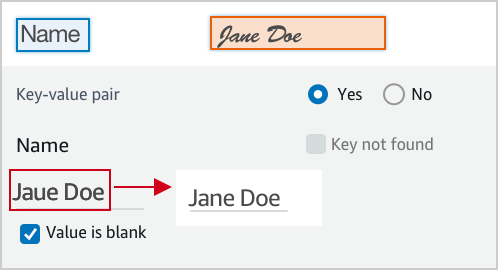
If it is a valid key-value pair, review the content for the value. If the content is incorrect, correct it.

The text of the value is incorrect, correct it.
<img class='instructionsImage' src="https://assets.crowd.aws/images/a2i-console/correct-value-text.png" />

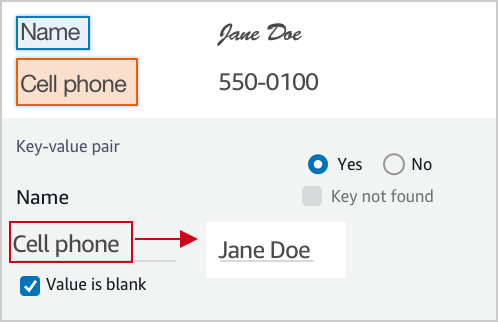
A wrong value is identified, correct it.
<img class='instructionsImage' src="https://assets.crowd.aws/images/a2i-console/correct-value.png" />

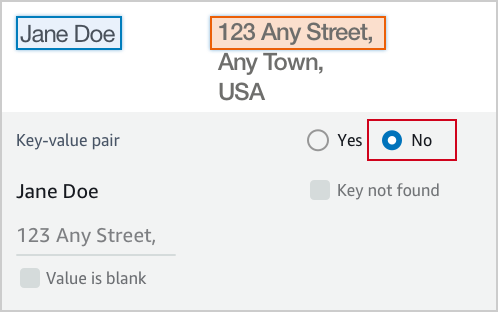
If it is not a valid key-value relationship, choose No.
<img class='instructionsImage' src="https://assets.crowd.aws/images/a2i-console/not-a-key-value-pair.png" />

If you can’t find the key in the document, choose Key not found.
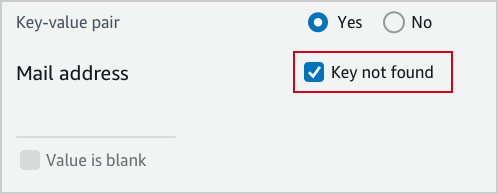
<img class='instructionsImage' src="https://assets.crowd.aws/images/a2i-console/key-is-not-found.png" />

If the content of a field is empty, choose Value is blank.
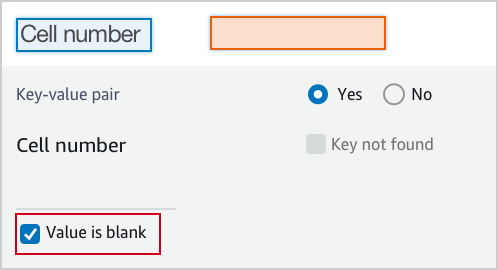
<img class='instructionsImage' src="https://assets.crowd.aws/images/a2i-console/value-is-blank.png" />

<b>Examples</b>
Key and value are often displayed next or below to each other.

Key and value displayed in one line.

<img class='instructionsImage' src="https://assets.crowd.aws/images/a2i-console/sample-key-value-pair-1.png" />

Key and value displayed in two lines.
<img class='instructionsImage' src="https://assets.crowd.aws/images/a2i-console/sample-key-value-pair-2.png" />

If the content of the value has multiple lines, enter all the text without line break. Include all value text even if it extends beyond the highlight box.
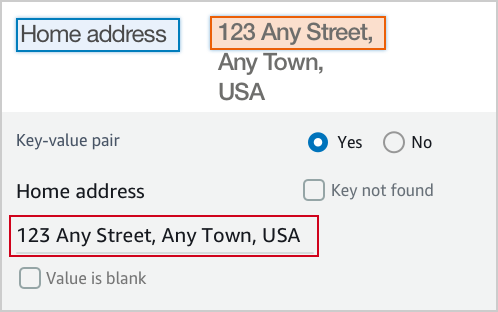
<img class='instructionsImage' src="https://assets.crowd.aws/images/a2i-console/multiple-lines.png" /></p>
    </short-instructions>

    <full-instructions header="Instructions"></full-instructions>
  </crowd-textract-analyze-document>
</crowd-form>
```

## Output
<a name="textract-crowd-element-output"></a>

この要素の出力サンプルを次に示します。この出力の詳細については、[Amazon Textract AnalyzeDocument](https://docs.aws.amazon.com/textract/latest/dg/API_AnalyzeDocument.html) API のドキュメントを参照してください。

```
{
  "AWS/Textract/AnalyzeDocument/Forms/V1": {
    blocks: [
      {
        "blockType": "KEY_VALUE_SET",
        "id": "8c97b240-0969-4678-834a-646c95da9cf4",
        "relationships": [
          {
            "type": "CHILD",
            "ids": ["7ee7b7da-ee1b-428d-a567-55a3e3affa56", "4d6da730-ba43-467c-a9a5-c6137ba0c472"]
          },
          {
            "type": "VALUE",
            "ids": ["6ee7b7da-ee1b-428d-a567-55a3e3affa54"]
          }
        ],
        "entityTypes": ["KEY"],
        "text": "Foo bar baz"
      }
    ]
  }
}
```

# crowd-rekognition-detect-moderation-labels
<a name="a2i-crowd-rekognition-detection"></a>

Amazon Rekognition イメージモデレーションの結果のヒューマンレビューを可能にするウィジェット。

## 属性
<a name="rekognition-attributes"></a>

次の属性が、この要素でサポートされています。

### header
<a name="rekognition-attributes-header"></a>

ヘッダーとして表示されるテキストです。

### src
<a name="rekognition-attributes-src"></a>

ワーカーが分析する画像へのリンクです。

### カテゴリ
<a name="rekognition-attributes-categories"></a>

`categories` を文字列の配列**または**各オブジェクトが `name` フィールドを持つオブジェクトの配列としてサポートします。

カテゴリがオブジェクトとして提供された場合は、次の条件が適用されます。
+ 表示されるカテゴリは、`name` フィールドの値です。
+ 返される値には、選択したカテゴリの**すべて**のオブジェクトが含まれます。

カテゴリが文字列として提供される場合は、次のようになります。
+ 返された答えは、選択されたすべての文字列の配列です。

### exclusion-category
<a name="rekognition-attributes-exclusion-category"></a>

この属性を設定すると、UI のカテゴリの下にボタンが作成されます。
+ ユーザーがボタンを選択すると、すべてのカテゴリの選択が解除され、無効になります。
+ ボタンを再度選択すると、カテゴリが再び有効になり、ユーザーがカテゴリを選択できるようになります。
+ ボタンを選択した後に送信すると、空の配列が返されます。

## 要素の階層
<a name="rekognition-crowd-element-hierarchy"></a>

この要素には、以下の親および子要素があります。
+ 親要素 - crowd-form
+ 子要素 - [full-instructions](#rek-full-instructions)、[short-instructions](#rek-short-instructions)

## AWS リージョン
<a name="rek-crowd-regions"></a>

この要素では、次の AWS リージョンがサポートされています。これらのリージョン内では、カスタム HTML および CSS コードを使用して、ワーカーへの指示書をフォーマットできます。例えば、`short-instructions` セクションを使用して、タスクを完了する方法の良い例と悪い例を提供します。

### full-instructions
<a name="rek-full-instructions"></a>

ウィジェットの使用方法に関する一般的な手順。

### short-instructions
<a name="rek-short-instructions"></a>

目立つ場所に表示されるタスク固有の重要な手順。

## crowd 要素を含むワーカーテンプレートの例
<a name="rek-crowd-element-example"></a>

crowd 要素を使用するワーカーテンプレートの例は次のようになります。

```
<script src="https://assets.crowd.aws/crowd-html-elements.js"></script>
{% capture s3_uri %}http://s3.amazonaws.com/{{ task.input.aiServiceRequest.image.s3Object.bucket }}/{{ task.input.aiServiceRequest.image.s3Object.name }}{% endcapture %}

<crowd-form>
  <crowd-rekognition-detect-moderation-labels
    categories='[
      {% for label in task.input.selectedAiServiceResponse.moderationLabels %}
        {
          name: "{{ label.name }}",
          parentName: "{{ label.parentName }}",
        },
      {% endfor %}
    ]'
    src="{{ s3_uri | grant_read_access }}"
    header="Review the image and choose all applicable categories."
  >
    <short-instructions header="Instructions">
      <style>
        .instructions {
          white-space: pre-wrap;
        }
      </style>
      <p class='instructions'>Review the image and choose all applicable categories.
If no categories apply, choose None.

<b>Nudity</b>
Visuals depicting nude male or female person or persons

<b>Graphic Male Nudity</b>
Visuals depicting full frontal male nudity, often close ups

<b>Graphic Female Nudity</b>
Visuals depicting full frontal female nudity, often close ups

<b>Sexual Activity</b>
Visuals depicting various types of explicit sexual activities and pornography

<b>Illustrated Nudity or Sexual Activity</b>
Visuals depicting animated or drawn sexual activity, nudity or pornography

<b>Adult Toys</b>
Visuals depicting adult toys, often in a marketing context

<b>Female Swimwear or Underwear</b>
Visuals depicting female person wearing only swimwear or underwear

<b>Male Swimwear Or Underwear</b>
Visuals depicting male person wearing only swimwear or underwear

<b>Partial Nudity</b>
Visuals depicting covered up nudity, for example using hands or pose

<b>Revealing Clothes</b>
Visuals depicting revealing clothes and poses, such as deep cut dresses

<b>Graphic Violence or Gore</b>
Visuals depicting prominent blood or bloody injuries

<b>Physical Violence</b>
Visuals depicting violent physical assault, such as kicking or punching

<b>Weapon Violence</b>
Visuals depicting violence using weapons like firearms or blades, such as shooting

<b>Weapons</b>
Visuals depicting weapons like firearms and blades

<b>Self Injury</b>
Visuals depicting self-inflicted cutting on the body, typically in distinctive patterns using sharp objects

<b>Emaciated Bodies</b>
Visuals depicting extremely malnourished human bodies

<b>Corpses</b>
Visuals depicting human dead bodies

<b>Hanging</b>
Visuals depicting death by hanging</p>
    </short-instructions>

    <full-instructions header="Instructions"></full-instructions>
  </crowd-rekognition-detect-moderation-labels>
</crowd-form>
```

## Output
<a name="rek-crowd-element-output"></a>

この要素の出力サンプルを次に示します。この出力の詳細については、[Amazon Rekognition DetectModerationLabels](https://docs.aws.amazon.com/rekognition/latest/dg/API_DetectModerationLabels.html) API ドキュメントを参照してください。

```
{
  "AWS/Rekognition/DetectModerationLabels/Image/V3": {
    "ModerationLabels": [
        { name: 'Gore', parentName: 'Violence' },
        { name: 'Corpses', parentName: 'Violence' },
    ]
  }
}
```