翻訳は機械翻訳により提供されています。提供された翻訳内容と英語版の間で齟齬、不一致または矛盾がある場合、英語版が優先します。

# チュートリアル: Amazon A2I API の使用を開始する
<a name="a2i-get-started-api"></a>

このチュートリアルでは、Amazon A2I で使用開始に使用できる API オペレーションについて説明します。

Jupyter ノートブックを使用してこれらの操作を実行するには、「[Amazon A2I を使用したユースケースと例](a2i-task-types-general.md)」から Jupyter ノートブックを選択し、それを SageMaker AI ノートブックインスタンスで使用する方法について、「[Amazon A2I Jupyter ノートブックで SageMaker ノートブックインスタンスを使用する](a2i-task-types-general.md#a2i-task-types-notebook-demo)」を参照して学習します。

Amazon A2I で使用できる API オペレーションの詳細については、「[Amazon Augmented AI で API を使用する](a2i-api-references.md)」を参照してください。

## プライベートワークチームを作成する
<a name="a2i-get-started-api-create-work-team"></a>

プライベートワークチームを作成し、自分自身をワーカーとして追加して Amazon A2I をプレビューできます。

Amazon Cognito について詳しくない場合は、SageMaker AI コンソールを使用してプライベートワークフォースを作成し、プライベートワーカーとして自分自身を追加することをお勧めします。手順については、「[ステップ 1: ワークチームを作成する](a2i-get-started-console.md#a2i-get-started-console-step-1)」を参照してください。

Amazon Cognito に精通している場合は、次の手順に従い、SageMaker API を使用してプライベートワークチームを作成できます。ワークチームを作成したら、ワークチーム ARN (`WorkteamArn`) を確認します。

プライベートワークフォースと、利用可能な他の設定の詳細については、「[プライベートワークフォース](sms-workforce-private.md)」を参照してください。

**プライベートワークフォースを作成する**  
プライベートワークフォースを作成していない場合、[Amazon Cognito ユーザープール](https://docs.aws.amazon.com/cognito/latest/developerguide/cognito-user-identity-pools.html)を使用して作成できます。このユーザープールに自分自身を追加してください。`[create\_workforce](https://boto3.amazonaws.com/v1/documentation/api/latest/reference/services/sagemaker.html#SageMaker.Client.create_workforce)` 関数を使用して AWS SDK for Python (Boto3) プライベートワークチームを作成できます。その他の言語固有の SDK については、「[CreateWorkforce](https://docs.aws.amazon.com/sagemaker/latest/APIReference/API_CreateWorkforce.html#API_CreateWorkforce_SeeAlso)」のリストを参照してください。

```
    
    response = client.create_workforce(
        CognitoConfig={
            "UserPool": "{{Pool_ID}}",
            "ClientId": "{{app-client-id}}"
        },
        WorkforceName="{{workforce-name}}"
    )
```

**プライベートワークチームを作成する**  
 AWS リージョンでヒューマンループを設定して開始するプライベートワークフォースを作成したら、 AWS SDK for Python (Boto3) `[create\_workteam](https://boto3.amazonaws.com/v1/documentation/api/latest/reference/services/sagemaker.html#SageMaker.Client.create_workteam)`関数を使用してプライベートワークチームを作成できます。その他の言語固有の SDK については、「`[CreateWorkteam](https://docs.aws.amazon.com/sagemaker/latest/APIReference/API_CreateWorkteam.html#API_CreateWorkteam_SeeAlso)`」のリストを参照してください。

```
    response = client.create_workteam(
        WorkteamName="{{work-team-name}}",
        WorkforceName= "{{workforce-name}}",
        MemberDefinitions=[
            {
                "CognitoMemberDefinition": {
                    "UserPool": "{{<aws-region>_ID}}",
                    "UserGroup": "{{user-group}}",
                    "ClientId": "{{app-client-id}}"
                },
            }
        ]
    )
```

次のように、ワークチーム ARN にアクセスします。

```
    workteamArn = response["WorkteamArn"]
```

**アカウント内のプライベートワークチームを一覧表示する**  
プライベート作業チームを既に作成している場合は、 関数を使用して AWS SDK for Python (Boto3) `[list\_workteams](https://boto3.amazonaws.com/v1/documentation/api/latest/reference/services/sagemaker.html#SageMaker.Client.list_workteams)`、アカウント内の特定の AWS リージョンのすべての作業チームを一覧表示できます。その他の言語固有の SDK については、「`[ListWorkteams](https://docs.aws.amazon.com/sagemaker/latest/APIReference/API_ListWorkteams.html#API_ListWorkteams_SeeAlso)`」のリストを参照してください。

```
    response = client.list_workteams()
```

アカウントに多数のワークチームがある場合、`MaxResults`、`SortBy`、`NameContains` を使用して結果をフィルタリングすることもできます。

## 人間によるレビューワークフローを作成する
<a name="a2i-get-started-api-create-human-review-workflow"></a>

Amazon A2I `[CreateFlowDefinition](https://docs.aws.amazon.com/sagemaker/latest/APIReference/API_CreateFlowDefinition.html)` オペレーションを使用して、人間によるレビューワークフローを作成できます。人間によるレビューワークフローを作成する前に、ヒューマンタスク UI を作成する必要があります。これは、`[CreateHumanTaskUi](https://docs.aws.amazon.com/sagemaker/latest/APIReference/API_CreateHumanTaskUi.html)` オペレーションで実行できます。

Amazon Textract または Amazon Rekognition 統合で Amazon A2I を使用している場合、JSON を使用してアクティベーション条件を指定できます。

### ヒューマンタスク UI を作成する
<a name="a2i-get-started-api-worker-task-template"></a>

Amazon Textract または Amazon Rekognition 統合で使用する人間によるレビューワークフローを作成する場合、事前に作成されたワーカータスクテンプレートを使用して変更する必要があります。すべてのカスタム統合で独自のカスタムワーカータスクテンプレートを使用できます。次の表では、2 つの組み込み統合のワーカータスクテンプレートを使用してヒューマンタスク UI を作成する方法について説明します。テンプレートを独自のテンプレートに置き換えて、このリクエストをカスタマイズしてください。

------
#### [ Amazon Textract – Key-value pair extraction ]

このテンプレートの詳細については、「[Amazon Textract のカスタムテンプレートの例](a2i-custom-templates.md#a2i-custom-templates-textract-sample)」を参照してください。

```
{{template}} = r"""
<script src="https://assets.crowd.aws/crowd-html-elements.js"></script>
{% capture s3_uri %}http://s3.amazonaws.com/{{ task.input.aiServiceRequest.document.s3Object.bucket }}/{{ task.input.aiServiceRequest.document.s3Object.name }}{% endcapture %}
<crowd-form>
  <crowd-textract-analyze-document 
      src="{{ s3_uri | grant_read_access }}" 
      initial-value="{{ task.input.selectedAiServiceResponse.blocks }}" 
      header="Review the key-value pairs listed on the right and correct them if they don"t match the following document." 
      no-key-edit="" 
      no-geometry-edit="" 
      keys="{{ task.input.humanLoopContext.importantFormKeys }}" 
      block-types='["KEY_VALUE_SET"]'>
    <short-instructions header="Instructions">
        <p>Click on a key-value block to highlight the corresponding key-value pair in the document.
        </p><p><br></p>
        <p>If it is a valid key-value pair, review the content for the value. If the content is incorrect, correct it.
        </p><p><br></p>
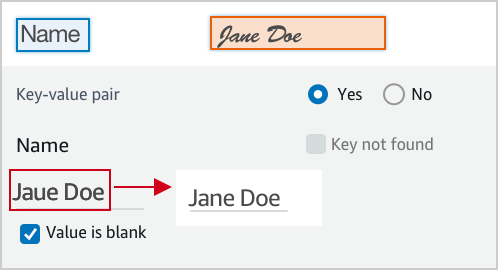
        <p>The text of the value is incorrect, correct it.</p>
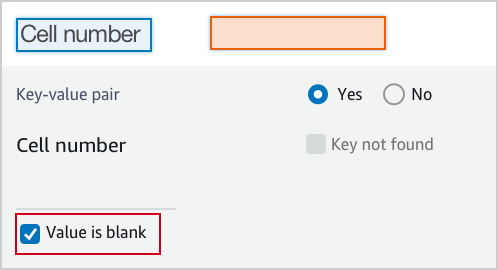
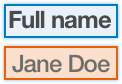
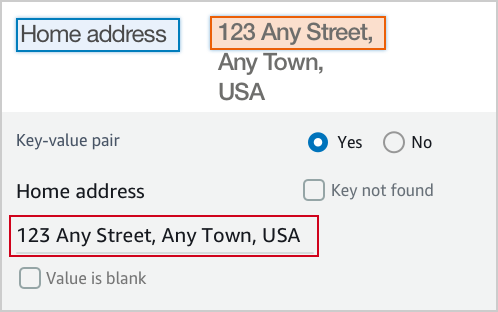
        <p><img src="https://assets.crowd.aws/images/a2i-console/correct-value-text.png">
        </p><p><br></p>
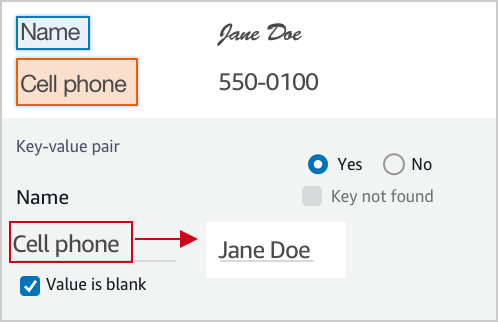
        <p>A wrong value is identified, correct it.</p>
        <p><img src="https://assets.crowd.aws/images/a2i-console/correct-value.png">
        </p><p><br></p>
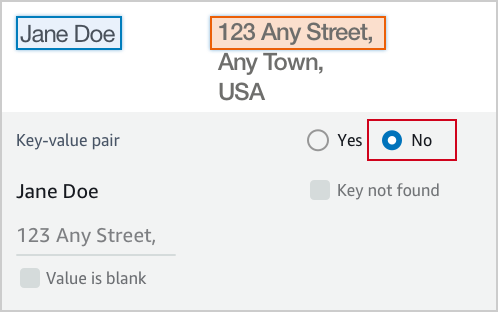
        <p>If it is not a valid key-value relationship, choose No.</p>
        <p><img src="https://assets.crowd.aws/images/a2i-console/not-a-key-value-pair.png">
        </p><p><br></p>
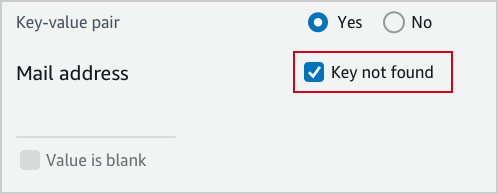
        <p>If you can’t find the key in the document, choose Key not found.</p>
        <p><img src="https://assets.crowd.aws/images/a2i-console/key-is-not-found.png">
        </p><p><br></p>
        <p>If the content of a field is empty, choose Value is blank.</p>
        <p><img src="https://assets.crowd.aws/images/a2i-console/value-is-blank.png">
        </p><p><br></p>
        <p><strong>Examples</strong></p>
        <p>Key and value are often displayed next or below to each other.
        </p><p><br></p>
        <p>Key and value displayed in one line.</p>
        <p><img src="https://assets.crowd.aws/images/a2i-console/sample-key-value-pair-1.png">
        </p><p><br></p>
        <p>Key and value displayed in two lines.</p>
        <p><img src="https://assets.crowd.aws/images/a2i-console/sample-key-value-pair-2.png">
        </p><p><br></p>
        <p>If the content of the value has multiple lines, enter all the text without line break. 
        Include all value text even if it extends beyond the highlight box.</p>
        <p><img src="https://assets.crowd.aws/images/a2i-console/multiple-lines.png"></p>
    </short-instructions>
    <full-instructions header="Instructions"></full-instructions>
  </crowd-textract-analyze-document>
</crowd-form>
"""
```

------
#### [ Amazon Rekognition – Image moderation ]

このテンプレートの詳細については、「[Amazon Rekognition のカスタムテンプレートの例](a2i-custom-templates.md#a2i-custom-templates-rekognition-sample)」を参照してください。

```
{{template}} = r"""
<script src="https://assets.crowd.aws/crowd-html-elements.js"></script>
{% capture s3_uri %}http://s3.amazonaws.com/{{ task.input.aiServiceRequest.image.s3Object.bucket }}/{{ task.input.aiServiceRequest.image.s3Object.name }}{% endcapture %}

<crowd-form>
  <crowd-rekognition-detect-moderation-labels
    categories='[
      {% for label in task.input.selectedAiServiceResponse.moderationLabels %}
        {
          name: "{{ label.name }}",
          parentName: "{{ label.parentName }}",
        },
      {% endfor %}
    ]'
    src="{{ s3_uri | grant_read_access }}"
    header="Review the image and choose all applicable categories."
  >
    <short-instructions header="Instructions">
      <style>
        .instructions {
          white-space: pre-wrap;
        }
      </style>
      <p class="instructions">Review the image and choose all applicable categories.
If no categories apply, choose None.

<b>Nudity</b>
Visuals depicting nude male or female person or persons

<b>Partial Nudity</b>
Visuals depicting covered up nudity, for example using hands or pose

<b>Revealing Clothes</b>
Visuals depicting revealing clothes and poses

<b>Physical Violence</b>
Visuals depicting violent physical assault, such as kicking or punching

<b>Weapon Violence</b>
Visuals depicting violence using weapons like firearms or blades, such as shooting

<b>Weapons</b>
Visuals depicting weapons like firearms and blades
    </short-instructions>

    <full-instructions header="Instructions"></full-instructions>
  </crowd-rekognition-detect-moderation-labels>
</crowd-form>"""
```

------
#### [ Custom Integration ]

カスタム統合で使用できるテンプレートの例を次に示します。このテンプレートは、Amazon Comprehend とのカスタム統合を示す、こちらの[ノートブック](https://github.com/aws-samples/amazon-a2i-sample-jupyter-notebooks/blob/master/Amazon%20Augmented%20AI%20(A2I)%20and%20Comprehend%20DetectSentiment.ipynb)で使用されています。

```
{{template}} = r"""
<script src="https://assets.crowd.aws/crowd-html-elements.js"></script>

<crowd-form>
    <crowd-classifier
      name="sentiment"
      categories='["Positive", "Negative", "Neutral", "Mixed"]'
      initial-value="{{ task.input.initialValue }}"
      header="What sentiment does this text convey?"
    >
      <classification-target>
        {{ task.input.taskObject }}
      </classification-target>
      
      <full-instructions header="Sentiment Analysis Instructions">
        <p><strong>Positive</strong> sentiment include: joy, excitement, delight</p>
        <p><strong>Negative</strong> sentiment include: anger, sarcasm, anxiety</p>
        <p><strong>Neutral</strong>: neither positive or negative, such as stating a fact</p>
        <p><strong>Mixed</strong>: when the sentiment is mixed</p>
      </full-instructions>

      <short-instructions>
       Choose the primary sentiment that is expressed by the text. 
      </short-instructions>
    </crowd-classifier>
</crowd-form>
"""
```

------

上記のテンプレートを使用して、 AWS SDK for Python (Boto3) `[create\_human\_task\_ui](https://boto3.amazonaws.com/v1/documentation/api/latest/reference/services/sagemaker.html#SageMaker.Client.create_human_task_ui)`関数を使用してテンプレートを作成できます。その他の言語固有の SDK については、「`[CreateHumanTaskUi](https://docs.aws.amazon.com/sagemaker/latest/APIReference/API_CreateHumanTaskUi.html#API_CreateHumanTaskUi_SeeAlso)`」のリストを参照してください。

```
    
    response = client.create_human_task_ui(
        HumanTaskUiName="{{human-task-ui-name}}",
        UiTemplate={
            "Content": {{template}}
        }
    )
```

このレスポンス要素には、ヒューマンタスク UI ARN が含まれます。これを次のように保存します。

```
    humanTaskUiArn = response["HumanTaskUiArn"]
```

### JSON を作成してアクティベーション条件を指定する
<a name="a2i-get-started-api-activation-conditions"></a>

Amazon Textract と Amazon Rekognition の組み込み統合では、アクティベーション条件を JSON オブジェクトに保存し、それを `CreateFlowDefinition` リクエストで使用できます。

次に、タブを選択して、これらの組み込み統合に使用できるアクティベーション条件の例を確認します。アクティベーション条件オプションの詳細については、「[Amazon Augmented AI のヒューマンループのアクティベーション条件に対する JSON スキーマ](a2i-human-fallback-conditions-json-schema.md)」を参照してください。

------
#### [ Amazon Textract – Key-value pair extraction ]

この例では、ドキュメント内の特定のキー (`Mail address` など) の条件を指定します。Amazon Textract の信頼度がこちらで設定したしきい値を超えている場合、ドキュメントは人間によるレビュー用に送られ、ヒューマンループを開始した特定のキーによりそのワーカーにプロンプト表示されます。

```
      import json  

      humanLoopActivationConditions = json.dumps(
        {
            "Conditions": [
                {
                  "Or": [
                    
                    {
                        "ConditionType": "ImportantFormKeyConfidenceCheck",
                        "ConditionParameters": {
                            "ImportantFormKey": "Mail address",
                            "ImportantFormKeyAliases": ["Mail Address:","Mail address:", "Mailing Add:","Mailing Addresses"],
                            "KeyValueBlockConfidenceLessThan": 100,
                            "WordBlockConfidenceLessThan": 100
                        }
                    },
                    {
                        "ConditionType": "MissingImportantFormKey",
                        "ConditionParameters": {
                            "ImportantFormKey": "Mail address",
                            "ImportantFormKeyAliases": ["Mail Address:","Mail address:","Mailing Add:","Mailing Addresses"]
                        }
                    },
                    {
                        "ConditionType": "ImportantFormKeyConfidenceCheck",
                        "ConditionParameters": {
                            "ImportantFormKey": "Phone Number",
                            "ImportantFormKeyAliases": ["Phone number:", "Phone No.:", "Number:"],
                            "KeyValueBlockConfidenceLessThan": 100,
                            "WordBlockConfidenceLessThan": 100
                        }
                    },
                    {
                      "ConditionType": "ImportantFormKeyConfidenceCheck",
                      "ConditionParameters": {
                        "ImportantFormKey": "*",
                        "KeyValueBlockConfidenceLessThan": 100,
                        "WordBlockConfidenceLessThan": 100
                      }
                    },
                    {
                      "ConditionType": "ImportantFormKeyConfidenceCheck",
                      "ConditionParameters": {
                        "ImportantFormKey": "*",
                        "KeyValueBlockConfidenceGreaterThan": 0,
                        "WordBlockConfidenceGreaterThan": 0
                      }
                    }
            ]
        }
            ]
        }
    )
```

------
#### [ Amazon Rekognition – Image moderation ]

ここで使われるヒューマンループのアクティベーション条件は、Amazon Rekognition コンテンツのモデレーションに合わせて調整されます。これらは、`Suggestive` と `Female Swimwear Or Underwear` モデレーションラベルに対する信頼度しきい値に基づいています。

```
        import json  

        humanLoopActivationConditions = json.dumps(
        {
            "Conditions": [
                {
                  "Or": [
                    {
                        "ConditionType": "ModerationLabelConfidenceCheck",
                        "ConditionParameters": {
                            "ModerationLabelName": "Suggestive",
                            "ConfidenceLessThan": 98
                        }
                    },
                    {
                        "ConditionType": "ModerationLabelConfidenceCheck",
                        "ConditionParameters": {
                            "ModerationLabelName": "Female Swimwear Or Underwear",
                            "ConfidenceGreaterThan": 98
                        }
                    }
                  ]
               }
            ]
        }
    )
```

------

### 人間によるレビューワークフローを作成する
<a name="a2i-get-started-api-flow-definition"></a>

このセクションでは、前のセクションで作成したリソースを使用した`CreateFlowDefinition` AWS SDK for Python (Boto3) リクエストの例を示します。その他の言語固有の SDK については、「[CreateFlowDefinition](https://docs.aws.amazon.com/sagemaker/latest/APIReference/API_CreateFlowDefinition.html#API_CreateFlowDefinition_SeeAlso)」のリストを参照してください。次の表にあるタブで、Amazon Textract と Amazon Rekognition の組み込み統合に対する人間によるレビューワークフローの作成リクエストを確認します。

------
#### [ Amazon Textract – Key-value pair extraction ]

Amazon Textract との組み込み統合を使用する場合、`HumanLoopRequestSource` で `"AWS/Textract/AnalyzeDocument/Forms/V1"` と `"AwsManagedHumanLoopRequestSource"` を指定する必要があります。

```
    response = client.create_flow_definition(
        FlowDefinitionName="{{human-review-workflow-name}}",
        HumanLoopRequestSource={
            "AwsManagedHumanLoopRequestSource": "AWS/Textract/AnalyzeDocument/Forms/V1"
        }, 
        HumanLoopActivationConfig={
            "HumanLoopActivationConditionsConfig": {
                "HumanLoopActivationConditions": {{humanLoopActivationConditions}}
            }
        },
        HumanLoopConfig={
            "WorkteamArn": {{workteamArn}},
            "HumanTaskUiArn": {{humanTaskUiArn}},
            "TaskTitle": "{{Document entry review}}",
            "TaskDescription": "{{Review the document and instructions. Complete the task}}",
            "TaskCount": {{1}},
            "TaskAvailabilityLifetimeInSeconds": {{43200}},
            "TaskTimeLimitInSeconds": {{3600}},
            "TaskKeywords": [
                "{{document review}}",
            ],
        },
        OutputConfig={
            "S3OutputPath": "{{s3://amzn-s3-demo-bucket/prefix/}}",
        },
        RoleArn="{{arn:aws:iam::<account-number>:role/<role-name>}}",
        Tags=[
            {
                "Key": "{{string}}",
                "Value": "{{string}}"
            },
        ]
    )
```

------
#### [ Amazon Rekognition – Image moderation ]

Amazon Rekognition との組み込み統合を使用する場合、`HumanLoopRequestSource` で `"AWS/Rekognition/DetectModerationLabels/Image/V3"` と `"AwsManagedHumanLoopRequestSource"` を指定する必要があります。

```
    response = client.create_flow_definition(
        FlowDefinitionName="{{human-review-workflow-name}}",
        HumanLoopRequestSource={
            "AwsManagedHumanLoopRequestSource": "AWS/Rekognition/DetectModerationLabels/Image/V3"
        }, 
        HumanLoopActivationConfig={
            "HumanLoopActivationConditionsConfig": {
                "HumanLoopActivationConditions": {{humanLoopActivationConditions}}
            }
        },
        HumanLoopConfig={
            "WorkteamArn": {{workteamArn}},
            "HumanTaskUiArn": {{humanTaskUiArn}},
            "TaskTitle": "{{Image content moderation}}",
            "TaskDescription": "{{Review the image and instructions. Complete the task}}",
            "TaskCount": {{1}},
            "TaskAvailabilityLifetimeInSeconds": {{43200}},
            "TaskTimeLimitInSeconds": {{3600}},
            "TaskKeywords": [
                "{{content moderation}}",
            ],
        },
        OutputConfig={
            "S3OutputPath": "{{s3://amzn-s3-demo-bucket/prefix/}}",
        },
        RoleArn="{{arn:aws:iam::<account-number>:role/<role-name>}}",
        Tags=[
            {
                "Key": "{{string}}",
                "Value": "{{string}}"
            },
        ]
    )
```

------
#### [ Custom Integration ]

カスタム統合を使用する場合、`HumanLoopRequestSource` と `HumanLoopActivationConfig` のパラメータを除外します。

```
    response = client.create_flow_definition(
        FlowDefinitionName="{{human-review-workflow-name}}",
        HumanLoopConfig={
            "WorkteamArn": {{workteamArn}},
            "HumanTaskUiArn": {{humanTaskUiArn}},
            "TaskTitle": "{{Image content moderation}}",
            "TaskDescription": "{{Review the image and instructions. Complete the task}}",
            "TaskCount": {{1}},
            "TaskAvailabilityLifetimeInSeconds": {{43200}},
            "TaskTimeLimitInSeconds": {{3600}},
            "TaskKeywords": [
                "{{content moderation}}",
            ],
        },
        OutputConfig={
            "S3OutputPath": "{{s3://amzn-s3-demo-bucket/prefix/}}",
        },
        RoleArn="{{arn:aws:iam::<account-number>:role/<role-name>}}",
        Tags=[
            {
                "Key": "{{string}}",
                "Value": "{{string}}"
            },
        ]
    )
```

------

人間によるレビューワークフローを作成した後、レスポンスからフロー定義 ARN を取得できます。

```
    {{humanReviewWorkflowArn}} = response["FlowDefinitionArn"]    
```

## ヒューマンループを作成する
<a name="a2i-get-started-api-create-human-loop"></a>

ヒューマンループの開始に使用する API オペレーションは、使用する Amazon A2I 統合によって異なります。
+ Amazon Textract 組み込み統合を使用する場合、[AnalyzeDocument](https://docs.aws.amazon.com/textract/latest/dg/API_AnalyzeDocument.html) オペレーションを使用します。
+ Amazon Rekognition 組み込み統合を使用する場合、[DetectModerationLabels](https://docs.aws.amazon.com/rekognition/latest/dg/API_DetectModerationLabels.html) オペレーションを使用します。
+ カスタム統合を使用する場合、[StartHumanLoop](https://docs.aws.amazon.com/augmented-ai/2019-11-07/APIReference/API_StartHumanLoop.html) オペレーションを使用します。

 AWS SDK for Python (Boto3)を使用した Amazon Textract および Amazon Rekognition のリクエスト例については、次の表からタスクタイプを選択して参照してください。

------
#### [ Amazon Textract – Key-value pair extraction ]

次の例では、 を使用して us-west-2 `analyze_document`で AWS SDK for Python (Boto3) を呼び出します。斜体の赤いテキストはリソースに置き換えます。Amazon Mechanical Turk ワークフォースを使用している場合は、[https://docs.aws.amazon.com/augmented-ai/2019-11-07/APIReference/API_HumanLoopDataAttributes.html](https://docs.aws.amazon.com/augmented-ai/2019-11-07/APIReference/API_HumanLoopDataAttributes.html) パラメータを含めます。詳細については、*AWS SDK for Python (Boto) APIリファレンス*の「[analyze\_document](https://boto3.amazonaws.com/v1/documentation/api/latest/reference/services/textract.html#Textract.Client.analyze_document)」のドキュメントを参照してください。

```
   response = client.analyze_document(
         Document={"S3Object": {"Bucket": "{{amzn-s3-demo-bucket}}", "Name": "{{document-name.pdf}}"},
         HumanLoopConfig={
            "FlowDefinitionArn":"{{arn:aws:sagemaker:us-west-2:111122223333:flow-definition/flow-definition-name}}",
            "HumanLoopName":"{{human-loop-name}}",
            "DataAttributes" : {ContentClassifiers:[{{"FreeOfPersonallyIdentifiableInformation"}}|{{"FreeOfAdultContent"}}]}
         }
         FeatureTypes=["FORMS"]
    )
```

ヒューマンループは、Amazon Textract のドキュメント分析に対する信頼度タスクが人間によるレビューワークフローで指定したアクティベーション条件を満たしている場合にのみ作成されます。`response` 要素をチェックし、ヒューマンループが作成されたかどうかを判断できます。このレスポンスに含まれるものすべてを表示するには、[https://docs.aws.amazon.com/textract/latest/dg/API_HumanLoopActivationOutput.html](https://docs.aws.amazon.com/textract/latest/dg/API_HumanLoopActivationOutput.html) を確認します。

```
    if "HumanLoopArn" in analyzeDocumentResponse["HumanLoopActivationOutput"]:
        # A human loop has been started!
        print(f"A human loop has been started with ARN: {analyzeDocumentResponse["HumanLoopActivationOutput"]["HumanLoopArn"]}"
```

------
#### [ Amazon Rekognition – Image moderation ]

次の例では、 を使用して us-west-2 `detect_moderation_labels`で AWS SDK for Python (Boto3) を呼び出します。斜体の赤いテキストはリソースに置き換えます。Amazon Mechanical Turk ワークフォースを使用している場合は、[https://docs.aws.amazon.com/augmented-ai/2019-11-07/APIReference/API_HumanLoopDataAttributes.html](https://docs.aws.amazon.com/augmented-ai/2019-11-07/APIReference/API_HumanLoopDataAttributes.html) パラメータを含めます。詳細については、*AWS SDK for Python (Boto) API リファレンス*の「[detect\_moderation\_labels](https://boto3.amazonaws.com/v1/documentation/api/latest/reference/services/rekognition.html#Rekognition.Client.detect_moderation_labels)」のドキュメントを参照してください。

```
   response = client.detect_moderation_labels(
            Image={"S3Object":{"Bucket": "{{amzn-s3-demo-bucket}}", "Name": "{{image-name.png}}"}},
            HumanLoopConfig={
               "FlowDefinitionArn":"{{arn:aws:sagemaker:us-west-2:111122223333:flow-definition/flow-definition-name}}",
               "HumanLoopName":"{{human-loop-name}}",
               "DataAttributes":{ContentClassifiers:[{{"FreeOfPersonallyIdentifiableInformation"}}|{{"FreeOfAdultContent"}}]}
             }
    )
```

ヒューマンループは、イメージモデレーションタスクに対する Amazon Rekognition の信頼度が人間によるレビューワークフローで指定したアクティベーション条件を満たしている場合にのみ作成されます。`response` 要素をチェックし、ヒューマンループが作成されたかどうかを判断できます。このレスポンスに含まれるものすべてを表示するには、[https://docs.aws.amazon.com/rekognition/latest/dg/API_HumanLoopActivationOutput.html](https://docs.aws.amazon.com/rekognition/latest/dg/API_HumanLoopActivationOutput.html) を確認します。

```
    if "HumanLoopArn" in response["HumanLoopActivationOutput"]:
        # A human loop has been started!
        print(f"A human loop has been started with ARN: {response["HumanLoopActivationOutput"]["HumanLoopArn"]}")
```

------
#### [ Custom Integration ]

次の例では、 を使用して us-west-2 `start_human_loop`で AWS SDK for Python (Boto3) を呼び出します。斜体の赤いテキストはリソースに置き換えます。Amazon Mechanical Turk ワークフォースを使用している場合は、[https://docs.aws.amazon.com/augmented-ai/2019-11-07/APIReference/API_HumanLoopDataAttributes.html](https://docs.aws.amazon.com/augmented-ai/2019-11-07/APIReference/API_HumanLoopDataAttributes.html) パラメータを含めます。詳細については、*AWS SDK for Python (Boto) APIリファレンス*の「[start\_human\_loop](https://boto3.amazonaws.com/v1/documentation/api/latest/reference/services/sagemaker-a2i-runtime.html#AugmentedAIRuntime.Client.start_human_loop)」のドキュメントを参照してください。

```
   response = client.start_human_loop(
        HumanLoopName= "{{human-loop-name}}",
        FlowDefinitionArn= "{{arn:aws:sagemaker:us-west-2:111122223333:flow-definition/flow-definition-name}}",
        HumanLoopInput={"InputContent": {{inputContentJson}}},
        DataAttributes={"ContentClassifiers":[{{"FreeOfPersonallyIdentifiableInformation"|"FreeOfAdultContent"}}]}
   )
```

この例では、入力コンテンツを変数 {{`inputContentJson`}} に保存します。入力コンテンツには、宣伝文とセンチメント (`Positive`、`Negative`、`Neutral` など) の 2 つの要素が含まれ、次のようにフォーマットされていると想定します。

```
    inputContent = {
        "initialValue": sentiment,
         "taskObject": blurb
     }
```

キー `initialValue` と `taskObject` は、ワーカータスクテンプレートの liquid 要素で使用されるキーに対応している必要があります。例については、「[ヒューマンタスク UI を作成する](#a2i-get-started-api-worker-task-template)」のカスタムテンプレートを参照してください。

`{{inputContentJson}}` を作成するには、次の手順を実行します。

```
    import json
    
    inputContentJson = json.dumps(inputContent)
```

ヒューマンループは `start_human_loop` を呼び出すたびに開始されます。ヒューマンループのステータスを確認するには、[describe\_human\_loop](https://boto3.amazonaws.com/v1/documentation/api/latest/reference/services/sagemaker-a2i-runtime.html#AugmentedAIRuntime.Client.describe_human_loop) を使用します。

```
    human_loop_info = a2i.describe_human_loop(HumanLoopName="{{human_loop_name}}")
    print(f"HumanLoop Status: {resp["HumanLoopStatus"]}")
    print(f"HumanLoop Output Destination: {resp["HumanLoopOutput"]}")
```

------