Terjemahan disediakan oleh mesin penerjemah. Jika konten terjemahan yang diberikan bertentangan dengan versi bahasa Inggris aslinya, utamakan versi bahasa Inggris.
Menggunakan Agen Upgrade
Mode Penerapan yang Didukung
Apache Spark Upgrade Agent untuk Amazon EMR mendukung dua mode penerapan berikut untuk pengalaman peningkatan aplikasi Spark end-to-end termasuk peningkatan file build, script/dependency peningkatan, pengujian dan validasi lokal dengan cluster EMR target atau aplikasi EMR Tanpa Server, dan validasi kualitas data.
-
EMR pada EC2
-
EMR Tanpa Server
Silakan lihat Fitur dan Kemampuan untuk memahami fitur, kapasitas, dan batasan terperinci.
Antarmuka yang Didukung
Integrasi Dengan Amazon SageMaker Unified Studio VS Code Editor Spaces
Di Amazon SageMaker Unified Studio VS Code Editor Spaces, Anda dapat mengonfigurasi profil IAM dan konfigurasi MCP seperti yang dijelaskan dalam Setup for Upgrade Agent hanya dengan mengikuti tangkapan layar di bawah ini:
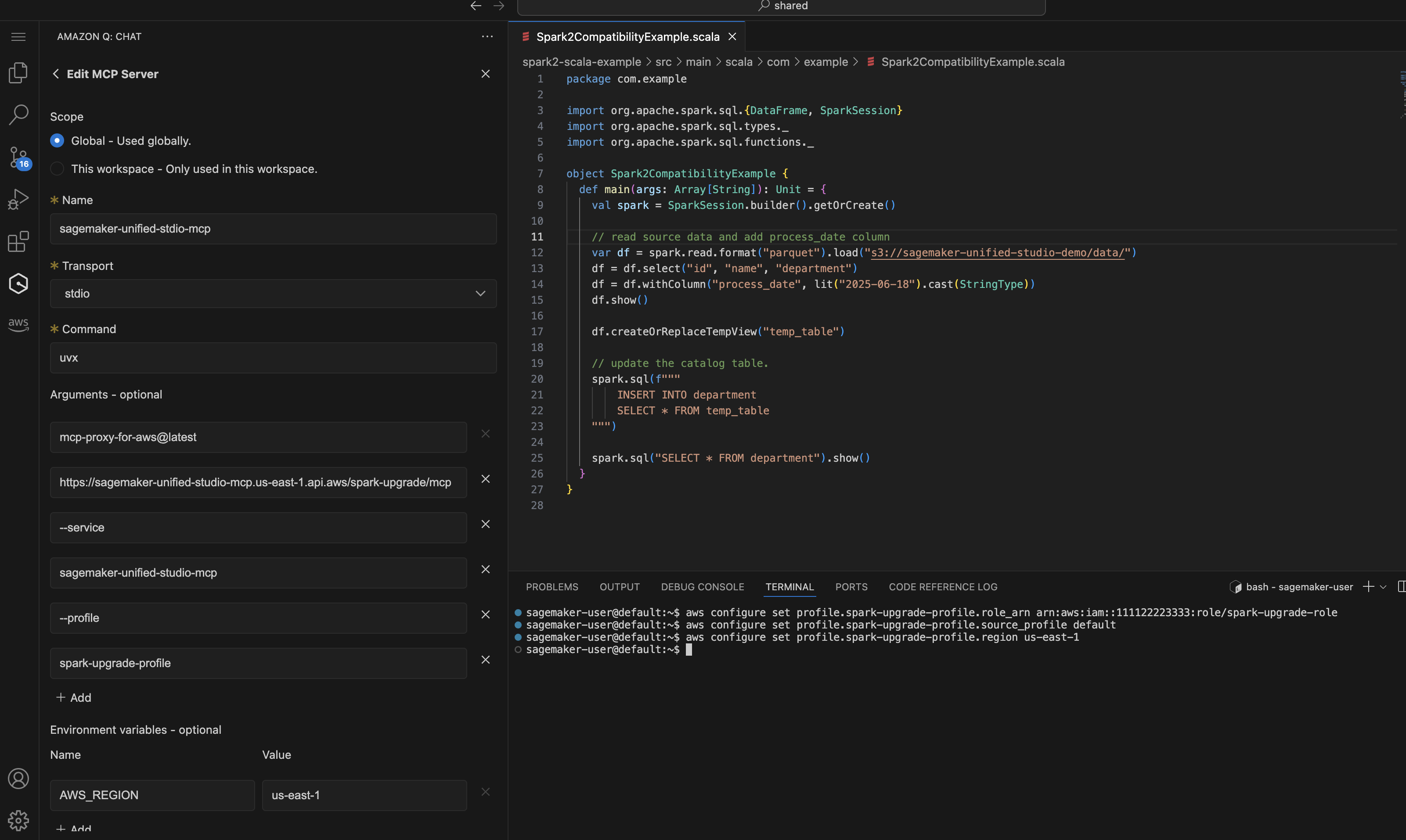
Demonstrasi EMR pada pengalaman peningkatan EC2 dengan editor kode SMUS VS. Dimulai dengan prompt sederhana untuk meminta Agen memulai proses Spark Upgrade.
Upgrade my Spark application <local-project-path> from EMR version 6.0.0 to 7.12.0.
Use EMR-EC2 Cluster <cluster-id> to run the validation and s3 paths
s3://<please fill in your staging bucket path> to store updated application artifacts.
Use spark-upgrade-profile for AWS CLI operations.
Integrasi Dengan Kiro CLI (QCLI)
Mulai Kiro CLI atau Asisten AI Anda dan verifikasi alat yang dimuat untuk agen peningkatan.
...
spark-upgrade (MCP):
- check_and_update_build_environment     * not trusted
- check_and_update_python_environment    * not trusted
- check_job_status                       * not trusted
- compile_and_build_project              * not trusted
...
Demonstrasi pengalaman peningkatan EMR Tanpa Server dengan Kiro CLI. Anda cukup memulai proses Upgrade dengan prompt berikut:
Upgrade my Spark application <local-project-path> from EMR version 6.0.0 to 7.12.0.
Use EMR-Serverless Applicaion <application-id> and execution role <your EMR Serverless job execution role> to run the validation and s3 paths
s3://<please fill in your staging bucket path> to store updated application artifacts.
Integrasi dengan IDE Lain
Konfigurasi juga dapat digunakan di IDE lain untuk terhubung ke server MCP Terkelola:
-
Integrasi Dengan Cline - Untuk menggunakan MCP Server dengan Cline, memodifikasi
cline_mcp_settings.jsondan menambahkan konfigurasi di atas. Konsultasikan dokumentasi Clineuntuk informasi selengkapnya tentang cara mengelola konfigurasi MCP. -
Integrasi Dengan Kode Claude Untuk menggunakan MCP Server dengan Claude Code, modifikasi file konfigurasi untuk menyertakan konfigurasi MCP. Jalur file bervariasi tergantung pada sistem operasi Anda. Lihat https://code.claude.com/docs/en/mcp
untuk pengaturan terperinci. -
Integrasi Dengan GitHub Copilot - Untuk menggunakan server MCP dengan GitHub Copilot, ikuti instruksi https://docs.github.com/en/copilot/how-tos/provide-context/use-mcp/extend-copilot-chat-with-mcp
untuk memodifikasi file konfigurasi yang sesuai dan ikuti instruksi per setiap IDE untuk mengaktifkan pengaturan.
Setup EMR Cluster atau EMR Aplikasi Tanpa Server untuk Versi Target
Buat cluster EMR atau aplikasi EMR Serverless dengan versi Spark yang diharapkan yang Anda rencanakan untuk digunakan untuk aplikasi yang ditingkatkan. Cluster atau EMR-S Aplikasi EMR target akan digunakan untuk mengirimkan pekerjaan validasi yang berjalan setelah artefak aplikasi Spark ditingkatkan untuk memverifikasi peningkatan yang berhasil atau memperbaiki kesalahan tambahan yang dihadapi selama validasi. Jika Anda sudah memiliki cluster EMR target atau aplikasi EMR Tanpa Server, Anda dapat merujuk ke yang sudah ada dan melewati langkah ini. Gunakan akun pengembang non-produksi dan pilih contoh kumpulan data tiruan yang mewakili data produksi Anda tetapi ukurannya lebih kecil untuk validasi dengan Peningkatan Spark. Silakan merujuk ke halaman ini untuk panduan membuat cluster EMR target atau aplikasi EMR Tanpa Server dari yang sudah ada:. Membuat target EMR Cluster/aplikasi EMR-S dari yang sudah ada
