Publishing as single sign-on (SSO) Application
Last Updated
January 2024
Authors
-
Veaceslav Mindru, Sr. Technical Account Manager, AWS
-
Stephanie Gooch, Sr. Commercial Architect, AWS OPTICS
-
Sumit Dhuwalia, Technical Account Manager, AWS
Introduction
Cloud Intelligence Dashboards (CID) help you visualize and understand AWS cost and usage data for your entire organization using Amazon Quick Sight. These dashboards can be used by different user personas within your organization such as Product owners, Finance, and FinOps, amongst others. To centrally manage user authentication/authorization and also provide a seamless user-experience via SSO, we recommend signing up for Quick Sight in your target Data Collection account using AWS IAM Identity Center as the authentication method.
Important
This guide requires configuring Quick Sight access through IAM Identity Center. Currently it is not possible to enable IAM Identity Center support for existing Quick Sight installation. For existing Quick Sight installations that do not have this option enabled please use the legacy guide
Prerequisites
For this solution, you must have the following:
-
AWS Organizations and IAM Identity Center enabled
-
For instructions on setting up IAM Identity Center, please follow the documentation here
-
-
Data Collection AWS account should be part of the same AWS Organizations as IAM Identity Center
Step 1: Create User Groups
The different user personas accessing CID may have different Quick Sight access requirements, with some needing reader vs others needing author access. You would also need to assign admins for your Quick Sight account.
Note: This step needs to be performed within the management account of your AWS Organizations or a delegated administrator account for IAM Identity Center within your AWS Organizations.
Create the following groups either within IAM Identity Center (if you’re managing identities here) or within your existing identity provider such as Okta, Azure Active Directory (Azure AD), or others that you may have configured with IAM Identity Center.
For instructions on how to add users and groups within IAM Identity Center based on your identity source, please follow the documentation here
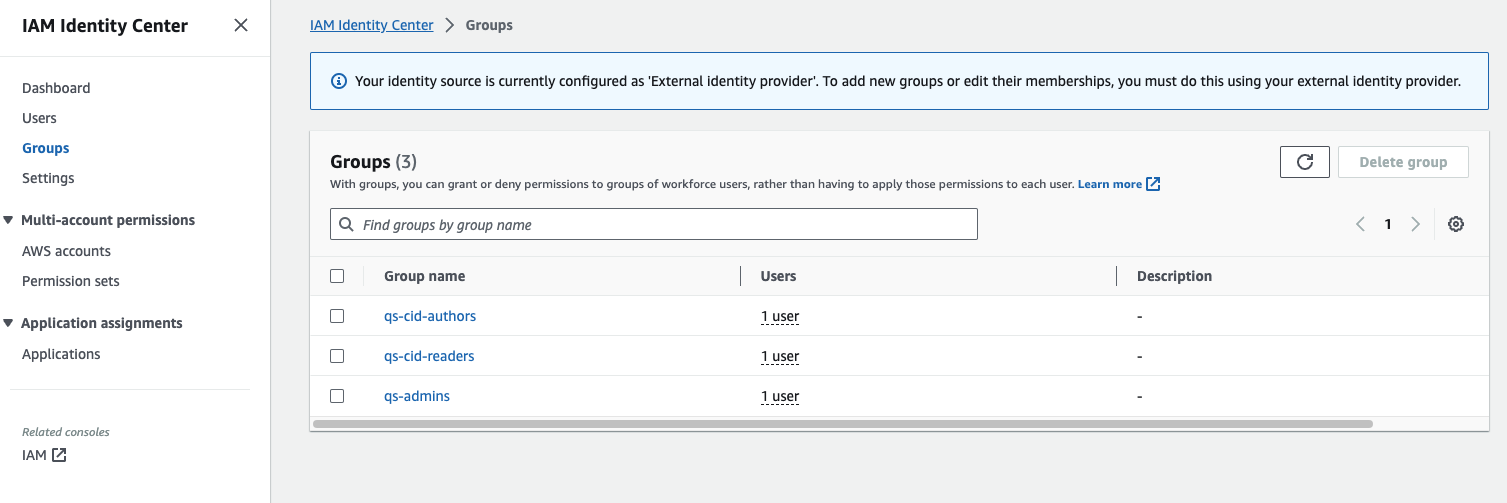
Create the following user groups and assign appropriate users to these groups:
-
qs-cid-readers: Users assigned to this group would have reader role within Quick Sight
-
qs-cid-authors: Users assigned to this group would have author role within Quick Sight
-
qs-admins: Users assigned to this group would have admin role within Quick Sight
Post this step, your IAM Identity Center should look similar to below:
Step 2: Sign-up for Quick Sight
Note: This step needs to be performed within the target Data Collection AWS account which should be part of the same AWS Organizations as IAM Identity Center.
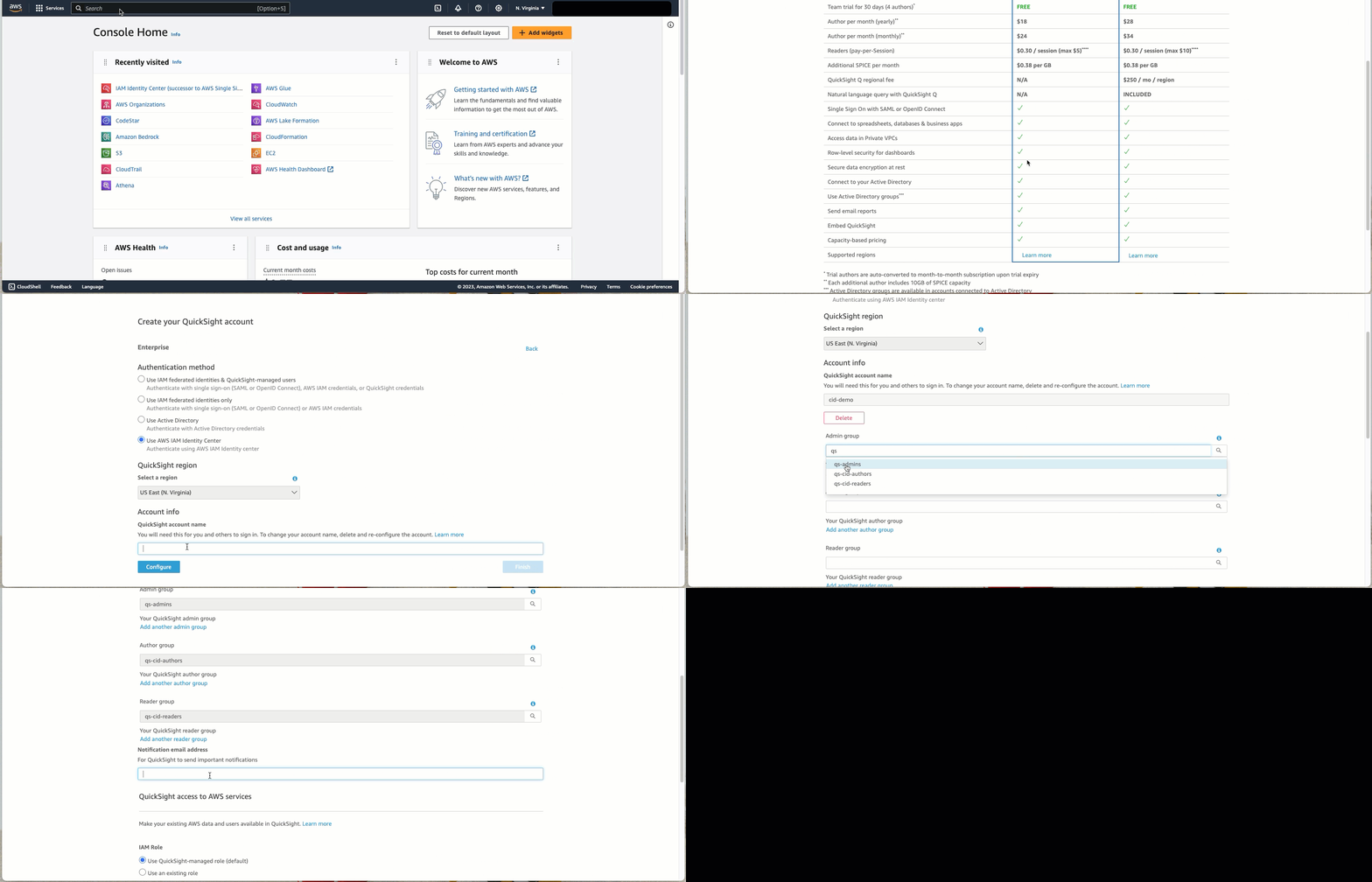
Please follow the gif below for an overview of the process and also note the following:
-
Quick Sight region should be the same region where your IAM Identity Center is configured
-
Quick Sight account name you choose should be unique (see here for details)
-
Search for and select the relevant user groups you created in Step 1 above
Step 3: Validate SSO flow
Method 1: From AWS IAM Identity Center Access portal
-
Go to your AWS access portal URL available within IAM Identity Center
-
Enter user credentials on your identity provider portal
-
Click on Quick Sight tile on the AWS access portal to sign into Quick Sight

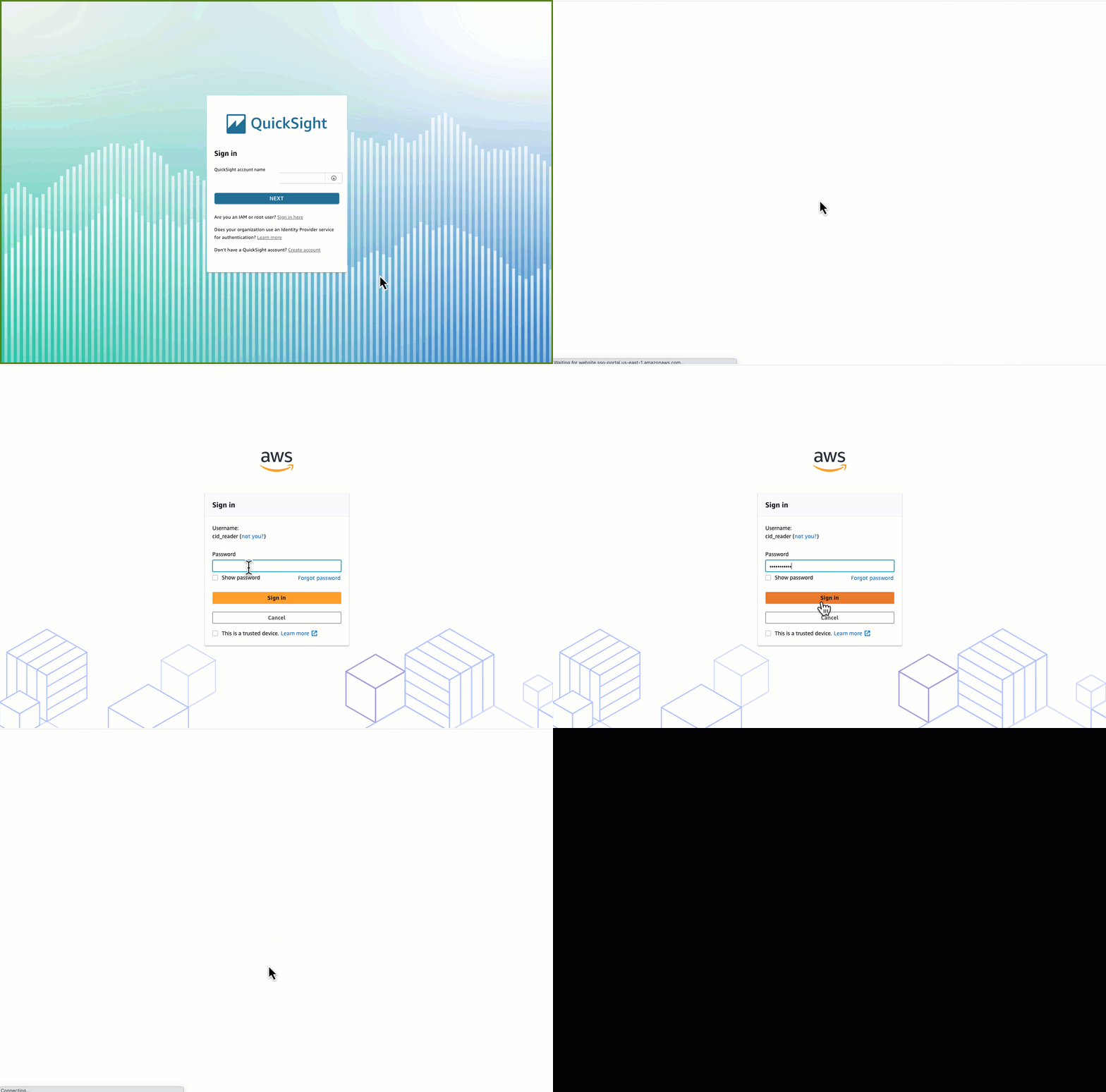
Method 2: From Quick Sight portal
-
Go to Quick Sight portal URL: https://quicksight.aws.amazon.com/
-
Enter your Quick Sight account name
-
Enter user credentials on your identity provider portal from where you would be redirected into Quick Sight
For a more in-depth walkthrough of setting up AWS IAM Identity Center,
please follow the blog
Simplify
business intelligence identity management with Amazon Quick Sight and AWS
IAM Identity Center
