Train an ML model
Time: 15 minutes
Prerequisites: As a member of a SageMaker Unified Studio project, your IAM role needs the following managed policies:
SageMakerStudioUserIAMConsolePolicy to sign in and access the project.
SageMakerStudioUserIAMDefaultExecutionPolicy to access data and resources within the project.
If you don't have access, contact your administrator. If you are the administrator who set up the project, you already have the required permissions. Completing "Analyze and visualize data" is helpful, but not required.
Outcome: You open a sample notebook, explore a customer churn dataset, train a classification model, and identify the key factors that predict churn.
What you will do
In this tutorial, you will:
Open a sample notebook in your project
Load and explore a customer churn dataset
Prepare features for model training
Train and compare two classification models
Identify the top factors that drive customer churn
Save the trained model for future use
Machine learning uses historical data to find patterns and make predictions. In this tutorial, you train a model to predict which telecom customers are likely to cancel their service (churn). SageMaker Unified Studio provides a notebook environment with popular ML libraries pre-installed, so you can start training models immediately without any setup.
Step 1: Open the sample notebook
Go to your project using the menu at the top of the page.
On the project overview page, find the Customer Churn Prediction sample notebook.
Choose the notebook to open it.
Choose Open in notebook.


The notebook contains pre-written code cells that walk through the complete ML workflow. You run each cell in order.
What is a sample notebook?
Sample notebooks are pre-built tutorials included in your project. They contain working code and explanations for common ML and data science tasks. You can run them as-is or modify them to use your own data.
Step 2: Set up and load the data
Run the first cell to import the required libraries. Choose the Run button (▶) in the top left corner of the cell:
import pandas as pd
import numpy as np
import matplotlib.pyplot as plt
import seaborn as sns
import boto3
import os
from sklearn.model_selection import train_test_split
from sklearn.preprocessing import StandardScaler, LabelEncoder
from sklearn.ensemble import RandomForestClassifier
from sklearn.linear_model import LogisticRegression
from sklearn.metrics import roc_auc_score
import warnings
np.random.seed(2)
warnings.filterwarnings('ignore')
In this cell, np.random.seed(2) sets a random seed so you get the
same results each time you run the notebook. The warnings.filterwarnings
line suppresses deprecation warnings for cleaner output.

Run the next cell to load the customer churn dataset:
How to know when a cell finishes running
When a cell completes, a check mark appears next to it along with the elapsed time. Wait for this before running the next cell.
session = boto3.Session()
aws_region = session.region_name or 'us-west-2'

s3 = boto3.client('s3')
os.makedirs('notebook_outputs', exist_ok=True)

s3.download_file(
    f'sagemaker-example-files-prod-{aws_region}',
    'datasets/tabular/synthetic/churn.txt',
    'notebook_outputs/churn.txt'
)

df = pd.read_csv('notebook_outputs/churn.txt')
print(f'Dataset: {df.shape[0]:,} customers with {df.shape[1]} data points each')
df.head()
Note
The sagemaker-example-files-prod bucket is an AWS-managed public
bucket that contains sample datasets. You do not need to create this bucket. The code
downloads the dataset from this bucket to your notebook's local storage.

The dataset contains telecom customers with attributes including call minutes, service calls, charges, and whether the customer churned.
Step 3: Explore the churn problem
Run the next cell to calculate the churn rate and visualize the problem:
total_customers = len(df)
churned_customers = len(df[df['Churn?'] == 'True.'])
churn_rate = churned_customers / total_customers

print(f'Total Customers: {total_customers:,}')
print(f'Customers Lost: {churned_customers:,}')
print(f'Churn Rate: {churn_rate:.1%}')

fig, axes = plt.subplots(1, 2, figsize=(15, 6))

churn_counts = df['Churn?'].value_counts()
colors = ['#2ecc71', '#e74c3c']
axes[0].pie(churn_counts.values, labels=['Retained', 'Churned'],
           autopct='%1.1f%%', colors=colors, startangle=90,
           explode=(0, 0.1))
axes[0].set_title('Customer Retention vs Churn')

plt.tight_layout()
plt.show()

The visualization shows the split between retained and churned customers. Understanding this distribution helps you choose the right approach for training your model.
Why explore before training?
Understanding your data before building a model helps you choose the right approach. For example, if the classes are heavily imbalanced (far more retained than churned customers), that affects how you evaluate model performance.
Step 4: Prepare features and train models
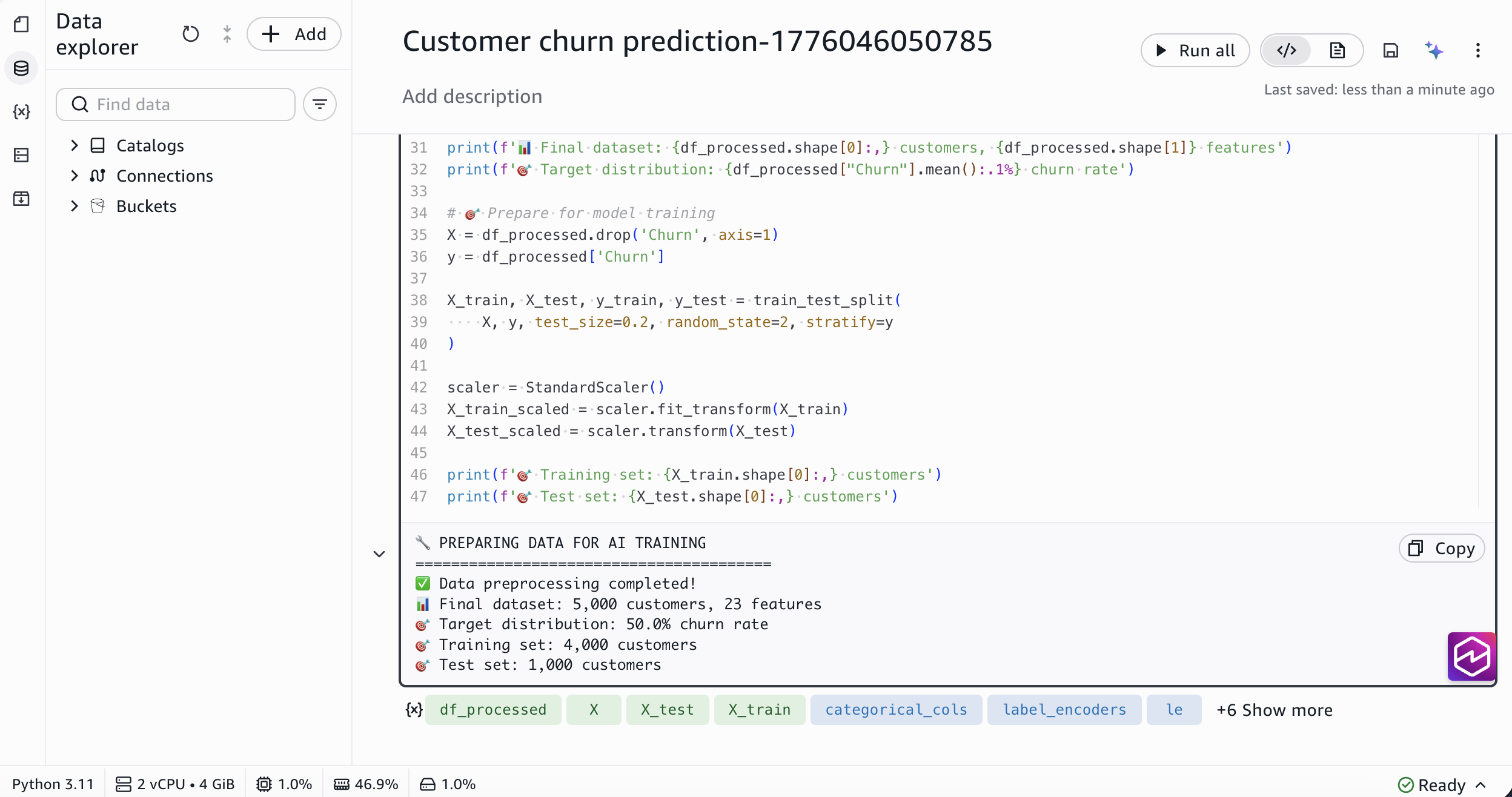
Before training, you need to convert the data into a format that ML algorithms can process. The following code encodes text columns as numbers, creates new features, and splits the data into training and test sets. Run the next cell:
df_processed = df.copy()
df_processed['Churn'] = (df_processed['Churn?'] == 'True.').astype(int)
df_processed.drop('Churn?', axis=1, inplace=True)
df_processed.drop('Phone', axis=1, inplace=True)

categorical_cols = ['State', "Int'l Plan", 'VMail Plan']
label_encoders = {}
for col in categorical_cols:
    le = LabelEncoder()
    df_processed[col] = le.fit_transform(df_processed[col])
    label_encoders[col] = le

df_processed['Total_Charge'] = (df_processed['Day Charge'] +
                               df_processed['Eve Charge'] +
                               df_processed['Night Charge'] +
                               df_processed['Intl Charge'])

df_processed['High_Service_Calls'] = (df_processed['CustServ Calls'] >= 4).astype(int)

X = df_processed.drop('Churn', axis=1)
y = df_processed['Churn']

X_train, X_test, y_train, y_test = train_test_split(
    X, y, test_size=0.2, random_state=2, stratify=y
)

scaler = StandardScaler()
X_train_scaled = scaler.fit_transform(X_train)
X_test_scaled = scaler.transform(X_test)

print(f'Training samples: {X_train.shape[0]:,}')
print(f'Test samples: {X_test.shape[0]:,}')
Now train two different classification models and compare their performance. Run the next cell:
models = {
    'Random Forest': RandomForestClassifier(n_estimators=100, random_state=2),
    'Logistic Regression': LogisticRegression(random_state=2, max_iter=1000)
}

model_results = {}

for name, model in models.items():
    print(f'Training {name}...')

    if 'Logistic' in name:
        model.fit(X_train_scaled, y_train)
        y_pred = model.predict(X_test_scaled)
        y_pred_proba = model.predict_proba(X_test_scaled)[:, 1]
    else:
        model.fit(X_train, y_train)
        y_pred = model.predict(X_test)
        y_pred_proba = model.predict_proba(X_test)[:, 1]

    auc_score = roc_auc_score(y_test, y_pred_proba)

    model_results[name] = {
        'model': model,
        'predictions': y_pred,
        'probabilities': y_pred_proba,
        'auc_score': auc_score
    }

    print(f'  AUC Score: {auc_score:.4f}')
    print(f'  Accuracy: {(y_pred == y_test).mean():.1%}')

best_model_name = max(model_results.keys(),
                      key=lambda k: model_results[k]['auc_score'])
print(f'\nBest model: {best_model_name}')
print(f'AUC Score: {model_results[best_model_name]["auc_score"]:.4f}')

What are these models?
A Random Forest builds many decision trees and combines their predictions. A Logistic Regression finds a mathematical boundary between the two classes. AUC (Area Under the Curve) measures how well the model distinguishes between churners and non-churners, where 1.0 is perfect and 0.5 is random guessing.
Step 5: Understand what drives churn
The model can tell you which customer attributes are the strongest predictors of churn. Run the next cell to see the top churn drivers:
rf_model = model_results['Random Forest']['model']
feature_importance = pd.DataFrame({
    'feature': X.columns,
    'importance': rf_model.feature_importances_
}).sort_values('importance', ascending=False)

print('Top 5 churn drivers:')
for i, (_, row) in enumerate(feature_importance.head(5).iterrows(), 1):
    print(f'  {i}. {row["feature"]} (Impact: {row["importance"]:.1%})')

Feature importance reveals which factors have the biggest impact on churn predictions. These insights help the business focus retention efforts on the areas that matter most.
Use the Data Agent for deeper analysis
You don't need ML expertise to interpret these results. The Data Agent can help you understand feature importance, suggest next steps, and generate code for additional analysis. Open the Data Agent from the top navigation bar and ask questions like "Why is night charge the top predictor of churn?" or "Write code to plot feature importance as a bar chart."
Step 6: Save the model
Run the final cell to save the trained model and its supporting artifacts. You can use these artifacts to load the model later for batch predictions, deploy it to a real-time SageMaker endpoint, or share it with your team through the model registry.
import joblib

best_model = model_results[best_model_name]['model']
joblib.dump(best_model, 'notebook_outputs/churn_prediction_model.pkl')
joblib.dump(scaler, 'notebook_outputs/feature_scaler.pkl')
joblib.dump(label_encoders, 'notebook_outputs/label_encoders.pkl')

print('Model artifacts saved:')
print('  churn_prediction_model.pkl - Trained ML model')
print('  feature_scaler.pkl - Data preprocessing scaler')
print('  label_encoders.pkl - Categorical encoders')

To reuse this model later, load the saved .pkl files using
joblib.load() and call model.predict() on your data. For
production use cases like real-time predictions or sharing the model with your team,
see the What's next section below.
What's next
You trained a model using a sample notebook. Here are ways to go further:
Track experiments with MLflow: Log your model parameters, metrics, and artifacts so you can compare runs and reproduce results. To set up MLflow for your project, see Track experiments using MLflow.
Deploy the model: Serve your trained model as a real-time endpoint for predictions. To learn about model deployment, see Machine learning.
Use your own data: Use similar techniques to load data from your lakehouse tables instead of the sample dataset. The Data Agent is already aware of the tables available in your catalog and can help you build and train your models.
What you learned
In this tutorial, you:
Opened a sample notebook and loaded a customer churn dataset
Explored the data and visualized the churn problem
Prepared features and split data into training and test sets
Trained and compared two classification models
Identified the top factors that drive customer churn
Saved the trained model for future use
