Las traducciones son generadas a través de traducción automática. En caso de conflicto entre la traducción y la version original de inglés, prevalecerá la version en inglés.
Transformación de aplicaciones de mainframe
AWS Transform acelera la transformación de sus aplicaciones de modernización de mainframe. En este tema se describen las capacidades disponibles.
Temas
Requisito previo: preparar las entradas del proyecto en S3
AWS Transform es capaz de gestionar bases de código de mainframe complejas. Para usar la base de código, asegúrese de tener todos los activos en su ubicación de S3.
Insumos clave del proyecto:
-
Código fuente: debe cargar los archivos de código fuente de su mainframe a S3. Esto incluye los programas COBOL, los scripts de JCL, los cuadernos y cualquier otro archivo fuente relevante.
-
Archivos de datos: si tiene archivos VSAM u otros archivos de datos que utilicen sus aplicaciones de mainframe, debe cargarlos en S3.
-
Archivos de configuración: incluya los archivos de configuración específicos de su entorno de mainframe.
Otras entradas del proyecto
Registros del Sistema de Administración del Sistema (SMF): si corresponde, cargue los registros SMF en una nueva carpeta del bucket S3 donde se almacena el código fuente; estos registros deben estar en formato de archivo.zip.
Formato: para la generación de documentación técnica, puede utilizar un archivo de configuración opcional para generar documentos PDF que se ajusten a los formatos y estándares requeridos, incluidos encabezados, pies de página, logotipos e información personalizada.
Glosario: AWS Transform AWS Transform aprovecha la automatización con la IA generativa para la generación de documentos y la extracción de reglas de negocio. Incluir un archivo CSV de glosario con información sobre abreviaturas y terminologías importantes en el directorio raíz del archivo zip ayudará a mejorar la calidad de la documentación generada.
Datos de prueba: si están disponibles, cargue conjuntos de datos de prueba que puedan usarse para validar la aplicación modernizada. Estos datos deben almacenarse en una nueva carpeta en el depósito de S3 donde se almacena el código fuente.
Los detalles sobre las entradas del proyecto se pueden encontrar aquí.
Sign-in y crear un trabajo
Para iniciar sesión en la experiencia web de AWS Transform, siga todas las instrucciones de la Introducción al AWS Transformar sección de la documentación.
Para crear e iniciar un trabajo: siga los pasos que se indican en Comience su proyecto.
Crear espacio de trabajo: nombre y describa el espacio de trabajo en el que se almacenarán los trabajos, los colaboradores y los artefactos asociados.
Crear trabajo: cree un trabajo seleccionando uno de los planes de trabajo preconfigurados, o personalice el plan de trabajo en función de su objetivo seleccionándolo de la lista de capacidades compatibles.
importante
AWS Transform rechazará tus operaciones si no tienes los permisos adecuados. Por ejemplo, un colaborador no puede cancelar una tarea de transformación de aplicaciones de mainframe ni eliminar una tarea. Solo un administrador puede realizar estas funciones.
Al crear un trabajo, puede seleccionar una de las capacidades que se indican a continuación, pero el paso inicial siempre es obligatorio, ya que es donde se encuentra el código fuente del proyecto. En el primer trabajo que se configure en un espacio de trabajo, tendrá que configurar un conector para su bucket de Amazon S3.
Seguimiento del progreso de la transformación
Puede realizar un seguimiento del progreso de la transformación a lo largo del proceso de dos maneras:
-
Registro de trabajo: proporciona un registro detallado de las acciones que lleva a cabo AWS Transform, junto con las solicitudes de participación humana y sus respuestas a esas solicitudes.
-
Panel de control: proporciona un resumen de alto nivel de la transformación de las aplicaciones de mainframe. Muestra métricas sobre el número de trabajos transformados, la transformación aplicada y el tiempo estimado para completar la transformación de las aplicaciones de mainframe. También puede ver los detalles de cada paso, incluidas las líneas de código por tipo de archivo, la documentación generada por cada tipo de archivo, el código descompuesto y el plan de migración.
Configure un conector
AWS Transform utiliza un conector para acceder a los recursos de su cuenta necesarios para las funciones de modernización del mainframe. El conector se configura automáticamente con la primera tarea que se ejecuta en el espacio de trabajo. Según el plan de trabajo que elija, AWS Transform le guiará para crear su conector.
Reimagine el conector para mainframe
El conector para reimaginar el mainframe es para tareas que ejecutan flujos de trabajo de evaluación y reinvención. Utiliza un bucket de S3 para acceder a los recursos de transformación y almacenarlos, así como un clúster de Amazon Neptune para almacenar los artefactos extraídos. El clúster de Neptune sirve como gráfico de conocimiento unificado que almacena todos los artefactos extraídos sobre su trabajo, y el gráfico de conocimiento responde a todas las preguntas de la interfaz de chat de AWS Transform.
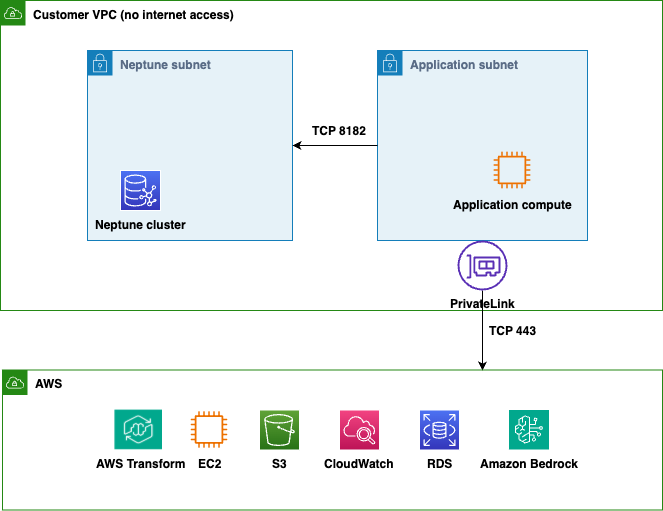
Implemente el clúster de Amazon Neptune en una VPC donde AWS Transform pueda crear interfaces de red elásticas (ENI). Estas son las conexiones de red que permiten a AWS Transform comunicarse de forma segura con Neptune en su VPC para cargar datos y consultar su gráfico de conocimiento.
AWS CloudFormation
Le recomendamos que utilice la siguiente CloudFormation plantilla para crear los recursos necesarios para el conector reimagine de su mainframe. Use el mismo depósito de S3 que planea usar para el conector al ejecutar la CloudFormation plantilla. Para obtener más información sobre el uso de CloudFormation plantillas, consulte Trabajar con plantillas.
Para descargar la CloudFormation plantilla, selecciona neptune-kg-setup.yaml
La plantilla acepta los siguientes parámetros:
BucketName: obligatorio. Nombre del bucket S3 para el acceso al cargador masivo Neptune. Debe usar el mismo depósito de S3 que planea usar en su conector AWS Transform.
KmsKeyId: opcional. Clave KMS para el cifrado de Neptune. Acepta el identificador de clave, el ARN, el nombre de alias o el ARN del alias. Si se omite, toma como valor predeterminado la clave AWS administrada.
Proporcione los siguientes detalles al configurar el conector:
ARN del bucket de S3
Cúmulo de Neptune ARN
ID de recurso del clúster de Neptune
ID de subred de la aplicación
ID del grupo de seguridad de la aplicación
Rol de cargador masivo Neptune S3 (ARN)
importante
La pestaña Salidas de la CloudFormation plantilla incluye los detalles que debe proporcionar a AWS Transform al configurar el conector.
Configuración personalizada
Si prefiere usar una VPC existente u otras herramientas para crear la infraestructura requerida, su entorno debe cumplir los siguientes requisitos:
Cúmulo de Neptuno
-
Amazon Neptune Serverless con motor versión 1.4.5.1 o posterior
Autenticación de IAM habilitada
Encriptación de almacenamiento habilitada (clave AWS administrada o clave KMS administrada por el cliente)
Configuración de escalado sin servidor con un rango recomendado de 1 a 32 unidades de capacidad de Neptune (NCUs)
(Recomendado) Lea la réplica en una segunda zona de disponibilidad para obtener una alta disponibilidad y un rendimiento de lectura mejorado
Red
Una VPC con compatibilidad con DNS y nombres de host DNS habilitados
Al menos dos subredes en zonas de disponibilidad independientes. AWS Transform crea ENI en estas subredes para acceder a Neptune. El clúster de Neptune puede residir en las mismas subredes o en subredes dedicadas. Ajuste el tamaño de las subredes a /20 para adaptarse a los ENI de aplicaciones y endpoints de la VPC.
Un punto final de puerta de enlace S3 conectado a las tablas de enrutamiento asociadas a las subredes. AWS Transform usa este punto final para cargar datos del depósito S3 al clúster de Neptune.
Grupos de seguridad
Los grupos de seguridad están conectados a los ENI, no a las subredes. Incluso cuando AWS Transform ENI y Neptune residen en la misma subred, grupos de seguridad independientes controlan el acceso entre ellos.
-
Un grupo de seguridad (adjunto a los ENI creados por AWS Transform) que permite:
TCP 8182 saliente al grupo de seguridad de Neptune
-
Un grupo de seguridad (adjunto al clúster de Neptune) que permite:
TCP 8182 entrante desde el grupo de seguridad de la aplicación
IAM
Un rol de IAM con una política de confianza para
rds.amazonaws.com.rproxy.govskope.caellos3:GetObjects3:ListBucket, ys3:GetBucketLocationen su bucket de S3Esta función debe estar asociada al cúmulo de Neptuno para cargar datos de gráficos de conocimiento de forma masiva.
El siguiente diagrama muestra la arquitectura recomendada.
Conector S3
Para los trabajos con un plan personalizado, AWS Transform puede usar un conector S3. El conector S3 utiliza un depósito S3 para acceder a los recursos de transformación y almacenarlos, y un depósito vectorial S3 para la salida indexada.
importante
Los datos se almacenan y se conservan en el almacén de artefactos AWS Transform de su espacio de trabajo y solo se utilizan para ejecutar el trabajo.
Configuración opcional del depósito vectorial de S3.
En las regiones en las que estén disponibles los cubos vectoriales de S3, AWS Transform almacenará las codificaciones vectoriales de los resultados de los trabajos que se puedan buscar en este grupo vectorial de S3 de su cuenta para ofrecer una experiencia de búsqueda y chat basada en la IA. Los datos no se utilizan fuera de este trabajo ni se utilizan para entrenar modelos. Para habilitar esto, debe crear y proporcionar un bucket vectorial S3. AWS Transform crea y adjunta automáticamente un rol con los permisos necesarios para escribir en este bucket.
Permisos CORS del bucket S3
Una vez configurado el conector, añada la siguiente política CORS a su bucket de S3 para poder ver y comparar los artefactos directamente en la consola AWS Transform. Si esta política no está configurada correctamente, es posible que no pueda utilizar las funcionalidades de visualización integrada o comparación de archivos de AWS Transform.
[
    {
        "AllowedHeaders": [],
        "AllowedMethods": [
            "GET"
        ],
        "AllowedOrigins": [
              "https://*.transform.eu-central-1.on.aws",
              "https://*.transform.ap-south-1.on.aws",
              "https://*.transform.ap-northeast-1.on.aws",
              "https://*.transform.ap-northeast-2.on.aws",
              "https://*.transform.ap-southeast-2.on.aws",
              "https://*.transform.ca-central-1.on.aws",
              "https://*.transform.eu-west-2.on.aws",
              "https://*.transform.us-east-1.on.aws",
              "https://*.transform.sa-east-1.on.aws"
        ],
        "ExposeHeaders": [],
        "MaxAgeSeconds": 0
    }
]
Evalúe y reimagine el plan de trabajo
El plan de trabajo de evaluación y reinvención es un flujo de trabajo predefinido para modernizar las aplicaciones de mainframe. Lo guía a través de dos fases: evaluar su base de código para identificar las funciones empresariales y reimaginar las funciones que seleccione. En su lugar, para elegir capacidades individuales, utilice el plan de trabajo personalizado.
Evaluación
Los procesos de modernización de los mainframes suelen comenzar con la evaluación del código base para identificar el contenido y comprender las relaciones y dependencias. Tras esta evaluación, puede empezar a descomponer y seleccionar partes del código fuente para modernizarlas. Los límites de la descomposición se determinan en función de las funciones empresariales.
El catálogo de funciones empresariales descompone la base de código en funciones empresariales discretas, que se basan en rutas de datos deterministas que mapean cada función empresarial de principio a fin. Una ruta de datos es la ruta que siguen los datos, desde un desencadenante empresarial hasta la escritura final en el código del mainframe. En lugar de limitar el análisis a un único punto de entrada, el sistema abarca los trabajos por lotes, las transacciones CICS y sus almacenes de datos compartidos para identificar unidades coherentes de trabajo empresarial.
Una función empresarial es un conjunto de tareas que comienza con un desencadenante empresarial y termina con un resultado empresarial mensurable. AWS Transform proporciona un catálogo de funciones empresariales sobre las que puede actuar una línea de negocio, lo que permite tomar decisiones informadas sobre qué modernizar primero.
Ventajas de evaluar su base de código para modernizarla mediante funciones empresariales:
Full-estate visibilidad: comprenda cómo sus trabajos por lotes, las transacciones en línea y los almacenes de datos se conectan para crear funciones importantes para su empresa.
Límites aplicables: cada función empresarial identificada es una unidad autónoma que las partes interesadas de su línea de negocio pueden revisar y priorizar para las iniciativas de modernización.
Coherencia entre el código y la especificación: para generar sus especificaciones se utilizan los mismos bloques de código que definen una función empresarial, sin necesidad de una capa de traducción ni de conciliación.
Reducción del tiempo de descubrimiento: la detección automatizada reemplaza meses de entrevistas manuales con conocimientos tribales por análisis sistemáticos y repetibles.
Los resultados de la evaluación se proporcionan a través del chat
Los resultados de la evaluación proporcionados a través del chat incluyen una lista de funciones empresariales, incluida la cantidad de rutas de datos, el alcance de cada función en términos de transacciones por lotes y CICS, y una descripción de la empresa. Se le proporciona un enlace a los artefactos generados en el bucket de Amazon S3 y también puede acceder a ellos a través del chat. Se proporcionan dos artefactos: los detalles de la función empresarial y el resumen de la función empresarial.
Resumen de las funciones empresariales: proporciona una lista de las funciones empresariales y una descripción en lenguaje natural de las funciones que desempeñan los elementos del código.
Detalles de las funciones empresariales: proporciona un gráfico interactivo que describe las relaciones entre el código fuente.
Para interactuar con el gráfico, seleccione un elemento para mostrar detalles adicionales sobre él o abra un elemento para consultar sus detalles. En cada página, hay un resumen de todos los elementos de ese nivel y una interfaz gráfica con la que interactuar y obtener más información sobre cada componente, que incluye lo siguiente:
-
Función empresarial: describe qué funciones empresariales están conectadas entre sí y proporciona una visión general de cada función empresarial. Al seleccionar una función empresarial, se proporciona la siguiente información:
Número de rutas de datos
Número de líneas de código
Descripción de la empresa: descripción general de la función empresarial que describe, en lenguaje natural, las funciones que desempeñan los elementos del código.
Interfaces: detalla cómo se relacionan los elementos de datos de la función empresarial (por ejemplo, intercambiar o escribir).
-
Detalles de la función empresarial: describe las conexiones entre las rutas de datos dentro de una sola función empresarial, lo que le permite profundizar en la composición de la función empresarial. Al seleccionar un elemento, verá cómo ese elemento se conecta con la función empresarial, junto con los siguientes detalles:
Almacén de datos: redactores y lectores del almacén de datos.
Otros elementos: una descripción general de la ruta de datos relacionada que describe, en lenguaje natural, las acciones y los resultados gestionados dentro de la ruta de datos, una lista de programas y lectores y redactores.
-
Rutas de datos: describe los detalles de una ruta de datos y cómo se relacionan entre sí los elementos de la ruta de datos.
Descripción: una descripción general de la ruta de datos que describe, en lenguaje natural, las acciones y los resultados gestionados dentro de la ruta de datos.
-
Contenido de la ruta de datos:
Punto de entrada
Lecturas
Escrituras
Programas
A través del chat, puede consultar los resultados para comprender los elementos que contiene cada función empresarial y explorar los límites a través del gráfico de funciones empresariales.
Una vez que haya identificado los límites de su modernización, el chat le pedirá que seleccione las funciones empresariales que desea reimaginar. Puede seleccionar una sola función empresarial o varias funciones empresariales. AWS Transform envía los límites seleccionados y los resultados de evaluación necesarios al flujo de rediseño para continuar con el proceso de modernización.
Después de completar su primera modernización, puede usar el chat para seleccionar un conjunto adicional de funciones empresariales para modernizarlas.
Reimagine
En la fase de rediseño, puede seleccionar una o todas las funciones empresariales que la evaluación identificó y prepararlas para la modernización. Esto desencadena la extracción de la lógica empresarial, seguida de la generación de requisitos para las funciones empresariales seleccionadas. Los requisitos generados son la base principal de la ingeniería avanzada, ya que traducen la comprensión de los sistemas heredados en una especificación precisa de lo que debe ofrecer la aplicación modernizada.
Extraiga la lógica empresarial
Tras seleccionar una o más funciones empresariales, AWS Transform comienza a generar la lógica empresarial para las funciones empresariales seleccionadas. Una vez finalizada la extracción, AWS Transform almacena los resultados en un bucket de Amazon S3 en formato JSON para su uso posterior. Puede supervisar el progreso de la extracción y revisar cualquier problema directamente en la consola de AWS Transform.
Para revisar los resultados de la extracción de la lógica empresarial
-
En el panel de navegación izquierdo, elija el paso Extraer la lógica empresarial para ampliarlo.
-
Vea lo siguiente en los detalles del paso:
Enlace al bucket de S3: la ubicación donde se almacenan los resultados de la lógica empresarial extraídos en formato JSON.
Problemas: una lista de los problemas encontrados durante el proceso de extracción de la lógica empresarial.
Si algún archivo tuvo problemas durante la extracción, se muestran los siguientes detalles de cada archivo afectado:
Nombre de archivo: el nombre del archivo que ha detectado un problema.
Tipo de archivo: el tipo de archivo (por ejemplo, COBOL o JCL).
Ruta del archivo: la ubicación del archivo en la aplicación.
Estado: el estado actual de la extracción del archivo.
Detalles: descripción del problema detectado.
nota
Una vez finalizado el paso de extracción, AWS Transform comienza a generar requisitos automáticamente. No se le solicitará ninguna entrada adicional antes de que comience este proceso.
Genere requisitos
Una vez finalizada la extracción de la lógica empresarial, el agente de generación de requisitos consume los artefactos extraídos (análisis de código, análisis de datos, reglas empresariales) y genera los requisitos de modernización. Estos requisitos son especificaciones funcionales formales que son independientes de la tecnología e incluyen criterios de aceptación comprobables. AWS Transform produce un requirements.md archivo para cada función empresarial que seleccione y almacena el resultado en un bucket de Amazon S3. Para ver la ubicación de Amazon S3 de la salida, elija el paso Generar requisitos.
Cada requirements.md archivo está organizado en las siguientes partes:
-
Título: nombra la función empresarial y el flujo de trabajo que representa.
-
Condiciones previas globales: condiciones que deben mantenerse vigentes en todo el flujo de trabajo antes y durante el procesamiento. Los valores configurables aparecen como marcadores de posición de los parámetros.
-
Secciones de flujo de trabajo numeradas: cada sección representa una etapa discreta de la función empresarial. Cada sección contiene lo siguiente:
Una historia de usuario que establece el objetivo como rol, la acción que ese rol quiere realizar y el resultado resultante.
Una lista de requisitos en formato EARS (Easy Approach to Requirements Syntax), cada uno con un identificador único.
nota
Al seleccionar un segundo conjunto de funciones empresariales, se reinicia el paso de rediseño de las funciones recién seleccionadas. A continuación, la consola solo muestra los resultados de la nueva selección, por lo que ya no se muestran los problemas con las reglas empresariales de sus funciones empresariales anteriores ni los enlaces de Amazon S3 que almacenan los resultados para la lógica empresarial y los requisitos. Los resultados anteriores no se pierden. Puedes seguir accediendo a ellos desde la pestaña Artefactos o en tu bucket de Amazon S3.
Trazabilidad entre los artefactos de transformación
AWS Transform mantiene la trazabilidad entre los artefactos que genera a lo largo del flujo de trabajo de evaluación y reinvención. La trazabilidad le permite rastrear cada requisito hasta las reglas empresariales extraídas o directamente hasta el código fuente original que generó el requisito.
Puede ver todos los detalles de trazabilidad de cada función empresarial mediante el traceability.yaml archivo. Describe cómo se asigna cada regla empresarial a un requisito.
Para una trazabilidad interactiva, puede utilizar el complemento IDE en los editores compatibles con VS Code y Open VSX. Para obtener más información, consulte Herramientas para desarrolladores.
Reimagine el plan de trabajo
En el caso de las aplicaciones que tenga previsto modernizar y que estén listas para reinventarse, puede ejecutar un trabajo de rediseño independiente. El trabajo analiza el código y los datos, extrae la lógica empresarial, identifica los dominios empresariales y genera los requisitos de modernización para cada dominio empresarial.
Plan de trabajo personalizado
Un plan de trabajo personalizado le permite crear su propio flujo de trabajo de modernización seleccionando las capacidades que desea ejecutar. Le brinda un control total sobre las capacidades que se incluyen. Elija entre las siguientes capacidades en función de su objetivo de modernización. Algunas capacidades dependen de que otras se ejecuten primero. Por ejemplo, el análisis de código es necesario para la mayoría de las demás capacidades.
Analice el código
Después de compartir la ruta del bucket de Amazon S3 con AWS Transform, esta analizará el código de cada archivo con detalles como el nombre del archivo, el tipo de archivo, las líneas de código y sus rutas.
nota
Puede descargar los resultados del código de análisis a través de la pestaña de artefactos a nivel de trabajo o espacio de trabajo. A nivel de trabajo, vaya a la opción «Artefactos» en el menú de navegación de la izquierda y abra la carpeta de «resultados», o a nivel de espacio de trabajo, busque el nombre del trabajo y abra la carpeta de «resultados». Se descargará un archivo zip que contiene el archivo de clasificación para el flujo de trabajo de clasificación manual, la lista de activos, el archivo JSON de dependencias y la lista de archivos faltantes.
En el plan de trabajo, selecciona Analizar código en el panel de navegación izquierdo para ver los resultados. Puede ver los resultados del análisis de código de varias maneras:
-
Vista de lista: todos los archivos del bucket de Amazon S3 que desea transformar para un mainframe
-
Vista de tipo de archivo: se muestran todos los archivos del bucket de Amazon S3 por tipo de archivo. Para ver una lista de los tipos de archivos compatibles, consulte Archivos compatibles.
-
Vista de carpetas: todos los archivos del bucket de Amazon S3 se muestran en la estructura de carpetas.
En los resultados de los archivos, AWS Transform proporciona la siguiente información en función de la vista de archivos que elija:
-
Name
-
Tipo de archivo
-
Total de líneas de código
-
Ruta de archivo
-
Líneas de comentarios
-
Líneas vacías
-
Líneas de código efectivas
-
Cantidad de archivos
-
Complejidad ciclomática: la complejidad ciclomática representa el número de rutas linealmente independientes que atraviesan el código fuente de un programa. AWS La transformación mostrará una complejidad ciclomática para cada uno de los archivos.
Archivos faltantes: faltan archivos en el análisis del código de modernización del mainframe. Lo ideal sería añadir estos archivos como parte de la entrada de origen en el bucket de Amazon S3 y volver a ejecutar el paso de análisis para obtener resultados mejores y coherentes.
Nombre idéntico: AWS Transform le proporciona una lista de archivos que comparten el mismo nombre y, posiblemente, las mismas características (por ejemplo, el número de líneas de código). No podrá comparar la diferencia entre el contenido de dos archivos a la vez.
Identificadores duplicados: con el programa Cobol, el campo ID del programa sirve como identificador único del archivo. Este identificador debe ser único porque se utiliza para llamar al programa en todo el proyecto. Sin embargo, algunos proyectos pueden tener archivos COBOL con nombres diferentes pero con el mismo ID de programa. Obtener la lista de esos archivos durante la evaluación puede ayudar a comprender las dependencias entre todos los programas.
nota
Esto es específico del código y los archivos de COBOL.
Si tiene programas con ID duplicados, se sugiere cambiar los ID de programa de estos archivos para que tengan un identificador único para cada uno de ellos en el código COBOL. A continuación, puede volver a ejecutar su trabajo para obtener resultados de análisis de código más precisos y completos.
Al resolver los ID de programa duplicados, puede:
-
Mejorar la claridad y la facilidad de mantenimiento del código
-
Reduzca los posibles conflictos en las llamadas al programa
-
Mejore la precisión del mapeo de dependencias
-
Simplifique los esfuerzos de modernización del futuro
Problemas con la base de código: posibles problemas detectados en la base de código que debe resolver antes de continuar con el proyecto de modernización. Estos problemas podrían incluir la falta de referencias con las declaraciones asociadas o los enlaces no compatibles en el código.
Actualizar la clasificación: con la reclasificación manual, puedes reclasificar los archivos mediante la función de actualización masiva cargando el archivo JSON con la nueva clasificación.
importante
Esto solo está disponible para los archivos y. UNKNOWN TXT
Tras la reclasificación, AWS Transform hará lo siguiente:
-
Actualiza los resultados de la clasificación
-
Re-runs análisis de dependencias con los nuevos tipos de archivos
-
Actualiza todos los resultados de los análisis afectados
nota
Puede reclasificar los archivos solo después de que se complete el ciclo de análisis inicial.
Visor integrado y comparación de archivos
El visor en línea es una función de las funciones de AWS Transform for mainframe que proporciona dos funciones de visualización clave:
-
Vista de archivos: vea el contenido de los archivos heredados seleccionados de los trabajos
-
Comparación de archivos: compare el contenido de dos archivos antiguos uno al lado del otro
Visualización de archivos de entrada
Para ver los archivos en el Analice el código paso
-
En Ver los resultados del análisis de código, seleccione un archivo mediante la casilla de verificación de la lista.
Pulse el botón de acción Ver (activado cuando se selecciona 1 elemento).
El contenido del archivo se renderizará en la pantalla en el componente File View.
Comparación de archivos
Para comparar archivos en Analice el código paso
-
En Ver los resultados del análisis de código, seleccione dos archivos mediante las casillas de verificación de la lista.
-
Pulse el botón de acción Comparar (activado solo cuando se seleccionan 2 elementos).
-
Los archivos se mostrarán uno al lado del otro en el componente de comparación de archivos.
nota
No puede seleccionar más de dos archivos para compararlos.
importante
Si tiene problemas con el visor integrado o la comparación de archivos, asegúrese de que el bucket de S3 esté configurado correctamente. Para obtener más información sobre la política CORS del bucket de S3, consulte. Permisos CORS del bucket S3
Análisis de datos
AWS Transform proporciona análisis de datos para ayudar a comprender el impacto de las relaciones y los elementos de los datos en el proyecto de modernización del mainframe. Los dos resultados que se proporcionan son:
Linaje de datos: traza el ciclo de vida de los datos mediante el mapeo de las relaciones entre las fuentes de datos, los trabajos y los programas
Diccionario de datos: sirve como repositorio para documentar los metadatos estructurales de los elementos de datos heredados
Al finalizar el análisis, habrá dos pestañas para cada salida y, a continuación, estarán disponibles varias vistas, que se describen a continuación, tanto para el linaje de datos como para el diccionario.
nota
Cuando solicite un análisis de datos. AWS Transform realiza un análisis de código, que es necesario para realizar el análisis de datos.
Linaje de datos
AWS Transform proporciona múltiples vistas basadas en las relaciones de datos que deben comprenderse en toda la base de código que se está modernizando. Las cuatro vistas de tabla disponibles en el linaje de datos incluyen:
-
Conjuntos de datos: esta vista proporciona un análisis de impacto completo, que incluye el seguimiento de las operaciones para ayudar a distinguir entre leer, escribir, actualizar y eliminar
-
Tablas de Db2: proporcionan el análisis de impacto relacionado con las tablas de Db2 y las operaciones
-
Program-to-data: Identifique qué programas de COBOL hacen referencia a cada conjunto de datos
-
JCL-to-data relaciones: identifique qué scripts de JCL hacen referencia a cada conjunto de datos
El resumen proporciona una descripción general de las fuentes de datos y sus relaciones con los programas y los JCL, así como información resumida sobre cómo se aprovechan las fuentes de datos y el total de las operaciones que se encuentran en la base de código.
Diccionario de datos
Comprender los elementos de datos de las fuentes de datos presentes en el código base es el siguiente paso para darse cuenta de la dependencia de las distintas fuentes de datos. El diccionario de datos es un catálogo de datos que proporciona metadatos a nivel de campo con descripciones en el lenguaje empresarial para un mapeo de transformación preciso.
-
Estructura de datos de COBOL: proporciona información de campo sobre los cuadernos de texto de COBOL y las referencias INLINE presentes en el código base, incluidas las propiedades de los campos y la definición empresarial
-
Tablas de Db2: proporciona las propiedades de las columnas y tablas de las tablas de Db2 presentes en el código base, incluidas las claves principales y externas, la información de esquemas e índices y los tipos de datos
La relación entre el linaje de datos y el diccionario está disponible seleccionando la fuente de datos y, a continuación, utilizando el botón de linaje de datos o diccionario de datos para profundizar en la relación entre la fuente de datos y los elementos de datos. La navegación entre el linaje de datos y el diccionario proporciona una visibilidad integrada de los datos. El linaje de datos proporciona el «qué» (estructura y significado), junto con el «dónde» (uso y relación).
Análisis de métricas de actividad
El análisis de las métricas de actividad le permite analizar los registros de las instalaciones de administración del sistema (SMF) de los tipos 14, 15, 30, 64, 102 y 110. El análisis proporciona información sobre cómo se utilizan los elementos en su aplicación de mainframe. Puede ayudar a retirar el código no utilizado o a tomar decisiones sobre la arquitectura de destino de la aplicación modernizada. Si incluye el análisis de las métricas de actividad en su trabajo, completar primero el paso del análisis del código proporciona resultados SMF más completos, aunque no es obligatorio.
nota
Al negociar el plan de trabajo para la modernización del mainframe, completar primero los pasos de análisis y descomposición del código proporciona resultados más detallados.
Incorpore registros SMF para su análisis
Debe proporcionar la ubicación del registro de SMF en su bucket de Amazon S3 como paso inicial para el análisis de SMF. Proporcione un mínimo de 13 meses de registros para capturar las incidencias anuales que podrían pasar desapercibidas en períodos de tiempo más cortos. Si bien se recomiendan 13 meses, cualquier período de tiempo con registros SMF detectables produce resultados de análisis.
El extracto SMF debe cumplir los siguientes requisitos de formato:
Incluya los tipos 14, 15, 30 (subtipo 5), 64, 102 y 110.
Utilice un archivo binario sin procesar en formato EBCDIC.
Incluya los bytes RDW.
Proporcione un enlace a los registros SMF de su bucket de Amazon S3, asegurándose de que los registros estén en una carpeta separada de su código fuente. Las opciones de formato incluyen .zip (hasta 600 MB) o .tar.gz (hasta 5 GB) comprimidos. Si proporciona un enlace a una carpeta en la que no se detectan los registros SMF, recibirá un mensaje de error y no se completará ningún análisis.
Resultado del análisis
La salida del análisis contiene dos componentes, según el tipo de registro: una vista tabular y una salida en formato.csv (disponible en su bucket de Amazon S3). En AWS Transform, los resultados se muestran para los tipos 30 y 110. A través de los artefactos de su bucket de Amazon S3, puede explorar el análisis de otros tipos de registros. En la interfaz de usuario, el encabezado muestra el intervalo de tiempo de los registros proporcionados para que pueda identificar cualquier fecha clave que falte. Por ejemplo, si sus registros abarcan del 1 de mayo al 31 de octubre, pero excluyen el ajetreado día posterior al Día de Acción de Gracias, verá que faltan registros clave. Las marcas horarias de la aplicación web reflejan la zona horaria del sistema y los registros SMF.
Los artefactos disponibles en Amazon S3 proporcionan análisis para cualquier tipo de registro que se encuentre en los registros proporcionados.
Vista tabular
La vista tabular, disponible solo para las SMF 30 y 110, contiene hasta tres componentes principales para los trabajos por lotes y las transacciones CICS:
Resumen: proporciona los principales trabajos y transacciones.
Análisis de job/CICS transacciones por lotes: proporciona un análisis agregado de todos los trabajos y transacciones.
Comparación del análisis de código (solo por lotes): proporciona datos de comparación cuando el paso de análisis de código se ejecuta antes del análisis SMF.
El resumen del descubrimiento proporciona tres grupos de trabajos y transacciones que le ayudan a identificar rápidamente los elementos para un análisis más profundo.
El análisis de trabajos por lotes y transacciones CICS proporciona un análisis agregado de todos los trabajos y transacciones. Algunas columnas de los resultados del análisis están ocultas de forma predeterminada. Seleccione el icono de engranaje para mostrar campos adicionales.
La clave de transacción genera una agregación de datos única para las transacciones CICS, al combinar cuatro campos en un único valor clave:
ID de transacción
Nombre del programa
SysPlex ID
SysID
Puede buscar por la clave completa o por cualquier componente de la clave en el resultado del análisis.
La comparación del análisis de código resalta los trabajos que se encuentran en los registros SMF o en el paso de análisis de código, pero que no están presentes en ambos. Esto muestra los trabajos que no se ejecutaron durante el período de tiempo récord de SMF o que no estaban presentes en el paso de análisis del código. Esta salida solo está disponible cuando ejecuta el paso de análisis de código antes del análisis SMF en su trabajo.
Prácticas recomendadas
Para obtener resultados completos para los trabajos por lotes (tipo 30), asegúrese de que el nombre del archivo JCL coincida con el nombre del trabajo para obtener resultados significativos en la comparación del análisis de código.
Genere documentación técnica
Puede generar documentación técnica para las aplicaciones de mainframe que se estén modernizando. Al analizar su código, AWS Transform puede crear automáticamente documentación detallada de sus programas de aplicación, incluidas descripciones de la lógica del programa, los flujos, las integraciones y las dependencias presentes en sus sistemas antiguos. Esta capacidad de documentación ayuda a cerrar la brecha de conocimiento, lo que le permite tomar decisiones informadas a medida que realiza la transición de sus aplicaciones a arquitecturas de nube modernas.
nota
Cuando solicita la generación de documentación técnica, AWS Transform realiza un análisis del código, incluido el análisis de la dependencia del código, que es necesario para generar la documentación.
Para generar documentación técnica
-
En el panel de navegación izquierdo, en Generar documentación técnica, seleccione Seleccionar archivos y configurar ajustes.
-
Seleccione los archivos del bucket de Amazon S3 para los que desee generar documentación y configure los ajustes en la pestaña Colaboración.
nota
Los archivos seleccionados deben tener el mismo tipo de codificación (es decir, todos en el mismo CCSID: UTF8 o ASCII). De lo contrario, la documentación técnica generada podría tener campos o secciones vacíos.
-
Seleccione el nivel de detalle de la documentación:
-
Resumen: proporciona información general de alto nivel sobre cada archivo que está dentro del ámbito. Además, ofrece un resumen de una línea de cada archivo.
-
Especificación funcional detallada: proporciona detalles completos de cada archivo que está incluido en el ámbito de la transformación de las aplicaciones del mainframe. Algunos detalles incluyen la lógica y el flujo, las dependencias, el procesamiento de entradas y salidas y varios detalles de las transacciones.
nota
La documentación solo se puede generar para los archivos COBOL y JCL.
-
-
Elija Continuar.
-
Una vez que AWS Transform genere la documentación, revise los resultados de la documentación siguiendo la ruta del bucket de Amazon S3 en la consola, donde se generan y almacenan los resultados.
-
Una vez generada la documentación, también puede utilizar el chat de AWS Transform para hacer preguntas sobre la documentación generada y decidir los siguientes pasos.
Añada la información del usuario a la documentación
ARTIFACT_ID.zip
└── app/
    ├── File1.CBL
    ├── File2.JCL
    ├── subFolder/
    │   └ File3.CBL
└── glossary.csv
└── pdf_config.json
├── header-logo.png
├── footer-logo.png
└ ...
Se pueden añadir archivos opcionales al archivo zip para mejorar la calidad de la documentación generada y proporcionar una portada en PDF personalizada. Algunos de ellos pueden ser:
-
Archivo glossary.csv: puede optar por proporcionar y cargar un glosario opcional en el archivo zip del bucket de S3. El glosario está en formato CSV. Este glosario ayuda a crear documentación con descripciones relevantes en línea con el vocabulario del cliente. Un
glossary.csvarchivo de muestra tiene el siguiente aspecto:LOL,Laugh out loud ASAP,As soon as possible WIP,Work in progress SWOT,"Strengths, Weaknesses, Opportunities and Threats" -
pdf_config.json: puede aprovechar este archivo de configuración opcional para generar documentos PDF que se ajusten a los formatos y estándares de su empresa, incluidos encabezados, pies de página, logotipos e información personalizada. Un ejemplo
pdf_config.jsontiene el siguiente aspecto:{ "header": { "text": "Acme Corporation Documentation", "logo": "header-logo.png" }, "customSection": { "variables": [ { "key": "business Unit", "value": "XYZ" }, { "key": "application Name", "value": "ABC" }, { "key": "xxxxxxxxxx", "value": "yyyyyyyyyyyy" }, { "key": "urls", "value": [ { "text": "Product Intranet Site", "url": "https://example.com/intranet" }, { "text": "Compliance Policies", "url": "https://example.com/policies" } ] } ] }, "footer": { "text": "This document is intended for internal use only. Do not distribute without permission.", "logo": "footer-logo.png", "pageNumber": true } }-
Encabezado:
-
Para el archivo PDF de portada, el texto predeterminado será el nombre del proyecto.
-
Para cada archivo PDF del programa, el texto predeterminado será el nombre del programa.
-
No hay ningún logotipo predeterminado. Si el logotipo del encabezado no está configurado, no se mostrará ningún logotipo.
-
El tamaño de la fuente y el tamaño del logotipo se cambiarán dinámicamente en función del número de palabras o del tamaño del archivo del logotipo.
-
-
Sección personalizada:
-
Si la sección personalizada no está configurada, se omitirá del PDF.
-
Se debe poder hacer clic en el enlace.
-
-
Pie de página:
-
No hay texto ni logotipo predeterminados para el pie de página.
-
El número de página se mostrará en el pie de página de forma predeterminada, a menos que se configure explícitamente lo contrario.
-
El tamaño de la fuente y el tamaño del logotipo se cambiarán dinámicamente en función del número de palabras o del tamaño del archivo del logotipo.
-
-
Generar documentación (visor en línea)
Puede ver los archivos PDF en el paso de generación de documentación técnica.
Para ver los archivos PDF
-
Navegue a la pestaña Revisar los resultados de la documentación.
-
Localice el PDF en la tabla que enumera los PDF generados.
-
Seleccione el archivo y, a continuación, seleccione Ver o seleccione el elemento de enlace superpuesto al nombre del archivo.
El PDF se abre en AWS Transform, con la opción de expandir la pantalla en la parte superior derecha.
nota
AWS Transform también le permite descargar una versión XML o PDF de la documentación técnica generada.
importante
Si tiene problemas con el visor integrado de la documentación, asegúrese de que el bucket de S3 esté configurado correctamente. Para obtener más información sobre la política CORS del bucket de S3, consulte. Permisos CORS del bucket S3
Extraiga la lógica empresarial
Puede extraer la lógica empresarial esencial de las aplicaciones de mainframe que se están modernizando. AWS Transform analiza automáticamente el código para identificar y documentar los elementos empresariales fundamentales, incluidos los flujos de procesos detallados y la lógica empresarial integrada en sus aplicaciones. Esta capacidad ayuda a múltiples partes interesadas en su proceso de modernización. Los analistas de negocios pueden aprovechar la lógica extraída para crear requisitos empresariales precisos e identificar brechas o inconsistencias en las implementaciones actuales. Los desarrolladores adquieren la capacidad de comprender rápidamente la compleja funcionalidad de los sistemas antiguos sin necesidad de contar con una amplia experiencia en mainframe.
nota
Cuando solicita la extracción de la lógica empresarial. AWS Transform realiza el análisis del código, incluido el análisis de la dependencia del código y del punto de entrada, que son necesarios para realizar la extracción de la lógica empresarial.
Para extraer la lógica empresarial
-
En el panel de navegación izquierdo, en Extraer lógica empresarial, elija Configurar ajustes.
-
En la pestaña Colaboración, seleccione cómo desea extraer la lógica empresarial:
Nivel de aplicación: genera documentos empresariales para todas las funciones empresariales, transacciones, trabajos por lotes y archivos. Esto selecciona todos los archivos de la aplicación.
-
Nivel de archivo: genera documentos comerciales solo para los archivos que seleccione de la tabla de archivos.
nota
Para cualquiera de las dos opciones, puede seleccionar Incluir especificaciones funcionales detalladas, de modo que AWS Transform incluya el flujo de control y reglas empresariales exhaustivas para los archivos seleccionados.
Los archivos seleccionados deben tener el mismo tipo de codificación (es decir, todos en el mismo CCSID: UTF8 o ASCII). De lo contrario, la documentación generada podría tener campos o secciones vacíos.
-
La documentación solo se puede generar para los archivos COBOL y JCL.
-
A nivel de aplicación, los programas utilizados en las transacciones y los trabajos por lotes de CICS se agrupan, mientras que todos los demás programas se clasifican como sin asignar.
-
Elija Continuar.
-
Una vez que AWS Transform extrae la lógica empresarial, almacena los resultados en un bucket de Amazon S3 en formato JSON para que pueda verlos en línea.
nota
Es posible que el número de archivos de reglas de negocio generados sea mayor que el que seleccionó inicialmente. Algunos archivos seleccionados pueden activar la extracción de reglas de negocio para incluir archivos dependientes adicionales, que también aparecerán en la tabla de resultados.
Vea la documentación empresarial extraída en línea
Puede ver la lógica empresarial en el paso Extraer la regla empresarial. Para ello,
-
Navegue hasta Revisar los resultados de la extracción de la lógica empresarial.
-
Seleccione el documento que desee ver en la tabla y, a continuación, haga clic en el botón Ver resultados.
La página de documentación empresarial se abre en una nueva pestaña del navegador.
Descomposición
Puede descomponer el código en dominios que tengan en cuenta las dependencias entre los programas y los componentes. Esto ayuda a agrupar adecuadamente los archivos y programas relacionados en el mismo dominio. También ayuda a mantener la integridad de la lógica de la aplicación durante el proceso de descomposición.
nota
Cuando solicitas la descomposición, AWS Transform realiza un análisis del código, incluido el análisis de dependencia del código, que es necesario para llevar a cabo la descomposición. También le recomendamos que extraiga la lógica empresarial antes de la descomposición para obtener mejores resultados.
Para empezar a descomponer la aplicación:
-
Seleccione Descomponer código en el panel de navegación izquierdo.
nota
Se crea automáticamente un dominio, Sin asignar, para todos los archivos no asociados a un dominio. En la navegación inicial, todos los archivos deben estar asociados a Unassigned, a menos que los dominios se hayan propuesto a partir de una extracción de lógica empresarial a nivel de aplicación.
-
Cree un dominio nuevo a través del menú Acciones y, a continuación, seleccione Crear dominio.
-
En Crear dominio, proporciona el nombre del dominio, una descripción opcional y marca algunos archivos como iniciales.
-
Los archivos configurados por CICS (CSD) y los archivos configurados por el programador (SCL) se pueden utilizar para la detección automática de semillas.
-
También puede configurar un dominio solo como componente común. Los archivos de este dominio son comunes a varios dominios.
-
-
Seleccione Crear.
nota
Puede crear varios dominios con diferentes archivos como inicialización.
-
Tras confirmar todos los dominios y semillas, selecciona Descomponer.
-
AWS Transform comprobará los archivos de código fuente y, a continuación, los descompondrá en dominios con programas y conjuntos de datos con casos de uso similares y altas dependencias de programación.
AWS Transform le ofrece una vista tabular y gráfica de los dominios descompuestos como dependencias. La vista gráfica tiene tres opciones:
-
Vista de dominio: puede ver cómo se relacionan los diferentes dominios entre sí en formato visual.
-
Vista de dependencias: permite ver todos los archivos de cada dominio como un gráfico de dependencias complejo. Si un nodo que se agregó a un dominio no recibió información de una raíz del mismo dominio, se predecirá que este nodo estará sin asignar (el nodo no recibió ninguna información), desconectado (en un subgráfico que no recibió información inicial) o pasará a otro dominio (el nodo recibió información de al menos ese dominio).
-
Vista de subgrafos: el usuario puede crear subgráficos para visualizar un subconjunto de nodos para comprender con mayor claridad el impacto relacional y los límites de esa colección de nodos.
-
Para crear un subgrafo, seleccione un grupo de nodos y seleccione la opción Extraer subgrafo en la barra de herramientas
-
La combinación de subgráficos está disponible. Al fusionar, se crea un tercer subgrafo nuevo además de los dos subgráficos que se van a fusionar.
-
nota
Repita estos pasos para añadir más dominios o para reconfigurar los dominios ya creados con un conjunto diferente de bases si no le gusta la estructura de dominios actual.
-
-
Cuando hayas terminado, selecciona Continuar.
Semillas
Las semillas son las entradas fundamentales para la fase de descomposición del código. Cada componente o archivo (por ejemplo, tablas JCL, COBOL, Db2, CSD y archivos de programación) se puede asignar como semilla a un solo dominio, lo que garantiza una alineación y unos límites claros durante el proceso de descomposición.
La identificación de las semillas depende de la estructura de la aplicación o cartera. En el caso de una aplicación tradicional típica de un ordenador central, las semillas suelen determinarse siguiendo las convenciones de nomenclatura establecidas, la agrupación a nivel de lote en el planificador y la agrupación a nivel de transacciones definida en el sistema CICS. Además, las tablas de las bases de datos también pueden servir como base, proporcionando otra capa de estructura para la descomposición.
Importe y and/or actualice los archivos de dependencias
Durante la descomposición, puede cargar un archivo JSON para las dependencias que sustituya a los archivos existentes generados por el análisis de dependencias que realiza Transform. AWS
La función de exportación de dependencias le permite descargar el archivo json de dependencias generado en el paso de descomposición. Después de la descarga, puede modificar el archivo según sus necesidades. Luego, puede importar las dependencias mediante la función de carga de AWS Transform, que le permite cargar el nuevo archivo JSON de las dependencias que reemplaza al archivo generado por el análisis de dependencias. Después de eso, se actualizará el gráfico del paso de descomposición.
Para exportar, modificar e importar dependencias
-
En la página Ver resultados de descomposición, seleccione Acciones.
-
En la lista desplegable, elija la opción Actualizar el archivo de dependencias en Otras acciones.
-
En el modal Actualizar archivo de dependencias,
-
Descargue el archivo de dependencias AWS Transform creado a partir de los resultados del análisis existente.
-
En el archivo descargado, modifique las dependencias en función de lo que desee lograr.
-
Después de modificarlo, guarde y cargue este archivo con el botón Cargar archivo dependiente.
nota
El único formato de archivo aceptado es el archivo JSON.
-
-
A continuación, selecciona Importar.
AWS Transform importará el archivo de dependencias y creará un nuevo gráfico de dependencias en función de lo que introduzcas.
Importar y and/or actualizar dominios
Para los clientes que tengan mapeadas las relaciones entre dominios, semillas y and/or archivos antes del paso de descomposición, pueden cargar esta definición de dominio mediante la función Importar archivos de dominios, disponible en el menú Acciones. Algunos ejemplos de cuándo se puede utilizar esta función:
-
Adelanta la descomposición de otro trabajo
-
Expertos en la materia que proporcionan este mapeo
Una vez importado el archivo de dominios, el usuario puede ejecutar la descomposición según la definición del dominio o, si está satisfecho, puede guardar y, a continuación, enviar la definición del dominio.
Parent/child/neighbor archivos
En un gráfico de dependencias, los programas se relacionan entre sí a través de diferentes tipos de conexiones. Comprender estas relaciones le ayuda a analizar las dependencias de los programas durante la transformación de sus aplicaciones de mainframe. También ayuda a comprender los límites de un dominio. Por ejemplo, si selecciona un dominio y, a continuación, selecciona el nivel principal, se mostrarán los nodos conectados.
Relaciones entre padres: un archivo principal llama a otros programas o los controla. Los padres están por encima de sus programas dependientes en la jerarquía. Puede seleccionar a los padres en un nivel o en todos los niveles.
Relaciones entre hijos: el programa principal llama o controla un archivo secundario. Los niños se sitúan por debajo de sus padres en la jerarquía de archivos.
Relaciones de vecinos: los vecinos son archivos con el mismo nivel jerárquico. Comparten el mismo programa principal y pueden interactuar directamente entre sí.
Reforja el código
Reforge utiliza modelos de lenguaje grandes (LLM) para mejorar la calidad del código refactorizado. La COBOL-to-Java transformación inicial preserva la equivalencia funcional y, al mismo tiempo, conserva las estructuras de COBOL-influenced datos y los nombres de las variables del sistema anterior. Reforge reestructura este código para seguir las prácticas y expresiones idiomáticas modernas de Java, sustituyendo las COBOL-style construcciones por colecciones y convenciones de nomenclatura nativas de Java. Esto hace que el código sea más legible y fácil de mantener para los desarrolladores de Java.
nota
Las cuotas para la reforestación son:
3 000 000 de líneas de código por trabajo
50 000 000 de líneas de código por usuario al mes
Reforja tu código después de la refactorización siguiendo estos pasos:
Elija Reforge java code en el panel de navegación izquierdo y, a continuación, seleccione Configurar code reforge.
Indique la ubicación S3 de su proyecto fuente compilable comprimido y elija Continuar. Usa esta estructura de cremallera:
input.zip
        └── PROJECT-pom
        ├── PROJECT-entities
        ├── PROJECT-service
        ├── PROJECT-tools
        ├── PROJECT-web (optional)
        └── pom.xml
AWS Transform analiza el paquete zip para localizar los archivos dentro del PROJECT-service directorio, de modo que pueda proporcionar una lista seleccionable de clases que pueda volver a falsificar. Estas clases tienen el sufijo.
ProcessImpl.javaComplete la página Seleccione las clases que desee reforjar y pulse Continuar. Realice un seguimiento del estado de la reforja en la pestaña Registro de trabajo.
Consulte los resultados de la reforja completada en la página Ver resultados, que muestra el estado de la reforja por clase. También especifica dónde encontrar el resultado de la reforja en el bucket de S3.
Una vez que AWS Transform reciba esta información, obtendrá un archivo descargable con los resultados de Reforge.
Esta es la estructura en forma de cremallera que resulta de una reforja exitosa:
reforge.zip
└── maven_project
├── reforge.log
└──tokenizer_map.json
-
maven_project contiene el código fuente reforjado.
-
Los archivos que se han refactorizado pero cuya compilación no se ha finalizado correctamente se encuentran en y reciben un nombre.
/src/main/resources/reforge/originalClassName.java.incompleteoriginalClassName.java.incomplete -
Se hace una copia de seguridad de los archivos fuente proporcionados a AWS Transform y que se han refactorizado correctamente y se les asigna un nombre.
src/main/resources/reforge/originalClassName.java.originaloriginalClassName.java.originalLas versiones refactorizadas de los archivos sustituyen a los archivos fuente proporcionados a Transform. AWS
nota
Los
originalClassName.javaarchivos se sustituyen por los archivos reforjados solo si el proceso de reforjado se realiza correctamente. De lo contrario, conservan el contenido original. -
-
reforge.log contiene registros que puede utilizar para diagnosticar errores en los trabajos o proporcionar AWS asistencia en caso de que surja algún problema.
-
tokenizer_map.json contiene un mapeo de los identificadores de los token con sus datos, como las rutas y los class/method nombres de los archivos, que se tokenizan en los registros para proteger la privacidad. Puedes proporcionar este archivo como soporte técnico en caso de que surja algún problema. AWS
Planifique las pruebas de sus aplicaciones modernizadas
Puede crear y administrar planes de pruebas para las aplicaciones modernizadas de su mainframe en función de los atributos del código extraído, la complejidad del trabajo y las rutas del programador. AWS Transform ayuda a priorizar los trabajos que se van a probar e identifica los artefactos específicos necesarios para cada caso de prueba. El proceso de planificación de las pruebas se divide en tres fases principales: configuración, determinación del alcance y revisión.
Para crear un plan de pruebas
-
Configure los ajustes del plan de pruebas
-
En el panel de navegación izquierdo, en Planifique las pruebas, elija Configurar los ajustes.
-
(Opcional) Proporcione las rutas S3 para su Business Logic Extraction (BLE). Estos artefactos mejoran la calidad del plan de pruebas. Sin los artefactos del BLE, algunos campos del plan de pruebas podrían quedar incompletos.
-
-
Defina el alcance del plan de pruebas
-
Seleccione los puntos de entrada, como los trabajos por lotes, para incluirlos en su plan de pruebas.
-
Filtre y ordene los trabajos en función de varios atributos:
-
Funciones empresariales (extraídas de BRE BLE)
-
Dominios (de la fase de descomposición)
-
Rutas y ubicaciones de los archivos
-
Criterios de búsqueda personalizados
-
-
Seleccione trabajos individuales o grupos enteros para realizar las pruebas.
-
Revise las relaciones y dependencias laborales.
-
-
Revise y ajuste el plan de pruebas
El plan de pruebas generado proporciona información completa que incluye:
-
Orden de ejecución preferida basada en las dependencias
-
Asignaciones de grupos de trabajo desde el programador
-
Puntuaciones de complejidad, que son puntuaciones agregadas para casos de prueba
-
Asociaciones de dominios empresariales
-
Métricas de complejidad ciclomática
-
Dependencias de conjuntos de datos y tablas
-
Métricas de líneas de código
-
Mapeos de funciones empresariales
-
Opciones de personalización del plan de pruebas
Su plan de pruebas se puede personalizar para satisfacer necesidades específicas. Por ejemplo, puede hacer lo siguiente:
-
Cree nuevos casos de prueba seleccionando varios puntos de entrada
-
Combine los casos de prueba existentes para combinar las funciones relacionadas
-
Divida los casos de prueba para realizar pruebas más detalladas
-
Elimine los casos de prueba innecesarios
-
Añada o elimine puntos de entrada para los casos de prueba existentes
-
Modifique las descripciones y los atributos de los casos de prueba
-
Ajuste el orden de ejecución
Información detallada del caso de prueba
Cada caso de prueba proporciona detalles que describen su contenido y el conjunto de datos o archivos de datos relacionados:
-
Descripción completa del alcance de la prueba
-
Se incluye una lista completa de los puntos de entrada
-
Métricas agregadas que muestren la complejidad y el tamaño
-
Normas empresariales y orientación sobre casos de prueba automatizados
-
Dependencias de conjuntos de datos y tablas con dirección () input/output
-
Visualización interactiva de gráficos de dependencia
-
Prerrequisitos y requisitos de ejecución
Funciones de gestión de datos
Estos detalles le ayudan a comprender los datos relacionados con el caso de prueba. Puede hacer lo siguiente:
-
Filtrar conjuntos de datos por input/output dirección
-
Identifique los artefactos necesarios para la ejecución de las pruebas
-
Realice un seguimiento de las dependencias de datos entre los casos de prueba
-
Supervise el uso del conjunto de datos en todos los planes de prueba
nota
AWS Transform analiza automáticamente las dependencias de los planificadores y asigna puntuaciones de complejidad para ayudar a priorizar los esfuerzos de prueba. Los puntajes de complejidad más altos indican trabajos que pueden requerir pruebas más exhaustivas o aislamiento durante el proceso de prueba.
Normas empresariales y orientación sobre casos de prueba
El plan de pruebas AWS Transform proporciona recomendaciones para su plan de casos de prueba basadas en la extracción de reglas empresariales:
-
Procesamiento automático de reglas de negocio mediante LLM
-
Generación de casos de prueba sintéticos
-
Guía de pruebas para escenarios empresariales específicos
-
Trazabilidad entre reglas y casos de prueba
El plan de pruebas final se almacena en la ubicación S3 especificada e incluye toda la información necesaria para ejecutar la estrategia de pruebas de forma eficaz. Puede exportar el plan de pruebas para integrarlo con otras herramientas de prueba o sistemas de documentación.
nota
Si bien se proporciona una guía sintética sobre los casos de prueba, los artefactos de prueba reales deben crearse por separado según la guía. El plan de pruebas sirve como un plan integral para su estrategia de pruebas, pero no genera los datos de las pruebas ni los scripts de ejecución.
Reglas de creación de casos de prueba: resumen
Reglas generales
-
Un caso de prueba contiene de 1 a varios JCL en orden de ejecución programado
-
Los casos de prueba se crean a partir de programadores compatibles y válidos (CA7 y) Control-M
-
La prueba ejecuta los JCL, no el planificador en sí ni las tareas programadas
-
Una tarea programada es única y ejecuta solo un JCL
-
Un JCL se puede ejecutar mediante múltiples tareas programadas
-
Un JCL puede existir sin estar incluido en un cronograma
Reglas de creación de casos de prueba predeterminadas
-
Si un solo JCL está en un caso de prueba:
-
JCL no participa en ningún cronograma
-
JCL se ejecuta mediante una tarea programada que se divide en varias ramas
-
Una sucursal del cronograma contiene solo este JCL
-
-
Si hay varios JCL en un caso de prueba: representa una secuencia de ruta de ejecución lineal dentro de una rama de programación
-
Si JCL está realizando una tarea programada divergente: JCL se convierte en su propio caso de prueba independiente
-
Si JCL tiene una tarea programada convergente: JCL puede iniciar un nuevo caso de prueba, pero no se incluirá en las sucursales anteriores
-
Los JCL que faltan se omiten y la ejecución continúa (con una mejora planificada en el futuro para reducir el caso de prueba en el punto JCL faltante)
Reglas de operaciones de usuario
-
Crear caso de prueba: el usuario selecciona entre los JCL disponibles
-
Tiene éxito si los JCL existen en la secuencia de ramificaciones de ejecución programada
-
Sigue el orden de ejecución programado
-
-
Agregue un JCL al caso de prueba: el usuario selecciona entre los JCL disponibles
-
Tiene éxito si el JCL puede existir en la ejecución programada del caso de prueba branch/path
-
-
Eliminar el JCL del caso de prueba: el usuario puede eliminar cualquier JCL de un caso de prueba
-
Permitido incluso si provoca brechas en la ruta de ejecución
-
-
Combinar casos de prueba: el usuario selecciona dos casos de prueba para combinarlos
-
Tiene éxito si los JCL pueden existir juntos en la misma rama de ejecución programada
-
Mantiene el orden de ejecución del cronograma
-
-
Caso de prueba dividido: el usuario selecciona un JCL en un caso de prueba para dividirlo
-
Crea un nuevo caso de prueba a partir del punto de división
-
El caso de prueba original se modificó para excluir los JCL más allá del punto de división
-
-
Eliminar caso de prueba: el usuario puede eliminar cualquier caso de prueba creado
nota
No puede crear, agregar o combinar casos de prueba desde un programador branches/path diferente. Se planea una mejora futura para permitir operaciones más allá de divergent/convergent las tareas del programador.
Genere scripts de recopilación de datos de prueba
Puede generar scripts JCL para recopilar datos de prueba de sus sistemas mainframe en función del plan de pruebas creado en el paso anterior. AWS Transform crea automáticamente scripts de recopilación de datos para los conjuntos de datos, las tablas de bases de datos y los archivos secuenciales necesarios para realizar pruebas exhaustivas. El proceso de recopilación de datos se divide en cuatro fases principales: configuración de entrada, selección de casos de prueba, configuración del script y generación de scripts.
Para generar scripts de recopilación de datos de prueba
-
Proporcione información sobre el plan de pruebas
-
En el panel de navegación izquierdo, en Recopilación de datos de prueba, elija Proporcionar entrada al plan de pruebas.
-
Especifique la ruta S3 al archivo JSON del plan de pruebas en Planifique las pruebas de sus aplicaciones modernizadas.
-
El campo de entrada se rellena automáticamente si el plan de pruebas se generó en un paso de trabajo anterior.
-
También puede seleccionar un plan de pruebas de otros trabajos especificando la ubicación de S3 adecuada.
-
-
Seleccione casos de prueba para la recopilación de datos
-
Revise la lista completa de casos de prueba de su plan de pruebas.
-
Filtra y ordena los casos de prueba en función de varios atributos:
-
Funciones y dominios empresariales
-
Dependencias de tablas de bases de datos
-
Requisitos del conjunto de datos
-
Métricas de complejidad
-
Criterios de búsqueda personalizados
-
-
Seleccione casos de prueba individuales o utilice las opciones de selección masiva.
-
Revise los detalles del caso de prueba, incluidos los puntos de partida, las métricas y las reglas comerciales, haciendo clic en un caso de prueba para ver los detalles.
-
-
Configure los scripts de recopilación de datos
-
Descargue plantillas de muestra y archivos de configuración como referencia.
AWS Transform proporciona plantillas de muestra para la descarga de bases de datos de Db2, el REPRO de archivos VSAM y el procesamiento secuencial de conjuntos de datos, que se utilizan como guía sobre los tipos de plantillas que se esperan del proceso.
-
Los estándares pueden variar de un sitio a otro, por lo que se espera que los clientes modifiquen o reemplacen estas plantillas para que se ajusten a sus propios estándares.
-
Estas plantillas modificadas deben cargarse en un depósito de S3 donde la recopilación de datos de prueba pueda procesarlas.
-
Proporcione un archivo de configuración variable (formato JSON) que contenga:
-
Prefijos de usuario y constantes específicas del entorno
-
Parámetros de configuración de base de datos
-
Configuración del punto final de destino y parámetros de transferencia de datos
-
Otros parámetros obligatorios definidos por el usuario y que se utilizarán en las plantillas de JCL
-
-
Cargue plantillas JCL para diferentes métodos de recopilación de datos:
-
Plantilla Db2: para descargar tablas de bases de datos (personalícela para BMC, IBM DSN u otras utilidades de descarga)
-
Plantilla VSAM: para el procesamiento de archivos VSAM (normalmente utiliza la utilidad REPRO)
-
Plantilla de conjuntos de datos secuenciales: para procesar conjuntos de datos secuenciales, conjuntos de datos particionados, GDG, etc.
-
-
-
Revise y administre los scripts generados
Los scripts generados proporcionan capacidades integrales de recopilación de datos, que incluyen:
-
Secuencias de comandos independientes para la recopilación de datos «antes» y «después» de la ejecución de la prueba
-
Estructura del script organizada por caso de prueba y tipo de datos
-
Los scripts se almacenan automáticamente en el bucket de S3 para facilitar el acceso y la transferencia
-
Los scripts JCL generados están listos para su ejecución en mainframe
-
La sustitución de variables se basa en la configuración del usuario definida en las plantillas
-
Funciones de generación de scripts
Los scripts generados se personalizan automáticamente en función de las plantillas y la configuración:
-
Template-based generación: utiliza las plantillas de JCL proporcionadas con sustitución de variables
-
Entorno: incorpora su configuración de mainframe específica
-
Manejo del tipo de datos: crea los scripts adecuados para conjuntos de datos secuenciales, archivos VSAM y tablas de bases de datos
-
Recopilación para casos de prueba: genera scripts de recopilación de datos «antes» y «después»
-
Procesamiento secuencial de conjuntos de datos: el ejemplo AWS proporcionado proporciona una función de transferencia de archivos, pero se puede personalizar con las utilidades de compresión disponibles en su sitio o con utilidades como Connect Direct o la transferencia de archivos gestionada, etc.
Estrategia de recopilación de datos
Los scripts generados respaldan estrategias integrales de recopilación de datos:
-
Recopilación secuencial de conjuntos de datos: utilidades de reproducción y copia para archivos planos y VSAM
-
Descarga de tablas de bases de datos: procesos de descarga de Db2 personalizables
-
Procesamiento secuencial de conjuntos de datos: posprocesamiento personalizable de conjuntos de datos secuenciales, como la compresión, los servicios gestionados de transferencia de archivos, etc.
-
Gestión de dependencias: recopilación coordinada basada en la definición de un caso de prueba
nota
AWS Transform genera scripts en función de sus plantillas y su configuración. Revise todos los JCL generados antes de ejecutarlos en su entorno de mainframe para garantizar la compatibilidad con los requisitos específicos de configuración y seguridad del sistema.
Personalización de plantillas y prácticas recomendadas
La recopilación de datos de pruebas de ATX proporciona capacidades flexibles de personalización de plantillas:
-
Multi-utility soporte: adapte las plantillas para diferentes utilidades de mainframe (BMC, IBM, DSN)
-
Variable-driven configuración: utilice constantes para los parámetros específicos del entorno
-
Plantillas reutilizables: cree plantillas estandarizadas para una generación de scripts coherente
-
Manejo de datos: incorpore los requisitos de manejo de datos específicos de la organización
-
Integración de seguridad: incluya los controles de seguridad y acceso adecuados
-
Optimización del rendimiento: configúrelo para una recopilación y transferencia de datos eficientes
Estructura de salida generada
Los scripts generados se organizan en su bucket de S3 con la siguiente estructura:
-
Organización de los casos de prueba: scripts agrupados por casos de prueba asociados
-
Plazo de recopilación: carpetas separadas para la recopilación de datos «antes» y «después»
-
Clasificación de los tipos de datos: scripts organizados por conjuntos de datos secuenciales, tablas de bases de datos y transferencias
-
Archivos de metadatos: información resumida y guía de ejecución
-
Ready-to-transfer formato: formato JCL para el despliegue directo de un mainframe
La colección de scripts final se almacena en la ubicación S3 especificada e incluye todo el JCL necesario para ejecutar su estrategia de recopilación de datos de manera eficaz. Puede descargar los scripts para transferirlos a su entorno de mainframe o integrarlos en los procesos de implementación automatizados.
nota
Si bien se generan scripts JCL completos, la ejecución real debe realizarse en su entorno de mainframe. Los scripts sirven como herramientas de recopilación de datos listas para usar, pero requieren los permisos de acceso y ejecución adecuados al mainframe.
Generación de scripts de automatización de pruebas
Puede generar scripts de automatización de pruebas para ejecutar casos de prueba en su aplicación modernizada en función del plan de pruebas creado en el paso anterior. AWS Transform crea automáticamente scripts de prueba completos que utilizan los datos recopilados en el proceso de recopilación de datos de las pruebas. El proceso de generación de scripts de automatización de pruebas consta de tres fases principales: configuración de entrada, selección de casos de prueba y resultados de generación de scripts.
Para generar scripts de prueba
-
Proporcione información sobre el plan de pruebas
-
En el panel de navegación izquierdo, en Generación de scripts de automatización de pruebas, elija Proporcionar entrada al plan de pruebas.
-
Especifique la ruta S3 al archivo JSON del plan de pruebas en Planifique las pruebas de sus aplicaciones modernizadas.
-
El campo de entrada se rellena automáticamente si el plan de pruebas se generó en un paso de trabajo anterior.
-
También puede seleccionar un plan de pruebas de otros trabajos especificando la ubicación de S3 adecuada.
-
El sistema utiliza este plan de pruebas como base para generar scripts de automatización.
-
-
Seleccione los casos de prueba para la generación de scripts
-
Revise la lista completa de casos de prueba de su plan de pruebas.
-
Filtra y ordena los casos de prueba en función de varios atributos:
-
Funciones y dominios empresariales
-
Dependencias de tablas de bases de datos
-
Requisitos del conjunto de datos
-
Métricas de complejidad
-
Criterios de búsqueda personalizados
-
-
Seleccione casos de prueba individuales o utilice las opciones de selección masiva con los botones Marcar todo y desmarcar todo.
-
Revise los detalles de los casos de prueba, incluidos los puntos de partida, las métricas y las reglas comerciales, haciendo clic en los casos de prueba individuales.
Los casos de prueba seleccionados tendrán scripts de automatización generados para su ejecución en la aplicación modernizada.
-
-
Revise y gestione los scripts de automatización de pruebas generados:
-
El sistema muestra un mensaje de éxito que confirma que se ha completado la generación del script.
-
Los scripts de prueba generados se almacenan automáticamente en la ubicación del bucket de S3 que haya especificado.
-
Acceda a la lista completa de los scripts de prueba generados con sus respectivas ubicaciones de S3.
-
Cada caso de prueba tiene su script de automatización correspondiente almacenado en ubicaciones individuales de S3.
-
Los scripts están listos para su despliegue y ejecución en su entorno de aplicaciones modernizado.
-
Pruebe las funciones de los scripts de automatización
Los scripts de automatización generados proporcionan capacidades de prueba integrales:
-
Pruebas de aplicaciones modernizadas: los scripts están diseñados específicamente para ejecutar casos de prueba en la aplicación transformada
-
Integración de datos: utiliza los datos de prueba recopilados en el paso anterior de recopilación de datos de prueba; estos datos deben copiarse en carpetas para cada caso de prueba
-
Ejecución automatizada: los scripts se pueden utilizar para configurar depósitos de datos, ejecutar casos de prueba y comparar los resultados; algunos parámetros deberán configurarse en función del entorno de implementación
-
Estructura organizada: los scripts se organizan sistemáticamente por caso de prueba en el bucket de S3
-
Ready-to-deploy Formato: los scripts están formateados para su implementación directa en su entorno de pruebas
Estructura de salida generada
Los scripts de automatización de pruebas generados se organizan en su bucket de S3 con la siguiente estructura:
-
Organización de los casos de prueba: cada caso de prueba tiene su script dedicado almacenado en una carpeta S3 individual
-
Execution-ready formato: los scripts se formatean para su despliegue y ejecución inmediatos después de configurar alguna variable en función del entorno
-
Acceso centralizado: se puede acceder a todos los scripts desde una única ubicación de bucket de S3 para facilitar su administración
Pruebe la estrategia de ejecución
Los scripts generados admiten flujos de trabajo integrales de ejecución de pruebas:
-
Configuración del entorno: los scripts incluyen capacidades para configurar los datos iniciales para ejecutar la prueba
-
Preparación de los datos: integración con los datos de prueba recopilados en la etapa de recopilación de datos del caso de prueba
-
Ejecución de casos de prueba: ejecución automatizada de casos de prueba individuales en la aplicación modernizada
-
Comparación de resultados: Built-in capacidades para comparar los resultados de las pruebas y validar el comportamiento de la aplicación
nota
AWS Transform genera scripts de automatización de pruebas en función de su plan de pruebas y de los casos de prueba seleccionados. Los scripts están diseñados para ejecutarse en su entorno de aplicaciones modernizado y utilizan los datos de prueba recopilados en el paso anterior. Revise todos los scripts generados antes de la implementación para garantizar la compatibilidad con la configuración específica de la aplicación y los requisitos de prueba.
Prácticas recomendadas para la automatización de pruebas
-
Validación del entorno: asegúrese de que el entorno de aplicaciones modernizado esté configurado correctamente antes de ejecutar el script
-
Verificación de datos: valide que los datos de prueba requeridos de la fase de recopilación estén disponibles y accesibles
-
Personalización de los scripts: revise y personalice los scripts generados según sea necesario para sus requisitos de prueba específicos
-
Supervisión de la ejecución: Implemente la supervisión y el registro adecuados durante la ejecución del script de prueba
-
Análisis de resultados: establezca procesos para analizar los resultados de las pruebas e identificar los problemas de las aplicaciones
La colección final de scripts de automatización de pruebas proporciona un marco de pruebas completo para validar la funcionalidad modernizada de la aplicación. Los scripts pueden integrarse en sus procesos de pruebas continuas o ejecutarse como parte del flujo de trabajo de validación de aplicaciones.
Capacidades de despliegue en AWS Transformar
AWS Transform le ayuda a configurar entornos de nube para aplicaciones de mainframe modernizadas al proporcionar plantillas de infraestructura como código (IaC) listas para usar. A través de la interfaz de chat AWS Transform, puede acceder a plantillas prediseñadas que crean componentes esenciales, como recursos informáticos, bases de datos, almacenamiento y controles de seguridad. Las plantillas están disponibles en los formatos más populares, como CloudFormation (CFN) y Terraform Kit de desarrollo de la nube de AWS (AWS CDK), lo que le brinda flexibilidad para implementar su infraestructura.
Estas plantillas sirven como componentes básicos que reducen el tiempo y la experiencia necesarios para configurar los entornos para sus aplicaciones de mainframe modernizadas. Puede personalizar estas plantillas para que se adapten a sus necesidades, lo que le proporciona una base para crear su entorno de implementación.
Para recuperar las plantillas de IaC, solicite en el chat de AWS Transform las Infrastructure-as-Code plantillas que aclaren su patrón de modernización preferido (como AWS Transform para la refactorización de mainframe), su topología preferida (independiente frente a alta disponibilidad) y su formato preferido (frente a Cloud Development CloudFormation Kit frente a Terraform).
