Download the Debugger XGBoost training report
Note
After careful consideration, we have made the decision to close new customer access to Amazon Sagemaker Debugger, effective 7/30/26. Existing customers can continue to use the service as normal. AWS continues to invest in security and availability improvements for Debugger, but we do not plan to introduce new features. For more information, see Debugger availability change.
Download the Debugger XGBoost training report while your training job is running or
after the job has finished using the Amazon SageMaker Python SDK
- Download using the SageMaker Python SDK and AWS CLI
-
-
Check the current job's default S3 output base URI.
model_trainer.output_path -
Check the current job name.
model_trainer.latest_training_job.job_name -
The Debugger XGBoost report is stored under
<default-s3-output-base-uri>/<training-job-name>/rule-output. Configure the rule output path as follows:rule_output_path = model_trainer.output_path + "/" + model_trainer.latest_training_job.job_name + "/rule-output" -
To check if the report is generated, list directories and files recursively under the
rule_output_pathusingaws s3 lswith the--recursiveoption.! aws s3 ls {rule_output_path} --recursiveThis should return a complete list of files under autogenerated folders that are named
CreateXgboostReportandProfilerReport-1234567890. The XGBoost training report is stored in theCreateXgboostReport, and the profiling report is stored in theProfilerReport-1234567890folder. To learn more about the profiling report generated by default with the XGBoost training job, see SageMaker Debugger interactive report.
The
xgboost_report.htmlis an autogenerated XGBoost training report by Debugger. Thexgboost_report.ipynbis a Jupyter notebook that's used to aggregate training results into the report. You can download all of the files, browse the HTML report file, and modify the report using the notebook. -
Download the files recursively using
aws s3 cp. The following command saves all of the rule output files to theProfilerReport-1234567890folder under the current working directory.! aws s3 cp {rule_output_path}./--recursiveTip
If you are using a Jupyter notebook server, run
!pwdto verify the current working directory. -
Under the
/CreateXgboostReportdirectory, openxgboost_report.html. If you are using JupyterLab, choose Trust HTML to see the autogenerated Debugger training report.
-
Open the
xgboost_report.ipynbfile to explore how the report is generated. You can customize and extend the training report using the Jupyter notebook file.
-
- Download using the Amazon S3 console
-
Sign in to the AWS Management Console and open the Amazon S3 console at https://console.aws.amazon.com/s3/
. -
Search for the base S3 bucket. For example, if you haven't specified any base job name, the base S3 bucket name should be in the following format:
sagemaker-. Look up the base S3 bucket through the Find bucket by name field.<region>-111122223333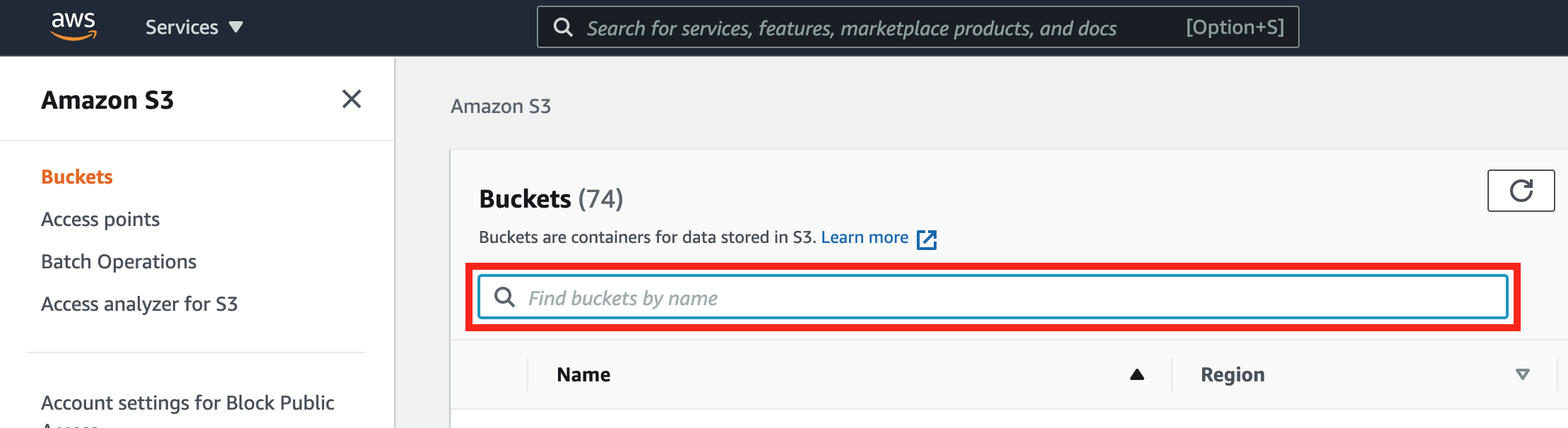
-
In the base S3 bucket, look up the training job name by entering your job name prefix in Find objects by prefix and then choosing the training job name.

-
In the training job's S3 bucket, choose rule-output/ subfolder. There must be three subfolders for training data collected by Debugger: debug-output/, profiler-output/, and rule-output/.

-
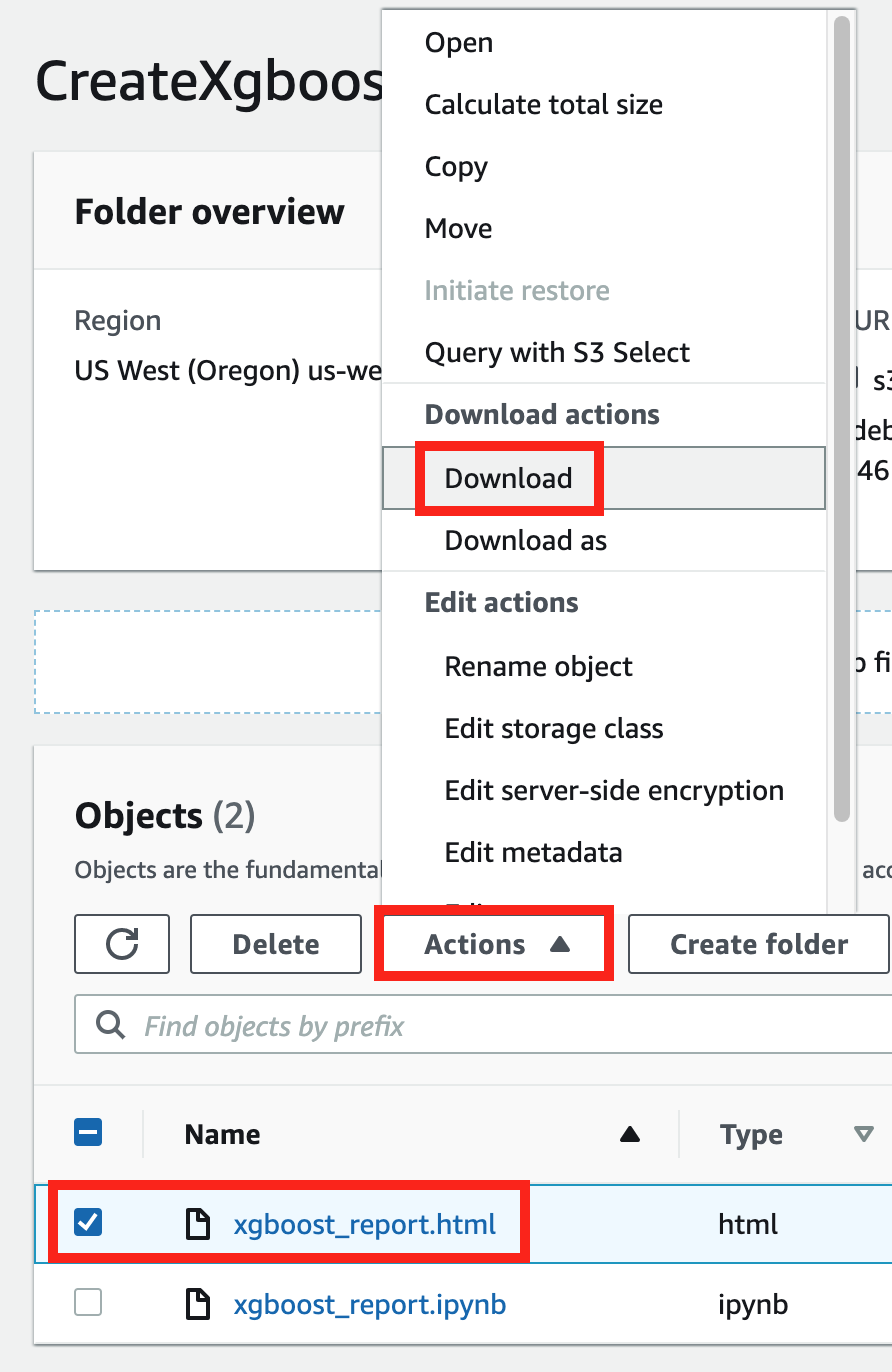
In the rule-output/ folder, choose the CreateXgboostReport/ folder. The folder contains xbgoost_report.html (the autogenerated report in html) and xbgoost_report.ipynb (a Jupyter notebook with scripts that are used for generating the report).
-
Choose the xbgoost_report.html file, choose Download actions, and then choose Download.
-
Open the downloaded xbgoost_report.html file in a web browser.
