Set up attachment scanning in Connect Customer
Note
This topic is for developers who are familiar with Lambda. If you're new to Lambda, see Getting started with Lambda in the AWS Lambda Developer's Guide.
You can configure Connect Customer to scan attachments that are sent in email, during a chat, or uploaded to a case. You can scan attachments by using your preferred scanning application. For example, you can scan attachments for malware before they are approved to be shared between participants of a chat.
To enable attachment scanning you perform two steps:
Step 1: Create a Lambda function that handles scanning
Create a Lambda function, using any runtime, and configure it. This function must be in the same AWS Region and account as your Connect Customer instance.
For every attachment uploaded through Connect Customer a request is sent with information about the attachment.
Following is an example JSON request for scanning:
{
    "Version": "1.0",
    "InstanceId": "your instance ID",
    "File": {
        "FileId": "your file ID",
        "FileCreationTime": 1689291663582,
        "FileName": "example.txt",
        "FileSizeInBytes": 10,
        "FileLocation": {
            "S3Location": {
                "Key": "connect/your-instance/Attachments/chat/2023/07/13/your file ID_20230713T23:41_UTC.txt",
                "Bucket": "connect-example",
                "Arn": "arn:aws:s3:::connect-example/connect/your-instance/Attachments/chat/2023/07/13/your file ID_20230713T23:41_UTC.txt"
            }
        }
    }
}
Required response
{
   "Status": "APPROVED" | "REJECTED"
}
Invocation retry policy
If your Lambda invocation gets throttled, the request is retried. It is also retried if a general service failure (500 error) happens. When a synchronous invocation returns an error, Connect Customer retries up to 3 times, for a maximum of 60 seconds. At that point, the attachment is marked rejected.
For more information about how Lambda retries, see Error handling and automatic retries in AWS Lambda.
Rejection behavior
Connect Customer marks the attachment REJECTED and automatically deletes
attachment files in S3 from both staging and final locations when one of the
following occurs:
-
Your Lambda scanner returns a status of
REJECTED. -
Connect Customer is unable to parse the response from the Lambda scanner.
-
Connect Customer is unable to invoke the Lambda function.
Step 2: Add an attachment scanner to your Connect Customer instance
After you create a Lambda for attachment scanning, you need to add the Lambda to your Connect Customer instance. Perform the following steps to add the Lambda.
-
Open the Connect Customer console at https://console.aws.amazon.com/connect/
. On the instances page, choose the instance alias. The instance alias is also your instance name, which appears in your Connect Customer URL. The following image shows the Connect Customer virtual contact center instances page, with a box around the instance alias.

-
In the navigation pane, choose Data storage.
-
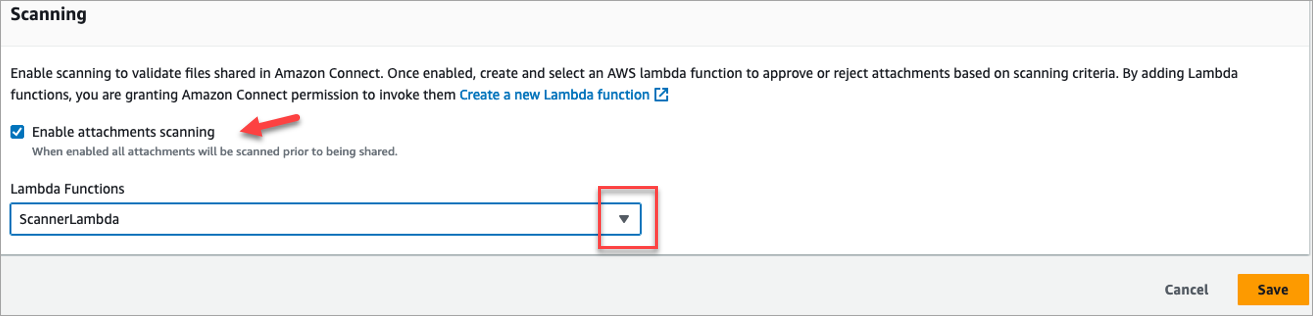
On the Data storage page, in the Attachments section, choose Edit, and then select Enable attachments scanning, as shown in the following image.
-
Use the Lambda Functions drop-down box to select the Lambda function that you added in Step 1: Create a Lambda function that handles scanning.
-
Choose Save. Attachment scanning is now enabled for your Connect Customer instance.
