Access Connect Customer data lake
To access the data lake, you can use the AWS console, the
AWS Command Line Interface
There are two ways to access the analytics data lake and configure data to be shared:
If you are unable to access the scheduling tables by using Option 1, try using Option 2.
Option 1: Use the Connect Customer console
Open the Connect Customer console at https://console.aws.amazon.com/connect/
. -
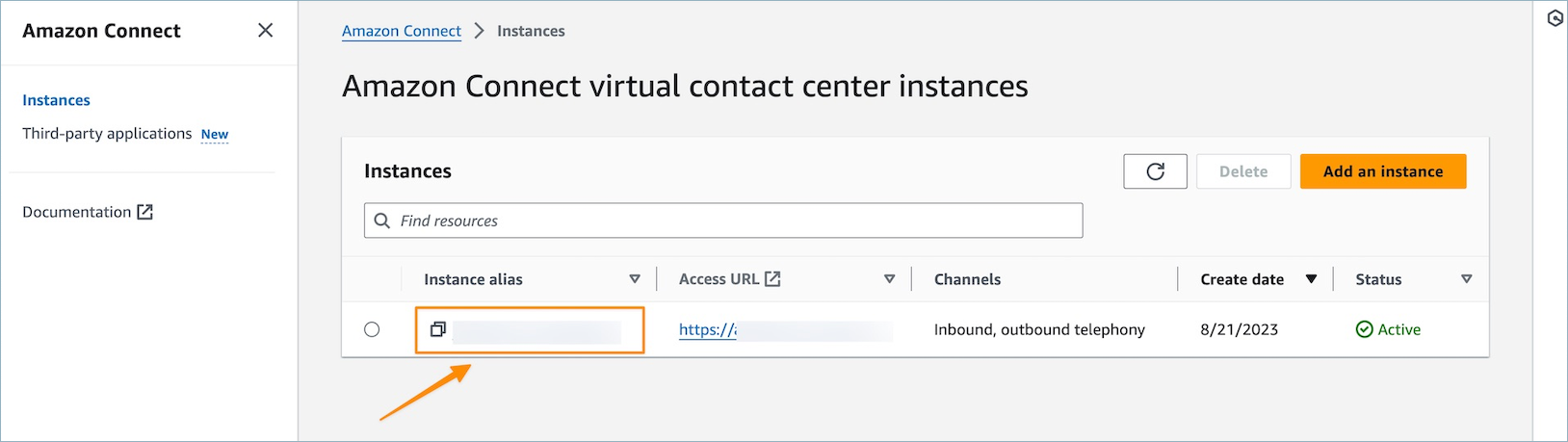
On the instances page, choose the instance alias. The instance alias is also your instance name, which appears in your Connect Customer URL. The following image shows the Connect Customer virtual contact center instances page, with a box around the instance alias.
-
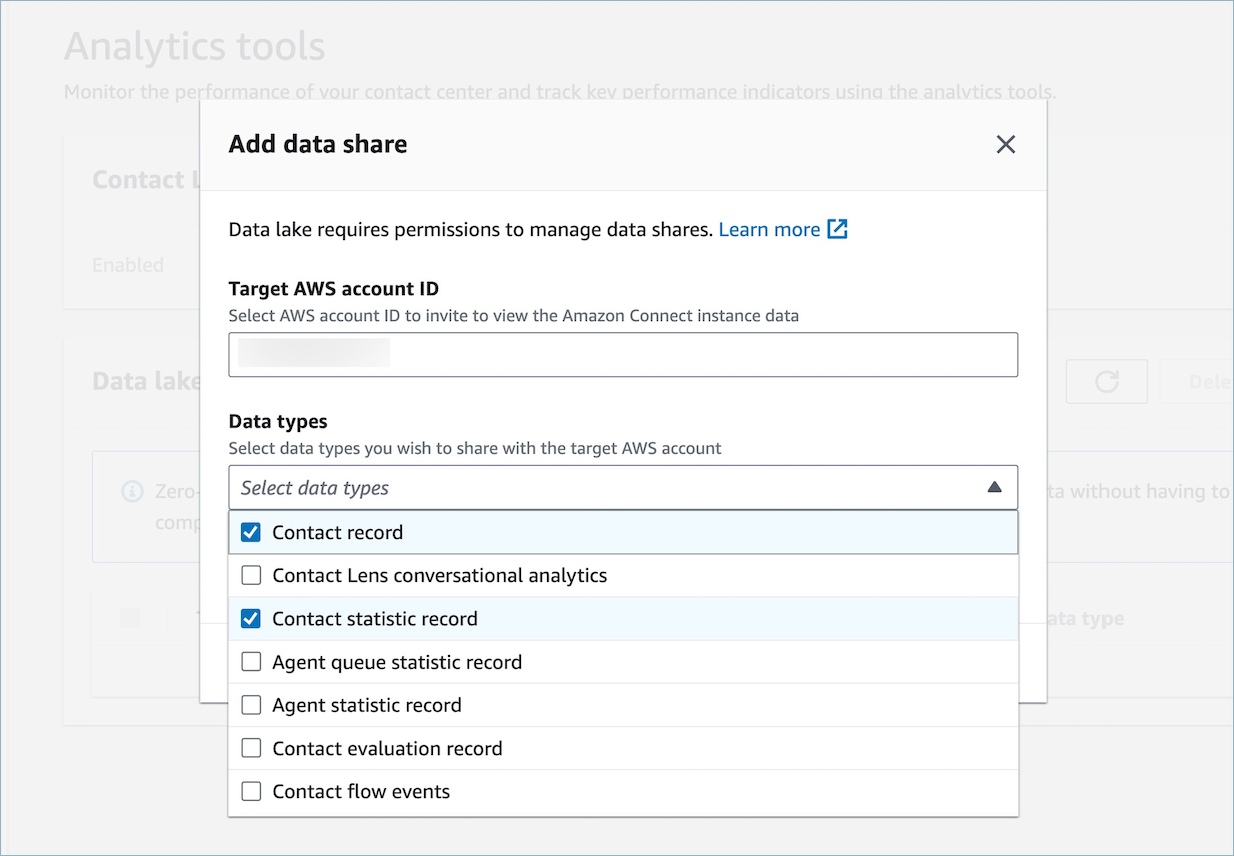
On the left navigation menu, choose Analytics Tools and then choose Add data share.

-
For the Target AWS account ID specify the AWS account ID of the account from which you wish to access data (consumer). This can be the same AWS account as hosts your Connect Customer instance or a different AWS account. Select one or multiple data types you wish to access from the consumer account and select Confirm.
Option 2: Use CLI or CloudShell
-
Generate the
generate Association apirequest file by running theaws connect batch-associate-analytics-data-set --generate-cli-skeleton input > input_batch_association.jsoncommand. -
Open the JSON file in a text editor and enter the following:
-
Instance ID – Your Connect Customer instance ID.
-
DataSetID – Enter the required tables. For more information about required tables, see Associate tables for the Connect Customer analytics data lake.
-
TargetAccountId – Account ID to share data.
Following is an example of the JSON file with all of the tables.
{ "InstanceId":your_instance_id, "DataSetIds": [ "contact_record", "contact_flow_events", "contact_statistic_record", "contact_lens_conversational_analytics", "agent_queue_statistic_record", "agent_statistic_record", "contact_evaluation_record" ], "TargetAccountId":your_account_ID} -
-
Associate the data lake to a single account by running the
aws connect batch-associate-analytics-data-set --cli-input-json file:command (where this path is based on the location of the JSON file).///path/to/request/file
