Setting up a network for DMS Schema Conversion
DMS Schema Conversion is a serverless feature. To connect to your databases, it places an elastic network interface (ENI) in a subnet within your VPC. When you create your instance profile, you specify the VPC, subnet group, and security groups to use. You can use your default VPC for your account and AWS Region, or you can create a new VPC.
To ensure proper connectivity between DMS Schema Conversion and your data providers, configure the following network components:
-
Security groups – Configure egress rules on the security group associated with DMS Schema Conversion to allow outbound traffic to your source and target database networks. Configure ingress rules on your database security groups to allow inbound traffic from the DMS Schema Conversion security group.
-
Network ACLs – If your subnets use network access control lists, make sure they allow traffic between the DMS Schema Conversion subnets and your database subnets.
-
Route tables – Make sure the route tables associated with the DMS Schema Conversion subnets have routes to reach your source and target databases. This may include VPC peering routes, VPN gateway routes, or NAT gateway routes depending on your configuration.
-
Subnets – DMS Schema Conversion places its ENI in the subnets defined in your subnet group. The subnet group must contain at least two subnets in separate Availability Zones.
Important
Because DMS Schema Conversion is serverless, the ENI IP address can change at any time. Do not use a specific IP address for allowlisting. Instead, reference the DMS Schema Conversion security group in your database security group ingress rules, or route outbound traffic through a NAT gateway with an associated Elastic IP address for on-premises connectivity.
You can use several different network configurations with DMS Schema Conversion. The following are common configurations for a network used for schema conversion. When practical, we recommend that you create an instance profile in the same Region as your target endpoint and use the same VPC or subnet as your target endpoint.
Using a single VPC for source and target data providers
The simplest network configuration for DMS Schema Conversion is a single VPC configuration. In this setup, the instance profile specifies the same VPC where your source and target databases reside. DMS Schema Conversion uses an ENI in that VPC to connect to both databases.
The following illustration shows a configuration where a source database connects to DMS Schema Conversion and the schema is converted to a target database, all within the same VPC.

The security groups on your databases must allow ingress on the database port from the DMS Schema Conversion security group. Do not use a specific ENI IP address for allowlisting, because the ENI IP address can change at any time.
The following examples show ingress rules for a database security group. In
these examples, sg-1234567890abcdef0 is the security group associated
with DMS Schema Conversion. Use the port that your database is configured to listen on.
| Type | Protocol | Port range | Source | Description |
|---|---|---|---|---|
| Oracle-RDS | TCP | 1521 | sg-1234567890abcdef0 | Oracle database |
| MySQL/Aurora | TCP | 3306 | sg-1234567890abcdef0 | MySQL or Aurora MySQL database |
| PostgreSQL | TCP | 5432 | sg-1234567890abcdef0 | PostgreSQL or Aurora PostgreSQL database |
| MSSQL | TCP | 1433 | sg-1234567890abcdef0 | Microsoft SQL Server database |
| Custom TCP | TCP | Your port | sg-1234567890abcdef0 | Any other database using a custom port |
Using multiple VPCs for source and target data providers
If your source and target databases are in different VPCs, including VPCs in different AWS accounts or Regions, you can configure the instance profile to use one of the VPCs and then link the two VPCs by using VPC peering. You can also use other VPC-to-VPC connectivity options such as AWS Transit Gateway. For more information, see Amazon VPC-to-Amazon VPC connectivity options.
A VPC peering connection is a networking connection between two VPCs that activates routing using the private IP address of each VPC as if they were in the same network. You can create a VPC peering connection between your own VPCs, with a VPC in another AWS account, or with a VPC in a different AWS Region. For more information about VPC peering, see VPC peering in the Amazon VPC User Guide.
The following illustration shows a configuration using VPC peering. Here, the source database in one VPC connects by VPC peering to another VPC that contains DMS Schema Conversion and the target database.

To implement VPC peering, follow the instructions in Work with VPC peering connections in the Amazon VPC User Guide. Make sure that the route table of one VPC contains the CIDR block of the other. For example, suppose that VPC A is using destination 10.0.0.0/16 and VPC B is using destination 172.31.0.0/16. In this case, the route table of VPC A should contain 172.31.0.0/16, and the route table of VPC B must contain 10.0.0.0/16. For more detailed information, see Update your route tables for VPC peering connection in the Amazon VPC Peering Guide.
The security groups on your databases must allow ingress on the database port from the DMS Schema Conversion security group. If your VPCs are in different AWS accounts or different Regions, security group references might not be supported. In this case, use the subnet CIDR ranges of the peered VPC instead.
The following examples show ingress rules for the source database in VPC A that allows access from the DMS Schema Conversion subnet CIDR range in VPC B (172.31.1.0/24). Use the port that your database is configured to listen on. If both VPCs are in the same Region and account, we recommend using a security group reference instead of a CIDR range for tighter access control.
| Type | Protocol | Port range | Source | Description |
|---|---|---|---|---|
| Oracle-RDS | TCP | 1521 | 172.31.1.0/24 | Oracle database |
| MySQL/Aurora | TCP | 3306 | 172.31.1.0/24 | MySQL or Aurora MySQL database |
| PostgreSQL | TCP | 5432 | 172.31.1.0/24 | PostgreSQL or Aurora PostgreSQL database |
| MSSQL | TCP | 1433 | 172.31.1.0/24 | Microsoft SQL Server database |
| Custom TCP | TCP | Your port | 172.31.1.0/24 | Any other database using a custom port |
Using shared VPCs for source and target data providers
AWS Database Migration Service treats subnets that are shared to a participating customer account in an organization just like regular subnets in the same account.
You can configure your network to operate in custom subnets or VPCs by creating replication subnet groups. When you create a replication subnet group, you specify subnets from a particular VPC. The list of subnets must include at least two subnets in separate Availability Zones, and all subnets must be in the same VPC.
If you use a shared VPC, create replication subnet groups that map to the subnets you want to use from the shared VPC. When you create an instance profile, specify the replication subnet group for the shared VPC and a VPC security group that you created for the shared VPC.
Note the following about using a shared VPC:
-
The VPC owner can't share a resource with a participant, but the participant can create a service resource in the owner's subnet.
-
The VPC owner can't access a resource that the participant creates, because all resources are account-specific. However, as long as you configure the instance profile to use the shared VPC, DMS Schema Conversion can access the resources in the VPC regardless of the owning account, as long as the correct permissions are in place.
-
Since resources are account-specific, other participants can't access resources owned by other accounts. There are no permissions that you can give other accounts to let them access resources created in the shared VPC with your account.
Using Direct Connect or a VPN to configure a network to a VPC
Remote networks can connect to a VPC using several options, such as Direct Connect or a software or hardware VPN connection. You can use these options to integrate existing on-site services by extending an internal network into the AWS Cloud. You might integrate on-site services such as monitoring, authentication, security, data, or other systems. By using this type of network extension, you can seamlessly connect on-site services to resources hosted by AWS, such as a VPC. You can use this configuration to convert your source on-premises database.
The following illustration shows a configuration where the source endpoint is an on-premises database in a corporate data center. It is connected by using Direct Connect or a VPN to a VPC that contains DMS Schema Conversion and the target database.
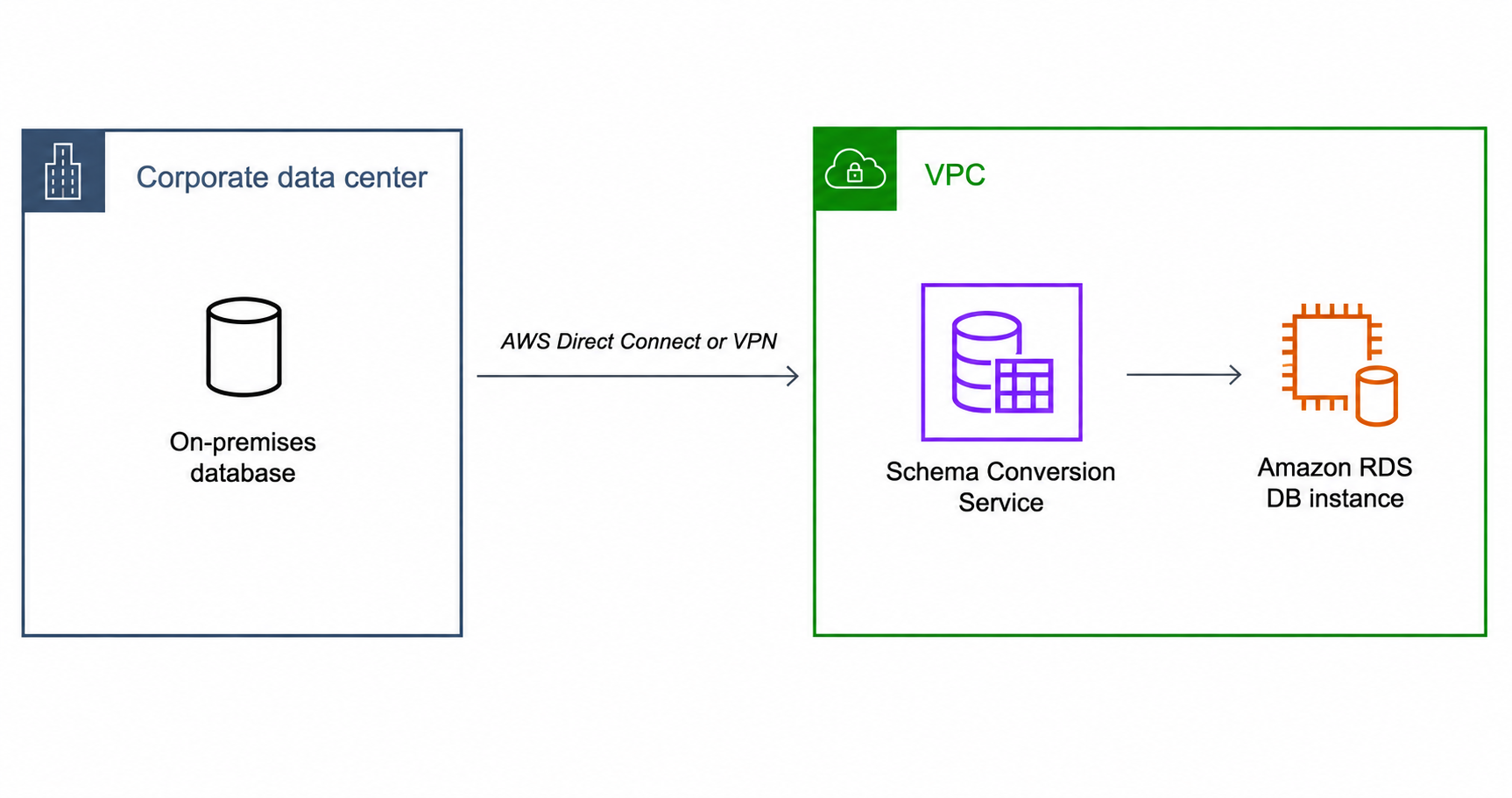
In this configuration, set up the following network components:
-
The route table associated with the DMS Schema Conversion subnets must include a route that sends traffic destined for the on-premises CIDR range to the Virtual Private Gateway (VGW) or Transit Gateway.
-
The security group on the NAT or bridge host must allow inbound traffic from the DMS Schema Conversion security group on the required database ports.
-
The DMS Schema Conversion security group must allow outbound traffic to the on-premises database port.
Do not use a specific ENI IP address for allowlisting, because the ENI IP address can change at any time. For more information, see Create a Site-to-Site VPN connection in the AWS Site-to-Site VPN User Guide.
Using an internet connection to a VPC
If you don't use a VPN or Direct Connect to connect to AWS resources, you can use the internet to connect to your source database. This configuration uses a VPC with private subnets and a NAT gateway that provides outbound internet access. You can use this configuration to convert your source on-premises database that has public accessibility.
The following illustration shows a configuration where DMS Schema Conversion in a VPC connects to an on-premises source database through the internet using a NAT gateway.

To enable connectivity from your VPC to a publicly accessible source database, configure the VPC with private subnets that connect to the internet through a NAT gateway. The NAT gateway provides a consistent public IP address that you can add to your source database's firewall allowlist, allowing resources in the private subnet to connect to the source database through the internet.
The VPC route table must include routing rules that send traffic not destined for the VPC by default to the NAT gateway. In this configuration, the connection to the data provider appears to come from the public IP address of your NAT gateway. For more information, see VPC Route Tables in the Amazon VPC User Guide.
To add an internet gateway to your VPC, see Attaching an internet gateway in the Amazon VPC User Guide.
Resolving domain endpoints using DNS
If you need to resolve domain endpoints for your databases, you can use the Amazon Route 53 Resolver. For more information about using Route 53 DNS Resolver, see Getting started with Route 53 Resolver.
For information about how to use your own on-premises name server to resolve certain endpoints using the Amazon Route 53 Resolver, see Using your own on-premises name server.
Troubleshooting network issues for DMS Schema Conversion
The following sections describe common network-related errors that you might encounter when using DMS Schema Conversion and how to resolve them.
Database connectivity errors
You might see the following error message when DMS Schema Conversion can't reach your source or target database:
-
Could not connect to your{origin}database at '{serverName}:{port}'. Verify your network configuration, security groups, and that the database server is reachable.Where
{origin}is eithersourceortarget,{serverName}is your database server hostname, and{port}is the database port number.
You can also check the DMS Schema Conversion Amazon CloudWatch logs in your account to find the specific reason for the connection failure.
To resolve these errors, check the following:
-
Verify server name and port – Confirm that the server name and port configured in your data provider are correct. You can check the data provider settings using the AWS DMS console or the AWS CLI. For more information about finding your database endpoint and port, see Finding the connection information for an Amazon RDS DB instance in the Amazon Relational Database Service User Guide.
-
Check security group rules – Verify that the security group associated with DMS Schema Conversion allows outbound (egress) TCP traffic on the database port. Also verify that the security group on the database allows inbound (ingress) TCP traffic from the DMS Schema Conversion security group. For more information about working with security group rules, see Work with security group rules in the Amazon VPC User Guide.
-
Check network ACLs – Verify that the network ACLs on the DMS Schema Conversion subnets and the database subnets allow traffic in both directions on the database port.
-
Check route tables – Verify that the route tables associated with the DMS Schema Conversion subnets have the correct routes to reach the database. If you use VPC peering, VPN, or Direct Connect, make sure the corresponding routes are present.
-
Check DMS Schema Conversion Amazon CloudWatch logs – Review the DMS Schema Conversion logs for detailed error information. You can find the link to logs on your migration project's Schema Conversion tab, or use the AWS CLI to fetch log entries that contain exceptions.
First, find your DMS Schema Conversion log group. The log group name starts with
dms-tasks-sctand includes the last chunk of the ARN of your migration project:aws logs describe-log-groups \ --log-group-name-prefix dms-tasks-sctThen, search for exceptions in the log group using the
filter-log-eventscommand:aws logs filter-log-events \ --log-group-namedms-tasks-sct-your-migration-project\ --filter-pattern "Exception" \ --start-timestart_timestamp_ms\ --end-timeend_timestamp_msYou can replace
Exceptionwith other patterns such asERRORor"Could not connect"to narrow the results. The--start-timeand--end-timevalues are Unix timestamps in milliseconds.
