Using a remote access session in AWS Device Farm
For information about performing interactive testing of Android and iOS apps through remote access sessions, see Sessions.
Prerequisites
-
Create a session. Follow the instructions in Creating a session, and then return to this page.
Use a session in the Device Farm console
As soon as the device that you requested for a remote access session becomes available, the console displays the device screen. The session has a maximum length of 150 minutes. The time remaining in the session appears in the Time left field in the top-right corner above the device.
Actions
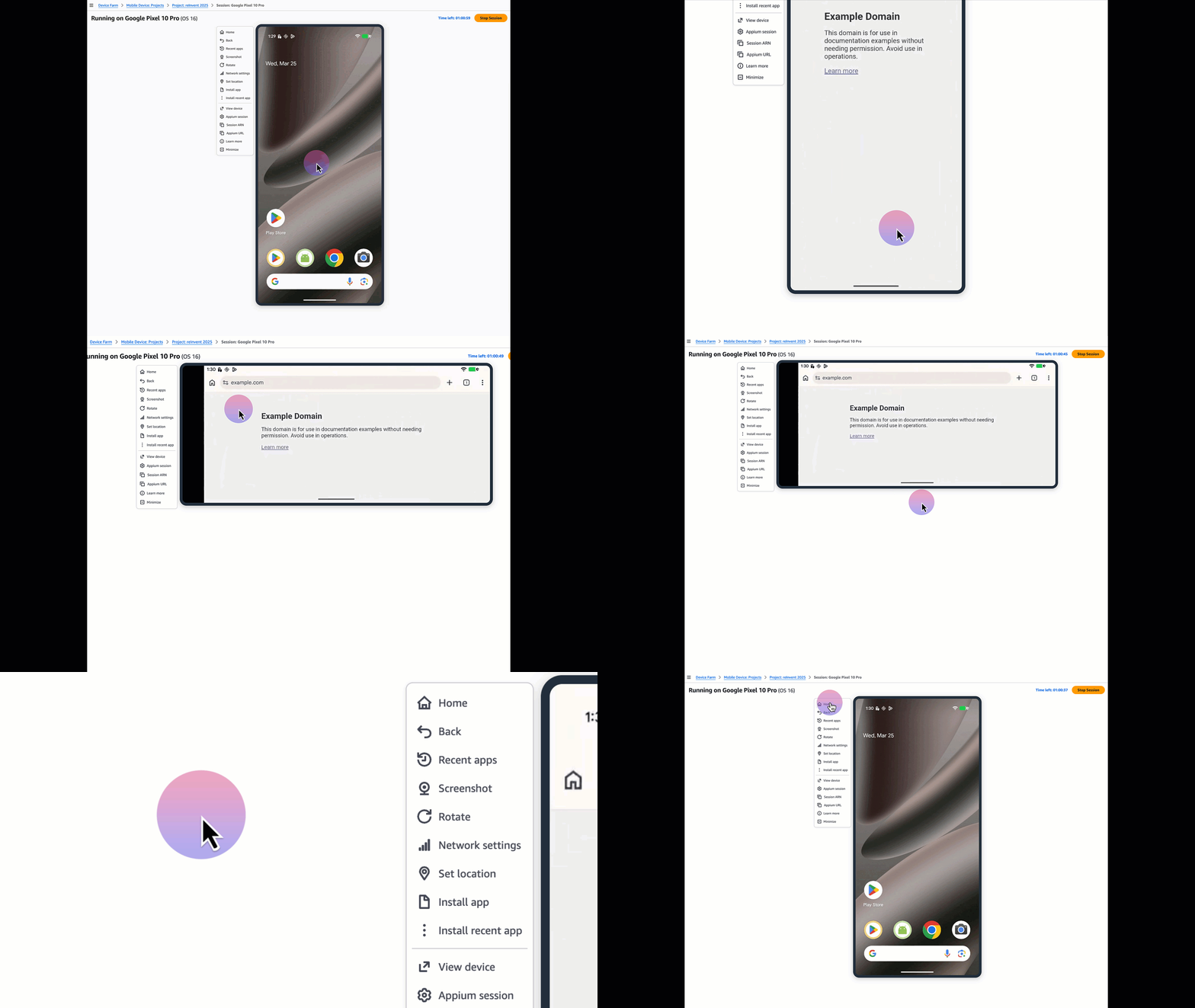
All actions you can take with the device and your session reside in the menu on the left-hand side of the device. The available actions are explained in detail below.

Navigating the device
You can interact with the device displayed in the console as you would with a real physical device, by using your mouse or a pointer device like touchpad for touch and your local keyboard. The swipe action works based on starting and ending coordinates of your click. This means a three or more point swipe does not work. On an Android device, you have the Home, Back, and Switch apps buttons. On an iOS device, you have the Home button. These buttons on both function just as real device controls.

Taking a screenshot
A common pattern while doing manual testing is to take a device screenshot. You can do this by using the Screenshot button in the left menu bar. On clicking this button, a screenshot of the current device screen is downloaded in your browser's download folder as a .jpeg extension. The button greys out when the screenshot is being processed and downloaded.
Switching between portrait and landscape mode
You can switch between portrait (vertical) and landscape (horizontal) view on the device using the Rotate option. The orientation of the device display only changes if the active view on the device supports it. For example, the home page on a smaller iPhone does not support orientation change. Thus, you will not see the orientation change when using Rotate.
Changing network
You can change the network behavior by changing parameters such as upload/download speeds, bandwidth, packet loss for the device under test. Click the Network button in the left side menu. This opens up a right hand side overlay where you can choose from a list of curated network settings or create your own network profile.
Mocking location
You can mock a location on the device by providing the latitude and longitude of your desired location. This does not physically get a device in that region but when an app queries the OS for its location, the device returns the location you entered. If your app uses multiple data points such as Wi-Fi, cellular signal, and other methods rather than just querying the OS for location then this feature will most likely not work for your app. Click the Set location button in the left-side menu. This opens up a right hand side overlay where you can input the latitude and longitude of your desired location.
Installing an application
You can install apps in a remote access session in two ways: 1) During session launch, you can upload an app or specify a recently used app. 2) After the remote access session has started, you can manually upload/install the app using the Install app option in the left side menu, and then choose the .apk file (Android) or the .ipa file (iOS) that you want to install. Applications that you run in a remote access session don't require any test instrumentation or provisioning.
Note
When you upload an app, the service first uploads the app to a secure Amazon S3 bucket and then installs it which takes a few seconds depending on the size of the app. A confirmation message will appear to let you know if the app was successfully installed or not.
Installing a recently uploaded application
To install an application recently uploaded, select Recent apps in the left side menu, and then choose the .apk file (Android) or the .ipa file (iOS) that you want to install from the dropdown selection.
Note
When you select a recent app, the service first downloads the previously uploaded app from a secure service managed S3 bucket to the host machine running your session and then installs it which takes a few seconds depending on the size of the app. A confirmation message will appear to let you know if the app was successfully installed or not.

View device details
You can view device details such as the ARN, Model ID, CPU, Resolution, Memory, and Heap Size of the device being used in your session by clicking on the Device details button. This action displays the device details in a new tab. For a public device, the details do not include UDID as that can change across every session. For private devices, the device details page displays the Instance and Device ARN along with UDID and Labels assigned to the private device instance.

Appium Session
You can get the Appium Session details attached to your remote access session by clicking on the Appium Session button.

Session ARN
You can copy the session ARN of your remote access session using the Session ARN button.
Appium URL
You can copy the Appium URL for your remote access session using the Appium URL button.
Minimize left side menu
You can get a minimized icons-only version of all the actions in the left-hand side menu of remote access session using the Minimize button.
Next steps
Device Farm continues the session until you stop it manually or the 150-minute time limit is reached. To end the session, choose Stop Session. After the session stops, you can access the video that was captured and the logs that were generated. For more information, see Retrieving session results.
Tips and tricks
You might experience performance issues with the remote access session if you are located in a region geographically distant from us-west-2. This is due, in part, to latency in some Regions. If you experience performance issues, give the remote access session a chance to catch up before you interact with the app again.
