Die vorliegende Übersetzung wurde maschinell erstellt. Im Falle eines Konflikts oder eines Widerspruchs zwischen dieser übersetzten Fassung und der englischen Fassung (einschließlich infolge von Verzögerungen bei der Übersetzung) ist die englische Fassung maßgeblich.
Dauerhafte Lambda-Funktionen erstellen
Um mit dauerhaften Lambda-Funktionen zu beginnen, verwenden Sie die Lambda-Konsole, um eine dauerhafte Funktion zu erstellen. In wenigen Minuten können Sie eine dauerhafte Funktion erstellen und bereitstellen, die anhand von Schritten und Wartezeiten die Ausführung anhand von Checkpoints demonstriert.
Sie können auch langlebige Funktionen erstellen, indem Sie die AWS CLI oder Infrastructure as Code (IaC) verwenden.
Während Sie das Tutorial durchführen, lernen Sie grundlegende Konzepte für langlebige Funktionen kennen, z. B. wie Sie das DurableContext Objekt verwenden, Checkpoints mit Schritten erstellen und die Ausführung mit Wartezeiten unterbrechen. Außerdem erfährst du, wie die Wiederholung funktioniert, wenn deine Funktion nach einer Wartezeit wieder aufgenommen wird.
Um die Dinge einfach zu halten, zeigt Ihnen dieses Tutorial, wie Sie Ihre Funktion entweder mit Python oder Node.js Runtime erstellen. Mit diesen interpretierten Sprachen können Sie Funktionscode direkt im integrierten Code-Editor der Konsole bearbeiten.
Anmerkung
Dauerhafte Funktionen unterstützen derzeit Python-, Node.js (JavaScript/TypeScript) - und Java-Laufzeiten sowie Container-Images (OCI). Eine vollständige Liste der unterstützten Laufzeitversionen und Container-Image-Optionen finden Sie unter Unterstützte Laufzeiten für langlebige Funktionen. Weitere Informationen zur Verwendung von Container-Images mit Lambda finden Sie unter Erstellen von Lambda-Container-Images im Lambda Developer Guide.
Tipp
Weitere Informationen zum Erstellen von Serverless-Lösungen finden Sie im Serverless-Benutzerhandbuch.
Erstellen Sie mit der Konsole eine langlebige Lambda-Funktion
In diesem Beispiel verarbeitet Ihre Durable-Funktion eine Bestellung in mehreren Schritten mit automatischem Checkpointing. Die Funktion verwendet ein JSON-Objekt, das eine Bestellnummer enthält, validiert die Bestellung, verarbeitet die Zahlung und bestätigt die Bestellung. Jeder Schritt wird automatisch überprüft. Wenn die Funktion unterbrochen wird, wird sie mit dem letzten abgeschlossenen Schritt fortgesetzt.
Ihre Funktion demonstriert auch einen Wartevorgang, bei dem die Ausführung für einen kurzen Zeitraum unterbrochen wird, um das Warten auf eine externe Bestätigung zu simulieren.
Um eine dauerhafte Funktion mit der Konsole zu erstellen
Öffnen Sie die Seite Funktionen
der Lambda-Konsole. -
Wählen Sie Funktion erstellen.
-
Wählen Sie Verfassen von Grund auf aus.
-
Geben Sie im Bereich Grundlegende Informationen als Funktionsname
myDurableFunction -
Wählen Sie für Runtime entweder Node.js 24 oder Python 3.14.
-
Wählen Sie Dauerhafte Ausführung aktivieren aus.
Lambda erstellt Ihre dauerhafte Funktion mit einer Ausführungsrolle, die Berechtigungen für Checkpoint-Operationen (lambda:CheckpointDurableExecutionundlambda:GetDurableExecutionState) beinhaltet.
Anmerkung
Lambda-Laufzeiten enthalten das Durable Execution SDK, sodass Sie langlebige Funktionen ohne Paketabhängigkeiten testen können. Wir empfehlen jedoch, das SDK in Ihr Bereitstellungspaket für die Produktion aufzunehmen. Dies gewährleistet die Versionskonsistenz und vermeidet potenzielle Laufzeitaktualisierungen, die sich auf Ihre Funktion auswirken könnten.
Verwenden Sie den in der Konsole integrierten Code-Editor, um Ihren dauerhaften Funktionscode hinzuzufügen.
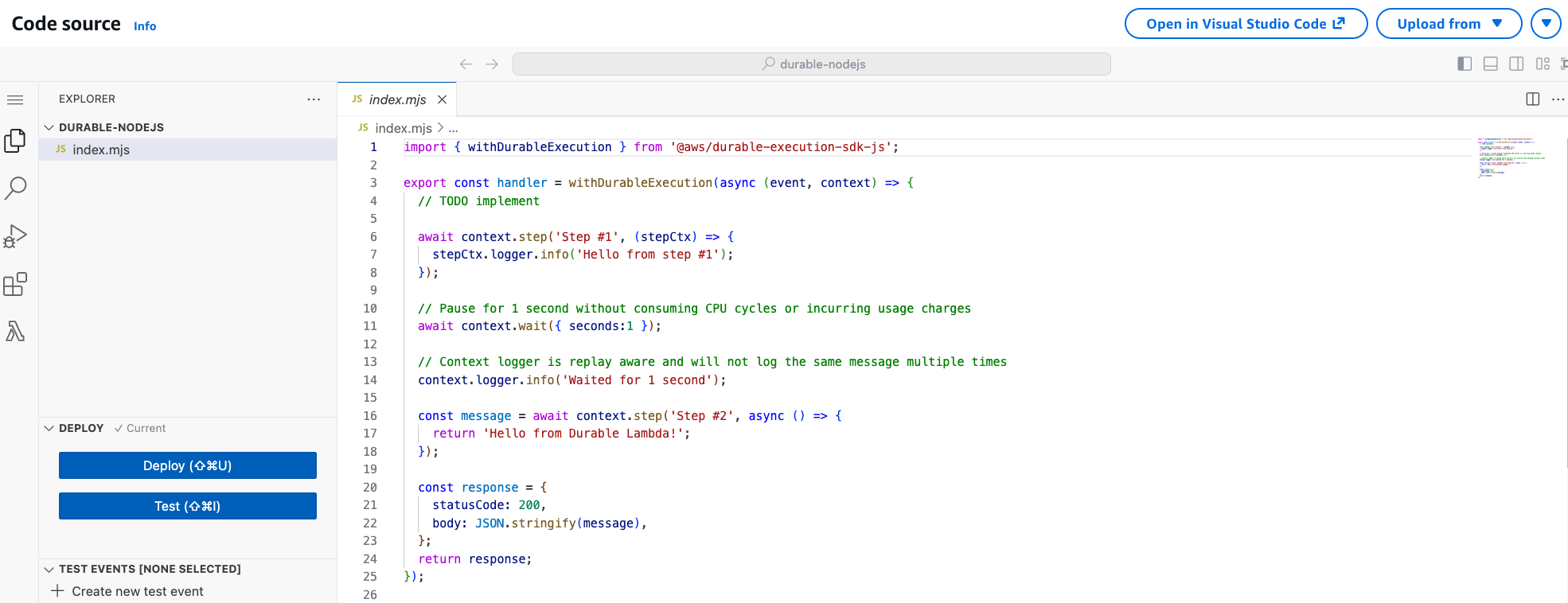
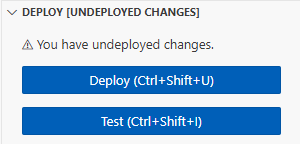
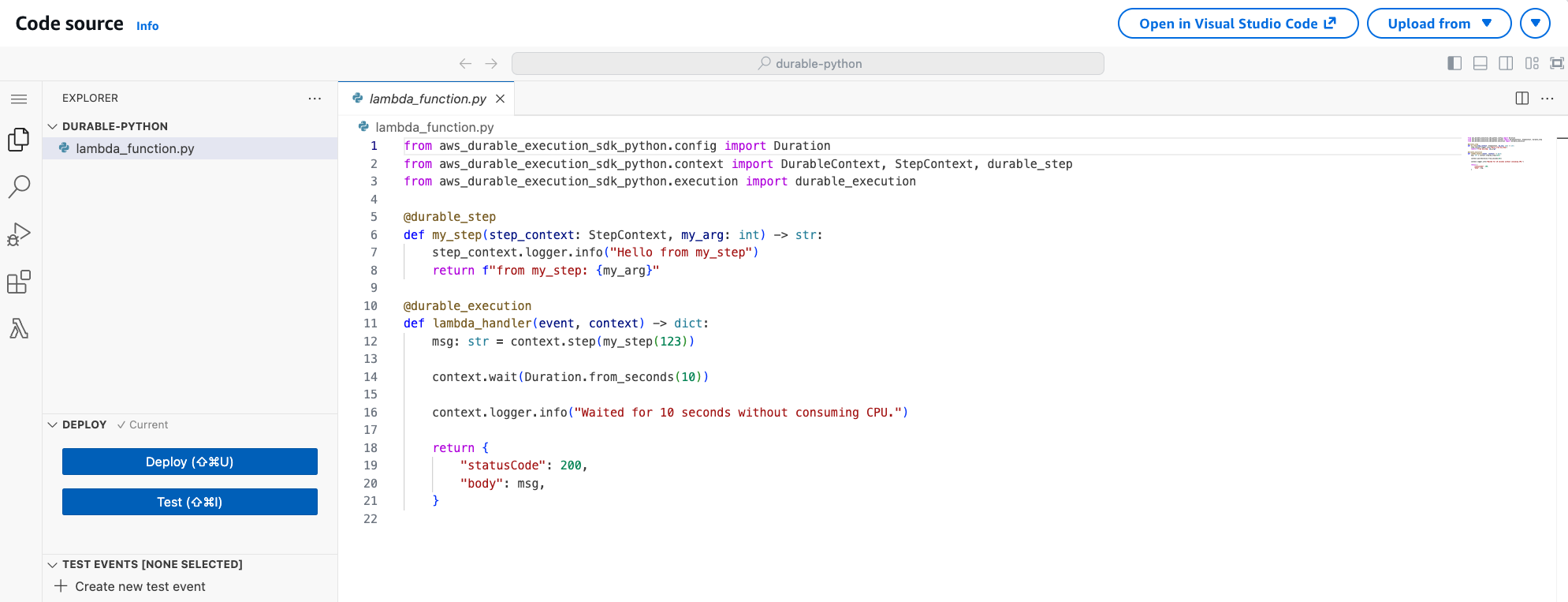
Rufen Sie die Durable-Funktion mit dem Code-Editor der Konsole auf
Wenn keine explizite Version angegeben (oder veröffentlicht) ist, ruft die Konsole die Durable-Funktion mithilfe des $LATEST Versionskennzeichners auf. Für die deterministische Ausführung Ihres Codes müssen Sie jedoch immer einen qualifizierten ARN verwenden, der auf eine stabile Version verweist.
Um eine Version Ihrer Funktion zu veröffentlichen
-
Wählen Sie den Tab Versionen.
-
Wählen Sie Publish new version (Neue Version veröffentlichen) aus.
-
Geben Sie als Versionsbeschreibung
Initial version(optional) ein. -
Wählen Sie Publish.
-
Lambda erstellt Version 1 Ihrer Funktion. Beachten Sie, dass die Funktion ARN jetzt
:1am Ende erscheint, was darauf hinweist, dass es sich um Version 1 handelt.
Erstellen Sie nun ein Testereignis, das Sie an Ihre Funktion senden möchten. Das Ereignis ist ein JSON-formatiertes Dokument, das eine Bestellnummer enthält.
So erstellen Sie das Testereignis
-
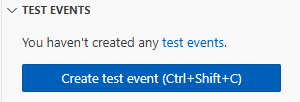
Wählen Sie im Abschnitt TESTEREIGNISSE des Konsolen-Code-Editors die Option Testereignis erstellen aus.
-
Geben Sie als Event name (Ereignisname) die Zeichenfolge
myTestEventein. -
Ersetzen Sie im Abschnitt Event JSON das Standard-JSON durch Folgendes:
{ "orderId": "order-12345" } -
Wählen Sie Speichern.
Um Ihre dauerhafte Funktion zu testen und die Ausführung anzusehen
Wählen Sie im Abschnitt TESTEREIGNISSE des Konsolencode-Editors das Ausführungssymbol neben Ihrem Testereignis:

Ihre dauerhafte Funktion beginnt mit der Ausführung. Da sie eine Wartezeit von 10 Sekunden beinhaltet, wird der erste Aufruf schnell abgeschlossen und die Funktion wird nach Ablauf der Wartezeit wieder aufgenommen. Sie können den Ausführungsfortschritt auf der Registerkarte Dauerhafte Ausführungen einsehen.
Um die Ausführung Ihrer dauerhaften Funktion zu sehen
-
Wählen Sie den Tab Dauerhafte Ausführungen.
-
Finden Sie Ihre Hinrichtung in der Liste. Die Ausführung zeigt den aktuellen Status an (Wird ausgeführt, Erfolgreich oder Fehlgeschlagen).
-
Wählen Sie die Ausführungs-ID, um Details anzuzeigen, darunter:
Zeitplan für die Ausführung, aus dem hervorgeht, wann jeder Schritt abgeschlossen ist
Verlauf des Checkpoints
Wartezeiten
Ergebnisse der Schritte
Sie können die Protokolle Ihrer Funktion auch in CloudWatch Logs einsehen, um die Konsolenausgabe jedes Schritts zu sehen.
Um die Aufrufaufzeichnungen Ihrer Funktion in CloudWatch Logs einzusehen
-
Öffnen Sie die Seite „
Log-Gruppen“ der CloudWatch Konsole. -
Wählen Sie die Protokollgruppe für Ihre Funktion (
/aws/lambda/myDurableFunction) aus. -
Scrollen Sie nach unten und wählen Sie den Protokollstream für die Funktionsaufrufen aus, die Sie sich ansehen möchten.
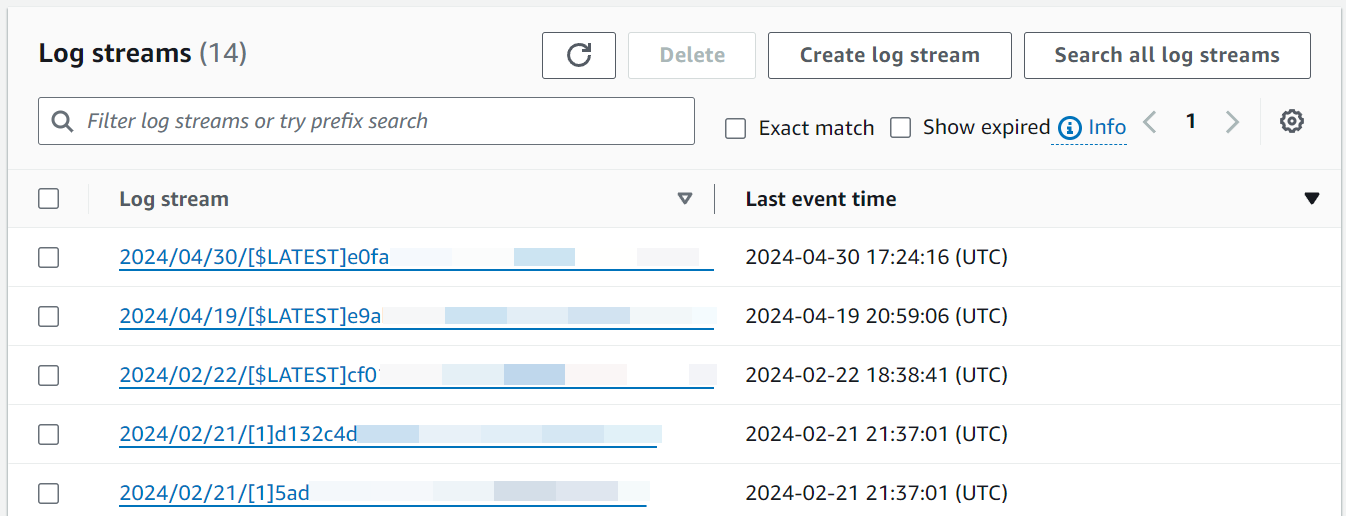
Sie sollten Protokolleinträge für jeden Aufruf Ihrer Funktion sehen, einschließlich der ersten Ausführung und der Wiederholung nach der Wartezeit.
Anmerkung
Wenn Sie den Logger von DurableContext (z. B. context.logger oderstepContext.logger) aus verwenden, werden die Protokolle auch in der dauerhaften Ausführungs- und Schrittansicht in der Lambda-Konsole angezeigt. Das Laden dieser Protokolle kann einen Moment dauern.
Bereinigen
Wenn Sie die Arbeit mit der Durable-Beispielfunktion beendet haben, löschen Sie sie. Sie können auch die Protokollgruppe löschen, in der die Protokolle der Funktion gespeichert sind, sowie die von der Konsole erstellte Ausführungsrolle.
So löschen Sie die Lambda-Funktion:
-
Öffnen Sie die Seite Funktionen
der Lambda-Konsole. -
Wählen Sie die Funktion aus, die Sie erstellt haben.
-
Wählen Sie Aktionen, Löschen aus.
-
Geben Sie
confirmin das Texteingabefeld ein und wählen Sie Delete (Löschen) aus.
So löschen Sie die Protokollgruppe
-
Öffnen Sie die Seite Log Groups (Protokollgruppen)
der CloudWatch-Konsole. -
Wählen Sie die Protokollgruppe der Funktion (
/aws/lambda/myDurableFunction). -
Wählen Sie Actions (Aktionen), Delete log group(s) (Protokollgruppe(n) löschen) aus.
-
Wählen Sie im Dialogfeld Delete log group(s) (Protokollgruppe(n) löschen) die Option Delete (Löschen) aus.
So löschen Sie die Ausführungsrolle
-
Öffnen Sie die Seite „Rollen“
der AWS Identity and Access Management (IAM-) Konsole. -
Wählen Sie die Ausführungsrolle der Funktion aus (zum Beispiel
myDurableFunction-role-).31exxmpl -
Wählen Sie Löschen aus.
-
Geben Sie im Dialogfenster Delete role (Rolle löschen) den Namen der Rolle ein und wählen Sie anschließend Delete (Löschen) aus.
Zusätzliche Ressourcen und nächste Schritte
Nachdem Sie nun mithilfe der Konsole eine einfache, langlebige Funktion erstellt und getestet haben, gehen Sie wie folgt vor:
-
Erfahren Sie mehr über häufige Anwendungsfälle für langlebige Funktionen, darunter verteilte Transaktionen, Auftragsabwicklung und Workflows zur menschlichen Überprüfung. Sehen Sie sich Beispiele an.
-
Erfahren Sie, wie Sie dauerhafte Funktionsausführungen anhand von CloudWatch Metriken und dem Ausführungsverlauf überwachen können. Siehe Überwachung und Debugging.
-
Erfahren Sie, wie Sie langlebige Funktionen synchron und asynchron aufrufen und lang andauernde Ausführungen verwalten. Siehe Dauerhafte Funktionen aufrufen.
-
Folgen Sie den bewährten Methoden zum Schreiben von deterministischem Code, zur Verwaltung von Checkpoint-Größen und zur Kostenoptimierung. Siehe Bewährte Methoden.
-
Erfahren Sie, wie Sie langlebige Funktionen lokal und in der Cloud testen können. Siehe Testen langlebiger Funktionen.
-
Vergleichen Sie langlebige Funktionen mit Step Functions, um herauszufinden, wann jeder Ansatz am effektivsten ist. Siehe Dauerhafte Funktionen oder Schrittfunktionen.
