Using AWS Location with Sidewalk Devices
AWS IoT Core for Amazon Sidewalk provides location capabilities for your Sidewalk devices, enabling you to track and monitor device positions. Geolocation is handled by the Amazon Sidewalk stack on the end device and triggered by the end device itself. The device collects location data and sends it to AWS IoT Core for Amazon Sidewalk, where you can retrieve it using AWS services.
Note
To use location capabilities with Sidewalk devices, ensure you are using Amazon Sidewalk SDK version 1.19 or later on your end device. For details on implementing geolocation on the device side, see the Amazon Sidewalk Location Library Developer Guide
Location resolution methods
Sidewalk devices support three methods for resolving device location:
- WiFi-based location
-
The device scans nearby WiFi access points and sends their BSSID information and signal strengths. AWS uses this information to estimate the device's location based on known WiFi access point locations.
- GNSS (Global Navigation Satellite System)
-
The device captures raw GNSS signals from GPS or other satellite navigation systems and sends this data to the cloud, where AWS solves for the device's position.
- BLE (Bluetooth Low Energy) based location
-
AWS IoT returns location coordinates based on the approximate location of nearby Amazon Sidewalk Gateways that are connected to Amazon Sidewalk and have the Community Finding feature enabled. Gateway Location Data is AWS Content and is provided to you solely for the purpose of assisting you in locating your devices that are connected to Amazon Sidewalk, and you must only use the data for that purpose. You must only use and access location data via the interface and functionality that we generally make available to you, and you must not attempt to re-identify, reverse engineer, or re-map any Gateway location data provided by us to you.
The location resolution method used depends on your device's capabilities and configuration. Your end device determines which method to use based on its hardware capabilities and the Amazon Sidewalk SDK configuration.
Enable location for Sidewalk devices
You can enable location capabilities when creating a new Sidewalk device or update an existing device to enable positioning. When you enable positioning, you must also specify a destination for the location data.
Important
If you enable device location for the Sidewalk-enabled device, your raw uplink payload won't be propagated to the uplink destination. Location data will be sent to the location destination instead.
Enable location (console)
You can enable location capabilities for your Sidewalk device using the AWS IoT console when creating a new device or updating an existing device.
Create a new device with location enabled
To create a new Sidewalk device with location capabilities:
-
Go to the Sidewalk devices hub
and choose Provision device. -
In the Specify device details section, enter the device name, choose a device profile, and specify the uplink destination name.
-
In the Geolocation section, select Activate positioning to enable location capabilities for the device.

-
In the Position data destination field, select the name of the destination where location data will be sent. This destination must have an AWS IoT rule configured to process location data.
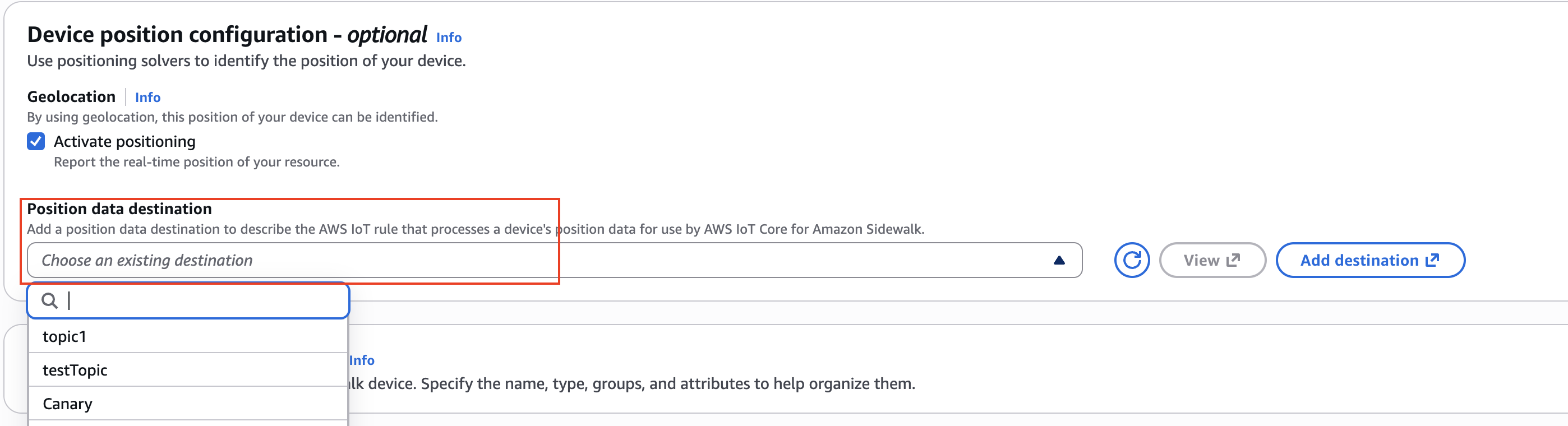
-
Complete the remaining steps to create your device, and then choose Create.
Update an existing device to enable location
To enable location capabilities for an existing Sidewalk device:
-
Go to the Sidewalk devices hub
. -
Choose the device that you want to update to view its details.

-
In the device details page, choose select Activate positioning to enable location capabilities for the device.
-
In the Position data destination field, select the name of the destination where location data will be sent.
-
Choose Save to apply the changes.
Enable location (CLI)
You can enable location capabilities using the AWS CLI when creating a new device or updating an existing device.
Create a new device with location enabled
To create a Sidewalk device with location enabled, use the CreateWirelessDevice API operation or the create-wireless-device CLI command with the --positioning parameter set to Enabled.
aws iotwireless create-wireless-device \ --type "Sidewalk" \ --name"sidewalk_device"\ --destination-name"UplinkDestination"\ --positioning"Enabled"\ --sidewalk DeviceProfileId="12345678-a1b2-3c45-67d8-e90fa1b2c34d",Positioning={DestinationName="LocationDestination"}
Update an existing device to enable location
To enable location for an existing Sidewalk device, use the UpdateWirelessDevice API operation or the update-wireless-device CLI command.
aws iotwireless update-wireless-device \ --id"23456789-abcd-0123-bcde-fabc012345678"\ --positioning"Enabled"\ --sidewalk Positioning={DestinationName="LocationDestination"}
Retrieve location data
After enabling location capabilities for your Sidewalk device, you can retrieve location data using two methods: the GetResourcePosition API or by subscribing to an MQTT topic.
Retrieve location using GetResourcePosition API
Use the GetResourcePosition API operation or the get-resource-position CLI command to retrieve the most recent location data for your device.
The following example shows how to retrieve location data for a Sidewalk device:
aws iotwireless get-resource-position \ --resource-identifier"23456789-abcd-0123-bcde-fabc012345678"\ --resource-type "WirelessDevice"
The API returns the device's location coordinates and additional metadata. The following shows an example response:
{ "GeoJsonPayload":blob, "Timestamp": "2024-10-21T19:33:01.295912052Z" }
The GeoJsonPayload contains the location data in GeoJSON format, which includes the device's latitude, longitude, and accuracy information.
Retrieve location using MQTT
You can subscribe to an MQTT topic to receive location data as it becomes available from your Sidewalk device. This method allows you to process location data in real-time using AWS IoT rules.
-
Create a destination for location data
Create a destination with an AWS IoT rule that processes location data. For information about creating destinations, see Add a destination for your Sidewalk end device.
-
Subscribe to the MQTT topic
Go to the MQTT test client
on the Test page of the AWS IoT console. Enter the topic name that you specified in your location destination rule (for example, project/sensor/location -
View location messages
When your device sends location data, you'll see messages published to the topic. The following shows an example of a location message:
{ "type":Point, "coordinates": [11.11,22.22,33.33], "properties": { "timestamp":2026-00-00T00:00:00Z} }
