Die vorliegende Übersetzung wurde maschinell erstellt. Im Falle eines Konflikts oder eines Widerspruchs zwischen dieser übersetzten Fassung und der englischen Fassung (einschließlich infolge von Verzögerungen bei der Übersetzung) ist die englische Fassung maßgeblich.
Agentendetails — Bewertungen
Evaluationen bieten kontinuierliche Kennzahlen zur Qualitätsüberwachung für Ihre KI-Agenten. Sie können die vom Dashboard bereitgestellten Informationen verwenden, um die Leistung, Qualität und Zuverlässigkeit Ihrer KI-Agenten zu beurteilen.
Anstatt sich auf simulierte Testfälle zu verlassen, erfassen Evaluierungen echte Benutzersitzungen und Agenteninteraktionen und bieten so einen umfassenden Überblick über die Agentenleistung, von der Eingabe bis zur endgültigen Ausgabe. Bei Agentenbewertungen können Sie Stichprobenregeln definieren, um nur einen Prozentsatz der Sitzungen oder Traces auszuwerten, und dann eine Vielzahl von Evaluatoren einsetzen, um die Betriebsleistung eines KI-Agenten zu beurteilen und zu bewerten. Die daraus resultierenden Bewertungen und Ergebnisse werden im Evaluations-Dashboard angezeigt, sodass Sie Trends überwachen, potenzielle Qualitätsprobleme identifizieren, Alarme einrichten und potenzielle Probleme untersuchen und diagnostizieren können.
Das Evaluations-Dashboard listet alle Bewertungen auf, die für den ausgewählten Agenten aktiviert und konfiguriert wurden. Weitere Informationen zur Konfiguration von Evaluierungen für einen Agenten finden Sie unter AgentCore Bewertungen. Sie können jede Bewertung erweitern, um die Sitzungen, Ablaufverfolgungen und Zeiträume anzuzeigen, die ausgewertet wurden.
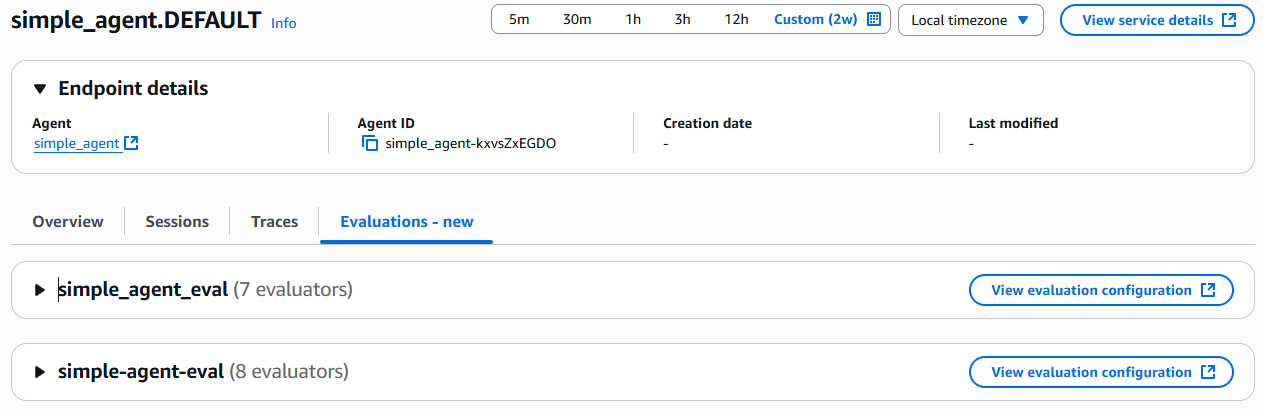
Einzelheiten zu den Bewertungen
Für jede Bewertung umfasst das Dashboard die folgenden Abschnitte:
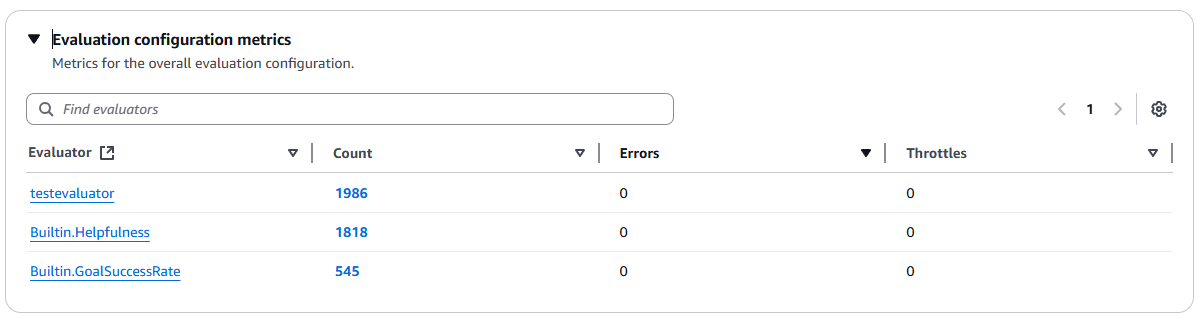
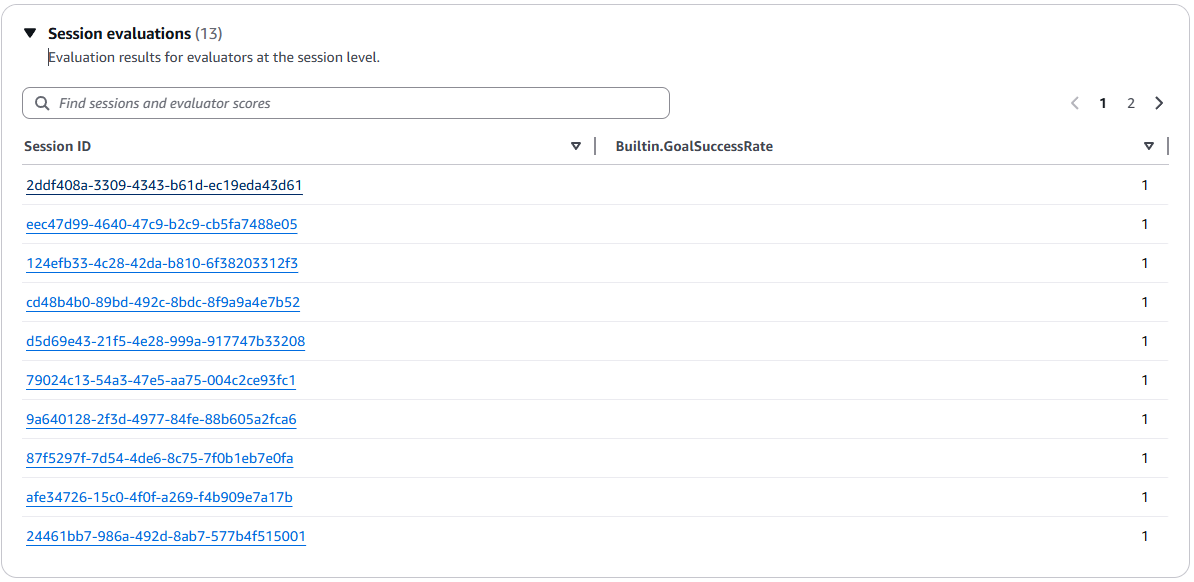
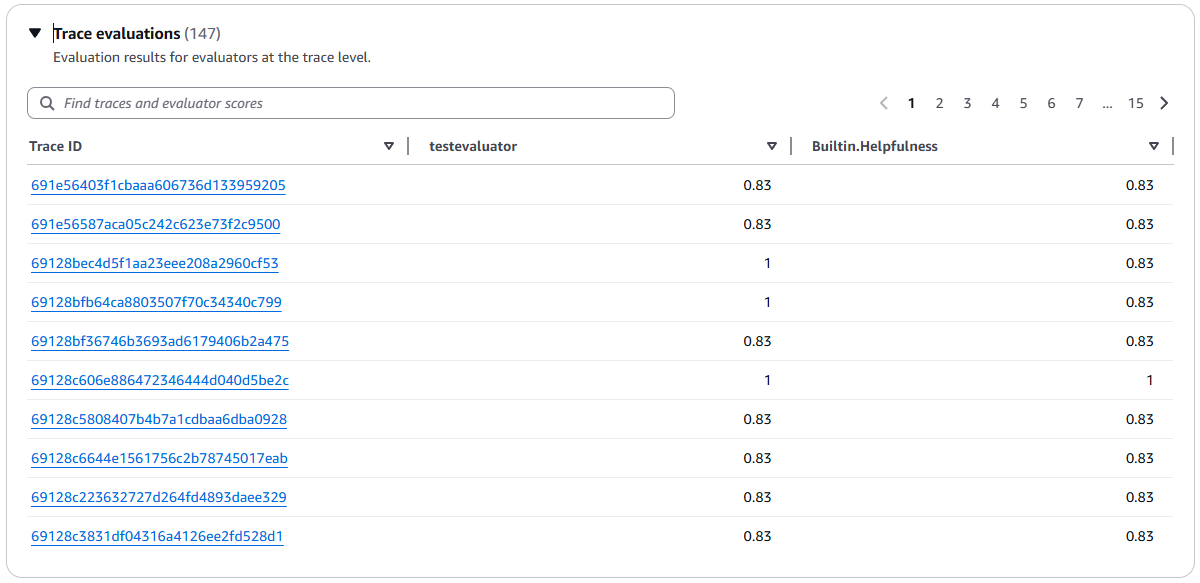
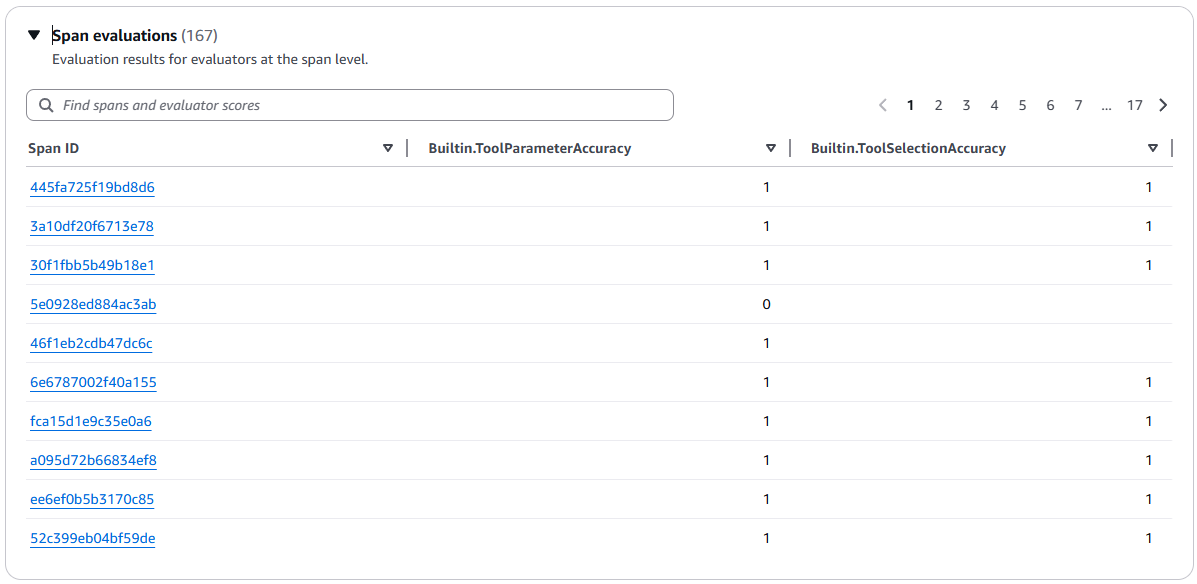
Auswertungen, Grafiken
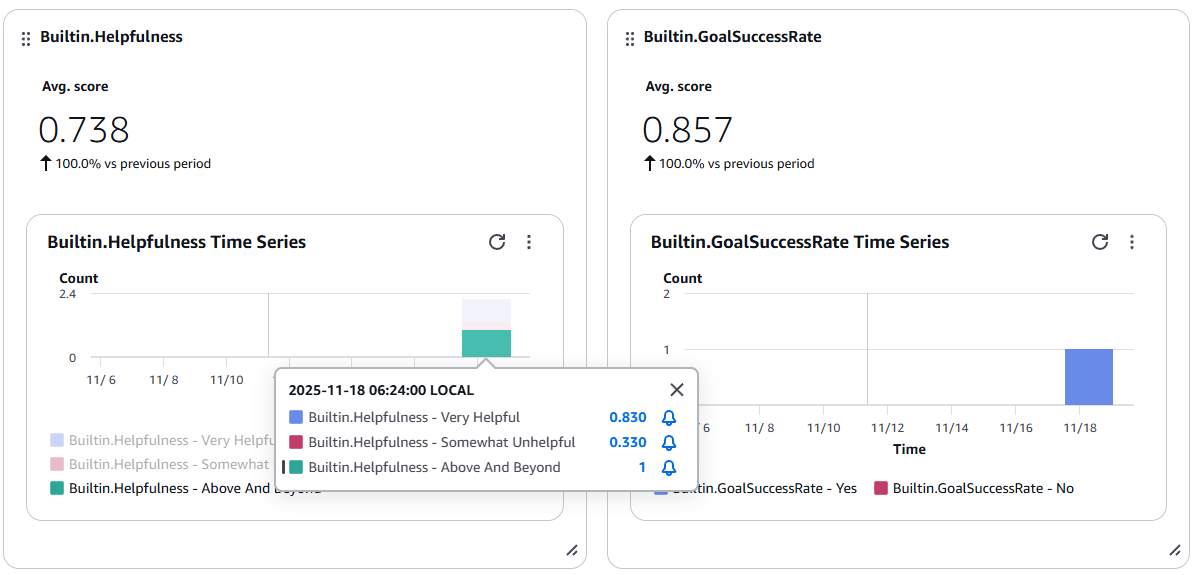
Das Bewertungs-Dashboard enthält auch ein Balkendiagramm für jeden Evaluator. Die Grafiken zeigen die Trends für jeden Evaluator im Zeitverlauf und ermöglichen es Ihnen, Alarme für bestimmte Metrikwerte einzurichten. Um einen Alarm einzustellen, klicken Sie auf einen Balken in der Grafik und wählen Sie dann das Alarmsymbol (Glocke). Weitere Informationen finden Sie unter CloudWatch Amazon-Alarme verwenden.
Arbeiten Sie mit Bewertungsergebnissen
Wenn Sie direkten Zugriff auf Ihre Bewertungsergebnisse benötigen, benutzerdefinierte Visualisierungen erstellen oder außerhalb der Bewertungskonsole arbeiten möchten, können Sie direkt über CloudWatch Protokolle, CloudWatch Metriken und CloudWatch Dashboards auf Ihre Bewertungsergebnisse zugreifen. AgentCore
Themen
Zugriff auf Bewertungsergebnisse in Protokollen CloudWatch
Ihre Evaluierungsergebnisse werden automatisch in CloudWatch Logs in Embedded Metric Format (EMF) veröffentlicht.
Um Ihre Evaluierungsergebnisse in der Protokollgruppe zu finden
-
Öffnen Sie die CloudWatch Konsole.
-
Wählen Sie im Navigationsbereich Logs Management > Log-Gruppen aus.
-
Suchen Sie nach den Protokollgruppen mit dem Präfix: oder navigieren Sie zu diesen
/aws/bedrock-agentcore/evaluations/. -
Innerhalb dieser Protokollgruppe enthalten die Protokollereignisse die Bewertungsergebnisse.
Weitere Informationen zum Arbeiten mit Protokollgruppen und zum Abfragen von Protokolldaten finden Sie unter Arbeiten mit Protokollgruppen und Protokollströmen und Analysieren von Protokolldaten mit CloudWatch Logs Insights.
Zugreifen auf Bewertungsmetriken in CloudWatch Metriken
Die Metriken der Bewertungsergebnisse werden automatisch aus den EMF-Protokollen (Embedded Metric Format) extrahiert und in CloudWatch Metrics veröffentlicht.
Um Ihre Bewertungsmetriken zu finden
-
Öffnen Sie die CloudWatch Konsole.
-
Wählen Sie im Navigationsbereich Metriken > Klassische Metriken aus.
-
Wählen Sie den AgentCore/Evaluations Bedrock-Namespace aus.
-
Durchsuchen Sie die verfügbaren Metriken nach Dimensionen.
Weitere Informationen zum Anzeigen und Arbeiten mit Metriken finden Sie unter Metriken verwenden und CloudWatch Metriken grafisch darstellen.
Erstellen benutzerdefinierter Dashboards
Sie können benutzerdefinierte Dashboards erstellen, um Ihre Bewertungskennzahlen zusammen mit anderen betrieblichen Kennzahlen zu visualisieren.
Um ein Dashboard mit Bewertungsmetriken zu erstellen
-
Wählen Sie in der CloudWatch Konsole im Navigationsbereich Dashboards aus.
-
Klicken Sie auf Dashboard erstellen.
-
Fügen Sie Widgets hinzu und wählen Sie Metriken aus dem AgentCore/Evaluations Bedrock-Namespace aus.
-
Passen Sie den Zeitraum, die Statistik und den Visualisierungstyp an Ihre Bedürfnisse an.
Eine ausführliche Anleitung finden Sie unter Erstellen und Arbeiten mit benutzerdefinierten Dashboards und Verwenden von CloudWatch Dashboards.
Alarme für Bewertungsmetriken einrichten
Sie können Alarme einrichten, um Sie zu benachrichtigen, wenn Bewertungsmetriken bestimmte, von Ihnen angegebene Schwellenwerte überschreiten, z. B. wenn die Richtigkeit unter ein akzeptables Niveau fällt.
Um einen Alarm für Bewertungsmetriken zu erstellen
-
Wählen Sie in der CloudWatch Konsole „Alarme“ > „Alle Alarme“.
-
Wählen Sie Alarm erstellen aus.
-
Wählen Sie „Metrik auswählen“ und navigieren Sie zum AgentCore/Evaluations Bedrock-Namespace.
-
Wählen Sie die Metrik aus, die Sie überwachen möchten.
-
Konfigurieren Sie die Schwellenbedingungen (der dynamische Schwellenwert für die Erkennung von Anomalien ist verfügbar, wenn Sie keinen statischen Schwellenwert angeben müssen) und die Benachrichtigungsaktionen.
Eine ausführliche Anleitung finden Sie unter Verwenden von CloudWatch Alarmen und Erstellen eines CloudWatch Alarms auf der Grundlage eines statischen Schwellenwerts.
Weitere Ressourcen
