Connecting to a Amazon DCV session using the macOS client
To connect to a session using the macOS client
-
Launch the macOS client.
If you get an error stating that the application can't be opened because it's from an unidentified developer, see the Safely open apps on your Mac
webpage. 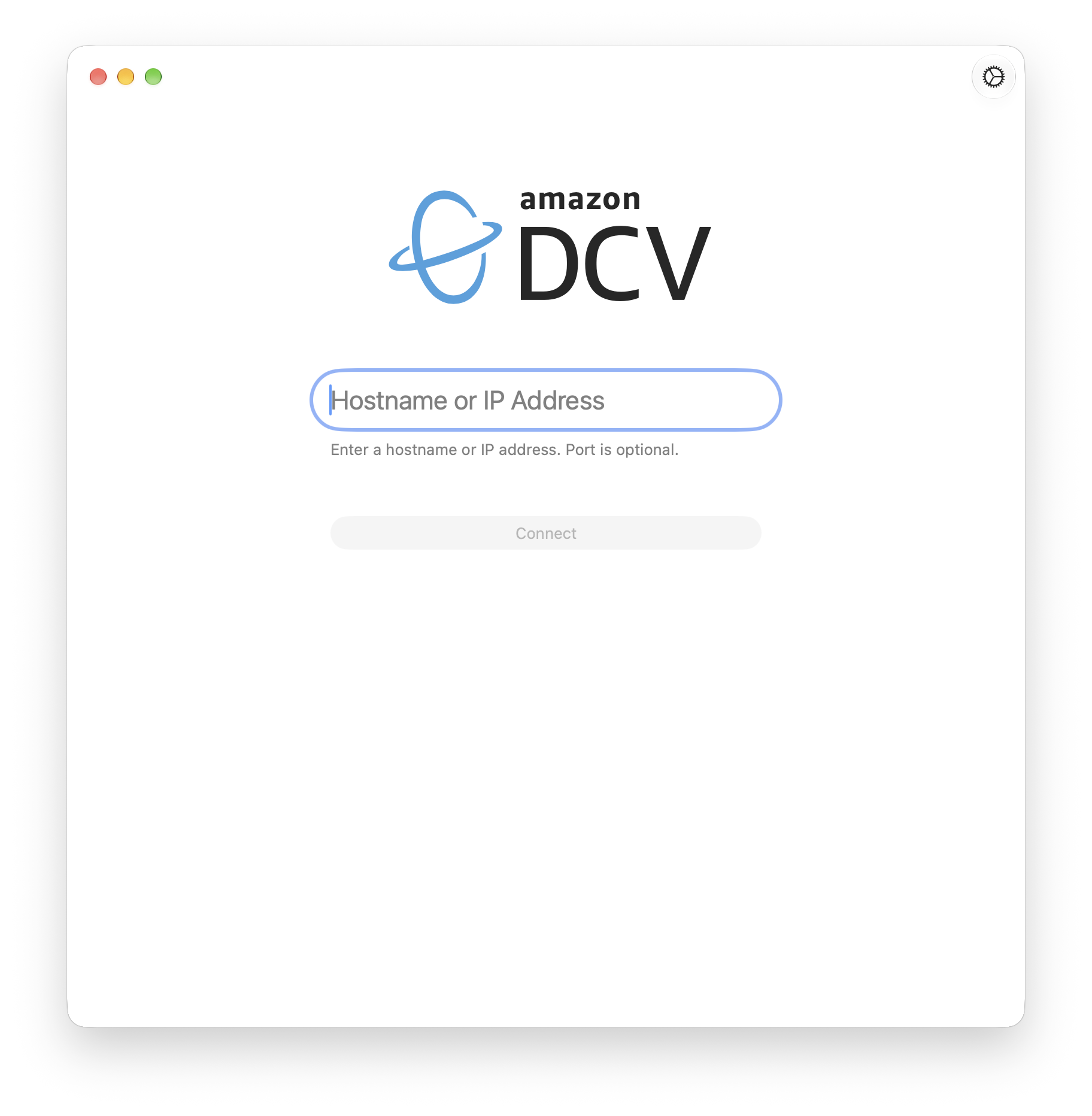
-
Choose the Connection Settings toolbar button, configure your proxy and transport settings as follows, and then choose Apply.

To avoid connecting through a proxy, set Type to None.
To connect to the Amazon DCV server using your preconfigured operating system proxy settings, set Type to System.
To connect to the Amazon DCV server through a specific HTTP proxy server, set Type to HTTP. Specify the hostname and port. If the HTTP proxy server requires authentication, enable the Authentication toggle and enter your sign-in credentials.
To connect to the Amazon DCV server through a specific HTTPS proxy server, set Type to HTTPS. Specify the hostname and port. If the HTTPS proxy server requires authentication, enable the Authentication toggle and enter your sign-in credentials.
-
To select the transport protocol to use for data transport, set Transport to Auto (default), TCP, or UDP. By default, the client uses the QUIC protocol (based on UDP) for data transport if it's available. If it isn't available, the client uses the WebSocket protocol (based on TCP). This option is always available.
QUIC is available only if the following conditions are met. First, the Amazon DCV server is configured to support it. Second, your network configuration supports UDP communication between the Amazon DCV client and the Amazon DCV server. Additionally, it's only supported for direct client-server communication where there are no intermediate proxies, gateways, or load balancers.
To use a specific data transport protocol, select it in Connection Settings.
To verify which protocol is in use, check the Connection tab in the Dashboard.

For more information, see Enable the QUIC UDP transport protocol in the Amazon DCV Administrator Guide.
-
Specify the session details in the following format:
server_hostname_or_IP:port#session_idIn the following example, the command connects to a session that's named
my-session. This session is hosted on a Amazon DCV server with the host namemy-dcv-server.com. It's connected over port8443.my-dcv-server.com:8443#my-sessionTip
As you type, you can choose from suggested matches in your connection history.
Choose Connect.
-
Enter your sign-in credentials and choose Log In.

Note
By default, the connection is terminated after three unsuccessful login attempts. To try again, restart the connection.
If you're prompted to verify the server's certificate, confirm the certificate's fingerprint with your Amazon DCV administrator. If the fingerprint is valid, choose Trust Certificate.
Alternative connection methods
In addition to the address bar, you can also connect using the following methods:
Connection file – Double-click a
.dcvfile to open it. You can also drag the file onto the DCV Viewer icon in the Dock while the application is running.Menu bar – Choose the DCV icon in the macOS menu bar to see recent connections and connect immediately.
Spotlight – Search for a previously connected hostname in Spotlight to find and open a connection.
Connection diagnostics
If you encounter a connection error, choose Diagnose… on the error screen to run automated connectivity checks. For more information, see macOS connection diagnostics.
