View a markdown version of this page

Extending full-screen across all monitors - Amazon DCV

Extending full-screen across all monitors

You can use the Amazon DCV clients to extend the display for a session across all at full screen resolution.

With the Windows, Linux, and macOS clients, the extended display matches your physical display layout and screen resolutions.

With the web browser client, the session display can be extended to up to two screens with 1920x1080 screen resolution. When the display is extended, the additional screen is opened in a new browser window. The second extends the display to the right of the original screen. Ensure that you position the screens accordingly.

Example

For example, three monitors are connected to your local computer. The server extends the display for a session across all three monitors and matches the specific screen resolutions of your display.

To enable this feature, do one of the following depending on your client.

Windows
  1. Go to the toolbar at the top of the window.

  2. Choose the Full Screen icon.

  3. Select Across all monitors from the drop-down menu.

    Display settings menu showing options for monitor configuration, with "Across all monitors" highlighted.
macOS
  1. Choose the Multi Monitor toolbar button. This button is visible only when two or more monitors are connected.

  2. Select All Monitors.

    Multi Monitor toolbar showing Monitor Selection and All Monitors options.
Tip

You can also enter full screen on all monitors from the menu bar. Choose the View menu, then select Full Screen, All Monitors. Alternatively, use the configured fullscreen-all keyboard shortcut.

Linux
  1. Go to the toolbar at the top of the window.

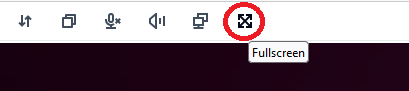
  2. Choose the Full Screen icon.

    Fullscreen icon highlighted in red circle within a row of interface controls.
Web browser
  1. Go to the toolbar at the top of the window.

  2. Choose the Multiscreen icon.

    Icon of a computer monitor or screen, highlighted with a red circle.