Enable contact recording
To enable the recording of voice conversations, you need to add a Set recording and analytics behavior block to your flow. You need to do this regardless of whether your Connect Customer instance is enabled for multi-party contacts (enhanced contact monitoring) or third-party contacts.
Important
Chats: You only need to perform these steps for chat conversations if enhanced contact monitoring for chat contacts is not enabled for your instance. Otherwise, chat transcripts are automatically recorded because an S3 bucket was created to store them when you set up your instance. To stop recording chat transcripts, remove the S3 bucket.
To set up recording of conversations
-
Log in to your Connect Customer instance using an account that has permissions to edit flows.
-
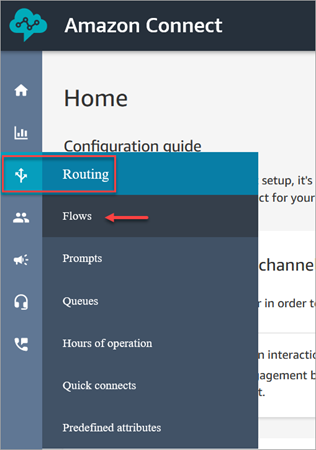
On the navigation menu, choose Routing, Flows.
-
Open the flow that handles customer contacts you want to record.
-
In the flow, before the contact is connected to an agent, add a Set recording and analytics behavior block to the flow.
-
To configure the Set recording and analytics behavior block, choose from the following:
-
Automated interaction call recording
-
On starts recording customer and IVR audio immediately.
-
Off pauses any ongoing IVR recording.
-
-
Agent and customer voice recording
-
When On, you can select from Agent and Customer, Agent only, or Customer only. This only takes effect after the agent joins the call.
-
When Off, no recording is captured when the agent joins the call.
-
-
To record chat conversations, choose Agent and Customer.
Important
You only need to perform these steps for chat conversations if enhanced contact monitoring for chat contacts is not enabled for your instance. Otherwise, chat transcripts are automatically recorded because an S3 bucket was created to store them when you set up your instance. To stop recording chat transcripts, remove the S3 bucket.
-
-
Choose Save and then Publish to publish the updated flow.
-
Assign security profile permissions to managers so they can review recordings.
-
Show managers how to access past recordings in Connect Customer. See Review recorded conversations.
To set up recording behavior for outbound calls
-
Create a flow, using the outbound whisper flow type.
-
Add a Set recording and analytics behavior block to that flow.
-
Set up a queue that will be used for making outbound calls. In the Outbound whisper flow box, choose the flow that has Set recording and analytics behavior in it.
To set up human readable logs that contain key interaction points with Amazon Lex
-
Log in to the Connect Customer console.
-
On the navigation menu, choose Flows.
-
Scroll down the page, choose Enable Bot Analytics and Transcripts in Connect Customer, and then choose Save.
-
In the Connect Customer admin website, assign security profile permissions to managers so they can view details of the interaction with DTMF menus and Lex bots and/ or additional information about flows.
