Flow block in Connect Customer: Set recording, analytics and processing behavior
This topic defines the flow block for setting options to configure recording behavior for agent and customer, enable automated interaction, enable screen recording, set analytics behavior for contacts, and set custom processing behavior.
Description
There are two actions supported as part of this block:
-
Set message processor* - this allows customers to configure their own lambda processor, which will be applied to in-flight messages
-
Set recording and analytics behavior - this allows customers to configure recording and analytics behavior for voice, chat, and email contacts, along with screen recording behavior.
*Unavailable in PDT

The above screenshot shows the two actions in the block's "Select action" dropdown.
After you select an action, you can select a channel to configure those settings for. Here are the supported channels for each action:
Chat supported? |
Email supported? |
Tasks supported? |
Voice supported? |
|
|---|---|---|---|---|
Set message processing |
Yes |
No |
No |
No |
Set recording and analytics behavior |
Yes |
Yes |
Yes (only for screen recording behavior) |
Yes |
Note
The Email channel option for the Set recording and analytics behavior action appears only when your instance has conversational analytics for email enabled. If your instance does not have this capability, the channel dropdown does not include Email. Availability can vary by instance and Region.
Flow types
This block is supported for all flow types except journey flows.
Tip
We recommend using the Set recording portion of this block in an inbound or outbound whisper flow for the most accurate behavior.
Using this block in other flow types does not always guarantee that calls are recorded. This is because the block might run after the contact is joined to the agent.
How to configure this block
You can configure the Set recording, analytics and processing behavior block by using the Connect Customer admin website. This guide will walk through how to configure each action in this block.
Set message processing
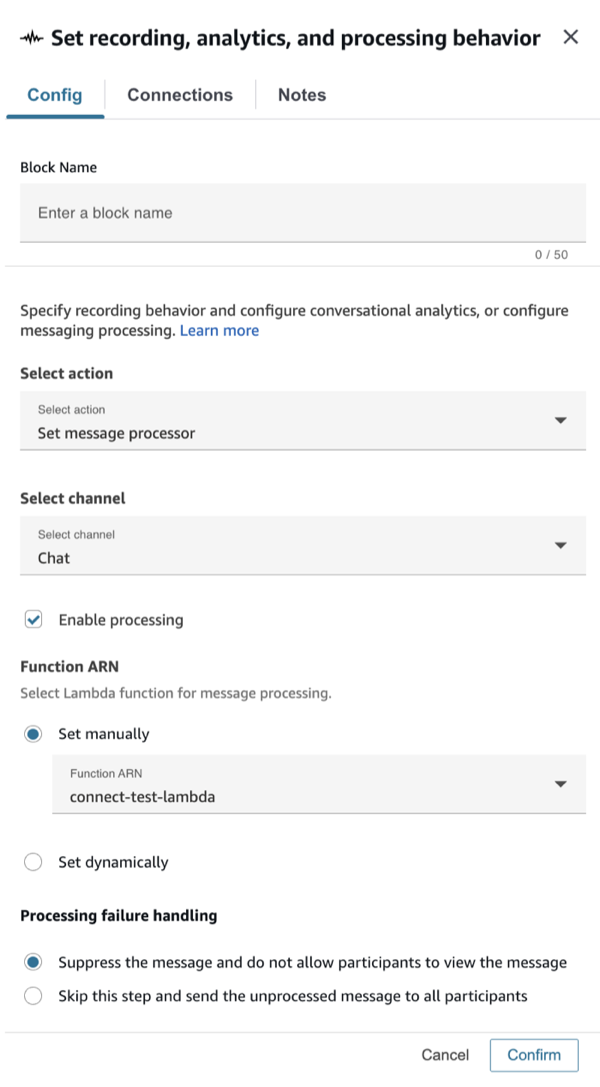
The following image shows a picture of the Set message processor action set in the block. This action currently only supports Chat channel type, which is selected in the next dropdown. The dropdown is followed by several settings to configure a custom lambda processor:
-
Enable processing - control whether you want to start or stop chat message processing.
-
Function ARN - define a lambda function that will perform the message processing. This function should be integrated with custom message processing. You can do so through the CreateIntegrationAssociation public API, using the MESSAGE_PROCESSOR IntegrationType. For more information, see CreateIntegrationAssociation in the Connect Customer API Reference.
-
Processing failure handling - select whether you would like the original, unprocessed message to be delivered or not in case processing fails.
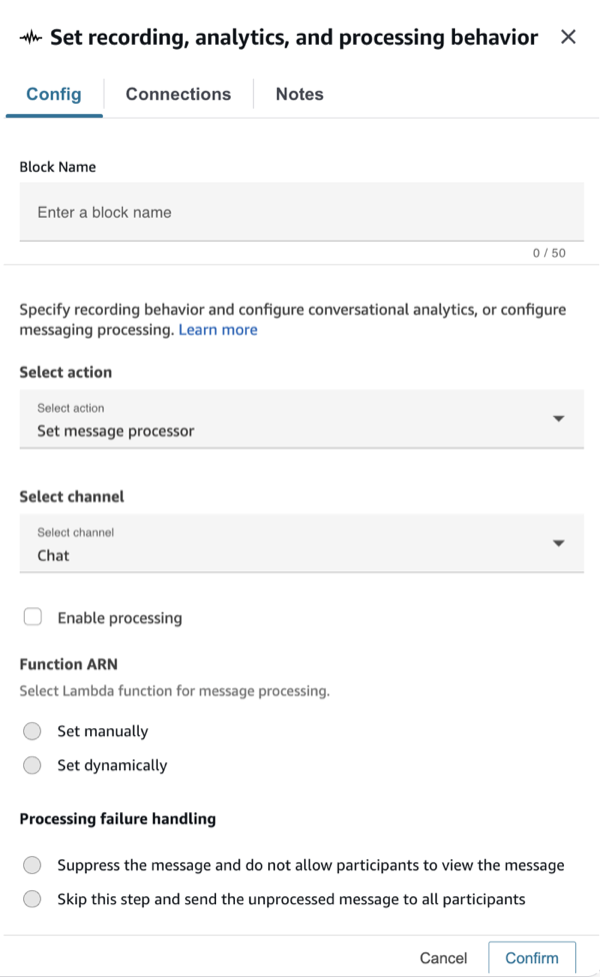
The below screenshot shows the block settings when processing is disabled:
Set recording and analytics behavior
The following guide will discuss the Set recording and analytics action in the block. There are multiple configurations in this part of the block:
-
You configure what part of the call can be recorded be it either agent, customer or both. No additional charges apply.
-
You can enable automated interaction call recording to hear how a customer is interacting with your IVR or conversational AI bot. No additional charges apply.
-
You can enable screen recording of agents, if agent screen recording has been set up as described in Enable screen recording. For pricing information, see Amazon Connect Pricing
. -
You can configure conversational analytics settings for voice, chat, and email contacts. For pricing information, see Amazon Connect Pricing
. This includes: -
Language in which customers and agents will interact (to improve the speech to text transcript generation).
-
Redaction of sensitive data.
-
Additional Generative AI capabilities.
-
This action enables conversational analytics on a contact. For more information, see Analyze conversations using conversational analytics. This action currently supports Chat, Email, Voice, and Tasks media channel types. However, for tasks, you are only able to configure screen recording behavior. Therefore, in the channel dropdown for this action, you will see the following options:

Note
To configure both screen recording and channel recording or analytics, use two separate Set recording, analytics, and processing behavior blocks in sequence: one for screen recording and one for audio recording. Each block should be configured for only one recording type to avoid unexpected behavior.
Let's walk through what each channel's configuration looks like:
Chat
As shown in the following image, the chat settings are split into two sections: Enable and configure conversational analytics.
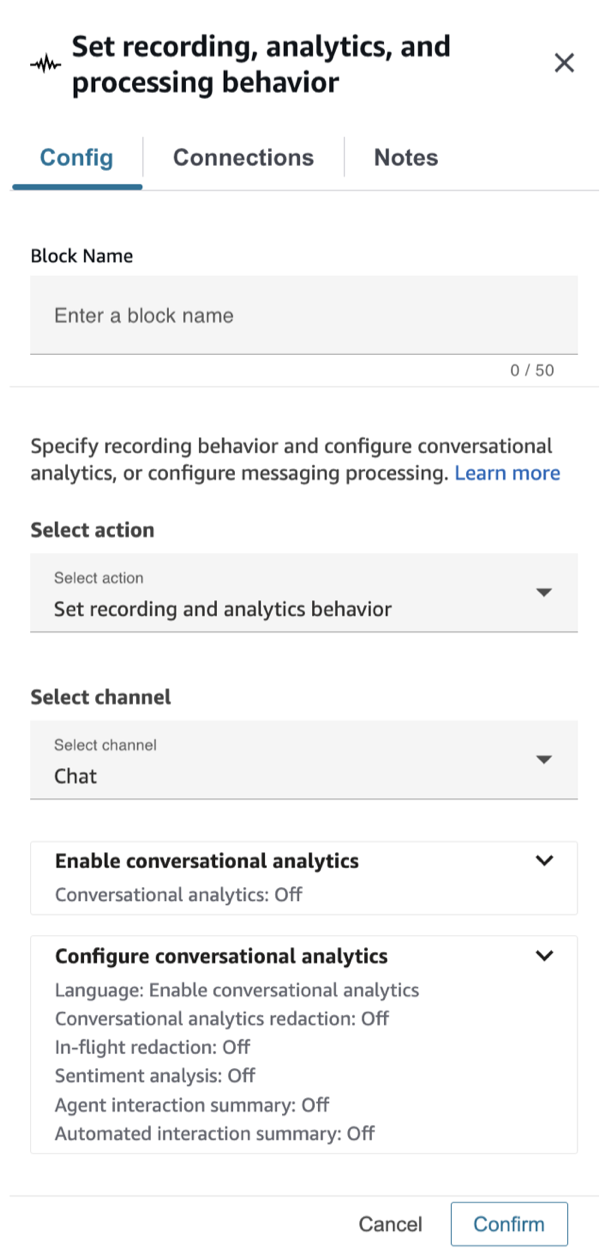
Once conversational analytics is enabled, you can configure settings such as language, redaction, and AI features (sentiment analysis, interaction summaries).
-
Language: You can dynamically enable the redaction of the output files based on the language of the customer. For instructions, see Dynamically enable redaction based on the customer's language.
-
Conversational Analytics Redaction: Choose whether to redact sensitive data. For more information, see Enable redaction of sensitive data.
-
In-flight Redaction: Choose whether to redact sensitive data from messages in-flight. For more information, see Enable in-flight sensitive data redaction and message processing.
-
Sentiment: Choose whether to enable sentiment analysis.
-
Generative AI capabilities: For more information, see View generative AI-powered post-contact summaries
As shown in the following image, when you select the Email channel, you can enable and configure conversational analytics for email contacts. Because email contacts are asynchronous, analysis is initiated when the email contact is received, rather than following the real-time and post-contact model used for voice and chat.

The email analytics settings include:
-
Language: Select the language of the email content. You can dynamically set the language using contact attributes. For instructions, see Dynamically enable redaction based on the customer's language.
-
Conversational Analytics Redaction: Choose whether to redact sensitive data such as names, addresses, and credit card information from the email transcript. For more information, see Enable redaction of sensitive data.
-
Generative AI capabilities: Enable contact summaries for email contacts. For more information, see View generative AI-powered post-contact summaries.
Note
Sentiment analysis is not available for email contacts at this time.
Voice
As shown in the following image, the voice settings are split into three sections: Enable recording, and Enable and configure conversational analytics.
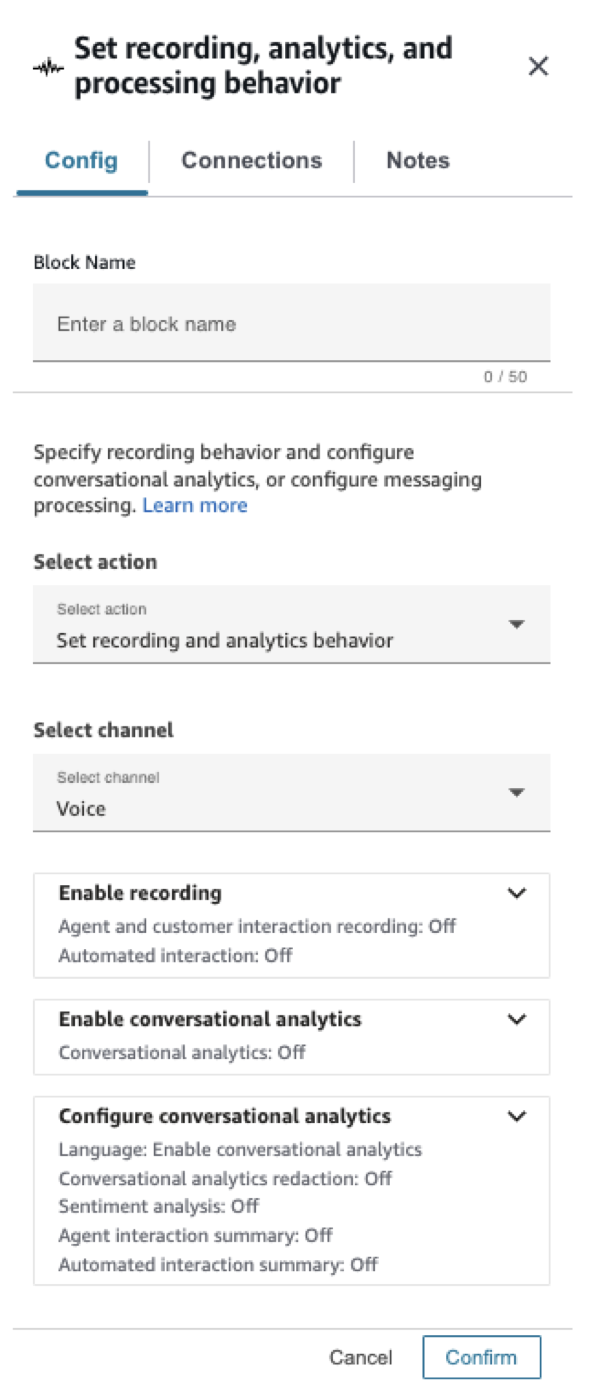
Recording settings:
-
Agent and customer voice recording: Choose who you want to record.
-
Speech analytics: Choose whether to use speech analytics on agent and customer recordings.
-
Automated interaction call recording: Choose whether to enable voice recording when the customer is interacting with bots and other automation.
Configuration:
-
Language: You can dynamically enable the redaction of the output files based on the language of the customer. For instructions, see Dynamically enable redaction based on the customer's language.
-
Conversational Analytics Redaction: Choose whether to redact sensitive data. For more information, see Enable redaction of sensitive data.
-
Sentiment: Choose whether to enable sentiment analysis.
-
Generative AI capabilities: For more information, see View generative AI-powered post-contact summaries
Note
To include Lex bot transcripts and analytics as a part of your Contact Details page and Connect Customer analytics dashboards:
-
In the Connect Customer console, choose the name of your instance. For instructions, see Find your Amazon Connect instance name.
-
On the navigation pane choose Flows, and then choose Enable Bot Analytics and Transcripts in Amazon Connect.
Screen recording
Though not a media channel, you can find this in the media channel dropdown of the block. You can configure this to enable or disable recording of the agent's screen. For more information, see Set up and review agent screen recordings in Amazon Connect Contact Lens.
Configuration tips
Note
The settings in the Analytics section are overwritten by each subsequent Set recording and analytics behavior block in the flow.
-
For calls: Unselecting Enable speech analytics on agent and customer voice recordings disables conversational analytics.
For example, let's say you have two Set recording, analytics and processing behavior blocks in your flow.
-
The first block has enabled real-time speech analytics on agent and customer voice recordings selected.
-
The second block later in the flow has it unselected.
In this case, the analytics appear only during the time analytics was enabled.
Another example: let's say you have two Set recording, analytics and processing behavior blocks in your flow.
-
The first block has Enabled post-call speech analytics on agent and customer voice recordings selected.
-
The second block later in the flow has it unselected.
In this case, since post call happens at end of call and the latest configuration doesn't have analytics enabled, no post-call analytics will be available.
-
-
For automated interaction call recording: Recording starts as soon as it is set to On. Later in the flow, if it is set to Off in a second block, recording is paused and can be turned on later to resume the recording.
Note
When a call is transferred by using the Transfer to phone number block, the recording continues.
-
For chat: Real-time chat starts analysis as soon as any block in the flow enables it. No block later in the flow disables the real time chat settings.
-
If an agent puts a customer on hold, the agent is still recorded, but the customer is not.
-
If you want to transfer a contact to another agent or queue, and you want to continue using conversational analytics to collect data, you need to add to the flow another Set recording, analytics and processing behavior block with Enable analytics turned on. This is because a transfer generates a second contact ID and contact record. conversational analytics needs to run on that contact record as well.
-
When you enable conversational analytics, the type of flow that the block is in, and where it is placed in the flow, determine whether agents receive the key highlights transcript, and when they receive it.
For more information and example use cases that explain how the block affects the agent's experience with key highlights, see Design a flow for key highlights.
Configured block
This block has three branches: Success, Error and Channel mismatch
The channel mismatch branch is taken if the media channel that begins the contact is not the same as the media channel selected in the block. In the case of screen recording, this branch is taken when the contact is not a voice contact.

In the case where Set recording and analytics behavior is selected as the action and Chat is selected as the media channel, there will be an additional branch called In-flight redaction configuration failed. This branch is taken if in-flight redaction fails to stop or start, but all other configurations are updated correctly.
When the Set message processor action is selected, the block shows three branches: Success, Error and Channel mismatch:

