Set the hours of operation and time zone for a queue using Connect Customer
This topic explains how to set hours of operating by using the Connect Customer admin website. To set hours programmatically, see Hours of operations actions.
The first thing you need to do when you set up a queue is to specify the hours of operation and timezone. The hours might be referenced in flows. For example, when routing contacts to agents, you might use the Check hours of operation block first, and then route the contact to the appropriate queue.

How many hours of operation and overrides can I create?
To view your quota of Hours of operation per
instance, open the Service Quotas console at https://console.aws.amazon.com/servicequotas/
Set the hours of operation
-
Log in to the Connect Customer admin website with an Admin account or an account that has Routing - Hours of operation - Create security profile permission.
-
On the navigation menu, choose Routing, Hours of operation.
-
To create a set of operating hours, choose Add new set of hours and enter a name and a description.
-
Choose Time zone and select a value.
-
Choose Operational hours to set new hours.
-
Optionally, in the Tags section, add tags to identify, organize, search for, or filter who can access this hours of operation record. For more information, see Add tags to resources in Connect Customer.
-
Choose Save.
-
Now you can specify these the hours of operation when you create a queue, and check them in the Check hours of operation block.
How to specify midnight
To specify midnight, enter 12:00AM.
For example, if you want to set your hours to 10:00AM to midnight, you would enter: 10:00AM to 12:00AM. Your call center would be open for 14 hours. Here's the math:
-
10:00AM-12:00PM = 2 hours
-
12:00PM-12:00AM = 12 hours
-
Total = 14 hours
Examples
Schedule for 24x7
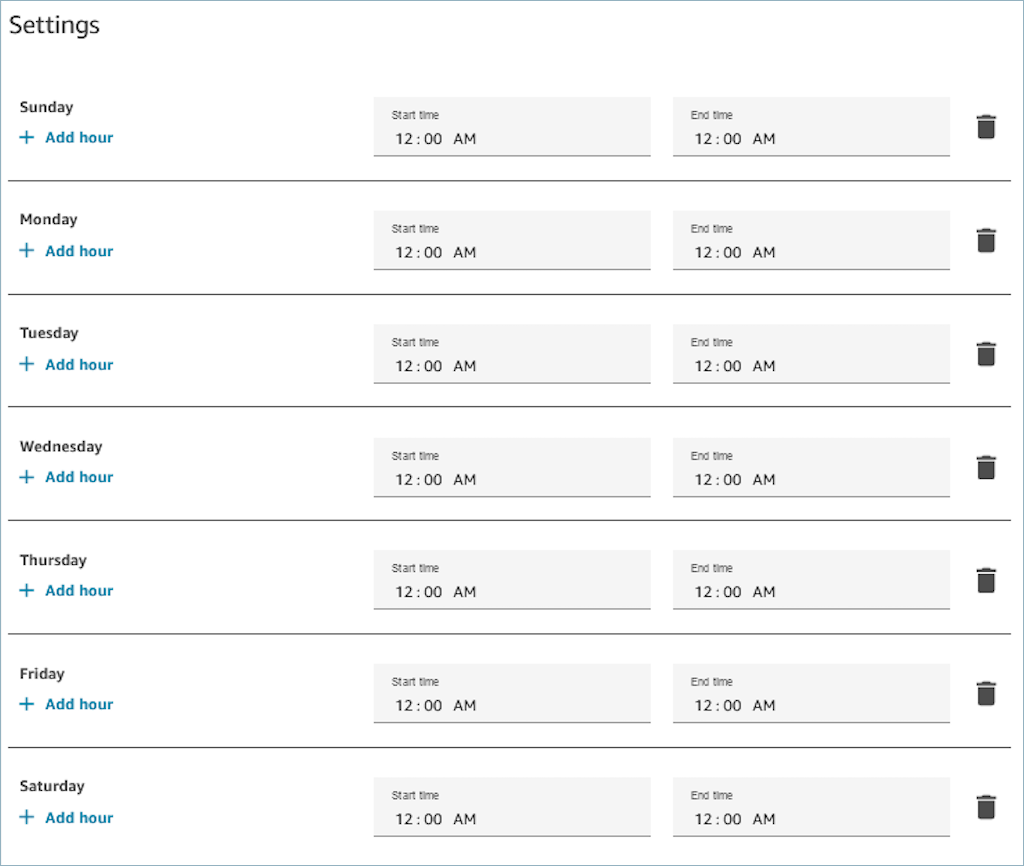
Schedule for Monday to Friday 9:00 AM to 5:00 PM
Select the button to Expand to individual days.
Remove Sunday and Saturday from the schedule.

Add lunch and other breaks
Select + Add more time at the bottom of the Operational hours section to create more rows, then set the hour ranges within each day. For example, if Saturday the hours are 8-11 then 12-5:

In most contact centers breaks are staggered. While some agents are at lunch, for example, others are still available to handle contacts. Instead of specifying this in the hours of operation, you add custom agent statuses that appear in the agent's Contact Control Panel (CCP).
For example, you might create a custom status named Lunch. When the agent goes to lunch, they change their status in the CCP from Available to Lunch. During this time, no contacts are routed to them. When they return from lunch and are ready to take contacts again, they change their status back to Available.
Supervisors can change an agent's status using the real-time metrics report.
For more information, see these topics:
What happens during daylight saving time
Connect Customer uses the timezone to determine whether daylight saving time is in effect for the queues, and adjusts automatically for all timezones that observe daylight saving time. When a contact comes in, Connect Customer looks at the hours and timezone of your contact center to determine whether the contact can be routed to the given queue.
Important
Connect Customer provides options for EST5EDT, PST8PDT, CST6CDT, and more. For example, EST5EDT is defined as:
Eastern Standard
Time (EST)
Eastern Daylight
Time (EDT)
We recommend researching your choice of timezone to make sure you understand it.
Example
-
A person initiates a call or chat with your contact center.
-
Connect Customer looks at the hours of operation for your call center right now.
-
The contact is from timezone A.
-
Your call center's hours are 9 AM - 5 PM in timezone B.
-
If the current time in timezone B is 2 PM then the call or chat is queued.
-
If the current time in timezone B is 7 AM then the call or chat is not queued.
-
How flows use hours of operation
Flows can be configured to check whether a contact is within or outside the hours of operation defined by the block. The flow can then branch to follow a different path based on the results, for example, so a message plays after hours that offers a callback when operations resume. To learn more, go to Check hours of operation.
