Performance evaluations of self-service interactions in Connect Customer
Connect Customer provides you with the ability to automatically evaluate the quality of self-service interactions and get aggregated insights to improve customer experience. Managers can define custom criteria to assess the quality of self-service interactions, that can be filled manually or automatically using insights from conversational analytics, and other Connect Customer data. For example, you can automatically assess if the AI agent repeatedly fails to understand the customer, resulting in poor customer sentiment and transfer to a human agent. Managers can review these insights in aggregate and on individual contacts, alongside self-service interaction recordings and transcripts, to identify opportunities to improve bot or AI agent performance.
Note
Performance evaluations of self-service interactions is only available as part of
Connect Customer (with unlimited AI). For more information, see Connect Customer pricing
To automatically evaluate self-service interactions, you need to first Enable conversational analytics in Connect Customer conversational analytics (automated interactions include self-service and post-call workflows like surveys). Performance evaluations can evaluate the entire self-service interaction, irrespective of whether it's handled by touch tone, Lex bots, Connect Customer AI agents or custom bots within Connect Customer. The steps to set up automated evaluations of self-service interactions are as follows:
After setting up automation on an evaluation form (step 2), you can use the same form for AI-assisted (human-in-the loop) evaluations. You can manually start an evaluation at which point AI fills the answers automatically. You can then review or revise answers before submission. With this approach, you can also test and optimize automation before you set up rules to automatically submit evaluations (step 3).
Step 1: Create a draft evaluation form
You can define custom criteria to evaluate self-service interactions. These criteria can measure self-service resolution, customer experience or bot/AI agent behaviors. To evaluate self-service interactions, set Contact interaction type as automated interaction under additional settings:
How to set the contact interaction type
When creating or editing an evaluation form, choose Additional settings, then under Contact interaction type, select Automated interaction. If you do not set this, the form defaults to agent interaction and cannot be used to evaluate automated (self-service) contacts.

An example evaluation form is as follows:
- Section 1: Self-service success
-
-
1.1 Was the contact handled during self-service, without transferring to a human agent? (Single selection)
-
1.2 Was the customer able to self-serve at least one of their needs? (Single selection)
-
- Section 2: Customer experience
-
-
2.1 What was the overall customer sentiment score during self-service? (Number)
-
2.2 Did the customer express frustration during self-service? (Single selection)
-
- Section 3: AI agent behaviors
-
-
3.1 Did the AI agent fail to understand the customer and asked them to repeat themselves? (Single selection)
-
3.2 Was the AI agent rude or aggressive towards the customer at any point? (Single selection)
-
For additional details, see Create an evaluation form in Connect Customer.
Step 2: Set up automation
You can automatically fill evaluations of self-service interactions using integrated generative AI within evaluation forms, rules and integrated metrics such as customer sentiment.
Automation using integrated generative AI
Type in the question, questions instructions and answer options to be used by AI for evaluating performance of self-service interactions. Under Automation for a question, select Option 3: Generative AI. The AI interprets the text of the question, question instructions, and analyzes the self-service interaction transcript to fill one of the answer options.
Use @ to enter keywords that generative AI can understand - the words system, AI agent and bot refer to any non-human participant that is interacting with the customer. You can use these words interchangeably.

Automation using rules
Start with setting up a rule:
-
On the navigation menu, choose Analytics and optimization, Rules.
-
Select Create a rule, Conversational analytics.
-
Under When, use the dropdown list to choose post-call analysis or post-chat analysis.
Example rules that you can create:
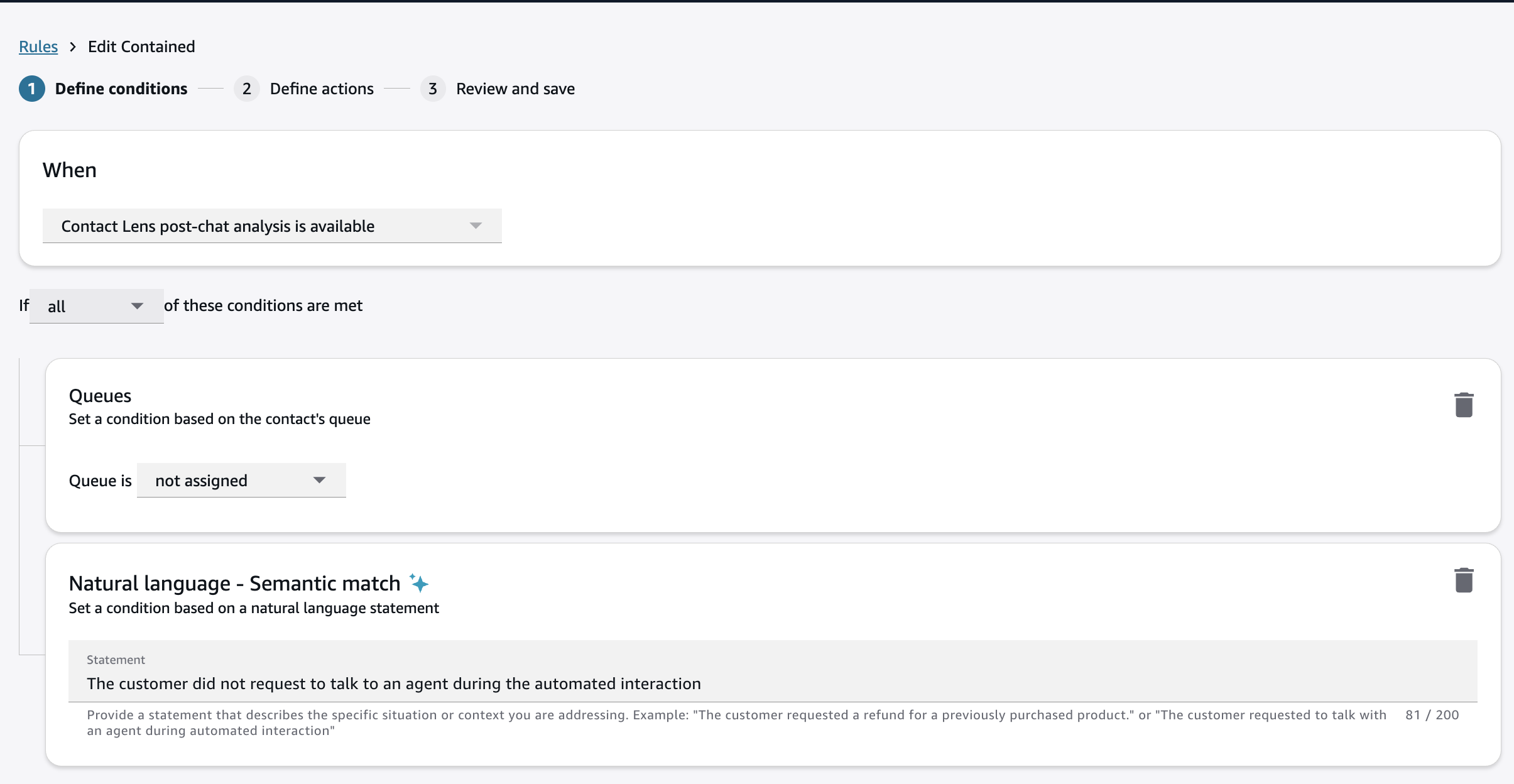
- Self-service containment
-
-
Add a new condition checking that the queue was not assigned and the contact was handled during the automated interaction.
-
You can also use natural language intent to confirm that the customer did not request for a human agent during the automated interaction with the Lex bot or AI agent.
Note
Connect Customer understands the following keywords within semantic match rules:
-
System: Denotes a bot or AI agent
-
Agent: Refers to the human agent
-
Customer: The person interacting with the contact center
-
Automated interaction: Part of the customer interaction where human agent was not present on the conversation, including self-service interaction with bot or AI agent, and wait time in the queue
-
Human agent interaction: Customer interaction with the human agent
-
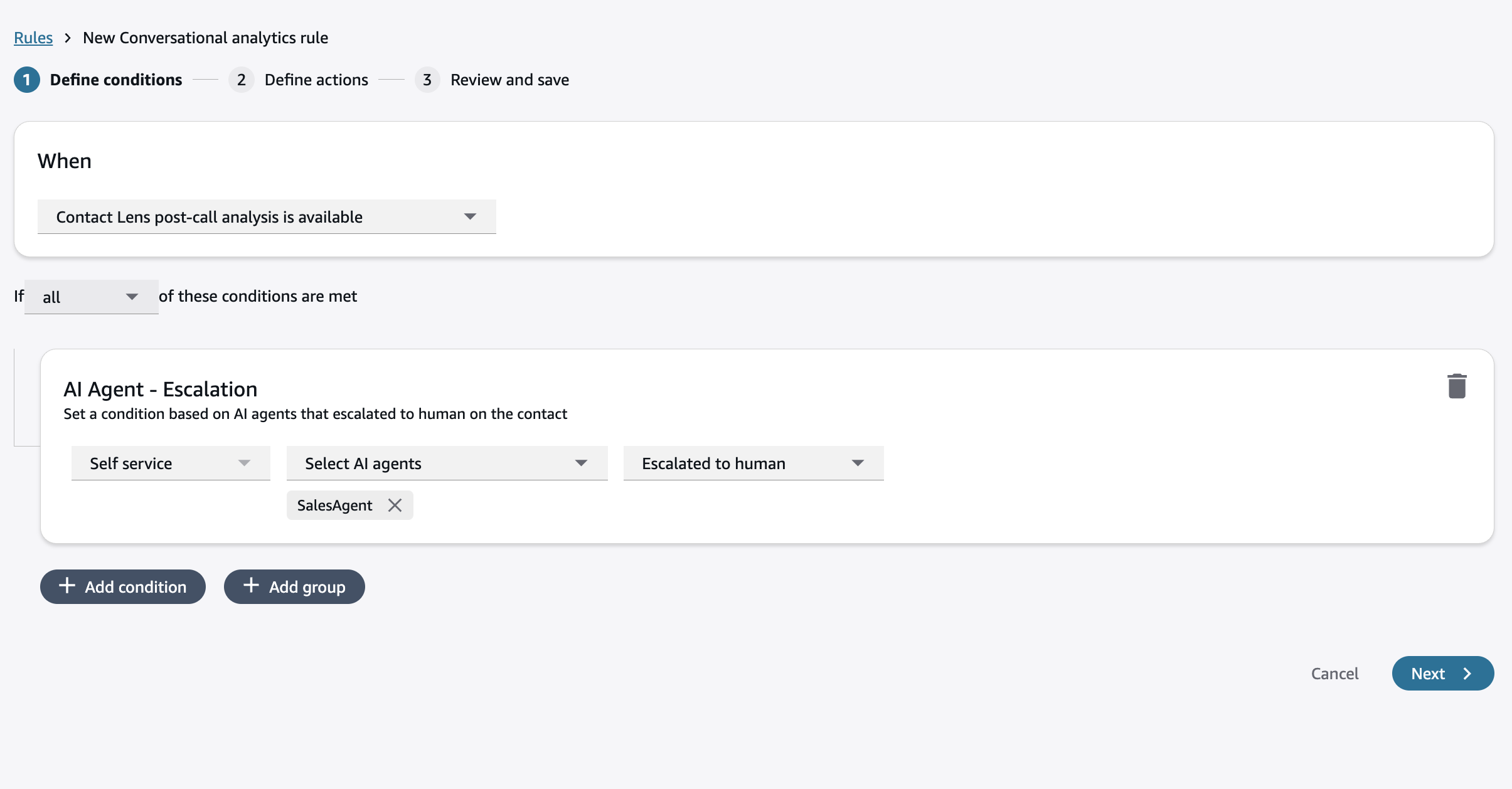
If you are using a Connect Customer AI agent, you can also check if the AI agent for self-service escalated to a human or not.
-
- Self-service success for at least one intent
-
Create a rule using natural language - semantic match condition:
"During the automated interaction, the system successfully fulfilled at least one of the customer requests, such as providing information or completing another service request."
- Bot/AI agent failing to understand the customer
-
Create a rule using natural language - semantic match condition:
"The system failed to understand the customer and asked the customer to repeat themselves."
- Customer expressed frustration
-
Create a rule using natural language - semantic match condition:
"Customer expressed frustration during the automated interaction."
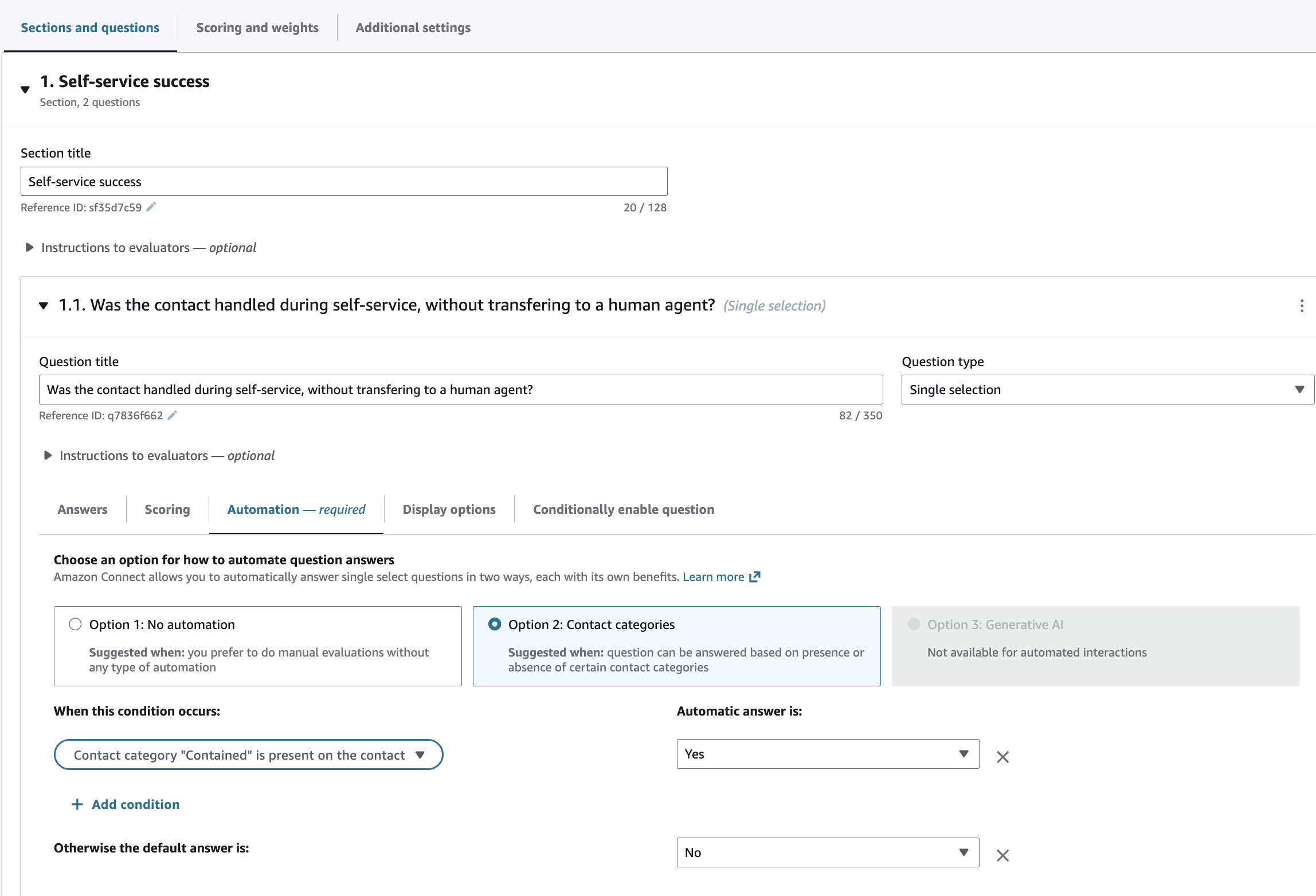
After you set up a rule you can use it to answer single selection or multiple selection questions in your evaluation form. For example, if you created a rule to check for self-service containment, then you can use that to answer a question on whether the contact was handled during self-service.
Automation using metrics
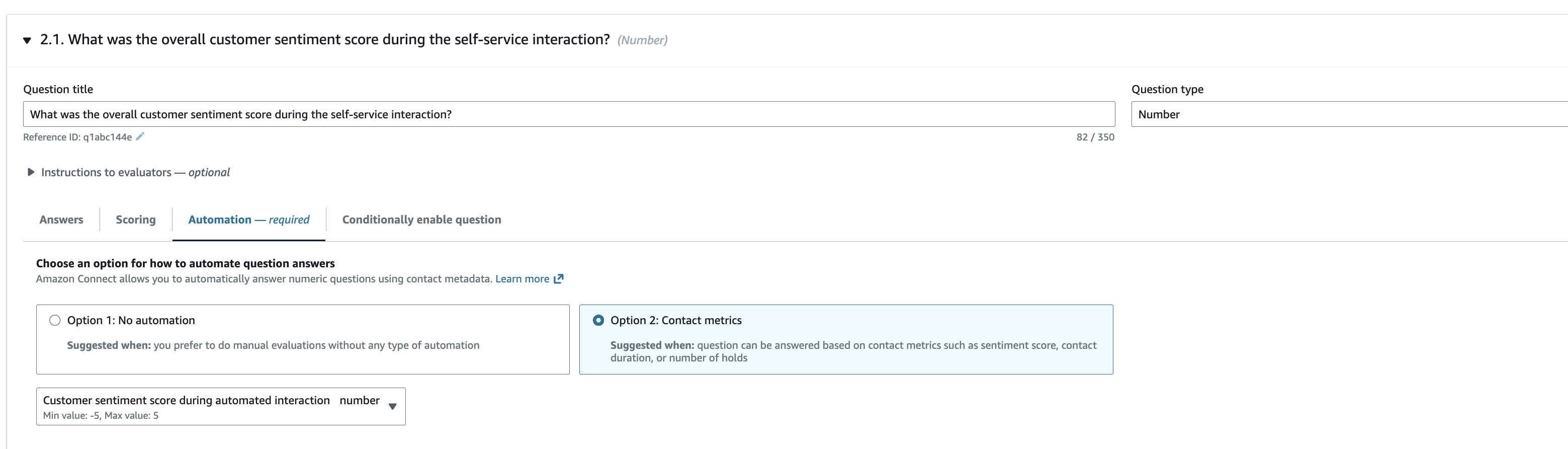
You can use contact metrics to automatically answer questions on the self-service experience. For example, you can check for customer sentiment during the automated interaction. To use metrics, make sure that the Question Type is chosen as Number.
After you have set up automation on every question, you toggle on Enable automated submission of evaluations and activate the form. You would then be guided to create a rule to automatically submit the evaluation form.
For additional details, see Step 6: Enable automated evaluations.
Step 3: Set up a rule to automatically submit evaluations of self-service interactions
You can use the following conditions to identify specific self-service interactions.
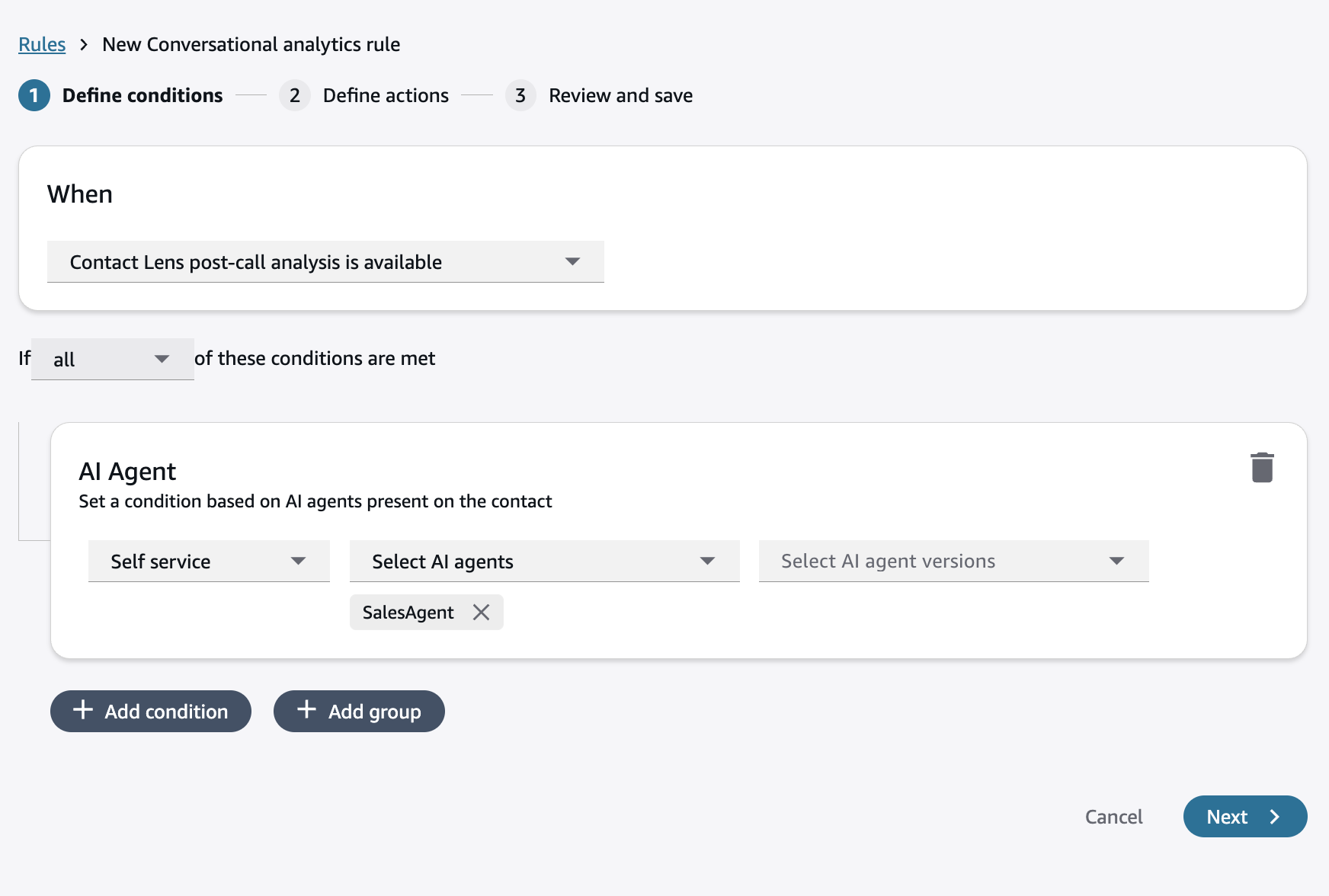
- AI Agent
-
To trigger a self-service interaction evaluation, you can identify if specific AI agent(s) were active on the contact. You can also check for a specific AI agent version.
- Custom contact attributes and contact segment attributes
-
You can also use custom contact attributes and contact segment attributes set within flows to identify specific workflows, bots, customer intents or outcomes. For example, you might set a contact attribute within flows,
pizzaOrderBot = trueif a Lex bot called "Pizza Order Bot" is invoked during the conversation.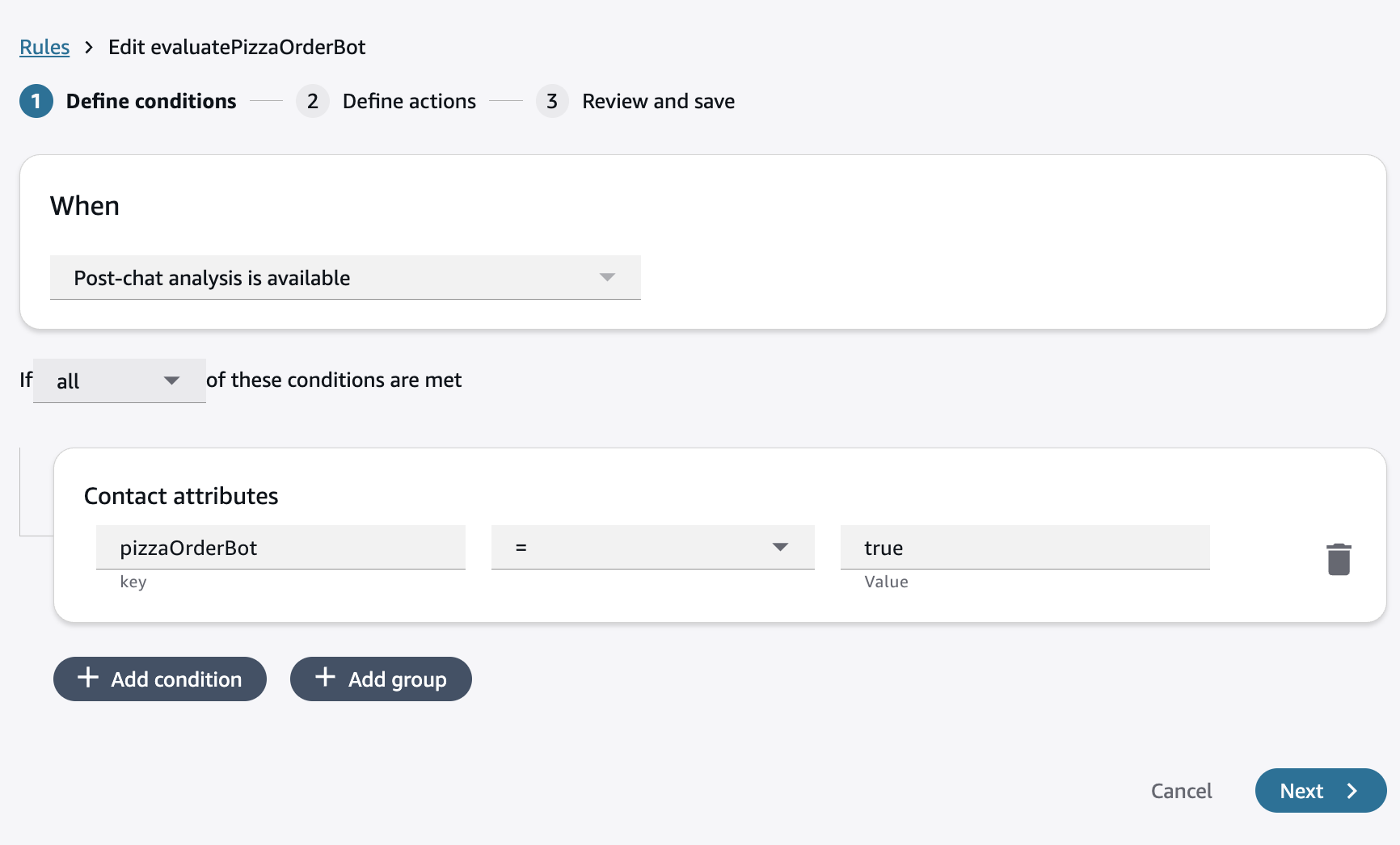
After you have defined conditions:
-
On the Define actions page, provide a category name to identify the rule.
-
Choose Add action, select Submit automated evaluation, and select the form that you want to use for automatically submitting an evaluation. (This action is already selected on the page if you created the rule when you activate the form.)
For more information, see Create a rule in conversational analytics that submits an automated evaluation.
