Evaluate agent and self-service interaction performance in Connect Customer
Tip
New user? Check out the Connect Customer
Contact Lens Workshop
IT administrators: To enable Connect Customer evaluation capabilities, navigate to the Connect Customer console, choose your instance alias, choose Data storage, Content evaluations, Edit. You'll be prompted to create or choose an S3 bucket. After the bucket is created, you can store evaluations and export them.
With Connect Customer performance evaluations, you can define custom performance evaluation criteria to assess, monitor and improve how agents and automated systems (bots, AI agents) interact with customers and resolve issues. You can then monitor performance by reviewing aggregated insights in dashboards, and drill-down into individual contacts where you can see evaluations alongside recordings, transcript, conversation summaries and analytics in a single view. With integrated coaching, you can provide feedback to agents highlighting their strengths and opportunities to improve.
You can perform manual evaluations for all contact types (voice, chat, email, and task). You can perform automated interactions for voice and chat contacts analyzed by Connect Customer conversational analytics. You can perform automated evaluations of both agent interactions and automated interactions (handled by bots or AI agents). For more details on automated evaluations, see Step 6: Enable automated evaluations.
To perform manual evaluations, you can search for a contact, choose the appropriate evaluation form, review the contact audio, screen recording or transcript, and then evaluate how the human, AI agent, or bot interacted with the customer. You can then use those insights to improve the customer experience by providing agent coaching feedback and optimizing bots, AI agents and self-service workflows.
To evaluate performance
-
Log in to Connect Customer with a user account that has permissions to perform evaluations.
-
Access the contact that you want to evaluate. There are a few ways you can do this. For example, someone might have shared the contact URL with you, or assigned you a task that has the URL. Or, you might have the contact ID, which you can use to search for the contact record by doing the following: on the navigation pane, choose Analytics and optimization, Contact search, and then search for the contact that you want to evaluate.
-
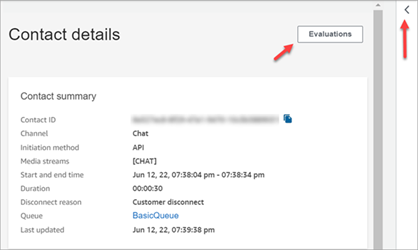
On the Contact details page, choose Evaluations or the < icon.
-
The Evaluations panel lists any evaluations that are in progress or completed for the contact.

-
To start an evaluation, choose an evaluation form from the dropdown menu, and then choose Start evaluation. If you have not set up an evaluation form yet, then you will need to do so beforehand. For more information, see Create an evaluation form.
-
To navigate an especially long evaluation form, use the arrows next to each section to collapse or expand it.

-
Choose Save to save a form in progress. The status of the form becomes Draft. You can return to it any time to continue, or you can delete it and start over.

-
When you're done, choose Submit. If you have skipped optional questions in the form, you will see a warning asking you to confirm that you want to submit the evaluation. Choose Yes. The evaluation is now Completed.

