Request reviews of (appeal) performance evaluations in Connect Customer
When an agent performance evaluation is submitted, you can automatically notify the agent to review their evaluation. For example, you can set up a rule to send an email to the agent when an evaluation is available. After they have reviewed an evaluation, they can acknowledge the evaluation. If they disagree with the feedback within an evaluation, they can request a review of (appeal) performance evaluations. When a review is requested, designated managers are automatically notified through email. They can then revise the evaluation or add additional notes that justify the original evaluation, before completing the review. Upon completion, the user who had requested the review and the agent evaluated is notified through email.
How do I enable review requests (appeals)?
With Connect Customer, you can specify which evaluation forms support review requests. To enable review requests on an evaluation form:
-
Log in to Connect Customer with a user account that has the following security profile permission: Analytics and Optimization - Evaluation forms - manage form definitions - Create
-
Choose Analytics and optimization, then choose Evaluation forms.
-
Open an existing form by choosing on the hyperlink for the Last version or create a new evaluation form.
-
Choose the Additional settings tab
-
Choose Allow review requests
-
You can specify the time window till when a review can be requested on an evaluation. The time window is measured from the time of the original submission of an evaluation.
-
You can also choose one or more recipients who will be notified through email when a review is requested. The email has a link to the contact with the evaluation for which a review is requested. For the users to receive emails on a SAML authenticated instance, the secondary email needs to be provided within the user's profile in Connect.
-
After you Activate the form, subsequent evaluations performed using the form will support review requests.

Who can request reviews of an evaluation?
For users to request reviews of evaluations, they should have the permissions: Evaluation forms - request evaluation reviews - Create and View, in addition to access to the underlying contacts and evaluations. Permissions to request reviews can be granted to agents, or their supervisors, who can request evaluation reviews from the quality management team on the behalf of their agents. Supervisors granted the permission to request evaluation reviews can request review on any evaluation that they can access.
Users granted the permission Evaluation forms - request evaluation reviews - Delete permission can delete a request before the review has started.
Who can review an evaluation?
Users with the permission Evaluation forms - review evaluations - Create and View permissions can perform reviews. If certain personas need to be consulted on reviews, but should not be granted permissions to perform reviews themselves, then you can grant them Evaluation forms - review evaluations - View permissions.
Requesting a review
-
On the Contact details page, open a completed evaluation for which you want to request a review
-
Select request a review at the bottom of the evaluation
-
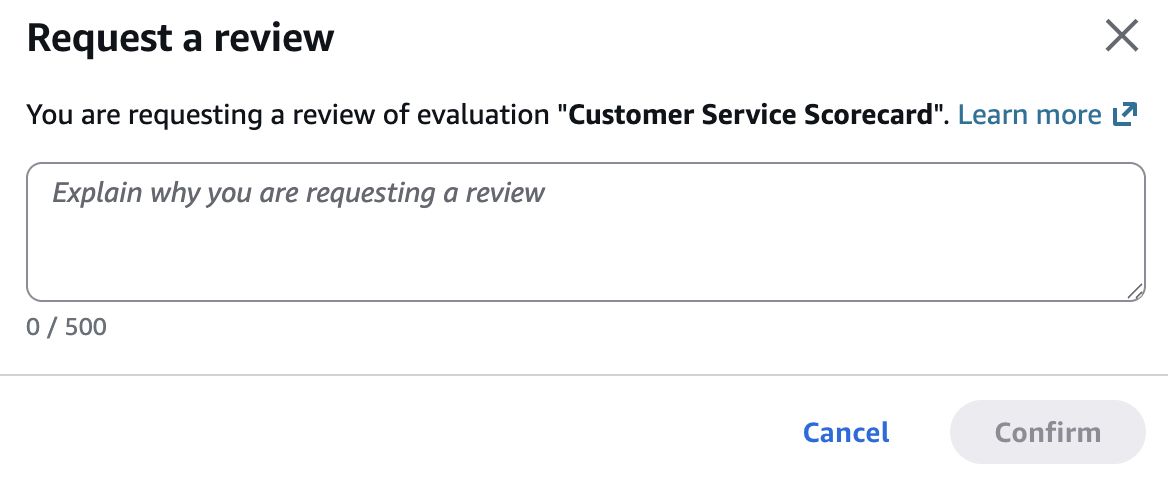
Explain why you are requesting a review (you cannot leave this blank). Choose confirm
-
The evaluation will show under Review requested on the evaluations pane
-
You can cancel a request if the review is yet to be started


Searching for pending reviews
As described previously, you can configure in the evaluation form, who would be automatically notified through email if a review is requested. These notification emails contain links to contacts with evaluations for which a review is requested. Additionally, users with appropriate permissions can search for contacts with evaluations for which a review is requested or which are already under review:
-
Log in to Connect Customer with a user account that has permissions to access contact records and the Evaluation forms - perform evaluations permission.
-
On the navigation bar, choose Analytics and optimization, Contact search.
-
Use the time range filter to search for contacts from the relevant time window, for example, last month.
-
Use the evaluation status filter with the value Review requested to search for contacts with evaluations where a review has been requested, and is yet to be picked up for review
-
Use the evaluation status filter with the value Under review to search for contacts with evaluations that are picked up for review

Starting and completing reviews
-
Open the evaluations pane on the Contact details page.
-
Choose an evaluation listed under Review requested.
-
Choose Start review.
-
The original evaluation is listed under Under review and can be viewed by choosing on it.
-
The in-progress review is listed under Evaluation reviews. Users with the Evaluation forms - review evaluations - Create permissions can make edits to the evaluation such as changing answers, amending the notes. You can Save your review at anytime and choose Resolve review to finalize the review.
-
This will send an automated email notification to the user who had requested the review.

