Enable Connect Customer conversational analytics integration
After you create a conversational analytics connector, you need to enable the integration by assigning users security profile permissions so they can access it on the Connect Customer admin website.
-
Log in to the Connect Customer admin website at https://instance name.my.connect.aws/ using an Admin account.
-
On the navigation bar, choose Security profiles. On the Manage security profiles page, choose Admin, Edit.
-
On the Edit security profile page, choose Channels and Flows - AnalyticsConnectors - View and Edit permissions, and then choose Save.
Important
If you don't see the conversational analytics connectors permission under Channels and Flows, request service quota increases for the following quotas in your Connect Customer account:
-
Conversational analytics connectors per account
-
Maximum active recording sessions from external voice systems per instance
-
-
Assign this permission to the security profiles for users who you want to access the conversational analytics connectors.
Note
You can only delete the last conversational analytics connector in your Connect Customer instance when the access to the conversational analytics connector is removed from the users of that instance.
If you attempt to delete the last conversational analytics connector without first removing the conversational analytics connectors access from the users of that instance, the following error message is displayed: error - Failed to delete connector {connector-name} with error: An analytics connector permissions is being used in a security profile.
-
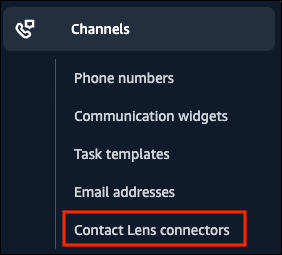
After you apply the permission, users who have it will be able to see the conversational analytics connectors option in the Connect Customer admin website left navigation menu, as shown in the following image.
-
You're done enabling the conversational analytics connector. Continue to the next step: associate a conversational analytics connector with a flow.
